The Message System – Reference (Teacher)
TABLE OF CONTENTS
- 1 Overview
- 2 Prerequisites
- 3 Getting Started
- 4 Core Features and Functions
- 5 Step-by-Step Workflows
- 6 Technical Information
- 7 Troubleshooting
- 8 Related Features
- 9 Additional Resources
1 Overview
The Messages feature in itslearning enables real-time communication between teachers, students, and administrators. Teachers and administrators can moderate conversations by deleting messages, removing participants from group chats, and managing course conversations. Students can report abusive messages to teachers for review. All users with appropriate course permissions can access messages through the chat bubble icon in the main menu.
Note: Teachers and admins can only moderate conversations they are part of. Private conversations between students cannot be accessed or moderated unless reported.
2 Prerequisites
Prerequisite: An active itslearning user account is required. Course enrolment is required for course-specific messaging. Moderation features (deleting messages, removing participants) require a teacher or admin role. Sending mass messages requires the mass messaging privilege, which is granted by an administrator.
3 Getting Started
3.1 Accessing the Messages Panel
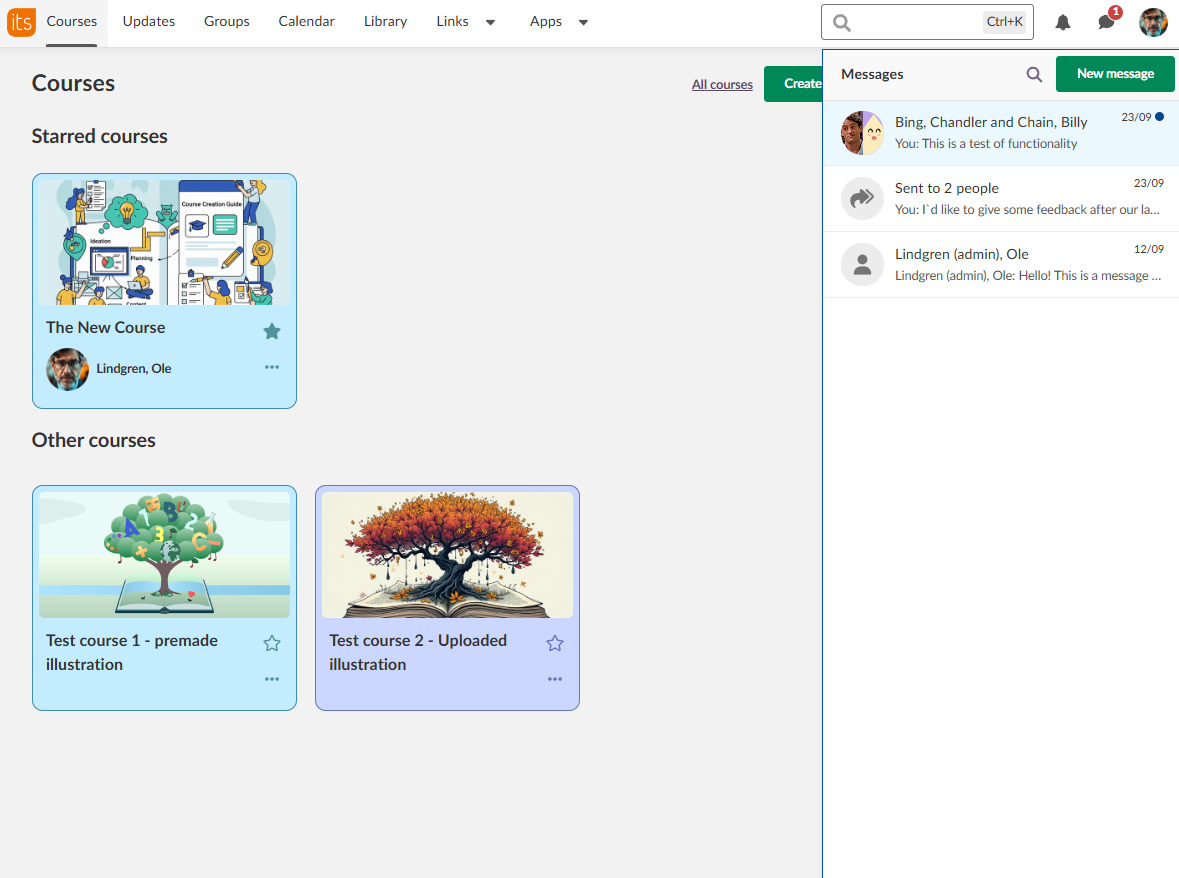
Click the chat bubble icon in the main menu (top right of your screen) to access messages. A badge on the icon displays the number of unread messages.
The messages panel opens as a slide-in panel showing your conversation list.
3.2 Understanding the Interface
Main menu icon: Chat bubble with an unread message count badge.

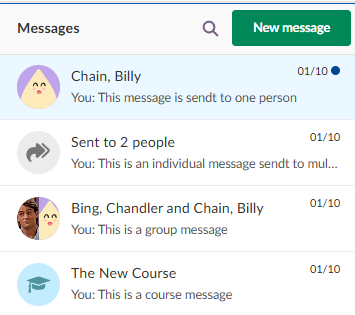
Messages panel: Displays all conversations with the following information for each entry:
- Icon or avatar indicating the conversation type
- Conversation name or participant names
- Preview of the last message (one line)
- Timestamp of last activity
- Visual indicator for unread messages
New message button: Green button used to start new conversations.
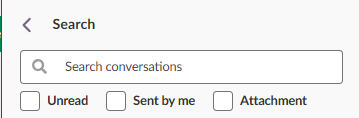
Search field: Search across all conversations or within a specific conversation.

4 Core Features and Functions
4.1 Conversation Types
itslearning supports five conversation types:
| Type | Description |
|---|---|
| 1:1 conversation | Direct messages between two people. |
| Group conversation | Manually created groups with multiple participants. All members can see all messages. |
| Course conversation | Automatically includes all current course participants. New students joining the course are added to the conversation automatically. |
| Project conversation | Messages within project groups. |
| Individual messages to multiple people | Creates a separate 1:1 conversation with each recipient. Appears as "Sent to X people" in the conversation list. |
4.2 Conversation Settings
Access conversation settings by clicking the settings icon (gear symbol) within any conversation.
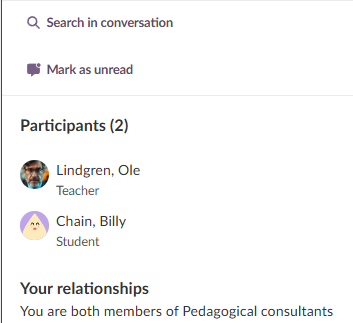
Available for all conversations:
- Search in conversation
- Mark as unread
- View participants (avatar, name, title, role)
- Your relationship with the participant (for example, courses where you are the teacher)
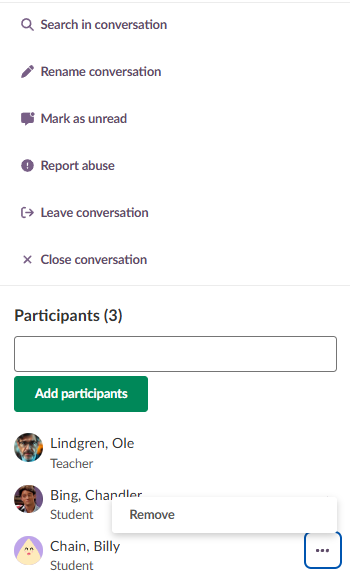
Additional options for group conversations:
- Rename conversation
- Report abuse
- Leave conversation
- Close conversation
- Add participants
- Remove participants
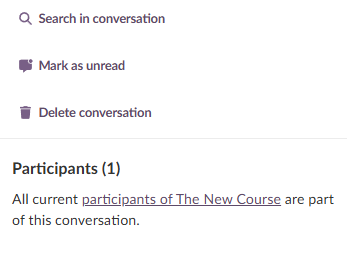
Additional options for course conversations:
- Close conversation
- Delete conversation (teachers and admins only)
- Link to course participant page
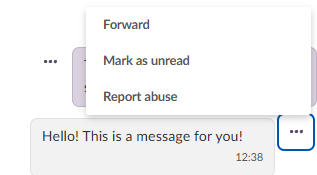
4.3 Message Options
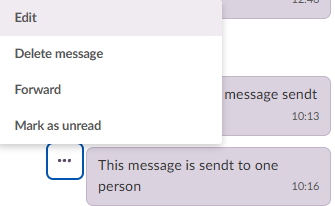
Click the three-dot menu (⋯) on any message to access message-level options.
For your own messages:
- Edit
- Delete message
- Forward
- Mark as unread
For messages from others:
- Forward
- Mark as unread
- Report abuse
5 Step-by-Step Workflows
5.1 Starting a New Conversation
- Click the chat bubble icon in the main menu.
- Click New message (green button).
- In the Add recipients field, search for an individual person by name, a course name, or a project name.
- Select recipients from the search results.
- For multiple recipients, choose:
- Group conversation for a shared discussion where all recipients can see each other's messages
- Individual messages for separate 1:1 conversations with each person
- Type your message in the text field.
- Click the paperclip icon to attach a file (optional).
- Click the green arrow button to send.
Note: For a quick start guide with annotated screenshots, see Messages – Getting Started.
5.2 Sending Messages and Files
- Open an existing conversation or start a new one.
- Type your message in the Write message to… field.
- To attach a file, click the paperclip icon and select a file from your device. The maximum file size is 20 MB.
- Click the green arrow button to send.
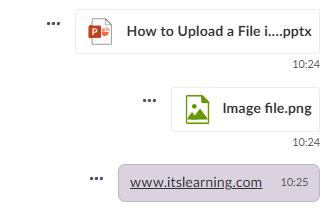
Note: Files can be sent without accompanying text. Web links in messages are automatically displayed as clickable blue links. If a file format is not supported, the system displays: "Sorry, you can't send (name of file)".
5.3 Managing Group Conversations
To add participants:
- Open the group conversation.
- Click the settings icon (gear symbol).
- In the Participants section, type a name in the search field.
- Click Add participants (green button). The selected person joins the conversation immediately.
To remove participants (teachers and admins):
- Open the group conversation.
- Click the settings icon.
- Scroll to the Participants list.
- Click the three-dot menu (⋯) next to the participant.
- Select Remove. The participant is removed from the conversation immediately.
Note: Teachers who join a conversation via a reported message are not formal participants and cannot be removed from the participants list.
5.4 Searching for Messages
To search within a single conversation:
- Open the conversation.
- Click the settings icon.
- Select Search in conversation.
- Enter a search term. You can search for text content, attachment names, or links.
- Review the search results.
To search across all conversations:
- From the messages panel, use the search field at the top.
- Enter a search term.
- Review the matching conversations.
Note: The following cannot be searched: emojis, weekly course updates, mass message conversations, and specific people (not currently supported).
5.5 Deleting Messages (Teachers and Admins)
- Locate the message to delete.
- Click the three-dot menu (⋯) on the message.
- Select Delete message.
- Confirm the deletion when prompted.
All participants see the notice: "This message was removed by [Teacher Name]". The message content is permanently deleted.
Note: Reporter identity remains anonymous except in 1:1 conversations.
5.6 Removing Users from Conversations
Prerequisite: Teacher or admin role required. You must be a participant in the conversation. This option is only available in group conversations, not course conversations.
- Open the group conversation.
- Click the settings icon (gear symbol).
- Scroll to the Participants section.
- Click the three-dot menu (⋯) next to the user.
- Select Remove. The user is removed immediately and can no longer send or receive messages in that conversation.
5.7 Managing Course Conversations
To close a course conversation:
- Open the course conversation.
- Click the settings icon.
- Select Close conversation.
- Confirm the action.
All participants see a "Closed conversation" status. No new messages can be sent, but the conversation history remains visible. The conversation can be reopened from settings.
To delete a course conversation (teachers and admins):
- Open the course conversation.
- Click the settings icon.
- Select Delete conversation.
- Confirm the deletion.
Participants can view the conversation history but cannot send new messages. A new course conversation can be started at any time.
Note: If the conversation was previously reported, the teacher can restore it by accessing the original report.
6 Technical Information
6.1 SignalR Real-Time Updates
itslearning uses SignalR technology to deliver messages in real time. Conversations update automatically when new messages are sent, participants are added or removed, messages are edited or deleted, or conversation settings change. No page refresh is required.
6.2 File Attachment Limitations
The maximum file size per attachment is 20 MB. Multiple files can be attached to a single message. Files can be sent without accompanying text. All conversation participants can view and download attachments, which are displayed with a file icon and filename. If a file format is not supported, the system displays: "Sorry, you can't send (name of file)".
6.3 Large Course Restrictions
A limit of 300 participants applies to individual messaging. When a course or group exceeds 300 participants, individual messages are not possible and only group messages or course conversations can be used.
| Scenario | Individual/Group option available | Outcome |
|---|---|---|
| 1 individual participant selected | No | Treated as group conversation |
| 2 or more individual participants selected | Yes | Choose group or individual |
| Course or project with ≤300 participants | Yes | Choose group or individual |
| Course or project with >300 participants | No | Course conversation only |
| Course or project with >300 participants plus additional recipients | No | Error: cannot send to more than 300 recipients |
| Combined unique participants exceed 300 | Yes | Error displayed after sending attempt |
6.4 Disabled Messaging Feedback
Administrators can disable messaging for specific users or groups. When a teacher attempts to message a user with messaging disabled, the system provides feedback explaining why the message cannot be delivered.
| Context | Feedback provided |
|---|---|
| 1:1 messages | Notification that the message cannot be delivered |
| Group conversations | Information that the user cannot participate |
| Course conversations | Feedback about the user's inability to receive messages |
6.5 Mass Messaging
Mass messaging allows administrators to send one-way messages to members of their hierarchies.
Admin setting: Administration > Mass messaging
Note: In the instant messaging interface, the direct link to mass messaging has been removed from the messages panel. Access mass messaging through New Message or the Administration menu. Mass messages appear in the messages panel with a distinctive avatar icon.
7 Troubleshooting
7.1 Common Issues
Cannot find a specific conversation
- Use the search field in the messages panel.
- Check whether the conversation was closed or deleted.
- Verify you are searching in the correct account or course.
- Check whether a participant left the conversation.
Badge shows an incorrect number of unread messages
- Open each conversation with an unread indicator and scroll through to mark messages as read.
- Refresh your browser if the badge does not update.
- Log out and log back in if the issue persists.
Cannot send a message to a specific user
- Check whether the user has messaging disabled. You will receive a notification if so.
- Verify the user is enrolled in the relevant course.
- Confirm that communication rules allow messaging this person.
- Check whether you have the appropriate permissions.
7.2 Message Delivery Problems
Message failed to send
| Cause | Solution |
|---|---|
| No internet connection | Check your network connection and retry. |
| File exceeds 20 MB | Reduce the file size or use an alternative sharing method. |
| Unsupported file format | Convert the file to a supported format. |
| Recipient has messaging disabled | Use an alternative communication method. |
| Course exceeds 300 participants | Use the course conversation instead of individual messages. |
File attachment will not upload
- Verify the file size is under 20 MB.
- Check that the file format is supported.
- Try converting the file to a different format.
- For larger files, use course resources as an alternative.
- Split large files into smaller parts if necessary.
7.3 Performance Issues
Messages not updating in real time
- Refresh your browser.
- Check your internet connection stability.
- Disable browser extensions that might block SignalR.
- Clear the browser cache.
- Try a different browser.
Conversation loads slowly with many messages
- Use the search function to locate specific content instead of scrolling.
- Close and reopen the conversation.
- Consider starting a new conversation for new topics.
- Report persistent performance issues to itslearning support.
8 Related Features
| Article | Description |
|---|---|
| Messages – Getting Started | Quick start guide for first-time users of the Messages feature. |
| Announcements | Alternative tool for course-wide notifications that does not require recipients to be online. |
9 Additional Resources
Service Status
Check the current status of itslearning services.
https://status.itslearning.com/
Ideas Portal
Submit ideas and help shape the future of itslearning.
https://ideas.itslearning.com/
Roadmap
View the itslearning product roadmap.
https://itslearning.com/global/roadmap/