Hierarchy – Reference (Sysadmin)
TABLE OF CONTENTS
- Introduction
- 1 Adding a hierarchy
- 2 Deleting a hierarchy
- 3 Initial setup for recommended structure
- 4 Organising the students
- 5 Organising the parents
- 6 Teacher and staff hierarchy management
- 7 Hierarchy roles
Introduction
A hierarchy is the organisational structure of a school or district. The school or district itself is at the top of the hierarchy, with sub-hierarchies added for schools, users, classes, and courses. As users are added to a site, they are assigned to a hierarchy, providing a structured and searchable organisation. Users can be sorted and searched by hierarchy.
Different hierarchy types are represented by icons in the hierarchy tree:
| Icon | Hierarchy type |
|---|---|
 | Site (organisation level). |
 | School |
 | Classes, courses, and other organisational groups |
Within the hierarchy tree, you can move nodes using drag-and-drop. Hovering over a hierarchy name displays edit and delete buttons on the right.
Important: When setting up a hierarchy, an organisation level must always be defined, even if there is only one school on the site. itslearning uses the organisation level to define several system actions. Without an organisation level, itslearning may not function as intended.
1 Adding a hierarchy
1.1 Automated hierarchy management
If you are integrating with a SIS, hierarchy and user creation is automated. Hierarchies can also be added automatically via CSV import, for example as part of a school year transition.
Important: If your hierarchies are managed automatically through an integration, do not make manual adjustments in itslearning. Manual changes can cause problems with synchronisation and related information, such as permissions and course membership.
1.2 Creating a hierarchy manually
The root of any hierarchy must be defined as a Site. You cannot add a site under a site, or a school under a school. Organisations for which you want to add terms, policies, and privacy rules must be defined as a Site or School.
Below a hierarchy defined as School, you can have hierarchies defined as Class and Unclassified.
Admin setting: Administration > Hierarchies
- Log in as a system administrator.
- Go to Administration > Hierarchies.
- Click the green plus icon at the level where you want to add the new node.
- Select the hierarchy type and fill in the required details.
- Click Save.


When creating a hierarchy node, the following optional settings are available:
| Setting | Default | Description |
|---|---|---|
| Visible in mobile app login search | Off | Controls whether this hierarchy appears in the school search on the mobile app login screen. |
| Use dashboard | Off | Enables a group dashboard for this hierarchy, which can be set as the start page for the school. |
| View in search and in group import | On | Makes this hierarchy available when searching for users and when performing group imports. |
| Allow relationship with course | On | Allows this hierarchy node to be linked to courses. |
2 Deleting a hierarchy
To delete a hierarchy node, hover over its name in the hierarchy tree. Edit and delete buttons appear on the right. Click the red X to delete the node.
Important: Before deleting a hierarchy node, links to other information (such as user memberships and course connections) may need to be resolved first. Deleting a node that still has active memberships or course links can result in data loss.
Note: For guidance on safely removing a year cohort node after students have left, see the Organising the students section below.
3 Initial setup for recommended structure
When creating or changing a hierarchy, build the complete hierarchy structure before importing participants. The sections below describe the recommended structure for organising students, parents, and teaching staff in a way that supports year-on-year management.
The top level of your site is always the site level. Certain system administrator settings are defined by what lies beneath the site, such as global settings. Any change to a global setting applies to all organisations on the site.

The following shows a typical hierarchy with a site (Lind demo) and its schools/organisations. The small house icons represent the organisation level:

The following example shows a new organisation called "The school of Bergen" added under the site:

Note: This recommended structure prevents known issues that can occur when participants are manually moved within the hierarchy. With all participants in a fixed position, it is also easier to remove users when they leave.
4 Organising the students
To maintain control over where all participants are in the hierarchy, create a node called All students. Under this node, create a sub-node for each enrolment year. Students who started school in 2016 are placed in the 2016 node, students starting in 2017 are placed in the 2017 node, and so on. Students remain in this position in the hierarchy until they leave the school.

Note: When the class of 2016 leaves the school, this node can be deleted, but only after all student accounts from that year have been deleted and moved to the trash. Deleting all students enrolled in a specific year is straightforward: search for all students, filter by the relevant enrolment year, and delete them in one operation.
Under the school, create a hierarchy for grade levels that change from year to year, for example Grade levels 2024/2025. Under this hierarchy, create the grade levels for your school. At the start of a new school year, students move from this hierarchy to a new one (for example, Grade levels 2025/2026). Their permanent home remains in the All students hierarchy.

For larger schools where students need to be further divided into classes, define these as additional sub-nodes:

4.1 Adding students to the hierarchy
There are two ways to add students to itslearning: manually, one by one, or by importing them using a CSV file.
Once the hierarchies are in place, assign each student their correct hierarchy memberships. First, add the student to the enrolment year node that matches when they joined the school, for example All students > Students 2024. This membership does not change for as long as the student remains at the school.
Important: If a student transfers into your school, place them in the enrolment year that corresponds to when they would originally have started school, not the year of transfer. A student entering in 6th grade should not be placed in the current year's enrolment node.
Next, add the student to their current grade level under the active school year hierarchy. For example, a student from the 2024 cohort starting in 1st grade is added to Grade levels 2024/2025 > 1 Grade. The following screenshot shows an example hierarchy membership structure for a student in 1st grade:

In this example, the student has permanent membership in All students 2024 because that is the year she enrolled. She is also a member of Grade levels 2024/2025 > 1 Grade for the current school year. This grade-level membership is used to add her to the courses she needs to attend during 2024/2025.
4.2 A new school year
When a new school year begins, create a new hierarchy mirroring the previous year's structure, for example Grade levels 2025/2026:

When the 2024/2025 school year ends, remove students from Grade levels 2024/2025 and add them to their new classes under Grade levels 2025/2026. Students can be moved individually or in bulk.
5 Organising the parents
To maintain control over where all parents are in the hierarchy, create a node called All parents. Under this node, create a sub-node for each school year, following the same pattern as the student structure. Parents of students who started in 2024 are placed in the Parents 2024 node, parents of students starting in 2023 are placed in the Parents 2023 node, and so on.
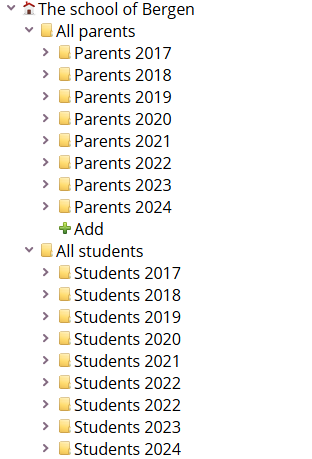
A parent may be a member of several parent nodes if they have multiple children who entered the school in different years. For example, a parent could belong to both Parents 2019 and Parents 2022.
When the class of 2017 leaves the school, the Parents 2017 node can be deleted. After deletion, affected parents retain only their All parents membership. You can then search for parents who no longer have children enrolled and delete those accounts.
5.1 If parents need course access
If the school uses information courses for parents, or parent representatives require access to certain courses, create a separate hierarchy that defines parent groups by school year, for example Parent groups 2024/2025:

Under this hierarchy, create parent groups for each grade level or class. These groups are then used to give parents access to relevant courses where the school shares announcements and updates for their children's classes.
Parents in this hierarchy move to a new year-specific node at the start of each school year, while always retaining their original membership in the All parents hierarchy.
6 Teacher and staff hierarchy management
6.1 Core structure
For teachers and staff, create a single permanent hierarchy called All teachers and staff. This hierarchy remains constant and should not be renamed in future years.
6.2 Sub-groups organisation
Under All teachers and staff, create sub-groups for different categories of staff, such as:
- External colleagues
- Internal colleagues
- Teaching staff
These sub-group names remain constant from year to year. Memberships are updated annually as teachers join or leave the school.
6.3 Departmental and course assignment structure
For subject departments with sub-hierarchies such as Biology, Chemistry, and so on, there are two approaches:
▶ Option 1: Year-specific subject departments

Create a year-specific parent hierarchy (for example, Subject departments 2024/2025) with subject-based sub-hierarchies beneath it. For the next school year, create a new parent hierarchy (for example, Subject departments 2025/2026) with the same subject structure. Assign teachers to the appropriate subject hierarchy for the current school year. These hierarchies can then be used to synchronise teachers into corresponding courses.
▶ Option 2: Permanent subject departments
If you are already using permanent subject departments and updating memberships each year without renaming the hierarchies, you can continue this practice. This aligns with the recommended approach.
6.4 Course teaching assignments
Important: When assigning teachers to courses, use the Teaching staff hierarchies, not the general staff hierarchies.
The key principle is to create a new year-specific parent hierarchy rather than renaming existing class hierarchies each year:
- Create a new school-year-specific parent hierarchy, for example Teaching staff 2025/2026.
- Create new class hierarchies as sub-nodes under this parent.
- Assign teachers to the appropriate class hierarchies for the new school year.

6.5 Benefits of this approach
This structure ensures:
- Teachers are not carried over into outdated hierarchies when transitioning between school years.
- No risk of old participants being included in new courses.
- Clean separation between academic years.
- Easier management of teacher assignments across years.
7 Hierarchy roles
There are four roles in a hierarchy: Administrator, Employee, Student, and Guest. These roles cannot be changed and must not be confused with profiles. The local administrator is responsible for managing the school's dashboard.
Note: For a detailed explanation of how hierarchy roles interact with profiles and course roles, see Hierarchy – Roles and Permissions (Sysadmin).
More Help Resources
Have more questions? Please start with asking your school administrator.
Product Release notes
Stay updated with itslearning latest releases: https://itslearning.com/product-updates
Service Status
Check the current status of itslearning services: https://status.itslearning.com/
Ideas Portal
Share your ideas and help shape the future of itslearning: https://ideas.itslearning.com/
Roadmap
Check out our roadmap: https://itslearning.com/global/roadmap/