Class course mobile support
TABLE OF CONTENTS
- 1 Overview
- 2 How the class course works on mobile
- 3 Limitations on mobile
- 4 Frequently asked questions
- What is the purpose of the class course?
- How do topics work in a class course?
- What happens if I do not select a topic?
- Do notifications follow the selected topic filter?
- Who benefits from the class course?
- Can teachers create or rename topics on mobile?
- Does the class course replace separate courses for each subject?
- Does the class course change how assessments work?
1 Overview
In primary schools, and some vocational schools, a teacher or teachers handle many subjects with one class. In these cases it is easier for students if all subjects are managed under a single course rather than separate courses for each subject.
The class course solves this by using topics as subject labels within the course. Users can then filter content such as resources, assignments, and plans by topic.
The mobile app supports two key features of the class course:
| Feature | Description |
|---|---|
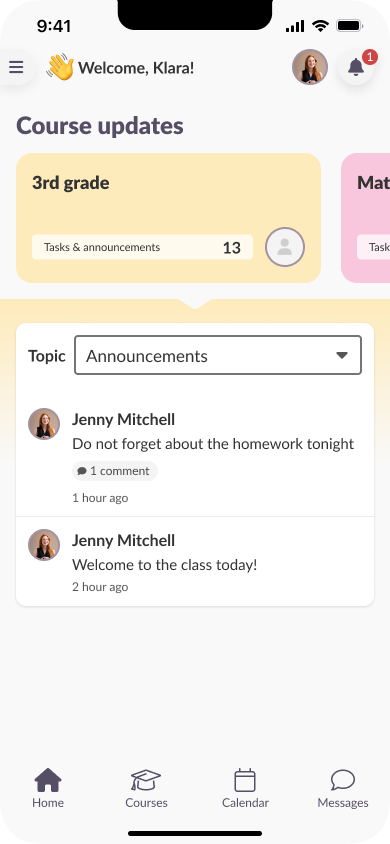
| Course announcements | Announcements are displayed when a user opens the course. |
| Topic filtering | Users can filter assignments and resources by topic to view content for a specific subject. |
Note: This feature is available to both teachers and students. The interface is the same for both roles.
2 How the class course works on mobile
2.1 Viewing announcements
When a user opens a class course in the mobile app, the course announcements are displayed immediately. Announcements are shown at the course level. If no topic is selected, the default view shows the course announcements.
Note: Announcements are visible on the home screen of the app for three days after they have been posted. In the browser version, announcements remain available until they have been seen.
2.2 Filtering content by topic
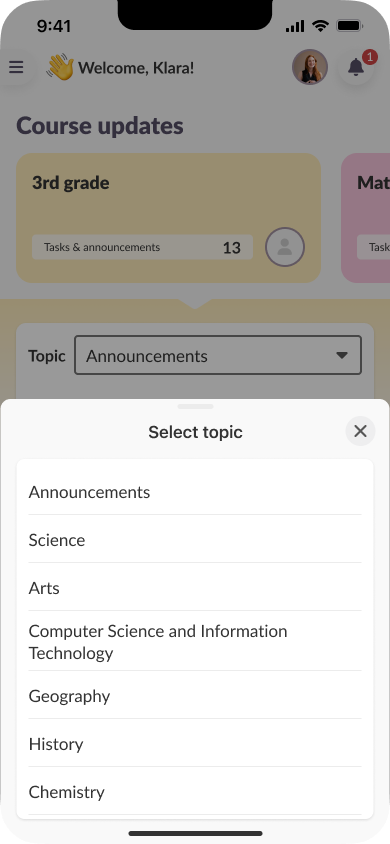
To view content for a specific subject, users can select a topic from the topic dropdown menu inside the course. The view updates to show only content associated with the selected topic.
To filter content by topic:
- Open the class course in the mobile app.
- Tap the topic dropdown at the top of the course view.
- Select the desired topic (e.g. Maths, Science, Language, Art).
- The course view updates to display content for the selected topic only.
Note: Notifications are shown at the user level. Filtering by topic affects the content list (resources, assignments, plans) but does not filter notifications.
2.3 Resource mode and plan mode
When a topic is selected, the content displayed depends on the topic settings configured for that individual topic. There are two modes:
| Mode | What is displayed |
|---|---|
| Plan mode | Plans associated with the chosen topic are displayed. |
| Resource mode | Resources saved to the topic folder are displayed. |
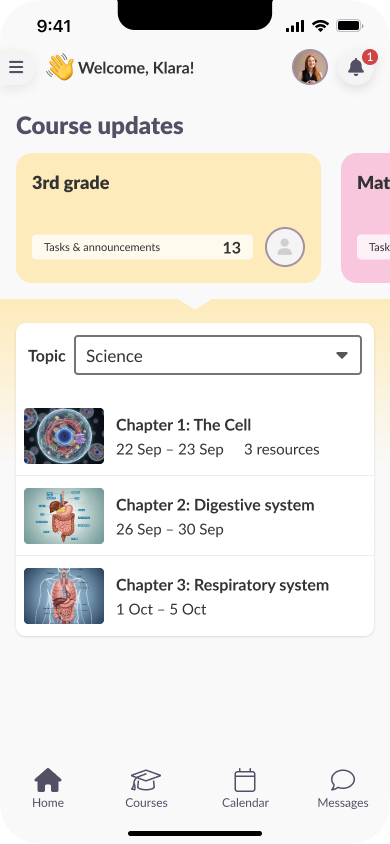
Plan mode - shows plans for the selected topic
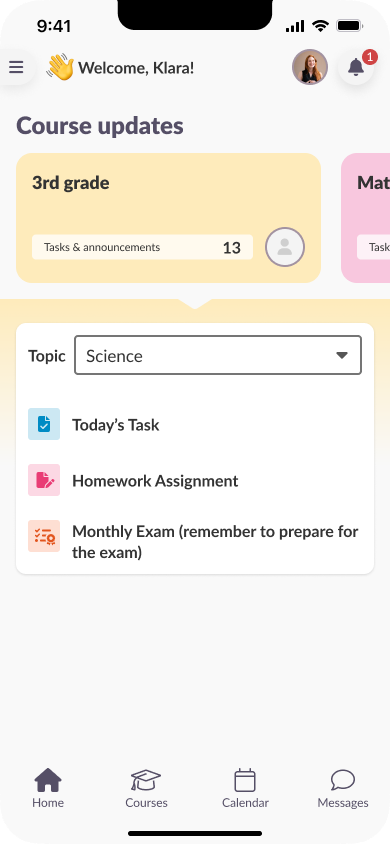
Resource mode - shows resources in the topic folder
2.4 Opening content
When a user taps on a resource or plan, it opens in the device browser for review. Assignments are the exception — they open in the native app view.
| Content type | Opens in |
|---|---|
| Resources | Device browser |
| Plans | Device browser |
| Assignments | Native app view |
3 Limitations on mobile
Important: Teachers cannot create or rename topics in the mobile app. Topic management must be done in the browser version of itslearning.
The mobile app supports viewing and filtering content within a class course, but topic management (creating, renaming, or organising topics) is only available in the browser.
4 Frequently asked questions
What is the purpose of the class course?
The class course allows schools to keep all teaching materials, tasks, and communication for a class under one unified course. Subjects are represented as topics, making it easier for students to navigate without managing multiple courses. This is particularly useful in primary schools where one teacher covers multiple subjects.
How do topics work in a class course?
Topics act as subject labels within the course — for example, Maths, Science, Language, or Art. All course content, such as resources and assignments, can be added to a topic folder. Users can then filter the view to focus on a specific topic.
What happens if I do not select a topic?
If no topic is selected, the course announcements are shown.
Do notifications follow the selected topic filter?
No. Notifications are shown at the course level. Filtering by topic affects the content list (resources, assignments, etc.) but not notifications.
Who benefits from the class course?
Students benefit from a simplified course structure with fewer places to navigate. Teachers — especially those teaching multiple subjects to the same group — can organise everything in one place. The feature is designed for primary schools and vocational schools where multi-subject teaching is common.
Can teachers create or rename topics on mobile?
No. Teachers can manage topics to match the subjects of their class, but this must be done in the browser version of itslearning, not in the mobile app.
Does the class course replace separate courses for each subject?
It can, but it does not have to. Schools can choose either one unified course with topic-based organisation or separate courses per subject, depending on their teaching model and preference.
Does the class course change how assessments work?
No. The class course only organises content and navigation. Assessment follows the existing tools and processes, grouped under topics for easier management.
More Help Resources
Have more questions? Please start with asking your school administrator.
Product Release notes
Stay updated with itslearning latest releases: https://itslearning.com/product-updates
Service Status
Check the current status of itslearning services: https://status.itslearning.com/
Ideas Portal
Share your ideas and help shape the future of itslearning: https://ideas.itslearning.com/
Roadmap
Check out our roadmap: https://itslearning.com/global/roadmap/
The features shown are part of the project within the framework of the German Development Project (GDP), a cooperation between four German states and itslearning with the aim of improving digital education in Germany through tailor-made product developments.
Click here to learn more about the GDP roadmap and what other features you can expect.
For German readers: Click here for more information about the project within the framework of the German Development Project.