Administrator roles - Overview
TABLE OF CONTENTS
Every organisation should appoint users responsible for maintaining structure, accounts, and dashboards in itslearning. These users are called administrators.
If this responsibility is divided between several people, it may be practical to divide the total responsibility into various responsibility areas. In small organisations, it is often practical that one person takes care of all administrative tasks. In that case, an alternate should be prepared to assume the administrator role in case of sickness or other absence. All administrators have an Administration tab in the main menu.
1 Administrator roles
1.1 System administrator
The system administrator has overall responsibility for the structure of the site. It is recommended that the system administrator account is used exclusively to change settings and retrieve information that applies to the site as a whole. If the system administrator also works as a teacher, all course-related and educational activity should be carried out with a separate user account.
Typical system administrator responsibilities include:
- Creating administrators
- Monitoring logs for data transfer from administrative systems
- Reviewing licence statistics
- Editing global settings
- Editing profiles
Note: Course and class creation are not typical system administrator tasks. These are normally handled by an integration with external systems, or at school level by the school administrator, though the permission can be enabled for the system administrator role where needed.
1.2 School administrator
Administrator rights are granted by the system administrator. The system administrator and school administrator cannot be the same person. The administrator profile is configured based on the tasks the administrator is expected to perform.
A school administrator has two primary areas of responsibility:
- Creating and managing hierarchies, courses, users, and groups for a school or organisational unit.
- Managing school dashboards and information.
Section 3 covers the school administrator role in more detail, including how it differs from the system administrator role.
2 The Administration menu
The Administration menu is divided into four sections, each covering a distinct area of site management. Not all sites have the same setup and configuration, so not all tools listed below will be available on every site.
2.1 Courses and Students
This section contains tools for managing users, courses, organisational structure, and related settings across the site. Some of these are usually also open to school administrators, but what is enabled for whom differs between sites.
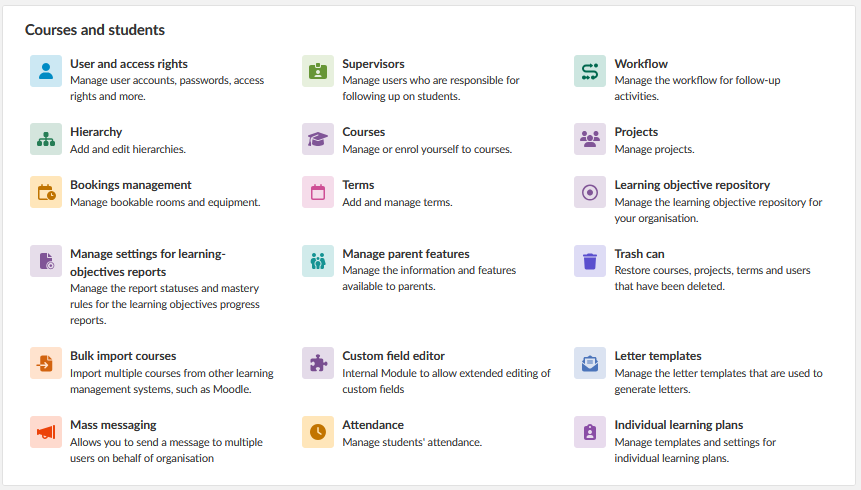
| Tool | Description |
|---|---|
| User and access rights | Manage user accounts, passwords, access rights and more. |
| Hierarchy | Add and edit hierarchies. |
| Bookings management | Manage bookable rooms and equipment. |
| Manage settings for learning-objectives reports | Manage the report statuses and mastery rules for the learning objectives progress reports. |
| Bulk import courses | Import multiple courses from other learning management systems, such as Moodle. |
| Mass messaging | Send a message to multiple users on behalf of the organisation. |
| Supervisors | Manage users who are responsible for following up on students. |
| Courses | Manage or enrol yourself to courses. |
| Terms | Add and manage terms. |
| Manage parent features | Manage the information and features available to parents. |
| Custom field editor | Internal module for extended editing of custom fields. |
| Attendance | Manage students' attendance. |
| Workflow | Manage the workflow for follow-up activities. |
| Projects | Manage projects. |
| Learning objective repository | Manage the learning objective repository for your organisation. |
| Trash can | Restore courses, projects, terms and users that have been deleted. |
| Letter templates | Manage the letter templates that are used to generate letters. |
| Individual learning plans | Manage templates and settings for individual learning plans. |
2.2 Settings
This section contains site-wide configuration tools that control how itslearning behaves for all users and organisations on the site. These are typically reserved for the system administrator, not the school administrator.
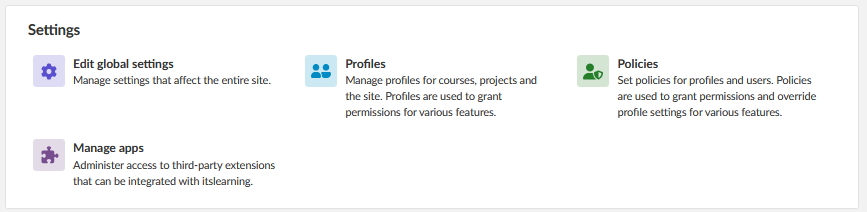
Important: Changes made in Edit global settings affect the entire site. Review all changes carefully before saving.
| Tool | Description |
|---|---|
| Edit global settings | Manage settings that affect the entire site. |
| Profiles | Manage profiles for courses, projects and the site. Profiles are used to grant permissions for various features. |
| Policies | Set policies for profiles and users. Policies are used to grant permissions and override profile settings for various features. |
| Manage apps | Administer access to third-party extensions that can be integrated with itslearning. |
2.3 Logs and Services
This section provides access to integration management, API administration, and the Learning Record Store. These are also usually reserved for the system administrator.

| Tool | Description |
|---|---|
| Manage API | Manage the API and view API logs. |
| Manage Enterprise web services | Manage the integration of enterprise web services, such as SIMS. |
| Manage Learning Record Store | Manage the LRS and third-party access. |
2.4 Reports
This section provides access to site-level reporting tools covering storage, user activity, and learning data. These are usually reserved for the system administrator.
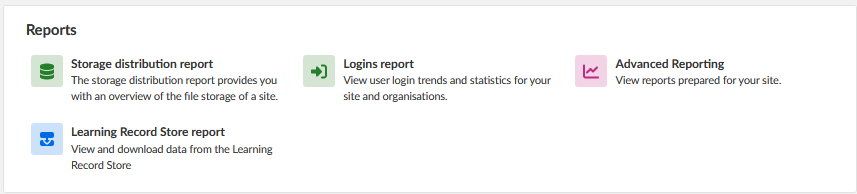
| Tool | Description |
|---|---|
| Storage distribution report | Provides an overview of file storage across the site. |
| Logins report | View user login trends and statistics for your site and organisations. |
| Advanced Reporting | View reports prepared for your site. |
| Learning Record Store report | View and download data from the Learning Record Store. |
3 School administrator – Role and responsibilities
3.1 Areas of responsibility
The school administrator role is scoped to a single school or organisational unit, rather than the site as a whole. A school administrator has two primary areas of responsibility:
- Creating and managing hierarchies, courses, users, and groups for a school or organisational unit.
- Managing school dashboards and information.
Some tools listed in Section 2.1 (Courses and Students) are also available to school administrators, though which tools are enabled varies between sites.
3.2 System administrator vs school administrator
The key distinction between the two roles is scope: the system administrator's responsibilities are typically centred on the site as a whole, while the school administrator's responsibilities are typically centred on a single school or organisational unit.
| Area | System administrator | School administrator |
|---|---|---|
| Scope | The entire site | One school or organisational unit |
| Rights granted by | N/A | The system administrator |
| Can be the same person | No, the two roles should not be held by the same person | |
| Course and class creation | Not a typical system administrator task. The permission can be enabled where needed, but course and class creation is normally handled at school level. | A core part of routine school-level administration |
| Global settings and policies | Site-wide settings and policies fall within this role | Not part of this role |
| Site-wide course catalogue | Managing the catalogue across the site falls within this role | Not part of this role |
| Calendar and messaging | Not typically part of this role | Day-to-day communication and scheduling fall within this role |
Note: The administrator profile for both roles is configured according to the tasks the administrator is expected to perform, so the exact set of available tools can vary between organisations.
More Help Resources
Have more questions? Please start with asking your school administrator.
Product Release notes
Stay updated with itslearning latest releases: https://itslearning.com/product-updates
Service Status
Check the current status of itslearning services: https://status.itslearning.com/
Ideas Portal
Share your ideas and help shape the future of itslearning: https://ideas.itslearning.com/
Roadmap
Check out our roadmap: https://itslearning.com/global/roadmap/