Discussions – Reference (Teacher)
TABLE OF CONTENTS
- Introduction
- 1 Creating a discussion
- 2 The discussion board
- 3 Managing categories
- 4 Anonymous posts
- 5 Reports
- 6 Printing a discussion
Introduction
The discussion tool allows teachers to create structured discussion boards where students can reflect on a question or topic. The discussion tool can be found in Activities when adding a resource to a course.

The discussion board has two tabs:
- Discussion — view threads, start new threads, and manage posts.
- Reports — view a summary of who has started threads and posted comments.
1 Creating a discussion
To create a discussion:
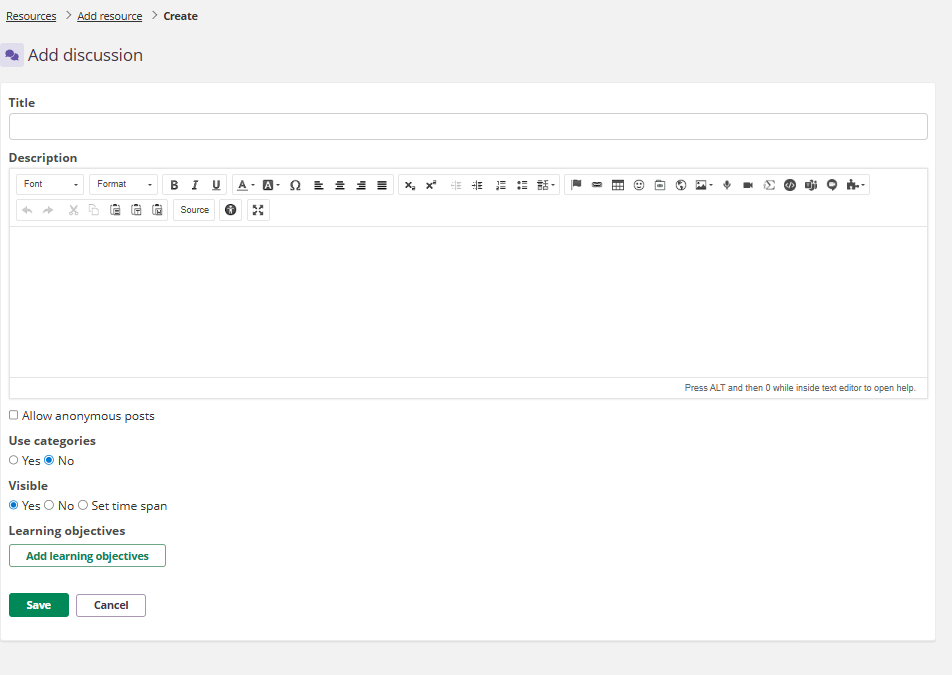
- In the course, go to Resources > Add resource > Activities > Discussion.
- Enter a Title for the discussion.
- Use the Description field to provide context or instructions. The rich-text editor is available, allowing the inclusion of formatted text, images, and other media.
- Configure the optional settings (anonymous posts, categories, visibility, and learning objectives).
- Click Save.
1.1 Categories
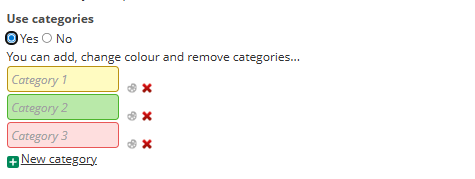
Categories help organise threads by topic. To enable categories when creating a discussion:
- Under Use categories, select Yes.
- Enter category names. You can add, change colour, and remove categories.
- Click New category to add more.
Categories can also be added after the discussion has been created (see section 3).
1.2 Visibility and learning objectives
The following settings control when the discussion is visible and which learning objectives are connected:
- Visible — select Yes, No, or Set time span to control when the discussion is visible to students.
- Learning objectives — click Add learning objectives to connect learning objectives from the course or repository.

2 The discussion board
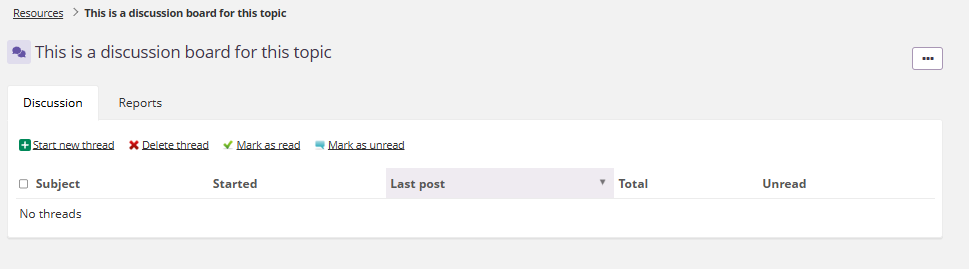
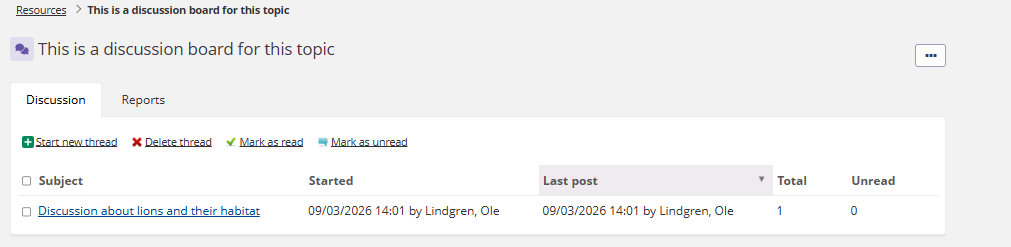
Once created, the discussion board displays a list of threads. The toolbar provides the following options:
| Action | Description |
|---|---|
| Start new thread | Create a new discussion thread. |
| Delete thread | Delete selected threads. |
| Mark as read | / Mark as unread — manage the read status of threads. |
The thread list shows the subject, who started it, the last post, the total number of posts, and the number of unread posts.
2.1 Starting a thread
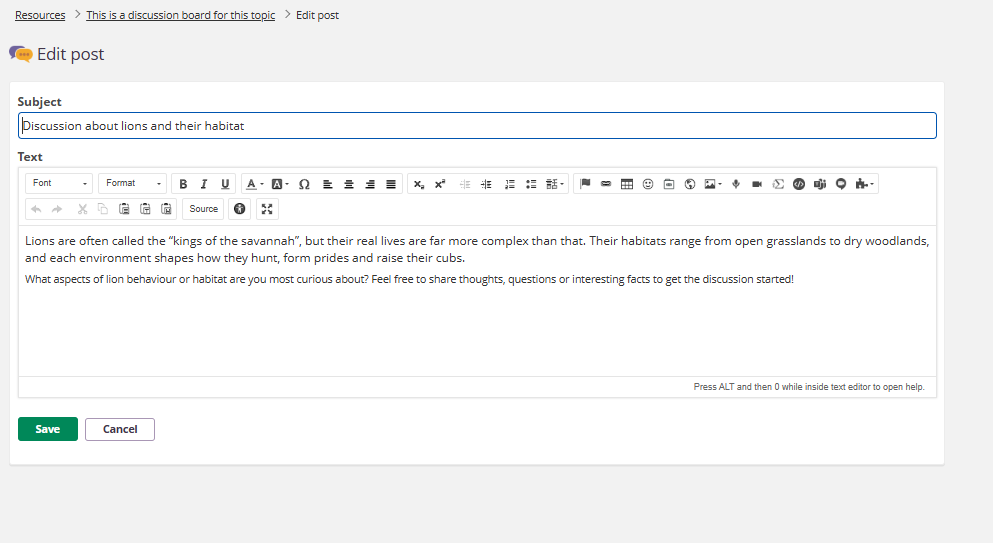
To start a new thread:
- Click Start new thread.
- Enter a Subject for the thread.
- Write the post content in the Text field. The rich-text editor is available.
- Click Save.
The new thread appears in the discussion board with the subject, author, date, and post count.
2.2 Replying to a thread
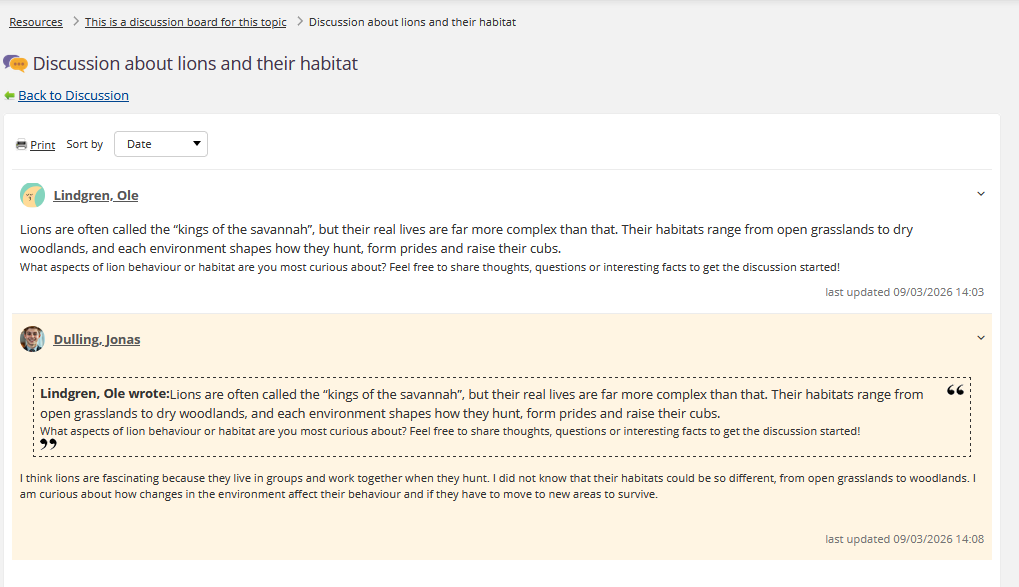
To reply to a thread, open the thread and use the Add reply field at the bottom. The rich-text editor is available for replies. Click Post reply to submit.
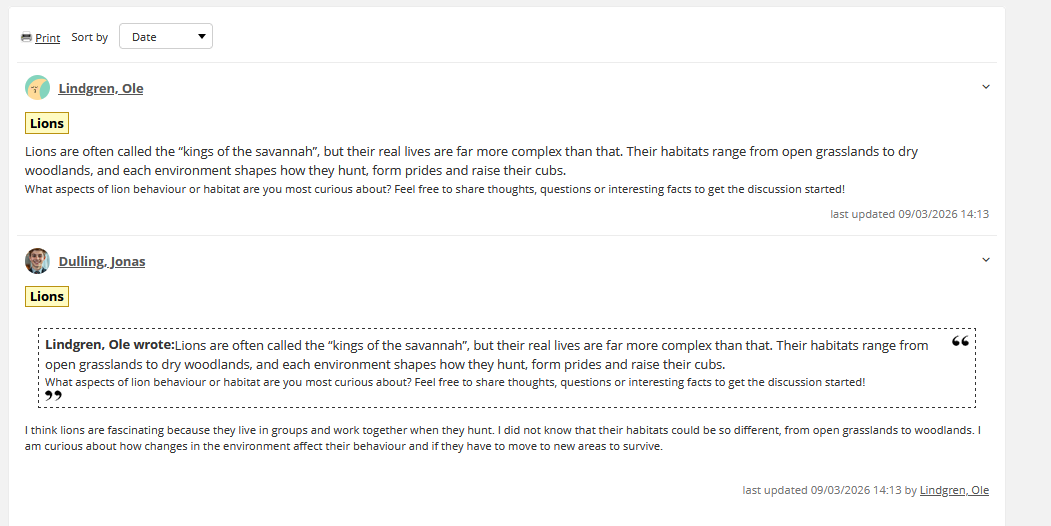
Each post in a thread displays the author name, post content, and a timestamp. When replying, you can choose to Reply with quote to include the original post as a quoted reference in your reply.
Within a thread, posts can be sorted using the Sort by dropdown. The available options are: Date, Participant, and Category.
2.3 Editing and deleting posts
Teachers can edit and delete their own posts as well as student posts. Click the dropdown arrow on a post to access the following options:
| Action | Description |
|---|---|
| Reply with quote | Reply with the post content included as a quote. |
| Edit | Edit the post content. |
| Delete | Delete the post. |
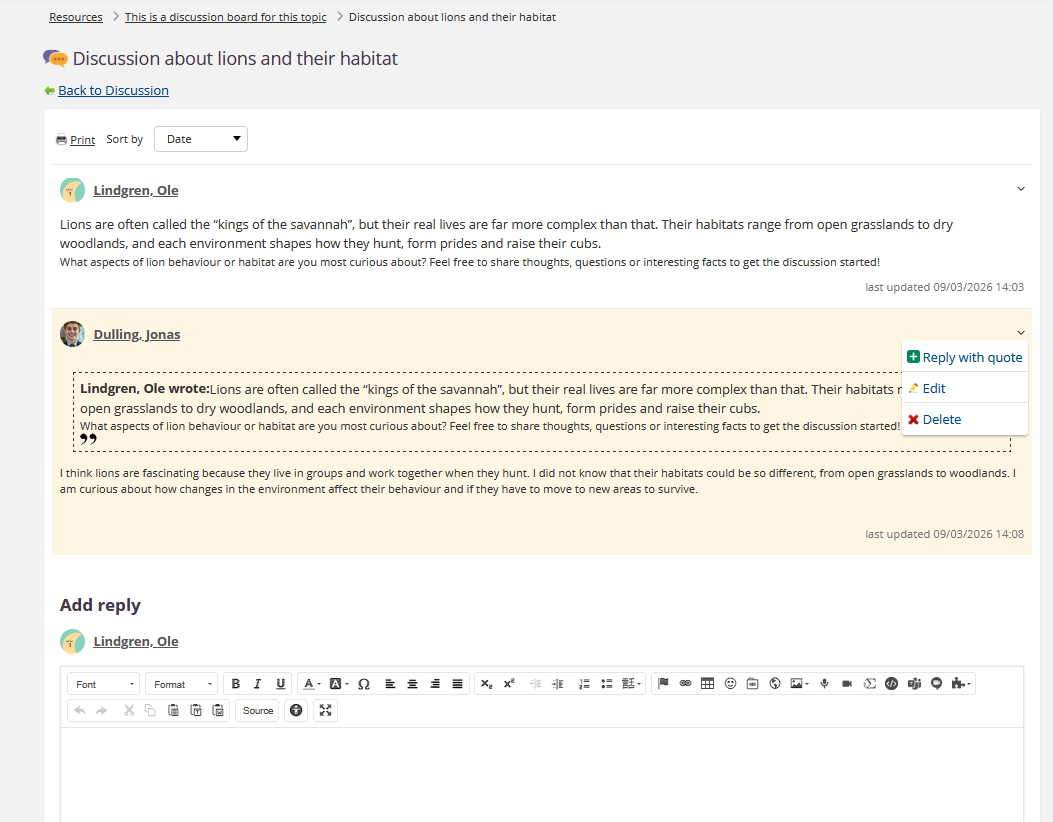
Note: If a teacher has edited or updated a student's post, the student can no longer edit that post. The student's dropdown menu will show only Reply with quote and Edit (for a limited time window after posting), but the edit option is removed once a teacher has modified the post.

3 Managing categories
Categories can be added or modified after the discussion has been created. To edit categories:
- Open the discussion and click the three-dot menu (...).
- Select Edit to open the discussion settings.
- Under Use categories, add, rename, change colour, or remove categories.
- Click Save.
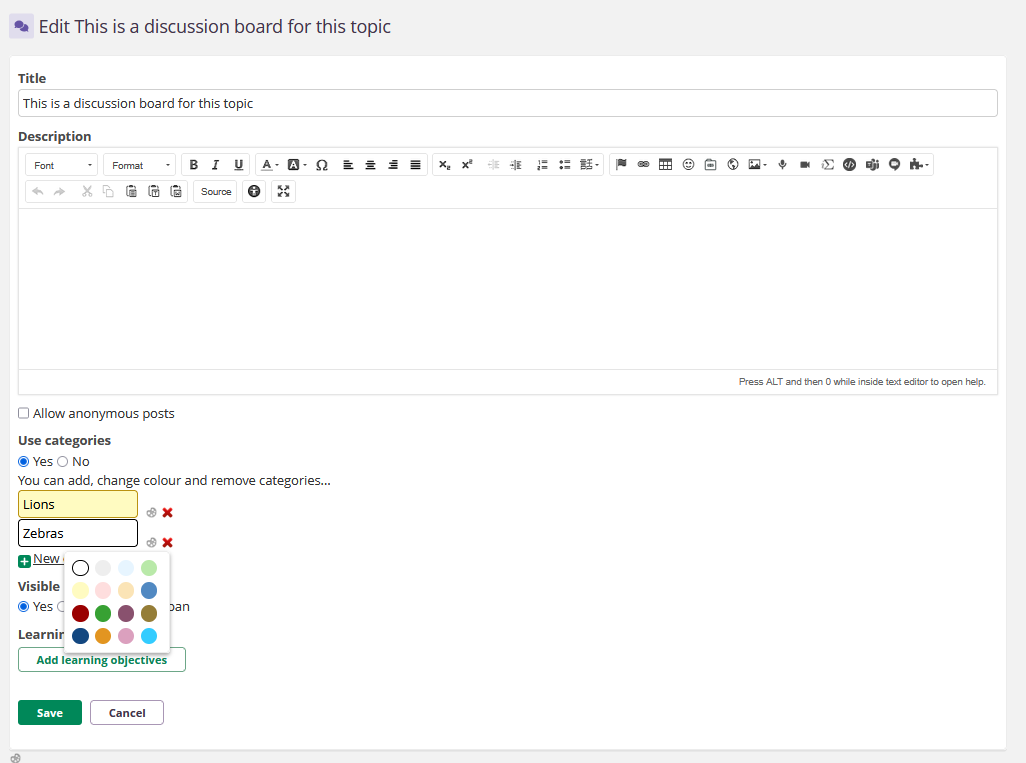
Once categories are set up, you can assign a category to existing threads and replies by editing them. A Category dropdown appears in the edit post form.
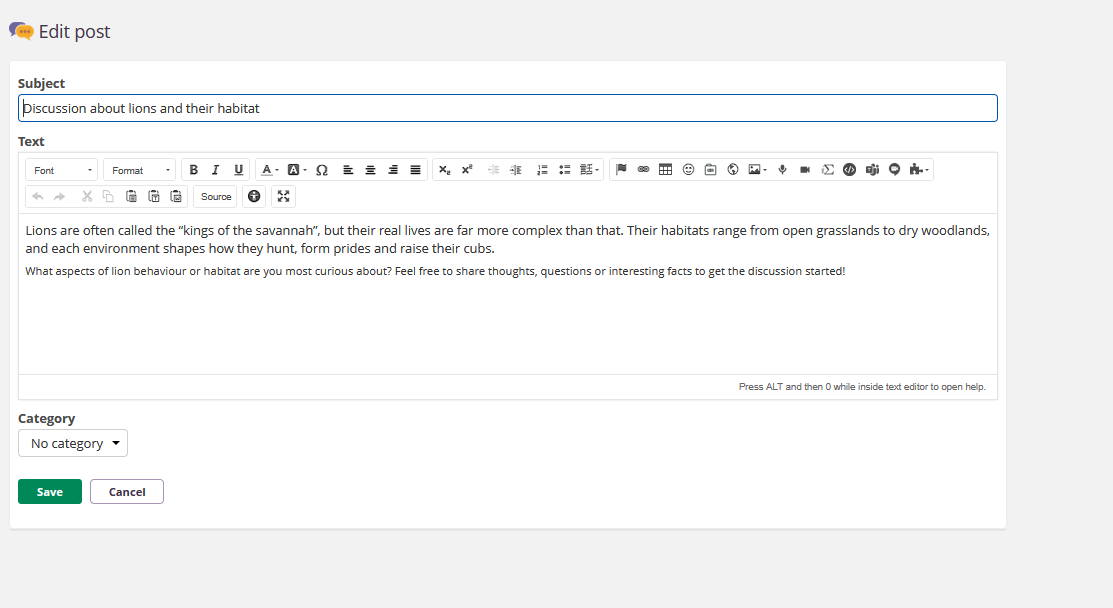
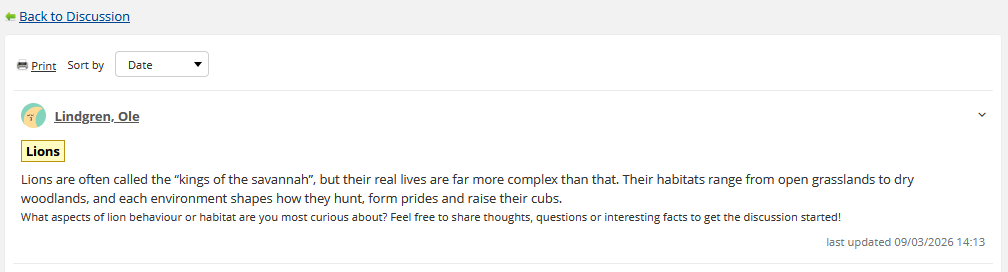
Teachers can assign categories to their own posts as well as to student posts. Category labels are displayed on each post in the thread view.
4 Anonymous posts
When creating a discussion, teachers can enable anonymous posting by ticking the Allow anonymous posts checkbox. When enabled:
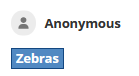
- All posts are displayed with the author name Anonymous and a default profile image.
- Neither students nor teachers can see who posted a comment.
- Anonymous posts are not included in the Reports tab — the report will not reflect participation from anonymous posts.
- Once a post has been made anonymously, it cannot be changed back to a named post.
- Teachers and administrators can still edit or delete any anonymous post.
5 Reports
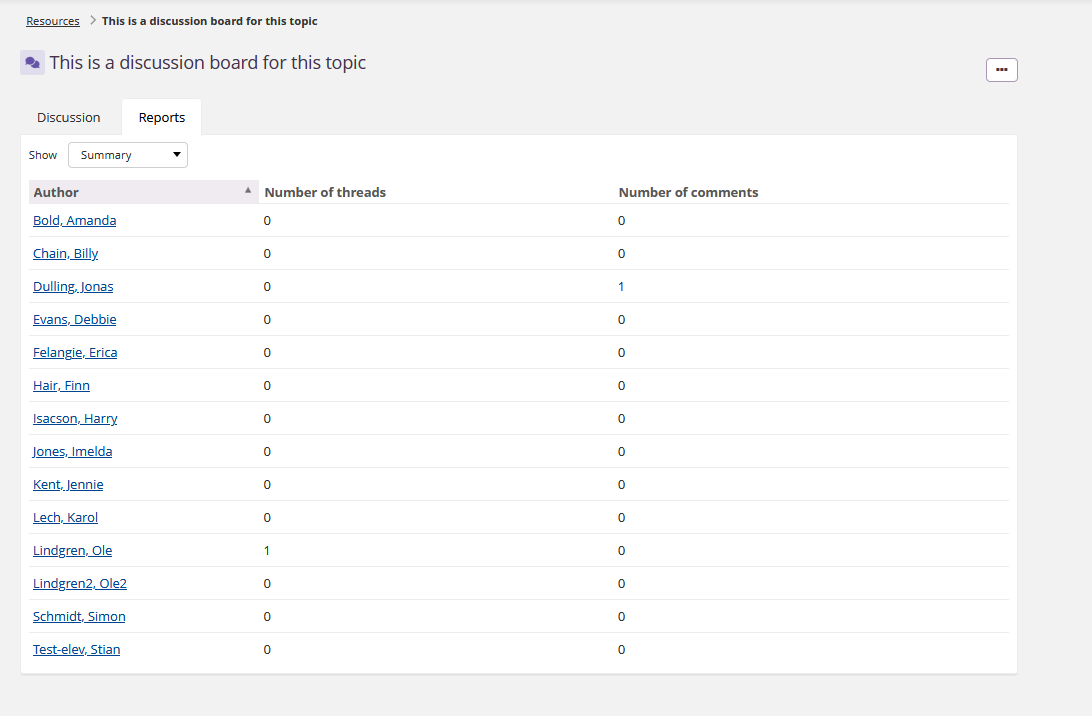
The Reports tab provides a summary of participation in the discussion. The report shows each participant with the number of threads they have started and the number of comments they have posted. This can be useful for tracking participation, for example when all students are required to contribute to a discussion.
Note: Anonymous posts are not reflected in the report. If anonymous posting is enabled, the report will not show activity from anonymous contributions.
6 Printing a discussion
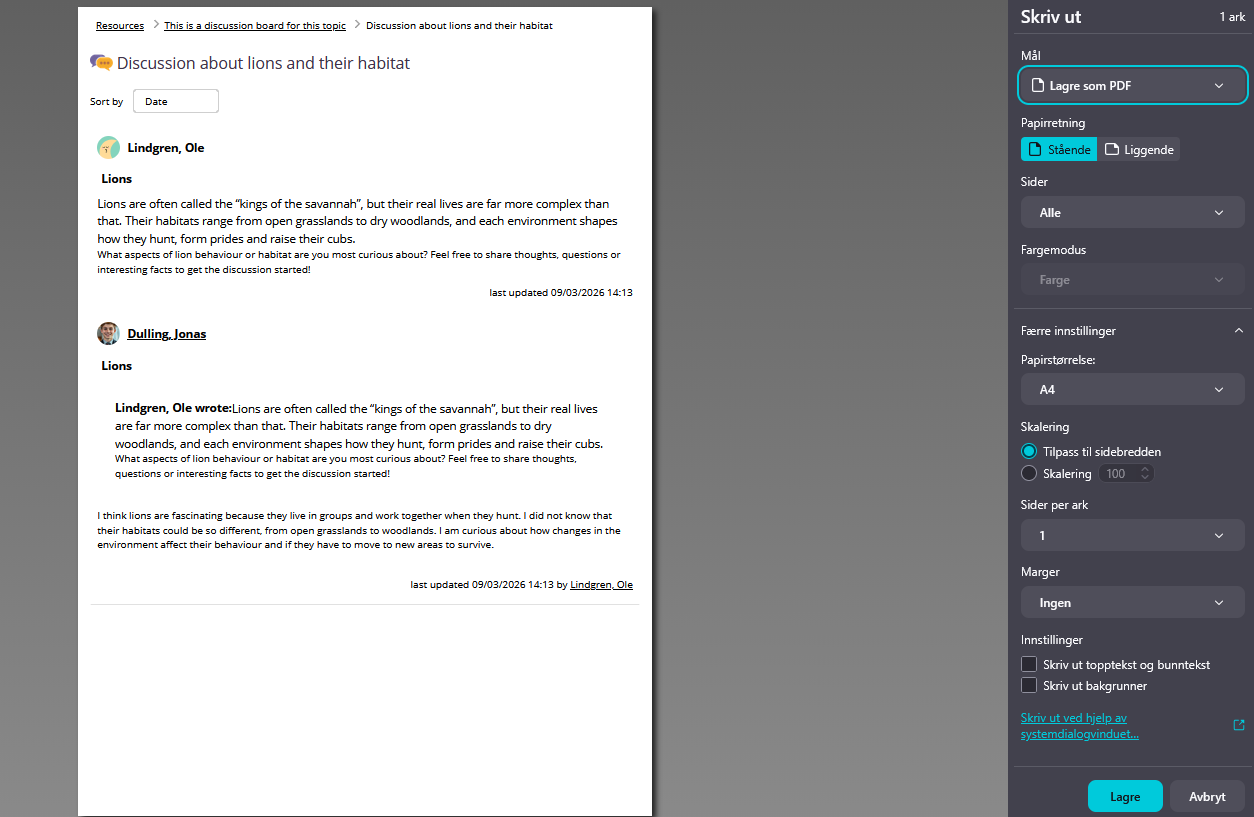
To print a discussion thread:
- Open the thread you want to print.
- Click Print at the top of the thread.
The browser print dialogue opens with a print-friendly version of the discussion, including all posts and replies.
More Help Resources
Have more questions? Please start with asking your school administrator.
Product Release notes
Stay updated with itslearning latest releases: https://itslearning.com/product-updates
Service Status
Check the current status of itslearning services: https://status.itslearning.com/
Ideas Portal
Share your ideas and help shape the future of itslearning: https://ideas.itslearning.com/
Roadmap
Check out our roadmap: https://itslearning.com/global/roadmap/