Global settings - reference (sysadmin)
TABLE OF CONTENTS
Introduction
Global settings affect the entire itslearning site. Only system administrators have access to these options. This article describes each setting page in detail. For a short overview with navigation only, see the Global Settings overview article.
Note that many of these features are described in detail in separate articles.
Admin setting: Administration > Edit Global Settings

1 Courses and students
1.1 Set default course settings
This page controls which elements and functionality are included by default when a new course is created.
Whether a course owner can override all of the default course settings afterwards depends on the profile setup.
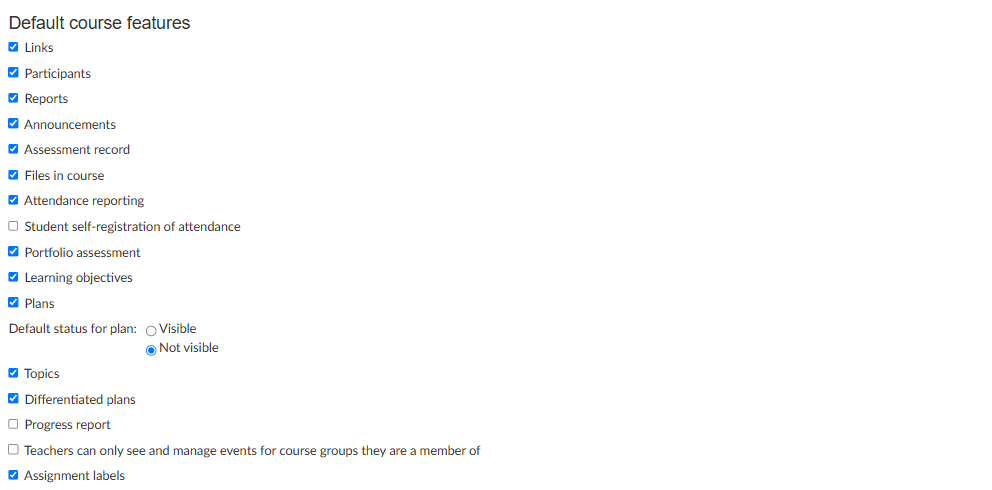
▶ Default course features
These features are the basis of itslearning, but not all schools use all features. Look through the features and consider what your users would always want to have available, and what is usually not part of their workflow. Some of the features shown here might not be available for all sites.
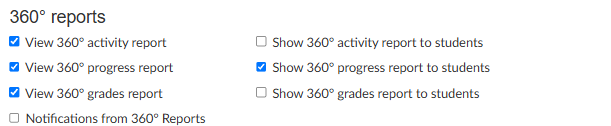
▶ 360° reports
The 360° reports aggregate different reports around students' use of itslearning. These options control whether the reports are switched on by default in new courses, and whether students can see them.
▶ Available course reports for course administrators and teachers
There are big differences between schools in which reports are used and who they are available to. A report that is never used is just clutter in the platform and should be removed. Look at the different report types in the Reports and follow up folder under the Teachers article section.

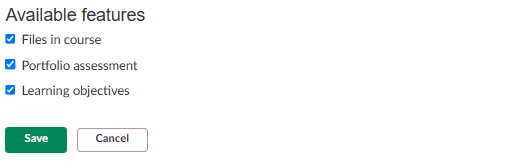
▶ Available features
These are features that are available, but not used in all schools. Most schools will use Learning objectives, but few schools use Portfolio assessment, for instance. Consider what your site needs.
1.2 Behaviour
This page manages the list of behaviour types available when teachers or mentors record positive or negative behaviour remarks. Each behaviour type has a name, a short code, a type (Positive or Negative) and a weight. Administrators can add or delete behaviour types using the Add behaviour type and Delete behaviour type actions.
Note: Weighting can use either points or icons. The current weighting type is shown at the top of the page, and can be changed under Settings.
itslearning provides a predefined set of example behaviour types (such as Achievement, Bullying, Class award, Excellent work and Verbal abuse/threatening behaviour), which administrators can edit, delete, or extend with their own types.
A separate Settings page (reached via the "Go to Settings" link on the Behaviour types page) manages weighting and terminology for the Behaviour tool:
Weighting type: teachers can use numbers or icons to weight a remark. A higher number means more weight. Icon scales are limited to 1–5. Two options are available:
- Numbers
- Icons (maximum 5), with a choice of icon sets, for example thumbs up/down, tick/cross, or flags
Terminology: the following labels can be customised (each with a maximum of 25 characters):
- Name of tool (default: Behaviour)
- Name of instances (default: Remark)
- Name of positive behaviour type (default: Positive)
- Name of negative behaviour type (default: Negative)
1.3 Assessment settings

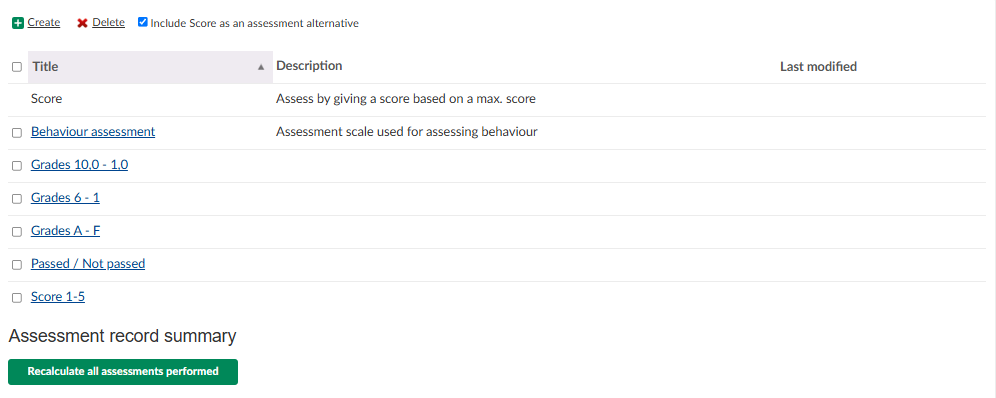
This page manages the assessment scales available for use in courses. Each scale has a title, a description, and a last modified date. Administrators can create new scales or delete existing ones.
A checkbox, Include Score as an assessment alternative, controls whether the numeric Score scale is offered alongside the other scales.
itslearning provides several predefined example scales, including Score (assess by giving a score based on a maximum score), Behaviour assessment, Grades 10.0–1.0, Grades 6–1, Grades A–F, Passed/Not passed, and Score 1–5. Administrators can add scales suited to their school or district grading system.
An Assessment record summary section provides a Recalculate all assessments performed action, used to recalculate assessment data across the site.
1.4 Course catalogue subjects

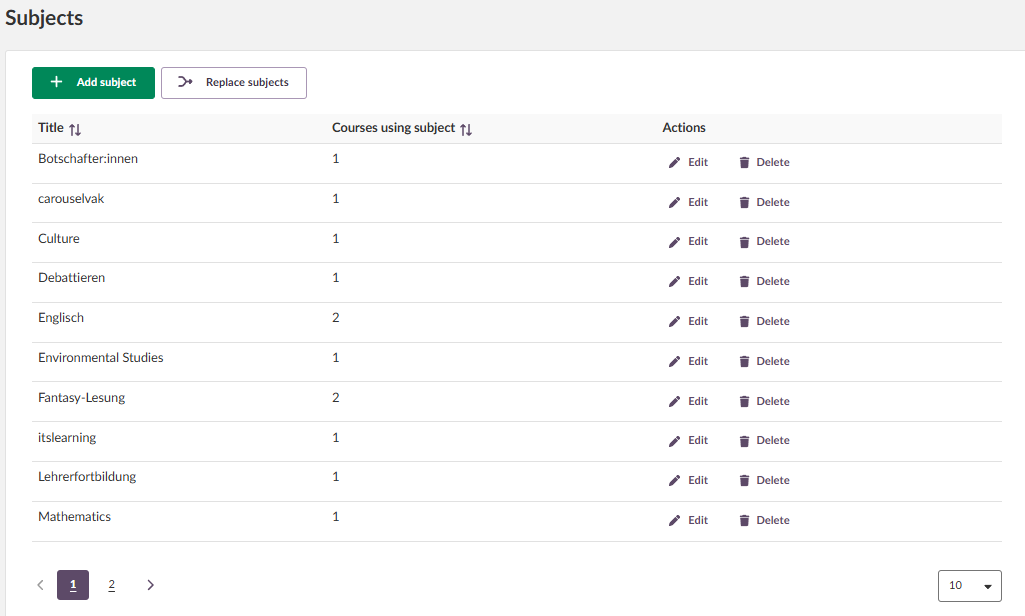
This page manages the list of subjects that can be assigned to courses in the course catalogue. Administrators can add a new subject, edit or delete an existing subject, and replace a subject across all courses that use it with the Replace subjects action. The list shows how many courses currently use each subject.
1.5 Assignment labels

Custom labels allow site administrators to create up to five unique labels that teachers can apply to assignments. These labels provide students with clear, additional information about assignment requirements, such as whether AI tools can be used, collaboration is required, or the task will later be presented. The goal is to make assignments easier to understand by highlighting specific requirements, helping students better prepare and focus. Administrators create and manage labels at the site level, whilst teachers apply them to individual assignments within their courses.
2 Appearance
2.1 Login page settings

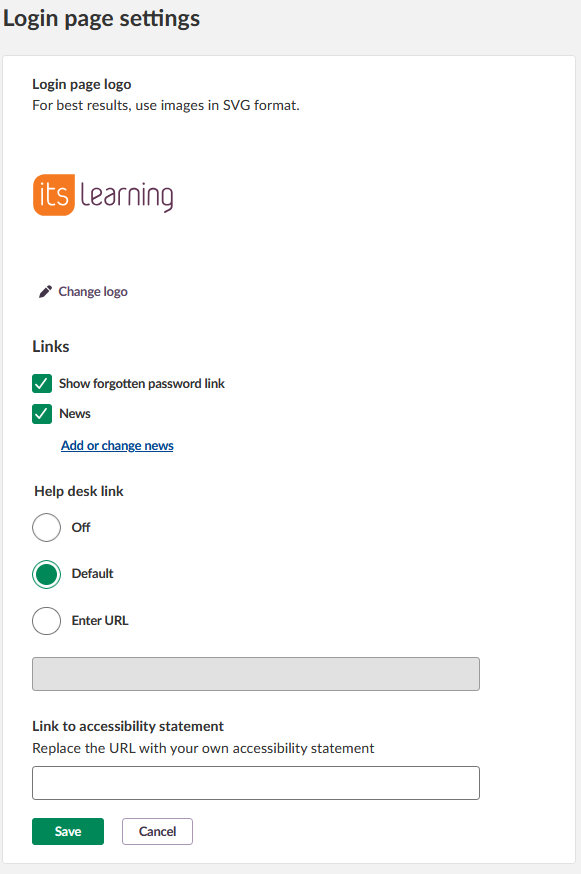
This page manages the appearance and links shown on the login page.
- Login page logo: upload a custom logo (SVG format recommended for best results) using Change logo.
- Links: toggle the Show forgotten password link and News links. When News is enabled, an Add or change news link allows the administrator to edit the news content shown.
- Help desk link: set to Off, Default, or Enter URL (with a field to specify a custom help desk URL).
- Link to accessibility statement: replace the default URL with the site's own accessibility statement.
2.2 Font

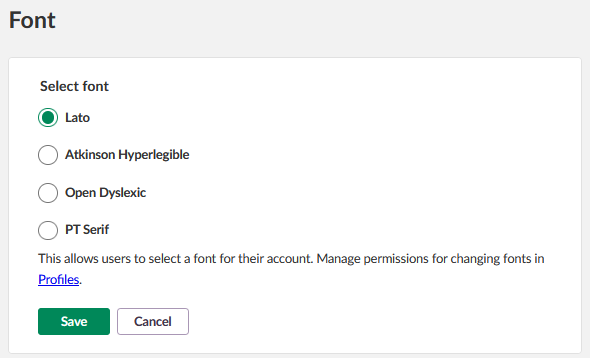
This page sets the default font applied to all users on the site. Available options are Lato, Atkinson Hyperlegible, Open Dyslexic, and PT Serif. This setting also allows individual users to select their own font for their account; permissions for changing fonts are managed under Profiles.
2.3 Customised information

This page has two sections:
External links – up to five links that appear in the main navigation. Each link has a title, a URL, and a Visible for setting that controls which profiles (System Administrator, Administrator, Staff, External student, Student, Parent, Guest) can see the link.
User information – custom fields that are part of the user profile. These fields can be edited when editing a user under Admin > User and access rights. Each field has a Visible for setting per profile, which determines which profiles see the field displayed in lists. A maximum of five custom fields can be created.
3 General settings
3.1 Features and security

This page manages available functions and security settings for the site.
▶ Available functions
Activate or deactivate site-wide functions.
- Attendance system – enables attendance registration and reporting across the site.
- Enable behaviour tracking – enables the Behaviour tool, allowing teachers and mentors to record behaviour remarks (see section 1.2).
- Enable workload for tasks – lets teachers set an estimated workload on tasks, so planned workload can be seen and balanced across courses.
- Anonymous activities – a dropdown controlling how anonymity works in activities, for example that student names remain hidden in the activity while results are still visible in course reports. Anonymity reduces unconscious bias during assessment.
- Enable resource booking – enables the tool for booking shared resources such as rooms and equipment.
- Enable homework – enables the homework functionality, letting teachers mark tasks as homework so students can find them collected in one place.
- Let teachers grant temporary access to students who have been removed from a course – useful when a student has been unenrolled (for example by synchronisation) but still needs short-term access to complete or review work.
- Set page to be displayed when users log out – the URL users are sent to after logging out.
▶ Set quarantine periods
The quarantine period is the amount of time deleted items must remain in the trash can before they can be deleted permanently. This acts as a safety window for restoring accidentally deleted content.
- Set quarantine period for site trash can (0–300 days)
- Set quarantine period for course trash can (0–300 days)
▶ Privacy
These settings control what user data is visible, to whom, and across which organisational boundaries. This section also enables or disables the Parent portal and defines the level of detail parents see in reports.
- Allowed to see hierarchies from – controls which parts of the organisational hierarchy users can browse, for example only hierarchies in the user's own organisation.
- Allowed to synchronise course with – controls which hierarchies a course can synchronise its participant list with.
- Show course group for each organisation group – only enable this setting if teachers need to be able to extend the members of an organisation group in a course.
- Organisations visible in mobile app login search – controls which organisations appear when users search for their site in the mobile app login.
- Show the date/time of logins on the Your students page – lets teachers and mentors see when their students last logged in.
- Do not show student names in the plagiarism report – anonymises students in plagiarism reports.
- Extra user information in lists – selects which custom field (from Customised information, section 2.3) is displayed alongside user names in lists, useful for distinguishing users with similar names.
- Allow search for usernames – controls whether users can be found by searching for their username. To enhance search result clarity, consider enabling the profile setting "Show detailed user information about other users".
- Parent portal: Enable / Disable – turns the Parent portal on or off for the whole site.
- Allow adult students to manage parent access – lets students of legal age control whether their parents have access. This also prevents students from changing their birth date in personal settings.
- Show detailed attendance report, Show recent submissions in the profile page, Show detailed assessment report, Show detailed behaviour report, Show detailed learning-objectives report – control the level of detail available in the Parent portal and profile pages.
Important: Privacy-related settings affect what data is visible to which profiles. Confirm changes align with the school's or district's data protection policy before saving.
▶ Set password rules
These settings define the password policy for accounts that log in with an itslearning username and password. They do not affect users who log in through an external identity provider, where the password policy is managed externally.
- Set required password complexity
- Set minimum password length (for the selected complexity, the minimum allowed value is 7)
- Number of previous passwords that cannot be reused (1–24)
- Set maximum time password is valid, in days (0 = password never expires)
- Set how many days before the password expires a warning message is displayed
- Require that all users change their password after their next login
▶ Set login rules
These settings protect accounts against repeated failed login attempts.
- Set number of login attempts allowed before locking a user out (2–10)
- Reset lockout counter time, in minutes (0 = never reset lockout automatically)
Note: A locked account can be unlocked before the lockout period expires by a local administrator, in the user's profile.
▶ Synchronisation
- Course archiving – allows courses to be archived automatically through the site's synchronisation with external systems, rather than archiving each course manually.
▶ Message settings
Controls what users can do with their own messages in the internal messaging system.
- Users can delete and edit their own messages. Teachers can also delete messages in course conversations.
▶ Tools and content
Controls how external tools and course content can be used across the site.
- Include the LTI tool on the add resource page – lets teachers add LTI tools directly when adding resources to a course.
- Only allow LTI tools with an "Anonymous" privacy level – restricts LTI tools to those that do not receive identifying user data, for stricter privacy requirements.
- Enable access to the app library – gives teachers access to the library of apps that can be added to courses.
- Allow teachers to override the automatic scoring in the test tool – lets teachers manually adjust automatically calculated test scores.
- Enable illustrations suitable for K12 – enables an illustration set adapted to younger learners.
- Allow students to bulk-download course resources – lets students download multiple course resources at once instead of one at a time.
- Let students save course resources to their "Saved course materials" – lets students keep personal copies of course resources, so they retain access after a course ends. After enabling this setting, "Saved course materials" must also be enabled for the relevant student profiles.
▶ Assessment record
Controls which assessment record capabilities are available to teachers in courses.
- Enable weighting for categories – allows teachers to give assessment categories different weights when calculating overall results.
- Enable assessment summary – makes the summary view available in the assessment record, giving an aggregated overview per student.
- Enable exempt – allows individual students to be exempted from an assessment, so it does not count towards their result.
▶ Plans
Controls site-wide options for the Plans tool.
- Prevent topics and plans from being copied again – stops topics and plans that have already been copied from being copied a second time, avoiding duplicates.
- Enable table view for all course profiles – all teachers have access to table view by default; this setting extends read-only access to other course profiles. Table view is not fully accessible for the visually impaired or those relying solely on keyboard navigation.
▶ Assignment tool
Controls site-wide options for the Assignment tool.
- Send a submission receipt to students when answering a mandatory assignment – students receive a confirmation that their submission was registered, useful as documentation for mandatory work.
- Enable discussion in assignment – allows a discussion thread between teacher and student directly within an assignment.
- Enable teacher notes – lets teachers keep notes on assignments that are not visible to students.
▶ Rich-text editor
Controls which plugins are available in the Rich-text editor across the platform.
- Enable accessibility plugin in the rich-text editor – helps content authors check and improve the accessibility of the content they create.
- Enable LaTeX plugin – allows mathematical notation and formulas to be written in the editor.
▶ ePortfolio
Controls which ePortfolio features are available to users on the site.
- Enable email field in About me – lets users display an email address on their ePortfolio About me page.
- Enable Blog – enables the blog functionality within ePortfolio.
▶ 360° reports
These settings control whether 360° reports are available site-wide, by role and by report type. This is separate from the 360° reports options under Set default course settings, which control whether the reports are switched on by default in new courses once they are available site-wide.
- Enable 360° report for course teachers: Activity, Progress, Grades
- Enable 360° report for mentors: Activity, Progress, Grades
- Enable 360° report for students: Activity, Progress, Grades
- Allow course teacher to opt in to updates from 360° reports
- Include all course profiles on the Activity tab
▶ External course catalogue settings
The external course catalogue makes selected courses available to people outside the site, for example for open enrolment courses. These settings control whether it is enabled, how it is reached, and how external visitors can create accounts.
- Enable external course catalogue. After enabling this setting, also enable "Allow adding courses to the external course catalogue" for any profiles that need permission to add courses to it.
- Show a link to the external course catalogue on the login page. If the external course catalogue is not available on the login page, it can only be accessed via a direct link.
- A Copy link to the external course catalogue button provides the direct link.
- Show names of teachers and contact persons in the external course catalogue.
Account creation – controls how external visitors can create an account to enrol in courses:
- Allow the creation of a new account using an email address
- Allow the creation of an account using an itslearning account from another site
- Assign external accounts to a selected profile (for example, Student)
- Link to terms and conditions (a URL field)
- Number of days before inactive users are deleted (minimum value is 30 days)
▶ Internal course catalogue settings
The internal course catalogue lets existing users on the site browse and register for courses themselves, rather than being enrolled manually or by synchronisation.
- Enable internal course catalogue. After enabling this setting, also enable "Allow adding courses to the internal course catalogue" for any profiles that need permission to add courses to it.
- Show names of teachers in the internal course catalogue.
Available registration types – controls which enrolment methods course owners can choose from:
- Approval: students must apply to gain access to the course
- Registration key: a registration key is required to enrol in the course
- Open: students can freely register for the course
▶ Course templates
Controls which course templates are available when users create new courses, including whether templates from other sites can be used.
Template usage options (one of the following can be selected):
- Show templates from this site only
- Show templates from all sites
- Show templates from your site and the sites selected below
▶ Support access
Through this temporary, secure, and logged access, itslearning can offer support and services on the site.
Important: By granting itslearning access to the support or services users, the administrator gives permission to itslearning to securely log in to the site and perform system administrative actions on the site's behalf. Such actions may include help setting up the site, providing training, or troubleshooting. Any access to the site by itslearning is automatically audited, and the audit log can be viewed at any time.
- Enable access for itslearning support, with an expiry date and time
- Enable access for itslearning services, with an expiry date and time
An Audit log button provides access to the log of itslearning access to the site.
3.2 Regional settings

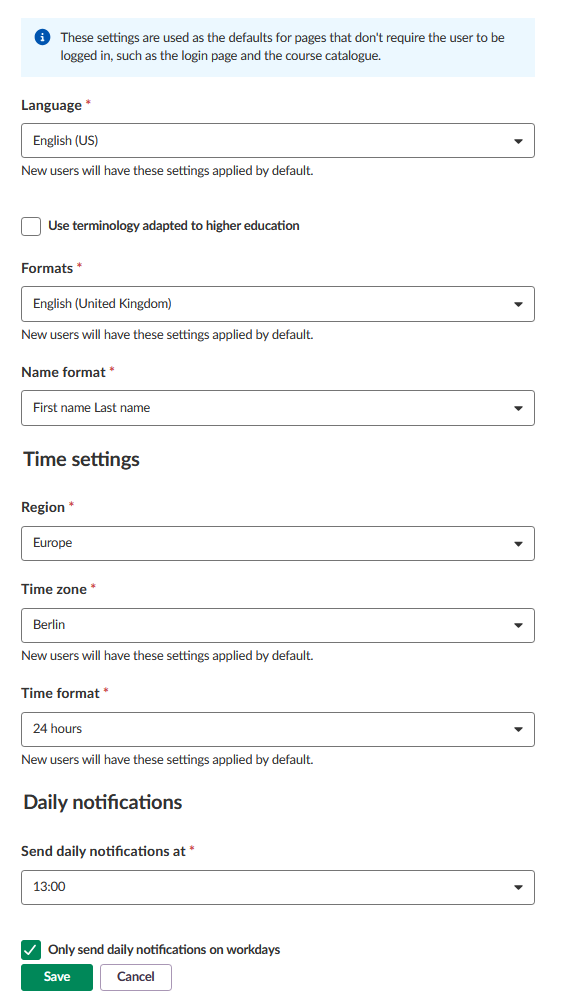
These settings are used as the defaults for pages that do not require the user to be logged in, such as the login page and the course catalogue.
- Language: default language for new users. A checkbox allows using terminology adapted to higher education instead of K12 terminology.
- Formats: default regional format for new users.
- Name format: default display order for user names (e.g. First name Last name).
Time settings: region, time zone, and time format (e.g. 24 hours), applied by default to new users.
Daily notifications: set the time daily notifications are sent, with an option to only send them on workdays.
3.3 File types
This page lists file extensions accepted within the platform. For each file extension, the page shows the associated MIME type, whether it opens in a new window, whether it opens as a file, and its status (Normal or Not allowed). Administrators can add new file types, or edit and delete existing entries.
The platform accepts around 165 file types by default, and administrators can add further types as needed.
3.4 Export settings
This page manages export settings for the assessment record.
- Column separator: Comma or Semicolon.
- Extra fields to export: choose between not exporting a user identifier, exporting a synchronisation key, exporting a user name, or exporting both a synchronisation key and a user name.
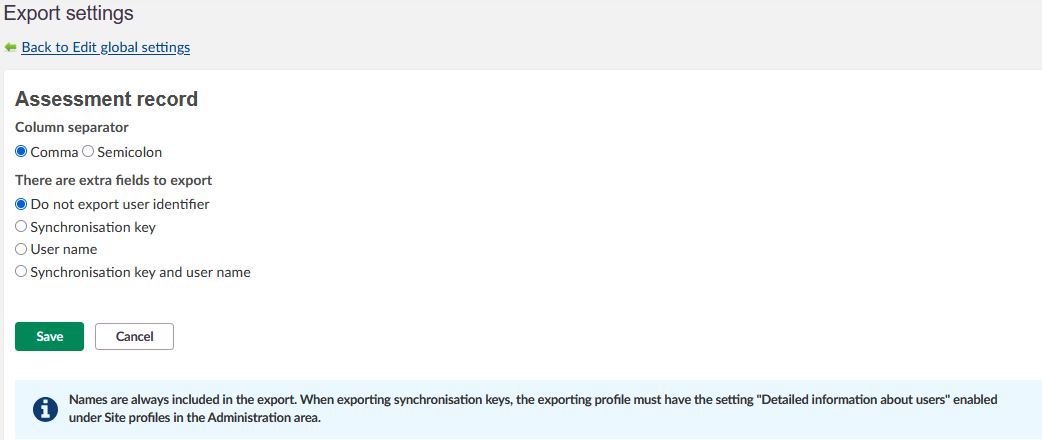
Note: Names are always included in the export. To export synchronisation keys, the exporting profile must have the setting "Detailed information about users" enabled under Site profiles in the Administration area.
3.5 Cloud services

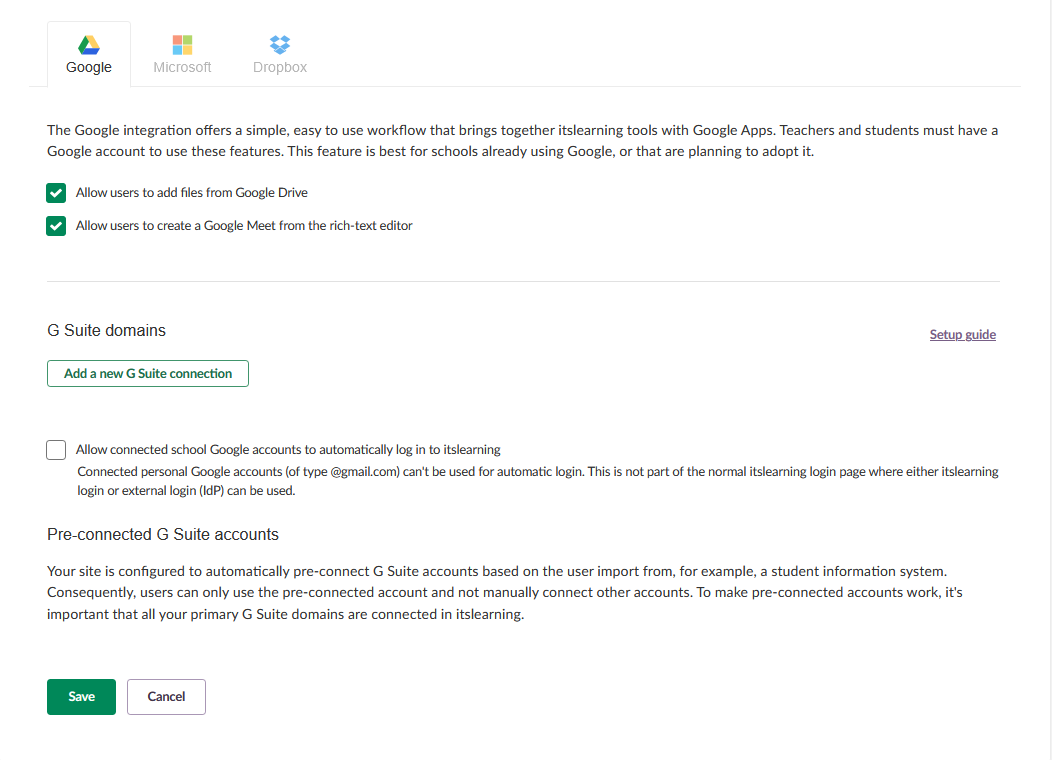
This page manages supported cloud services, organised into three tabs: Google, Microsoft, and Dropbox. Administrators set permissions for connecting these cloud accounts for all users.
Google tab: the Google integration brings itslearning tools together with Google Apps. Teachers and students need a Google account to use these features. Options include:
- Allow users to add files from Google Drive
- Allow users to create a Google Meet from the rich-text editor
G Suite domains: administrators can add a new G Suite connection (with a setup guide available), and can allow connected school Google accounts to automatically log in to itslearning. Personal Google accounts (of type @gmail.com) cannot be used for automatic login.
Pre-connected G Suite accounts: a site can be configured to automatically pre-connect G Suite accounts based on the user import, for example from a student information system. When this is configured, users can only use the pre-connected account, so all primary G Suite domains must be connected in itslearning for this to work correctly.
Microsoft tab:
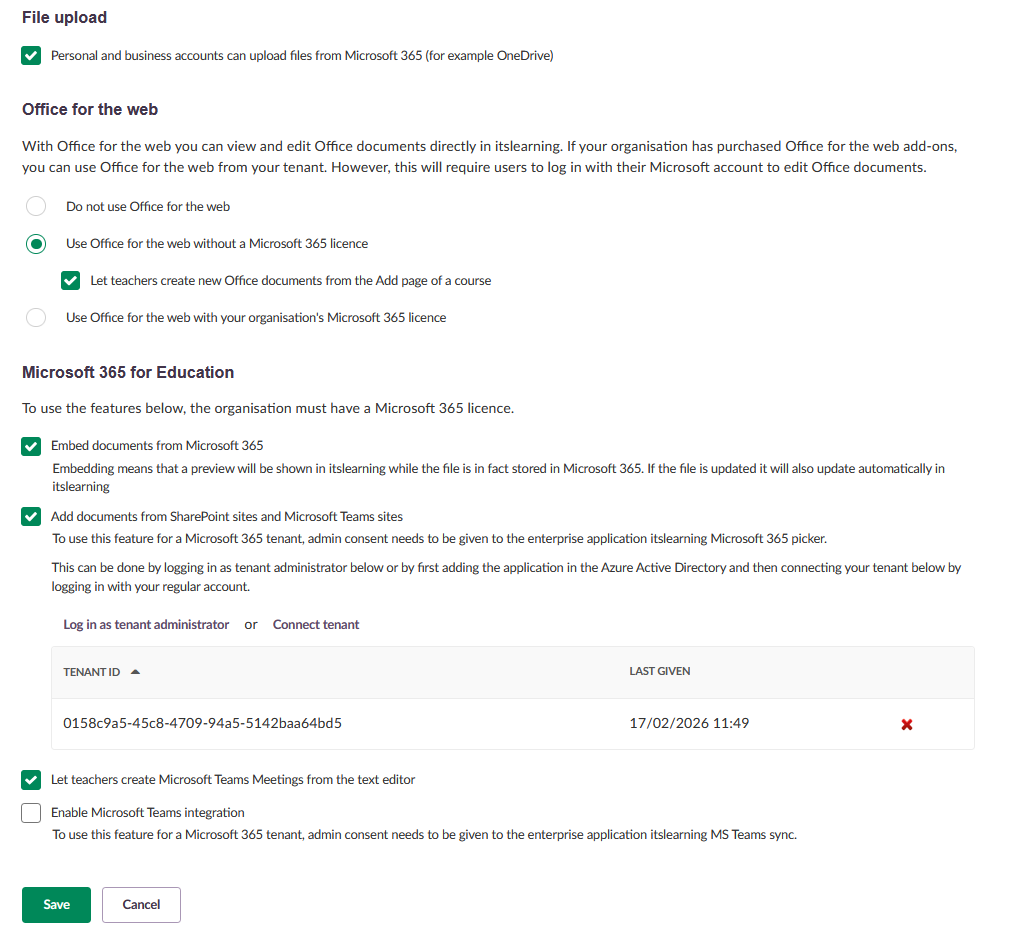
- File upload: personal and business accounts can upload files from Microsoft 365 (for example OneDrive).
Office for the web allows users to view and edit Office documents directly in itslearning. Three options are available:
- Do not use Office for the web
- Use Office for the web without a Microsoft 365 licence, with a sub-option to let teachers create new Office documents from the Add page of a course
- Use Office for the web with the organisation's own Microsoft 365 licence
If the organisation has purchased Office for the web add-ons, Office for the web can be used from the organisation's own tenant. This requires users to log in with their Microsoft account to edit Office documents.
Microsoft 365 for Education requires the organisation to have a Microsoft 365 licence for the following features:
- Embed documents from Microsoft 365 (a preview is shown in itslearning while the file remains stored in Microsoft 365; if the file is updated, it updates automatically in itslearning)
- Add documents from SharePoint sites and Microsoft Teams sites. To use this feature for a Microsoft 365 tenant, admin consent must be given to the enterprise application "itslearning Microsoft 365 picker". This can be done by logging in as tenant administrator, or by first adding the application in Azure Active Directory and then connecting the tenant by logging in with a regular account. Connected tenants are listed with their tenant ID and the date consent was last given.
- Let teachers create Microsoft Teams Meetings from the text editor
- Enable Microsoft Teams integration. To use this feature for a Microsoft 365 tenant, admin consent must be given to the enterprise application "itslearning MS Teams sync".
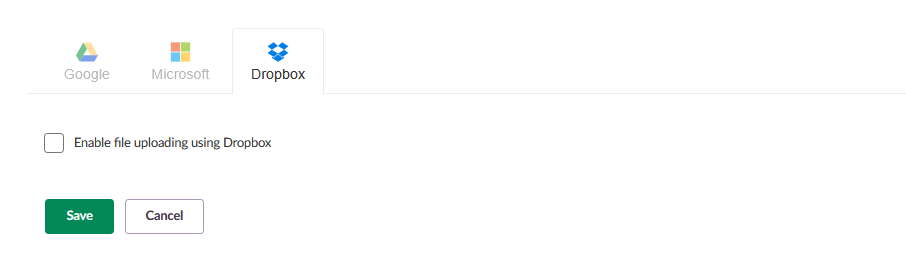
Dropbox tab: a single setting, Enable file uploading using Dropbox, controls whether users can upload files from Dropbox.
4 Artificial intelligence (AI) Add-on

4.1 AI settings
This page manages AI settings for the site.
Compliance and data handling:
- Data sent to the AI service is not permanently stored by the AI model.
- Data sent to the AI service is not used to train language models.
- Data can be reviewed by the user before it is sent.
- Personal data, such as the teacher's name or email address, is not shared with the third-party AI service.
- The AI tools are designed to comply with the EU AI Act, with a focus on transparency, safety, and respect for the user's role as an educator.
- itslearning is not responsible for the content of AI-generated answers. Responses are not moderated by itslearning and may produce inaccurate information about people, places, events, or facts. Users should review AI-generated content before sharing it.
Create content with AI: a toggle, Enable AI service to create content, allows administrators to enable AI-assisted content creation site-wide. Changes take up to 60 minutes to take effect. When enabled, AI-assisted content creation becomes available in:
- AI Toolkit
- Assignments
- Survey
- Tests
Data sent from itslearning to the AI service to generate content includes: title, description, learning objectives, student age range, curriculum, lesson topic, and output language.