Learning Objectives Progress Report - Overview (Teacher)
TABLE OF CONTENTS
Introduction
The Learning Objective Assessment Report shows how students in a course are progressing against aligned learning objectives. It provides views by objective, by participant, and by assessment activity, and supports mastery tracking when enabled by a system administrator.
1 Overview
The report is available in a course when learning objectives have been aligned to course elements. It provides answers to questions such as:
- Which learning objectives require additional time?
- Which students are struggling or excelling in the course?
- How has a student's progress developed over time?
- How did a student perform on a single assessment?
Three activity types contribute to learning objective assessment: assignments, tasks, and tests.
Note: Learning objective assessment is separate from the Assessment record. Both can be used independently of each other.
Note: Students can also access the report via Status and follow-up, but can only view their own progress. Students also have a cross-subject report on the start page showing their progress across all courses where learning objective assessment is used.
2 Accessing the report
- Open your course.
- Select Reports in the course navigation bar.
- Under Detailed reports, select Learning objective assessment report.
3 Report tabs
The report contains three tabs: Learning objectives, Participants, and Assessments. Each provides a different view of the same underlying data.
3.1 Learning objectives tab
This tab shows all learning objectives aligned to the course, grouped by category. For each objective, the tab displays:
- The number of students per outcome status (status labels are configured at organisation level)
- The description of the learning objective
- If mastery is enabled: a progress bar showing the percentage of students in the course who have mastered the objective
Click the title of an objective or a status count to open the objective details page. This page shows each student's name, current outcome status, and mastery status (if mastery is enabled). Participants can be filtered by group or by one or more outcome statuses.
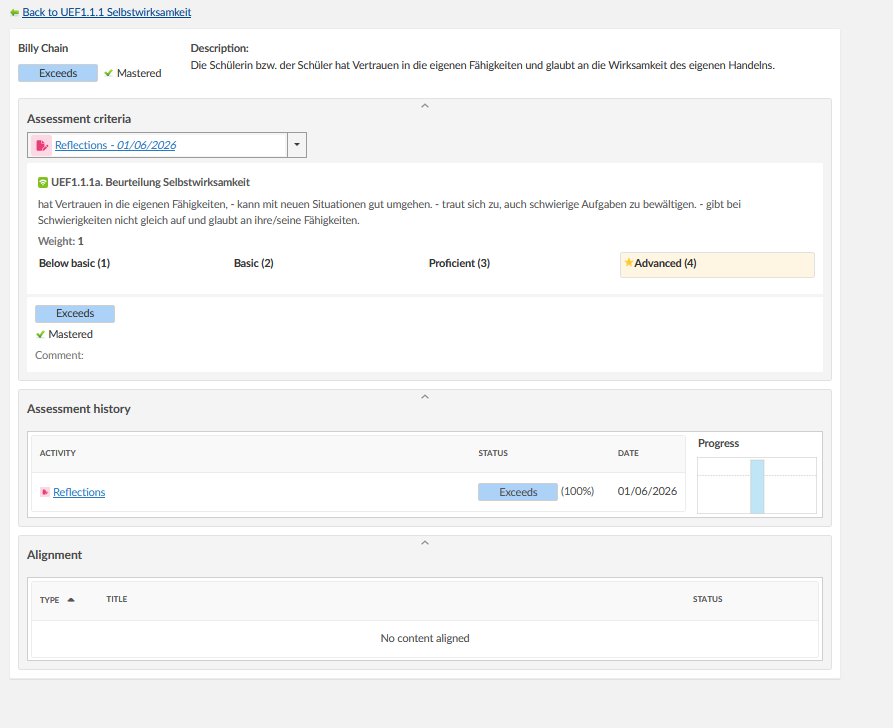
Click a student's name on the objective details page to open a detailed view for that student on this objective. This view shows:
- The assessment criteria (rubrics used to score the objective)
- The student's assessment history
- Course elements aligned to the objective and their completion status
Note: When opening the objective details page from the Learning objectives tab, the most recent assessment is shown for each student. When opening it from the Assessments tab, the outcome for that specific assessment is shown instead.
3.2 Participants tab
This tab shows all course participants and their progress across learning objectives. For each student, the tab displays the number of objectives at each outcome status. If mastery is enabled, a progress bar shows the percentage of objectives the student has mastered.
Click a student's name to see their progress on each learning objective in the course. For each objective, this view shows:
- The objective description
- A bar chart of assessment history
- The current status, based on the most recent assessment
- A mastery indicator, if mastery is enabled
Note: A dotted line in the bar chart represents the mastery threshold. The dotted line is not shown if mastery is disabled.
Use the status filter to limit the view to objectives with a specific outcome status. This makes it straightforward to identify the objectives where a student is struggling or excelling.
3.3 Assessments tab
This tab shows all activities in the course that include learning objective assessment. Click an assessment to see the learning objectives assessed with that activity and the number of students within each outcome status.
Click a learning objective or an outcome status to open the objective details page, filtered to show results for that assessment only.
4 Mastery
Mastery tracking is an optional addition to learning objective assessment. Its behaviour in the report depends on whether it has been enabled for the organisation.
| Mastery setting | How the report displays data |
|---|---|
| Disabled | The report shows the outcome status of the most recent assessment only. The most recent assessment is used because it best reflects a student's current level. |
| Enabled | The report additionally shows mastery progress bars and mastery indicators. A learning objective is considered mastered when a student reaches the configured threshold status the required number of times. |
Admin setting: Mastery settings — including the threshold status, recurrence count, and outcome status labels — are configured by a system administrator.
More Help Resources
Have more questions? Please start with asking your school administrator.
Product Release notes
Stay updated with itslearning latest releases: https://itslearning.com/product-updates
Service Status
Check the current status of itslearning services: https://status.itslearning.com/
Ideas Portal
Share your ideas and help shape the future of itslearning: https://ideas.itslearning.com/
Roadmap
Check out our roadmap: https://itslearning.com/global/roadmap/