Assignments - Getting started (Teacher)
TABLE OF CONTENTS
Introduction
This article shows teachers how to create an assignment in itslearning. Students can then submit their work in the assignment.
1 Overview
You create an assignment from a plan in your course. You add a title, instructions and supporting files. Then you set the visibility, deadline, assessment scale and recipients.
2 Prerequisites
- Teacher access to your course.
- Your assignment instructions, written or as uploaded files.
- Your preferred deadline date and time.
- Any supporting files that you want to give to students.
3 Step-by-step instructions
3.1 Opening the assignment form
- Go to your course and open your current plan.
- Under Resources and activities, select Add.
- Select Assignment in the drop-down menu.
3.2 Creating the assignment content
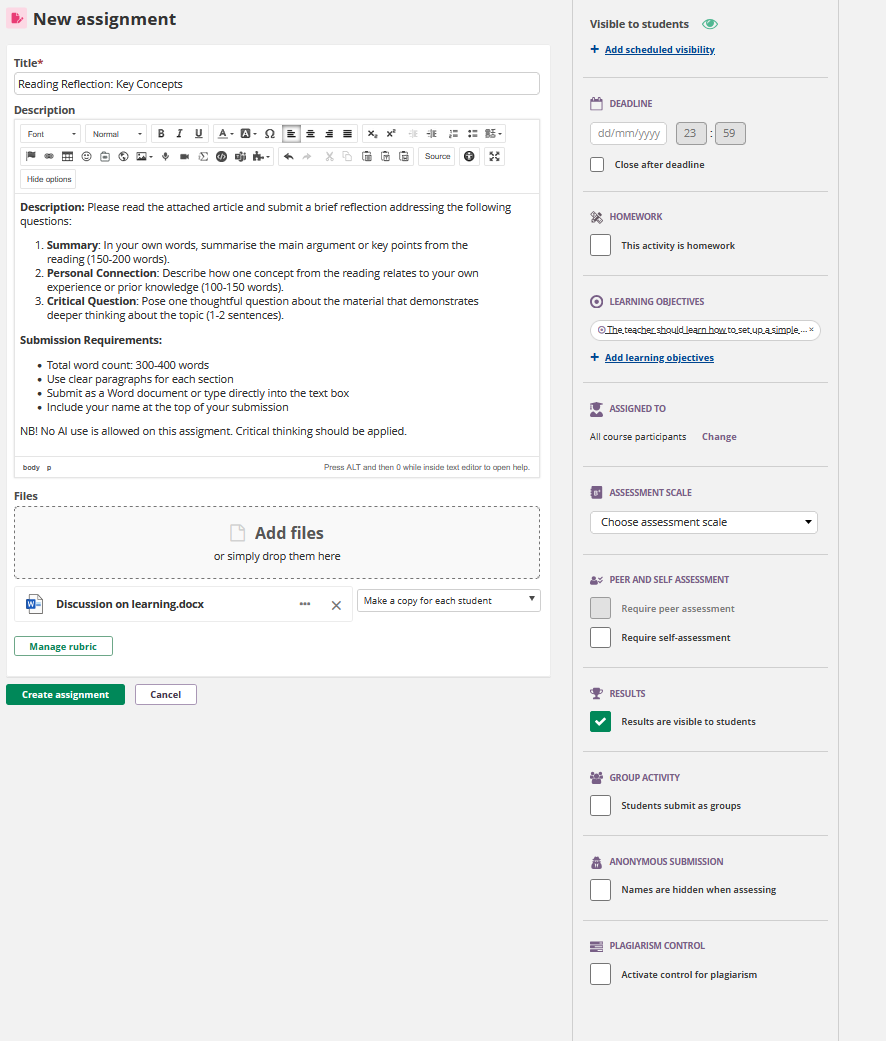
- Enter a clear, descriptive Title.
- In Description, write your instructions in the rich text editor.
- To add supporting files, select Add files or drag the files to the upload area.
- The main assignment window now shows your title, instructions and files.
3.3 Setting visibility and deadline
Use the right panel to set the following:
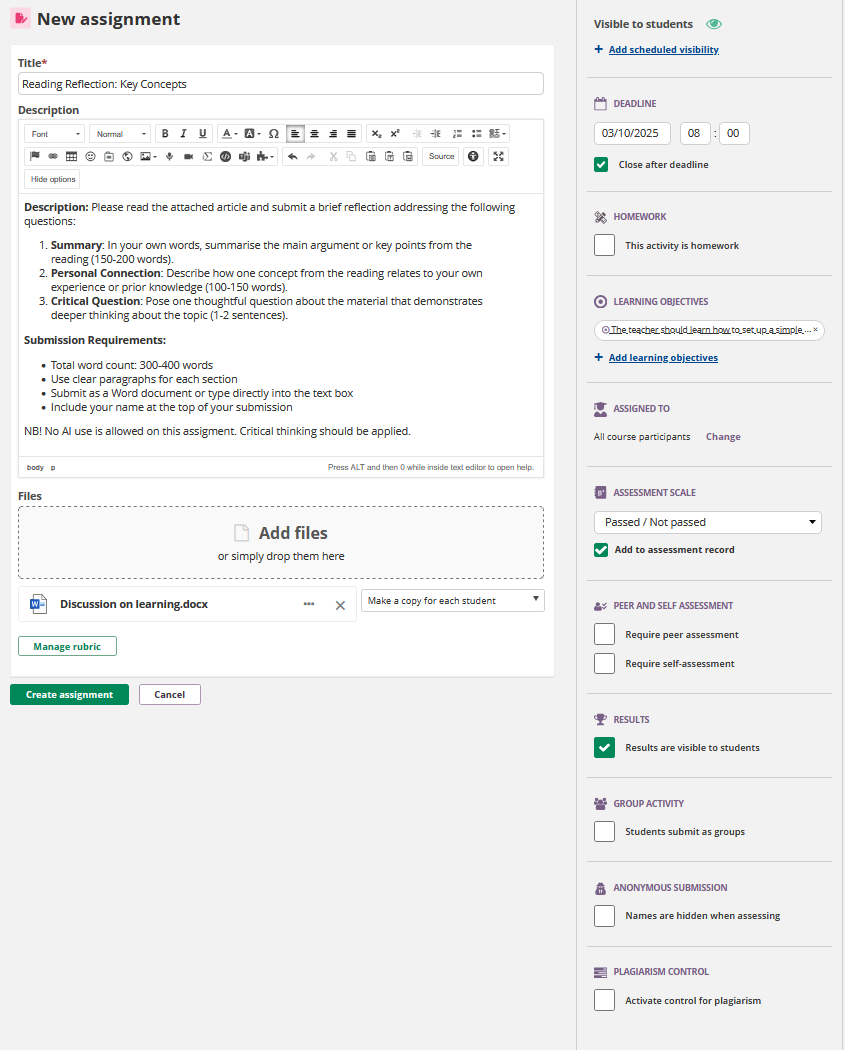
- Turn on Visible to students when you are ready to publish.
- Set the Deadline date and time with the calendar picker.
- Optionally, select Close after deadline to prevent late submissions.
3.4 Choosing assessment settings
- Under Assessment Scale, select your preferred grading scale from the drop-down list.
- Select Results are visible to students if you want students to see their grades.
- The deadline and the selected assessment scale now appear in the right panel.
3.5 Reviewing the assignment recipients
- Under Assigned to, check that All course participants is selected.
- To assign the assignment to specific students, select Change.
3.6 Creating the assignment
- Select the green Create assignment button at the bottom left.
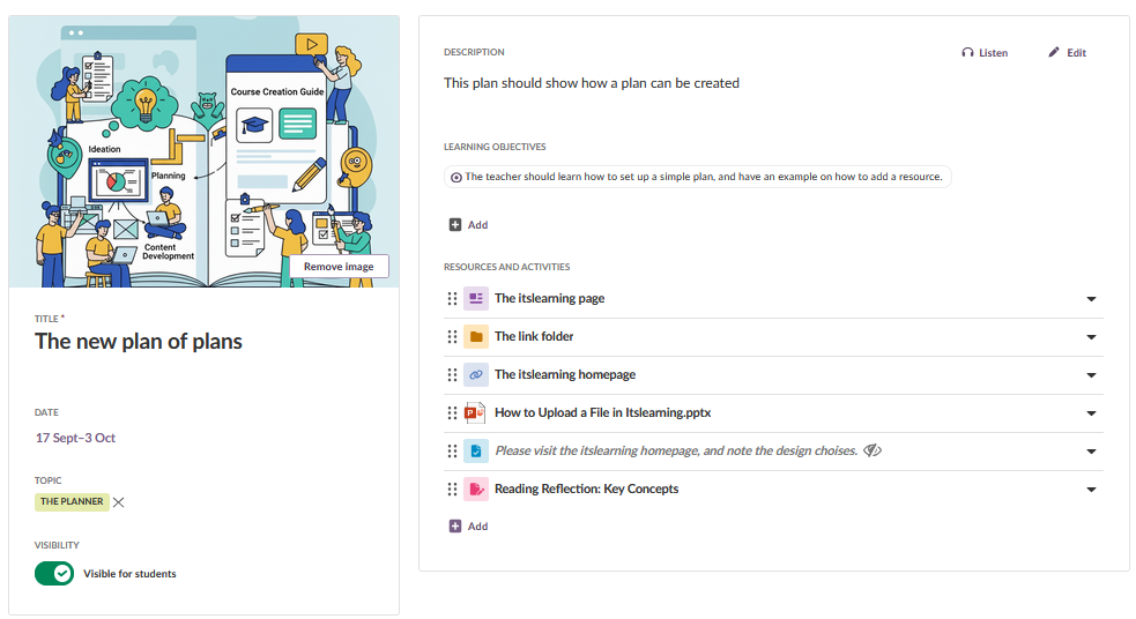
- You are redirected to the planner, where the new assignment is shown.
More Help Resources
Have more questions? Please start with asking your school administrator.
Product Release notes
Stay updated with itslearning latest releases: https://itslearning.com/product-updates
Service Status
Check the current status of itslearning services: https://status.itslearning.com/
Ideas Portal
Share your ideas and help shape the future of itslearning: https://ideas.itslearning.com/
Roadmap
Check out our roadmap: https://itslearning.com/global/roadmap/