Assignments - Answering Assignments in the Mobile App (Student)
TABLE OF CONTENTS
- 1 Overview
- 2 Before you start
- 3 Accessing assignments
- 4 Answering an assignment
- 5 Offline support
- 6 Opening the assignment in a browser
- 7 Marking an assignment as done
- 8 Limitations
- 9 FAQ
The itslearning mobile app allows students to view, answer and submit assignments directly from a phone or tablet. This article explains how to access assignments, write answers, attach files, save drafts and work offline.
1 Overview
Students can complete assigned assignments natively in the itslearning mobile app. The app supports the following:
| Capability | Description |
|---|---|
| View assignment information | Read the teacher's instructions and open attached files. View the deadline, plagiarism control status and whether the assignment is mandatory or homework. |
| Answer with text | Write a plain-text answer directly in the app. |
| Answer with files | Attach images and other files from the device. |
| Mark as done | Mark assignments that do not require an answer as complete. |
| Offline support | Download instructions and attached files for offline viewing. Save draft answers for later submission. |
| Open in browser | Open the assignment in the device's web browser for features not available in the app. |
2 Before you start
Prerequisite: You must have the itslearning mobile app installed on your phone or tablet and be signed in with your student account.
Note: Not all assignment types can be completed in the mobile app. Peer assessments, self-assessments and group assignments must be completed in a web browser. If an assignment is not supported, a message with a link to open it in the browser is displayed on the assignment screen.
3 Accessing assignments
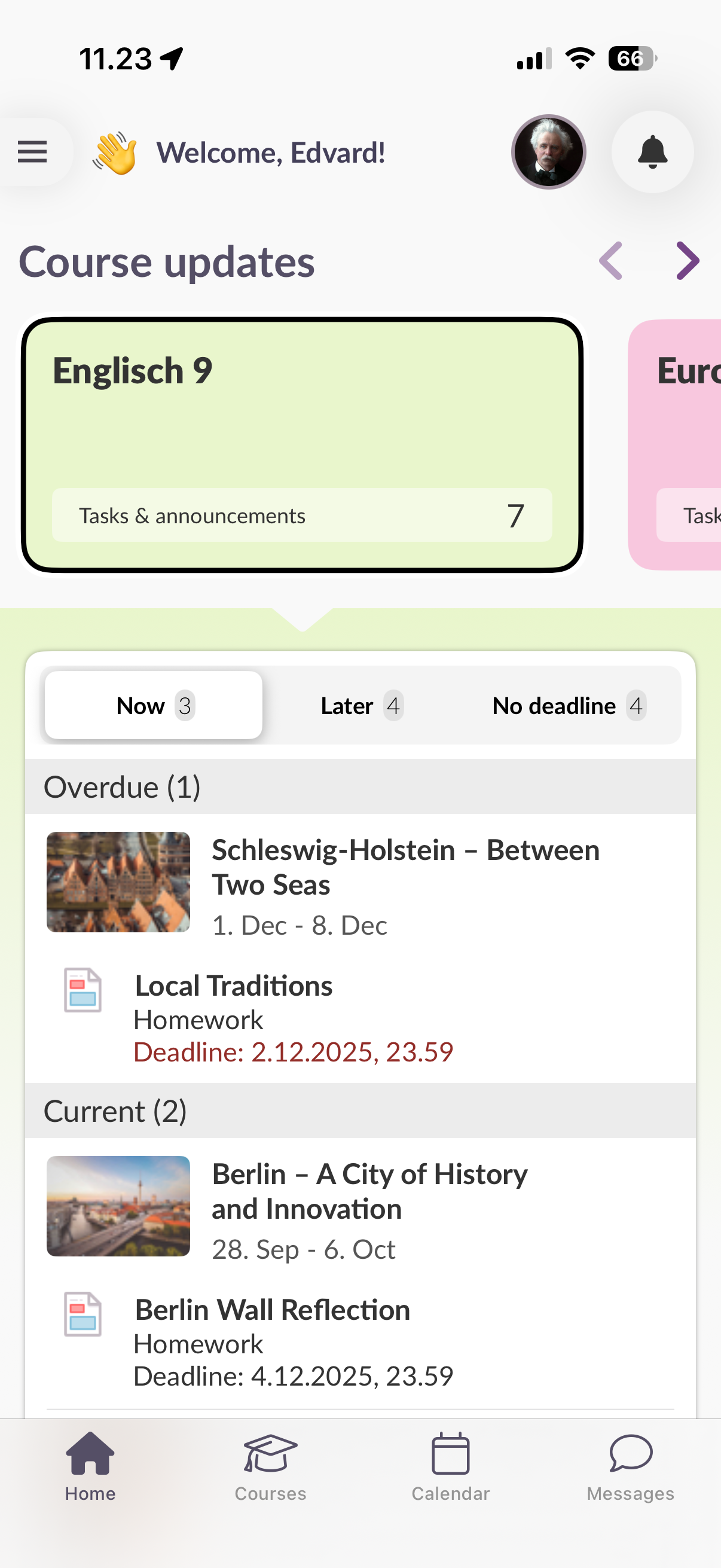
Unsubmitted assignments appear on the home screen of the app.
To open an assignment:
- Open the itslearning app on your device.
- On the home screen, tap the name of the assignment you want to open.
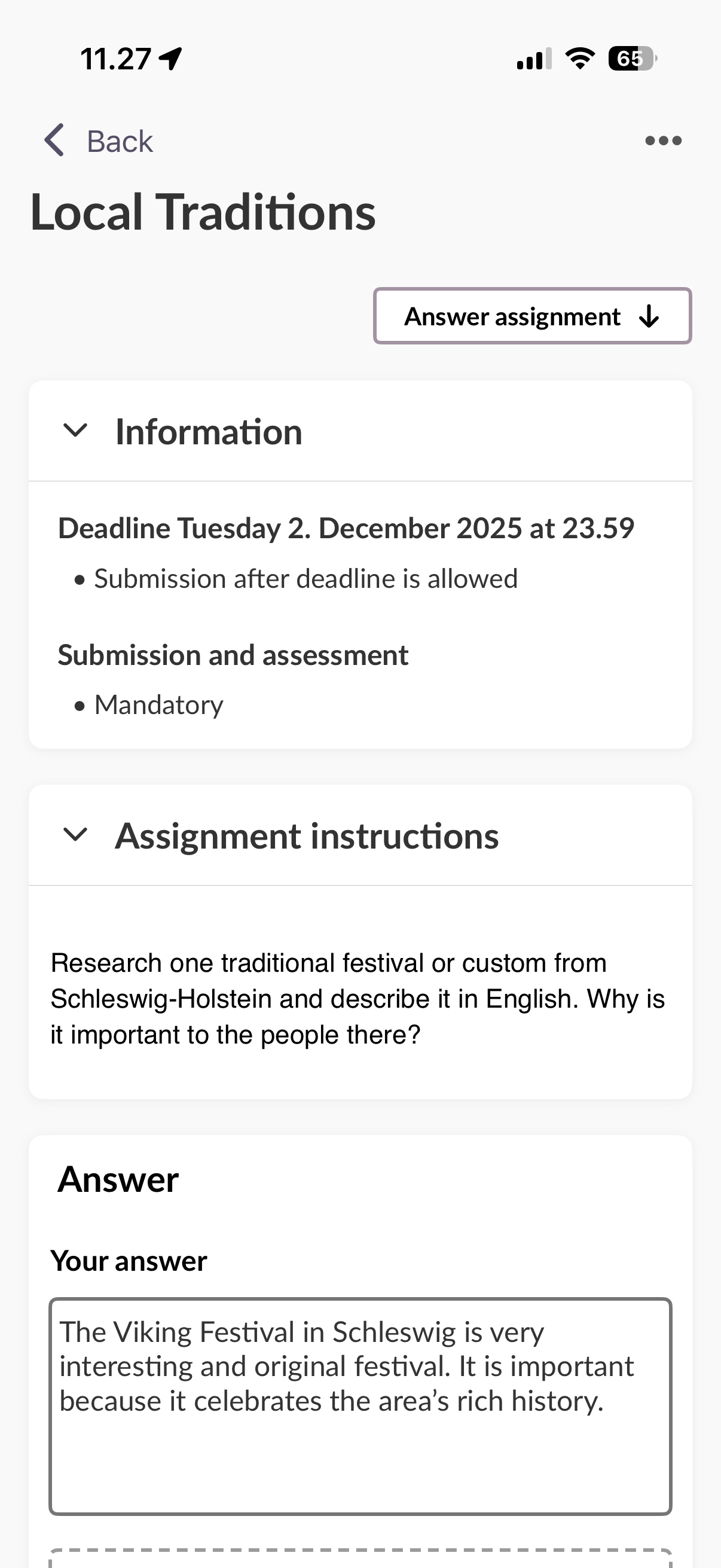
The assignment screen displays the teacher's instructions, any attached files, the deadline, plagiarism control status and assignment type labels.
Note: Submitted assignments are not shown on the home screen. To access a submitted assignment, open it in the web browser instead.
4 Answering an assignment
4.1 Writing an answer and attaching files
- Open the assignment from the home screen.
- Read the teacher's instructions and open any attached files if needed.
- Write your answer in the text field.
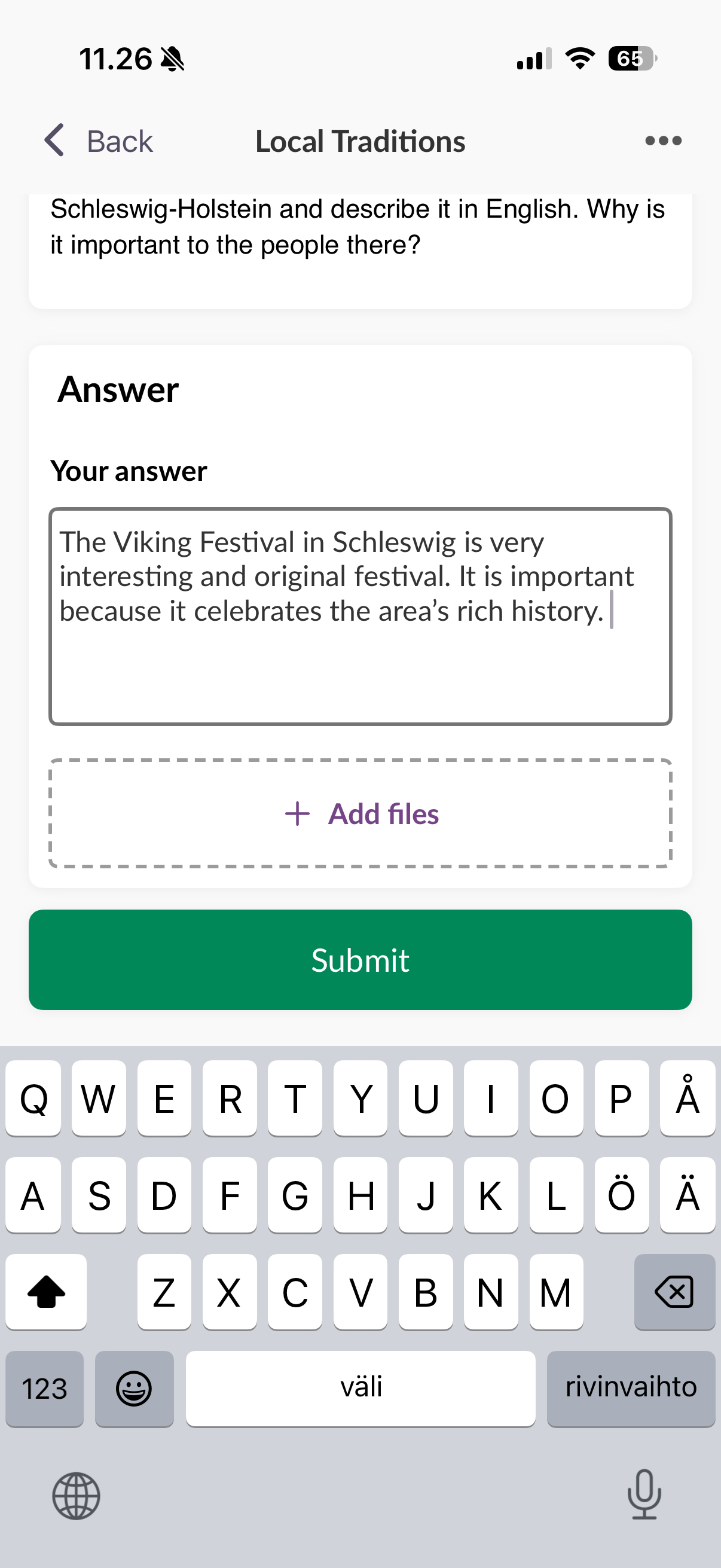
- To attach a file, tap the attachment option and select a file from your device.
4.2 Submitting your answer
- Check that your answer is complete and any file uploads have finished.
- Tap Submit.
Important: If you are uploading a file, wait for the upload to complete before submitting or leaving the screen.
4.3 Saving a draft
You do not need to finish your answer in one session. To save a draft:
- Write your answer or attach files as needed.
- Tap the back button on the assignment screen.
Your text and uploaded files are saved automatically. The draft is available when you return to the assignment later.
Important: If you are uploading a file, wait for the upload to complete before tapping the back button. Leaving during an upload may cause the file not to be saved.
5 Offline support
The app supports working on assignments when you do not have an internet connection. Instructions can be viewed offline, and draft answers can be saved for submission once you are back online.
5.1 Saving content for offline use
Assignment instructions and information are automatically saved to the device when you open an assignment.
To save instruction attachments for offline use:
- Open the assignment.
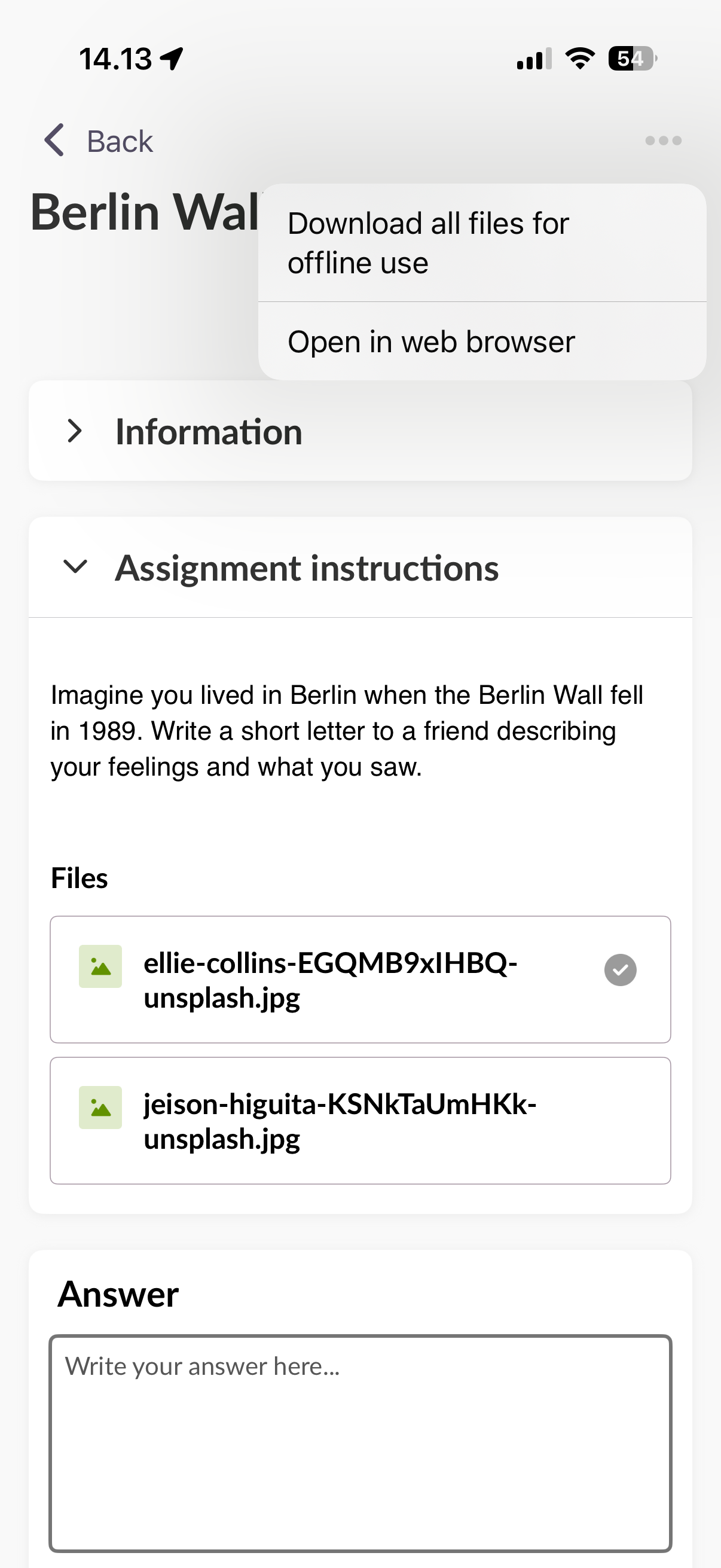
- To save a single attachment, tap the file to download it.
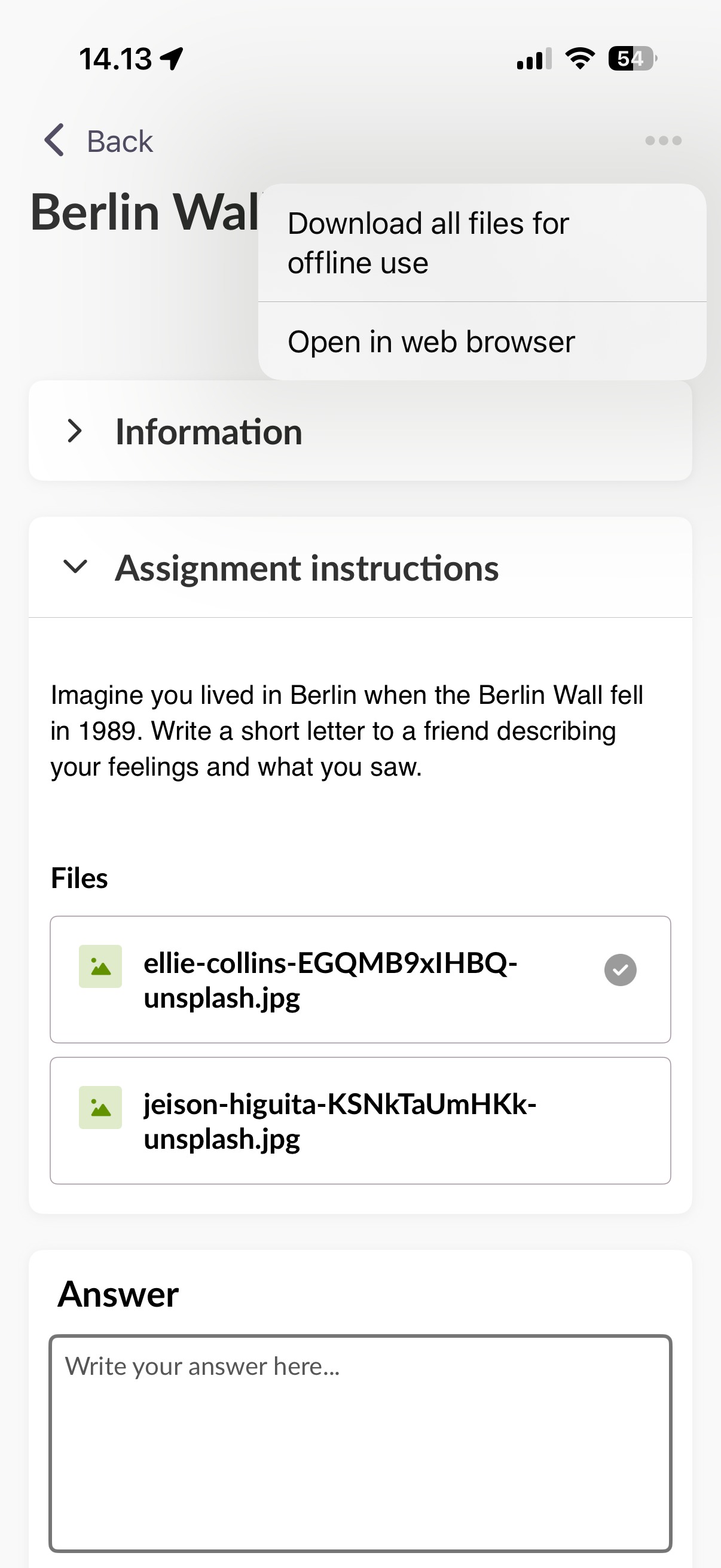
- To save all attachments at once, tap the three-dot menu (⋮) in the upper-right corner and select the download option.
5.2 Automatic deletion of saved content
Saved instructional content is automatically deleted from the device if you do not access the assignment for 30 days. After that, the content can be downloaded again.
6 Opening the assignment in a browser
Some features are only available in the browser version. To open the assignment in your device's web browser:
- Open the assignment in the app.
- Tap the three-dot menu (⋮) in the upper-right corner.
- Select the option to open in browser.
7 Marking an assignment as done
Some assignments do not require you to submit an answer (for example, "Read Chapter 5"). For these assignments, no text field or attachment option is displayed. Instead, a button is available to mark the assignment as done.
- Open the assignment from the home screen.
- Read the teacher's instructions.
- Tap the button to mark the assignment as done.
8 Limitations
The following assignment types cannot be completed in the mobile app and must be opened in a web browser:
| Assignment type | Mobile app support |
|---|---|
| Standard assignments (text and file answers) | ✓ Supported |
| Assignments with no answer required (mark as done) | ✓ Supported |
| Peer assessments | ✗ Use browser |
| Self-assessments | ✗ Use browser |
| Group assignments | ✗ Use browser |
When you open an unsupported assignment type in the app, a message is displayed with a link to open it in your browser.
9 FAQ
| Question | Answer |
|---|---|
| What types of files can I attach to my answer? | You can attach images and other files stored on your device. The app supports uploading files directly from your phone or tablet. |
| Can I work on assignments offline? | Yes. When you open an assignment, its instructions and information are automatically saved for offline use. You can also save your draft answers offline and submit them later when you are back online. |
| How do I save a draft of my answer? | Tap the back button on the assignment screen. Your text and uploaded files are saved as a draft. If you are uploading a file, wait for the upload to finish before leaving the screen. |
| How long are downloaded files stored on my device? | Saved instructional content is automatically deleted if you do not access the assignment for 30 days. After that, you can download the content again. |
| Can I open teacher-provided materials in other apps? | Yes. You can open attached files using any compatible app installed on your device. |
| Can I answer all assignments in the mobile app? | No. Peer assessments, self-assessments and group assignments are not supported in the app. These must be completed in a web browser. A message with a link to open the assignment in the browser is displayed on the assignment screen. |
More Help Resources
Have more questions? Please start with asking your school administrator.
Product Release notes
Stay updated with itslearning latest releases: https://itslearning.com/product-updates
Service Status
Check the current status of itslearning services: https://status.itslearning.com/
Ideas Portal
Share your ideas and help shape the future of itslearning: https://ideas.itslearning.com/
Roadmap
Check out our roadmap: https://itslearning.com/global/roadmap/
The features shown are part of the project within the framework of the German Development Project (GDP), a cooperation between four German states and itslearning with the aim of improving digital education in Germany through tailor-made product developments.
Click here to learn more about the GDP roadmap and what other features you can expect.
For German readers: Click here for more information about the project within the framework of the German Development Project.