Microsoft Cloud Services – Connecting Microsoft 365 to itslearning (Sysadmin)
TABLE OF CONTENTS
- 1. Overview & Introduction
- 2. Prerequisites & Requirements
- 3. Getting Started
- 4. Core Features & Functions
- 5. Step-by-Step Setup
- 5.1 Install the itslearning File Picker Enterprise Application
- 5.2 Grant Tenant-Wide Admin Consent
- 5.3 Configure Microsoft Cloud Services in itslearning
- 6. Configuration Options
- 7. Technical Background (Simplified)
- 8. Troubleshooting
- 8.1 "File Picker Needs Admin Approval"
- 8.2 Tenant Admin Redirected to Sign-Up or Blank Page
- 8.3 Users with School Accounts Cannot Open OneDrive Picker
- 8.4 MFA Changes Break Microsoft 365 Picker Connection
- 8.5 Renewing Expired Consent
- 8.6 Sharing Links Break After a User's Name, Username or Domain Changes
- 9. Additional Resources
- More Help Resources
1. Overview & Introduction
1.1 What This Guide Covers
This article explains how system administrators connect their organisation's Microsoft 365 tenant to itslearning and configure the itslearning File Picker enterprise application.
When the connection is correctly configured:
- Teachers and students can upload or embed Microsoft 365 documents in itslearning courses
- Users can add documents directly from SharePoint and Microsoft Teams sites
- Teachers can create Microsoft Teams meetings from the rich text editor in itslearning
Who needs to be involved:
- itslearning system administrator – configures settings in itslearning
- Microsoft 365 tenant administrator – installs the enterprise application and grants consent in Microsoft Entra ID (formerly Azure Active Directory)
1.2 Terminology Note: "File Picker"
itslearning uses the term "File Picker" to refer to two different components:
1. itslearning File Picker (Microsoft 365 Enterprise Application)
The enterprise application installed in Microsoft Entra ID. It enables adding files from OneDrive, SharePoint, and Microsoft Teams and requires admin consent from the Microsoft tenant administrator.
2. File picker in the itslearning interface
The internal file-selection component used to choose files from Your files, the Library, or course resources. This component is part of the itslearning user interface and does not require Microsoft tenant configuration.
This guide describes the Microsoft 365 Enterprise Application (itslearning File Picker), not the internal file picker used in the itslearning interface.
2. Prerequisites & Requirements
2.1 Required Permissions
You need:
- System administrator access in itslearning (Admin > Edit global settings)
- Tenant administrator access in Microsoft 365 (Microsoft Entra ID / Azure Active Directory) to:
- Install the enterprise application itslearning File Picker
- Grant admin consent on behalf of the organisation
Note: The same person does not need to have both roles, but both administrators must coordinate during the setup process.
Admin setting: Only one Microsoft 365 tenant can be connected under Cloud services > Microsoft at a time. For organisations that manage several schools under one itslearning site, and where individual schools use different Microsoft 365 tenants, this is a limitation to plan for before starting the setup.
2.2 Licensing Requirements
itslearning includes a built-in Office for the web viewer. This works even if your organisation does not have a Microsoft 365 licence.
Available Without Microsoft 365 Licence
- View Office documents (Word, PowerPoint, Excel) uploaded into itslearning
- Create Microsoft documents in itslearning trough resources (e.g Word, Excel and PPT)
- Users do not need to sign in with a Microsoft account to view files
- Upload local files from the device to itslearning (no Microsoft integration involved)
- "Hand out to all students" function (creates a copy of a document for each student so they can write directly in it)
- Upload file from private MS account trough [Your settings -> Connected accounts]
- Create MS Teams meetings in rich text editor trough a separate account (separate login)
Requires Microsoft 365 Licence
These features require your organisation's own Microsoft 365 tenant and the itslearning File Picker app with admin consent:
- Edit documents in Office for the web using your organisation's Microsoft tenant, as originally designed (see the note in section 3.2 regarding a known issue with this option)
- Embed or add files directly from OneDrive, SharePoint, or Microsoft Teams sites
- Microsoft Teams Meetings integration
2.3 Technical Requirements
- Access to Microsoft Entra admin centre (formerly Azure AD admin centre)
- Appropriate browser (Microsoft Edge, Chrome, Firefox, Safari)
- Users must have Microsoft 365 accounts from your organisation's tenant to use the advanced features
3. Getting Started
3.1 Where to Find Microsoft Cloud Services Settings
Before you begin the setup process, familiarise yourself with where the Microsoft cloud services settings are located in itslearning.
To locate the settings:
- Sign in to itslearning as system administrator
- Open the profile menu and select Admin
- Go to Edit global settings > Cloud services
- Open the Microsoft tab
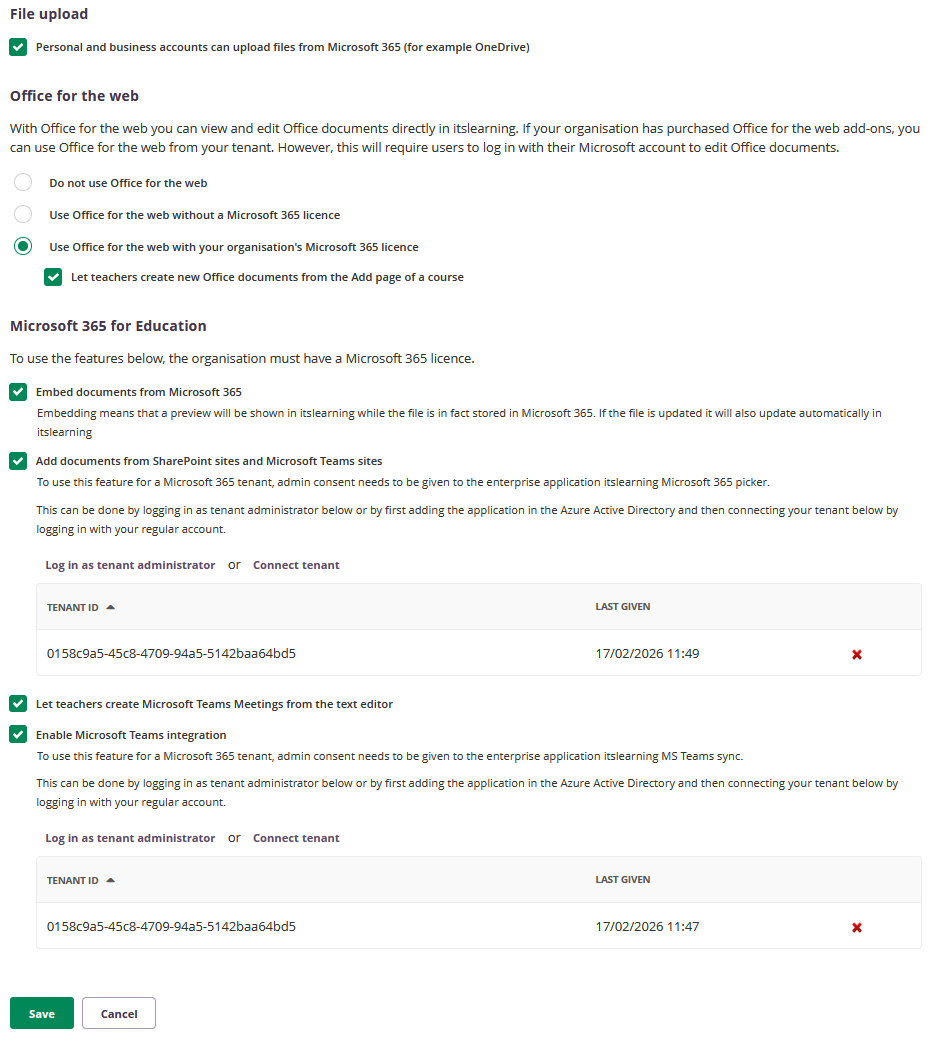
The settings on this page are grouped into three sections:
- File upload – Controls whether users can upload files from Microsoft 365
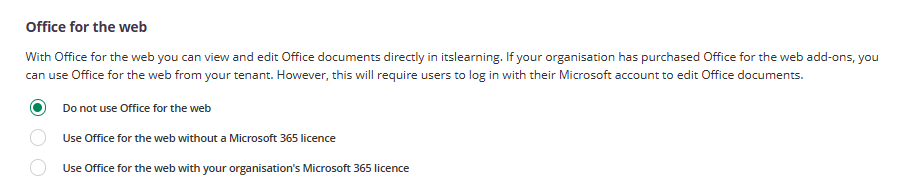
- Office for the web – Choose which Office editors to use
- Microsoft 365 for Education – Enable advanced features (requires setup in Microsoft Entra)
You will return to this page after completing the setup in Microsoft Entra ID.
3.2 Decide Which Office for the Web Setup to Use
Before you begin the technical setup, you need to decide which Office for the web integration your organisation will use.
Option 1: itslearning's Office for the Web
- No Microsoft 365 licence required
- Users can view and edit Office documents without signing in
- Basic Office for the web functionality
- No access to organisation-specific Office add-ons
Option 2: Your Organisation's Microsoft 365 Tenant Editors
- Requires Microsoft 365 licence
- As originally designed: users sign in with an account from your tenant when editing, and get access to your organisation's own Office add-ons and branding
- Consistent branding and policies across Microsoft 365 and itslearning, when functioning as designed
Important: known issue with this option
Internal reports indicate that this option does not currently behave as described above. Due to a change on Microsoft's side affecting the underlying sign-in flow for tenant-based Office editing, enabling Option 2 no longer prompts users to sign in when editing, and does not give access to your organisation's own Office add-ons. In practice, users experience the same functionality as Option 1 (itslearning's Office for the web), regardless of this setting.
You will configure this choice in section 5.3 after completing the Microsoft Entra setup.
4. Core Features & Functions
After you complete the setup process described in section 5, the following features can be available to your users:
1. Upload and View Office Files
Users upload files to itslearning and view them with Office for the web (or Office Online Server if enabled).
2. Embed Microsoft 365 Documents
Documents remain stored in Microsoft 365 but are displayed inside itslearning. If the file is updated in Microsoft 365, it also updates automatically in itslearning.
Users can browse team sites and Microsoft Teams files that they are members of, and add documents as links or uploads.
4. itslearning File Picker in the User Interface
The File Picker is used in several places within itslearning, including:
- Assignment answers
- Course Resources and Library
- ePortfolio and working portfolio
- Chat messages
- "Your files" integrations
5. Microsoft Teams Meetings
Teachers can add Teams meetings anywhere the rich text editor is available, once the Teams plugin and tenant consent are configured.
5. Step-by-Step Setup
5.1 Install the itslearning File Picker Enterprise Application
The File Picker must be installed in your Microsoft 365 tenant before it can be used.
- Sign in to the Microsoft Entra admin centre as tenant administrator
- Go to Enterprise applications
- Click New application
- Use the search field and search for:
itslearning File picker- or
itslearning Microsoft 365 picker - or
Office 365 picker for Production(older name in some tenants)
- Select the app and click Add to add it to your tenant
Note About Application Names
In older tenants, the application may still appear as "Office 365 picker for Production" or "OneDrive Picker for Production". These names refer to the same enterprise application used by itslearning for the File Picker.
The other applications in this window are for different integrations with MS and should not be used for the file picker. 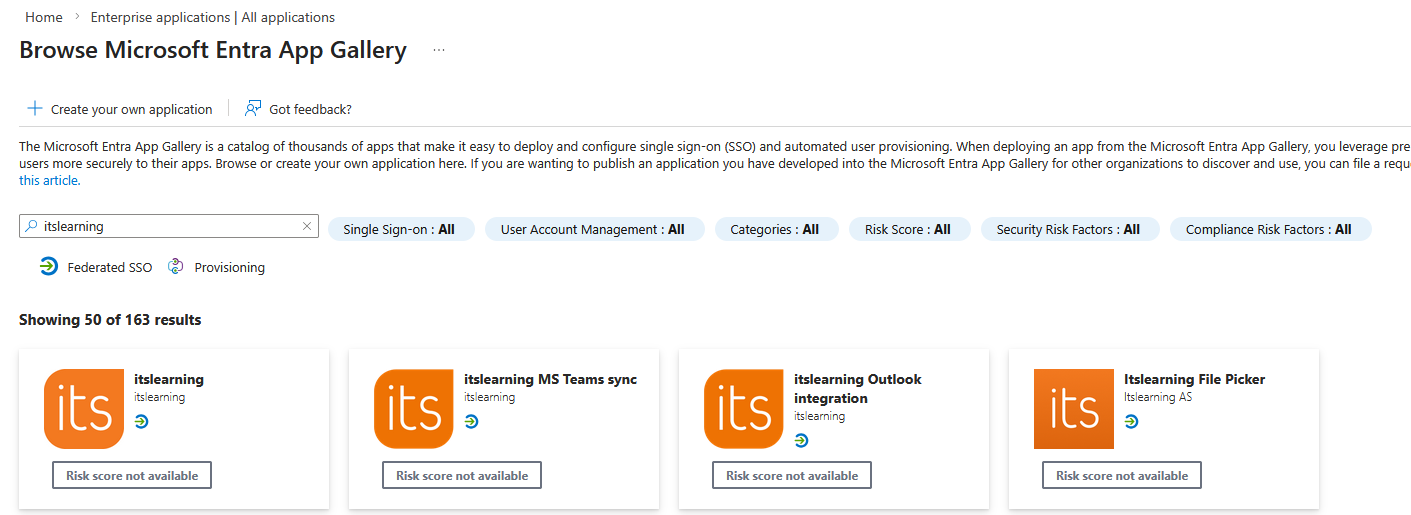
5.2 Grant Tenant-Wide Admin Consent
Admin consent is required to allow users to browse and add files from OneDrive, SharePoint, and Teams without each user granting permissions individually.
Option A – From the Enterprise Applications Page
- In Microsoft Entra admin centre, open Enterprise applications
- Select the itslearning File Picker app you installed
- Open the Permissions page
- Click Grant admin consent for [organisation name]
- Sign in again as tenant administrator if prompted and confirm consent
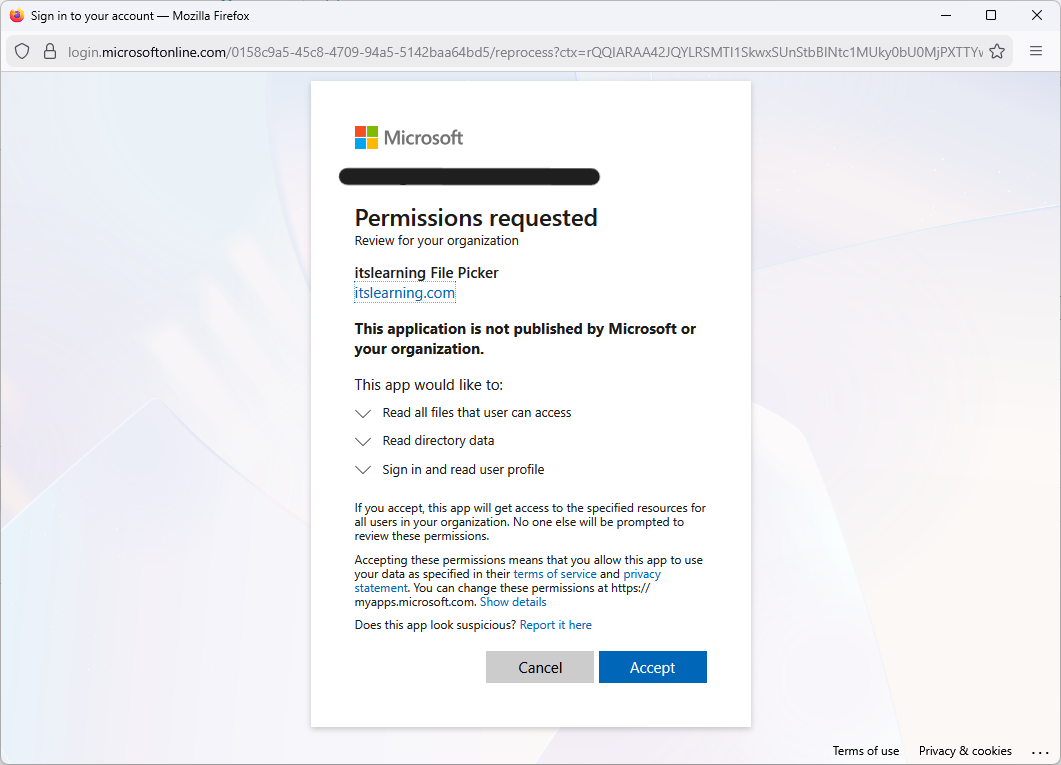
Option B – Using the Admin Consent Endpoint (Direct Link)
For some customers, using a direct admin consent URL has proven more reliable than the in-product "Sign up" flow.
- The tenant administrator opens the following link in a browser:
https://login.microsoftonline.com/common/adminconsent?client_id=252ad4db-88c7-44b4-9267-c05468da0eb7
(This client ID is the itslearning File Picker application.)
- Sign in with the tenant administrator account
- Review the requested permissions and click Accept to grant consent on behalf of the organisation
After consent is granted, the tenant administrator may see a blank page. This is expected; they can close the tab and continue.
Important
If your organisation has disabled user consent to apps, this is the only supported way to allow the app to access school OneDrive resources. There is no alternative that bypasses admin consent.
5.3 Configure Microsoft Cloud Services in itslearning
Now that the File Picker app is installed and consent is granted in Microsoft Entra, you can configure the integration in itslearning.
- Sign in to itslearning as system administrator
- Go to Admin > Edit global settings > Cloud services
- Open the Microsoft tab
5.3.1 Configure File Upload
In the File upload section:
- Enable the checkbox "Personal and business accounts can upload files from Microsoft 365 (for example OneDrive)" if you want users to upload files from their Microsoft accounts

5.3.2 Choose Office for the Web Setup
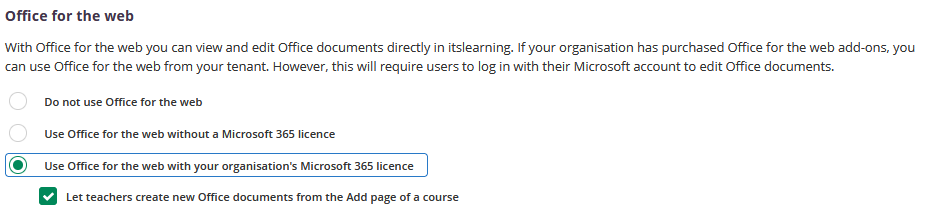
In the Office for the web section, select one of the following options based on your decision from section 3.2:
Option A: Use itslearning's Office for the web (no licence required)
- Select "Use Office for the web without a Microsoft 365 licence"
- Users can view and edit documents without signing in
- Optionally enable "Let teachers create new Office documents..."
Note that this function needs to be enabled for teachers to use several of the more time saving features in itslearning, like the "create a copy for each studen" function in assigments.

Option B: Use your organisation's Microsoft 365 tenant
- Select "Use Office for the web with your organisation's Microsoft 365 licence"
- As originally designed: users sign in to edit (viewing does not require sign-in)
- Optionally enable: "Let teachers create new Office documents from the Add page of a course"
Note that this function needs to be enabled for teachers to use several of the more time saving features in itslearning, like the "create a copy for each studen" function in assigments.
Important: known issue with Option B
Due to a change on Microsoft's side, enabling this option currently does not require users to sign in when editing, and does not expose your organisation's own Office add-ons. Users experience itslearning's generic Office for the web instead. If your organisation specifically needs your own tenant's Office add-ins, contact itslearning support to check the current status before relying on this setting.
5.3.3 Enable Microsoft 365 for Education Features
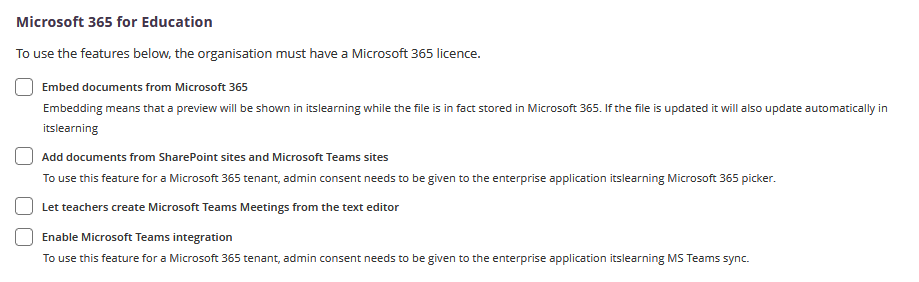
In the Microsoft 365 for Education section, enable the features you want to use:
- ☐ Embed documents from Microsoft 365 – Documents stay in Microsoft 365 but display in itslearning
- ☐ Add documents from SharePoint sites and Microsoft Teams sites – Requires File Picker consent (completed in section 5.2)
- ☐ Let teachers create Microsoft Teams Meetings from the text editor
- ☐ Enable Microsoft Teams integration – Note! Requires separate MS Teams sync application setup (See separate article in the help section)
5.3.4 Connect Your Tenant
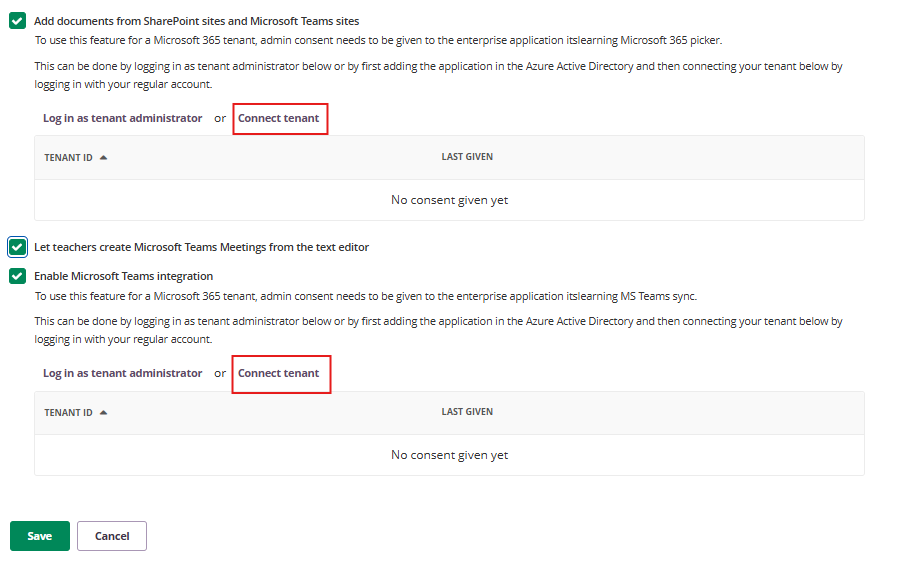
For each feature you enabled that requires tenant connection (SharePoint/Teams documents, Teams Meetings, Teams integration):
- Click the Connect tenant button next to the feature
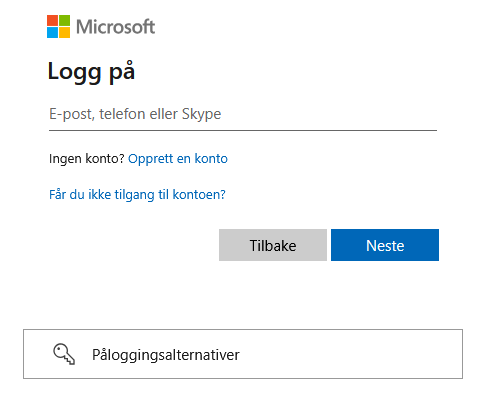
- Sign in with an account from your Microsoft 365 tenant (not necessarily the tenant admin account)
- itslearning will check whether the File Picker app has been added and consent has been granted
- If the check succeeds, the tenant connection is established
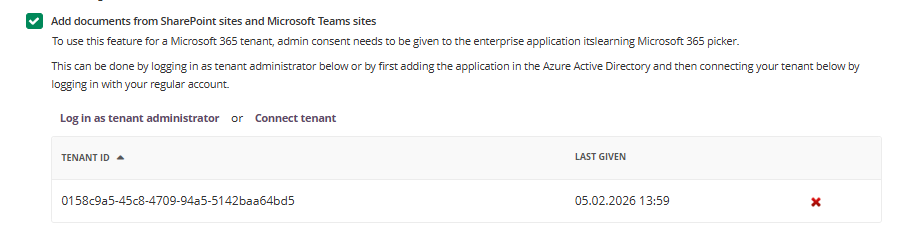
- The page will show the Tenant ID and Last Given date to confirm the connection
5.3.5 Save Your Configuration
- Review all your settings
- Click Save at the bottom of the page
5.4 Verify the Connection
After completing the setup:
- Have a test user (teacher or student) open a course in itslearning
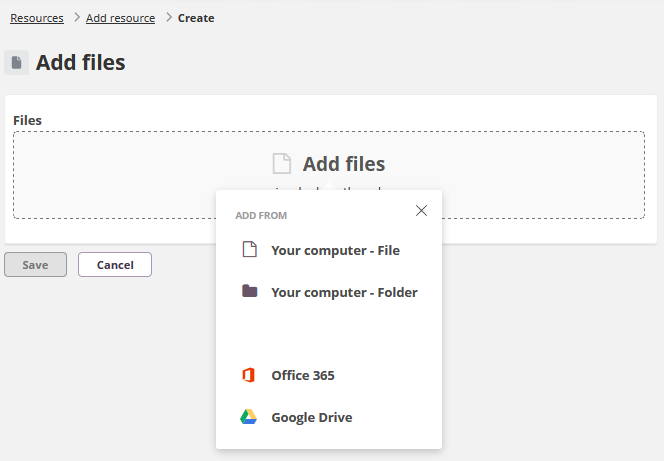
- Navigate to a location where the file picker is available (e.g., Course Resources, Assignment answer)
- Click Add or Add file
- Verify that the Office 365, and/or Teams tabs appear in the file picker
- Test adding a file from OneDrive or a SharePoint site
If the tabs do not appear or users receive an error, review the Troubleshooting section.
6. Configuration Options
6.1 Microsoft Cloud Services Settings Reference
After completing the initial setup, you can return to Admin > Edit global settings > Cloud services > Microsoft to modify your configuration.
Settings are grouped into three sections:
1. File Upload
Personal and business accounts can upload files from Microsoft 365 (for example OneDrive)
- When enabled: Users can upload files from their Microsoft cloud storage after setting up the connection trough [Your settings] -> [Connected accounts]
- When disabled: Users can only upload files from their local device
2. Office for the Web
Choose how Office documents are viewed and edited:
| Option | Licence Required | Sign-in Required | Add-ons Available |
|---|---|---|---|
| Do not use Office for the web | No | N/A | N/A |
| Use Office for the web without a Microsoft 365 licence | No | No | No |
| Use Office for the web with your organisation's Microsoft 365 licence | Yes | As designed: for editing only. Currently: no (see note below) | As designed: yes. Currently: no (see note below) |
Important: The last row of this table describes the intended behaviour of "Use Office for the web with your organisation's Microsoft 365 licence". Internal reports indicate this has not matched actual behaviour for an extended period, due to a change on Microsoft's side: users are currently not prompted to sign in, and do not get access to their organisation's Office add-ons. See section 3.2 for details.
3. Microsoft 365 for Education
Advanced features that require Microsoft 365 licence and File Picker consent:
| Feature | Description | Requires Connection |
|---|---|---|
| Embed documents from Microsoft 365 | Documents stay in Microsoft 365 but display in itslearning | Yes |
| Add documents from SharePoint sites and Microsoft Teams sites | Browse and add files from team sites | Yes |
| Let teachers create Microsoft Teams Meetings from the text editor | Create meeting links in course content | No - but requires a separate login to existing MS Teams from the editor. |
| Enable Microsoft Teams integration | Sync with MS Teams (separate application setup required) | Yes |
To modify tenant connections:
- Click Connect tenant to establish or refresh a connection
- Click the X next to the Tenant ID to disconnect
6.2 Additional Integration Options
Microsoft Teams Meetings
The Teams meetings integration uses a different application ID than the File Picker and has its own admin consent link. Do not use the Teams consent link to fix File Picker issues, and vice versa.
Single Sign-On (SSO)
Single sign-on with Microsoft Entra ID is separate from the itslearning File Picker and is not required for Microsoft 365 file integration. Organisations that also use Entra ID for authentication should refer to Microsoft's SSO configuration guide.
7. Technical Background (Simplified)
7.1 How the Enterprise Application Works
itslearning uses a multi-tenant enterprise application in Microsoft 365. This application allows itslearning to:
- Access files from a user's OneDrive, SharePoint team sites, and Microsoft Teams sites
- Read limited directory data to list relevant sites and groups
7.2 Security and Audit Logging
All actions the enterprise application performs on files from OneDrive, SharePoint, or Teams are logged in the Microsoft 365 audit log.
- Logging behaviour is controlled entirely by Microsoft
- itslearning does not decide which actions are logged
- Administrators can review activity under Microsoft Purview > Audit (compliance.microsoft.com redirects to the Microsoft Purview portal)
This ensures full transparency and allows IT administrators to monitor how the integration is being used.
7.3 User Consent vs Admin Consent
If tenant administrators disable user consent to applications, users will see an error or a "needs admin approval" message when trying to use the File Picker.
In this configuration, only tenant-wide admin consent via the admin consent endpoint or Enterprise applications page will allow the File Picker to function.
This is the expected behaviour in many school tenants where user consent is disabled for security reasons.
8. Troubleshooting
8.1 "File Picker Needs Admin Approval"
Symptoms
Teachers or students see a message like "File Picker needs admin approval" when attempting to use the File Picker.
Cause
Tenant-wide consent for the File Picker app is missing, invalid, or no longer recognised by Microsoft 365.
In 2025, multiple tenants experienced expired or invalidated consent for unknown reasons.
Solution
- Confirm that user consent to apps is restricted in your tenant (optional, but common in school tenants)
In Microsoft Entra admin centre, open Enterprise applications and locate the File Picker app (old or new name)
- Optional but recommended in repeated failure cases: remove the existing File Picker enterprise application
- Reinstall the app from the gallery (see section 5.1)
- Grant admin consent again using the admin consent endpoint (see section 5.2, Option B)
- In itslearning, revisit Cloud services > Microsoft and click Connect tenant if needed
Prevention
- Document who in your organisation is responsible for the File Picker enterprise application
- After major policy changes in Microsoft 365 (for example, disabling user consent or changing MFA requirements), verify that the File Picker still works for a test user
8.2 Tenant Admin Redirected to Sign-Up or Blank Page
Symptoms
When following a link in itslearning to "Sign up for…" the File Picker, the administrator is redirected to an itslearning page (for example, pmteam.itslearning.com) or to a blank page after sign-in.
Cause
The in-product sign-up flow can lead to confusing redirects and does not always complete admin consent.
Solution
- Bypass the in-product "Sign up" flow
- Have the tenant administrator follow the direct admin consent URL:
https://login.microsoftonline.com/common/adminconsent?client_id=252ad4db-88c7-44b4-9267-c05468da0eb7
- Complete admin consent as described in section 5.2
- Verify in Enterprise applications that the File Picker app now appears and has admin consent
Prevention
In support documentation for customers, prefer the direct admin consent link rather than describing the older in-product sign-up path.
8.3 Users with School Accounts Cannot Open OneDrive Picker
Symptoms
Users with Office 365 school accounts cannot open the OneDrive picker. After entering credentials, they see a message that they are not allowed to grant access.
Cause
The tenant has explicitly disabled user consent for applications. The user is not allowed to grant access to school resources, including OneDrive.
Solution
- Inform the customer that this is expected behaviour when user consent is disabled
- Ask the tenant administrator to grant consent centrally using the admin consent endpoint (see section 5.2)
Prevention
- When onboarding new Microsoft tenants, clarify early whether user consent is allowed
- If not, make the admin consent step part of the standard deployment checklist
8.4 MFA Changes Break Microsoft 365 Picker Connection
Symptoms
After the tenant administrator enables multi-factor authentication (MFA), the Microsoft 365 picker window opens, but only the OneDrive tab is visible and no files are shown.
Cause
Existing token or connection for the user's Office account does not survive the MFA change.
Solution
Ask affected users to disconnect and reconnect their Microsoft account:
- In itslearning, go to Your settings > Connected accounts
- Disconnect the Microsoft account
- Reconnect the Microsoft account and complete MFA authentication
Prevention
Plan MFA rollouts and inform users that they might need to reconnect their Office account in itslearning.
8.5 Renewing Expired Consent
In autumn 2025, several customers reported that users suddenly received a "File Picker needs admin approval" message, even though consent had been given previously.
Support analysis concluded that for unknown reasons, existing consent was no longer valid for many tenants. Renewing consent resolved the issue.
To renew consent:
- In Microsoft Entra admin centre, open Enterprise applications
- Locate the File Picker app (any name variation)
- Optionally, remove the existing enterprise application
- Re-install the app from the gallery (see section 5.1)
- Grant admin consent again using Option A or Option B in section 5.2
- In itslearning, open Cloud services > Microsoft and click Connect tenant again if required
8.6 Sharing Links Break After a User's Name, Username or Domain Changes
Symptoms
After a user's name, username (UPN) or email domain is changed in Microsoft 365 (for example, when a school renames a user or migrates to a new domain), previously shared OneDrive or SharePoint files linked in itslearning show an error such as "the account is no longer found", or the link no longer opens the file.
Cause
A user's OneDrive URL is derived directly from their UPN (for example https://contoso-my.sharepoint.com/personal/firstname_lastname_contoso_com). When the UPN changes, whether only the name part or the full domain, Microsoft generates a new OneDrive URL for that user. This applies equally to a name change within the same domain and to a full domain change.
Existing sharing links created before the change point to the old URL and stop working. According to Microsoft, this is expected behaviour: links are not automatically redirected to the new location, and the user needs to reshare the affected files. The change can also take several hours to fully propagate on Microsoft's side.
Solution
- Confirm with the customer's Microsoft 365 administrator that the affected user's UPN or domain was recently changed
- Ask the affected user to disconnect and reconnect their Microsoft account in itslearning under Your settings > Connected accounts, so itslearning uses the current identity going forward
- Explain that reconnecting the account does not automatically restore access to files shared before the change. The user needs to open the affected files directly in OneDrive or SharePoint and reshare them
- New files the user adds after the change should appear normally, once the UPN change has propagated and the account is reconnected
Prevention
- When planning a user name or domain change, warn affected users in advance that existing shared links in itslearning may break and will need to be reshared
- Avoid making name or domain changes during active coursework where possible
Note: This behaviour is documented by Microsoft and applies regardless of itslearning. See UPN changes – OneDrive | Microsoft Learn for the full technical background.
9. Additional Resources
Microsoft Learn
- Overview of user and admin consent
- Configure itslearning for Single sign-on with Microsoft Entra ID
- UPN changes and their effect on OneDrive
Note: Single sign-on (SSO) is separate from the itslearning File Picker and is not required for Microsoft 365 file integration. Organisations that also use Entra ID for authentication may refer to the SSO configuration guide above.
More Help Resources
Service Status
Check the current status of itslearning services → https://status.itslearning.com/
Ideas Portal
Share your ideas and help shape the future of itslearning! → https://ideas.itslearning.com/
Roadmap
Check out our roadmap! → https://itslearning.com/global/roadmap/