H5P – Upload and Play Content (Teacher)
TABLE OF CONTENTS
- Introduction
- 1 Overview
- 2 Add H5P as a standalone resource
- 3 Insert H5P in the rich text editor
- 4 Reuse and download options
- 5 Troubleshooting
Introduction
H5P is an open-source framework for interactive web content, including quizzes, interactive videos, and presentations. You can upload and play .h5p files in itslearning either as a standalone resource or embedded in the rich text editor across several course tools.
Prerequisite: The system administrator must enable the H5P extensions before you can use this feature. If H5P is not available, contact your system administrator.
1 Overview
There are two ways to use H5P content in itslearning. The method you choose determines which features are available.
| Method | Available in | Assessment | Reporting | Deadline |
|---|---|---|---|---|
| Standalone resource | Course Add page | ✓ | ✓ | ✓ |
| Rich text editor | Pages, assignments, discussions, plans, tests | ✗ | ✗ | ✗ |

An H5P activity (Find The Words) displayed as a standalone resource, showing the settings summary on the right.
2 Add H5P as a standalone resource
When the system administrator has enabled the H5P application, you can add H5P files from the Add page of a course. The H5P option appears alongside other resource types. Use this method when you want to track student results or include H5P in the assessment record.

The H5P resource type as it appears on the course Add page.
2.1 Upload and configure settings
- On the course Add page, select H5P.
- Click Add file and select where to upload the .h5p file from: Your computer, OneDrive, or Your files. The maximum file size allowed is 200 MB. Only .h5p files are supported.

The Create H5P page. The settings summary on the right shows the current configuration.
Note: Some H5P content types return an error or fail to import. This is currently known to affect Impressive Presentation, Advanced Blanks, and iFrame Embedder. The issue lies with these H5P packages themselves, as the same content types also fail to import in Moodle. It is not specific to itslearning.
- Configure the settings as needed. By default, the content is visible to all course participants with no deadline. Expand More settings for additional options (see table below).
- Click Create.
Available settings
| Setting | Description |
|---|---|
| Visibility | Set the content to visible, not visible, or scheduled. The Scheduled option allows you to set a date and time to make the resource visible and/or to hide it. |
| Deadline | When a deadline is set, students can still interact with the content (as long as it is visible), but if the content returns a result, the result will no longer be stored after the deadline. |
| Assessment scale | If the H5P content type returns a result (as a percentage), the result can be mapped to an assessment scale. This setting is only available for H5P content types that are known to return a result. The list of supported content types is managed by itslearning and currently includes: Drag the Words, Drag and Drop, Fill in the Blanks, Find the Hotspot, Mark the Words, Multiple Choice, Single Choice Set, Quiz (Question Set), Summary, Interactive Video, and Course Presentation. |
| Optional | Available if the progress report is enabled at site level and for the course. |
| Homework | Available if homework is enabled at site level. |
| Learning objectives | Available if learning objectives are enabled for the course. |
| Assigned to | Assign the H5P content to specific students or groups, instead of all course participants. |
2.2 View student progress
On the Students tab, you can see an overview of student progress. If the H5P content returns a result, it is mapped to the selected assessment scale.

The Students tab displays each student's assessment. Click the pencil icon to view or edit an individual assessment.
Note: It is not possible to see what a student has answered. Only the overall result is shown, mapped to the assessment scale.
The assessment can also be included in the assessment record and is shown in the 360 report.
Note: Results only appear in reports if you have selected an assessment scale for the activity. Without an assessment, the result is not shown in the 360 report, even if the H5P content returns a score.
2.3 Completion status
Not all H5P content types can be marked as complete automatically. This depends on the content type you upload, not on a setting in itslearning.
- Content types that send back progress to itslearning (the same content types listed under Assessment scale in section 2.1) are completed automatically once the student has finished the activity. If an assessment scale has been selected for the activity, the student's score is matched to an option from the assessment scale. If no assessment scale is selected, the activity is completed automatically without a mapped score.
- All other content types do not send back progress and must be marked as complete manually by the student.
Retry and deadline
If a content type supports retry, students can retry the activity as many times as they like. Each new attempt overwrites the previous one, so only the last attempt is stored.
If a deadline has passed, the student's attempt is no longer stored. This means the last attempt made before the deadline is the one that counts.
Note: If you use the H5P activity as part of progress tracking, try the content type yourself first to see how it behaves.
3 Insert H5P in the rich text editor
When the system administrator has enabled the H5P plugin, you can embed H5P files in the rich text editor. The same process applies in every tool that includes the rich text editor. H5P content embedded this way does not support assessment or reporting; use the standalone H5P resource (section 2) if you need to track results or include H5P in the assessment record.
- In the rich text editor toolbar, click the puzzle piece icon and select H5P.
Note: If the H5P option does not appear under the puzzle piece icon, click Find apps and search for H5P to add it.

The puzzle piece icon in the rich text editor toolbar with the H5P option.
- In the window that opens, upload a .h5p file. The maximum file size is 200 MB.

The H5P upload dialogue.
- Click Add. In edit mode, a placeholder image is shown in place of the H5P content.

The rich content block editor showing an H5P placeholder.
- Save the content. The H5P activity is displayed to participants once saved.

An H5P HotSpots activity displayed in a rich content block after saving.
The table below shows where the rich text editor is available and suggests how H5P can be used in each context.
| Tool / area | Where H5P can be embedded | Suggested use |
|---|---|---|
| Pages | Rich content block | Place interactive activities alongside text, images, and links on a course page. Useful for self-study materials or topic introductions that combine multiple content types. |
| Assignments | Introduction / description field | Embed an interactive activity in the assignment brief. Students engage with the H5P content before submitting their response through the standard assignment workflow. |
| Discussions | Description, thread posts | Use an interactive image, video, or activity as a shared starting point for a discussion. All participants can view the content before contributing to the thread. |
| Plans | Plan description, topic description, custom columns | Embed H5P activities directly in lesson or topic descriptions within a Plan, or add interactive content to custom columns for structured learning sequences. |
| Tests | Test description, question descriptions, question group introductions | Add an interactive element as context for a question or group of questions. The H5P content is displayed as stimulus material; results are not connected to the test assessment. |
4 Reuse and download options
H5P can natively display reuse, download, and copyright buttons below an activity. In itslearning, only the Download option is available. The reuse and copyright buttons are not shown, even if they were switched on when the .h5p file was created.
Download
On a standalone H5P resource, Download is shown below the activity. You can download the .h5p file, for example to modify the content in your own H5P environment.
- Click Downloadbelow the activity. A dialogue box opens.
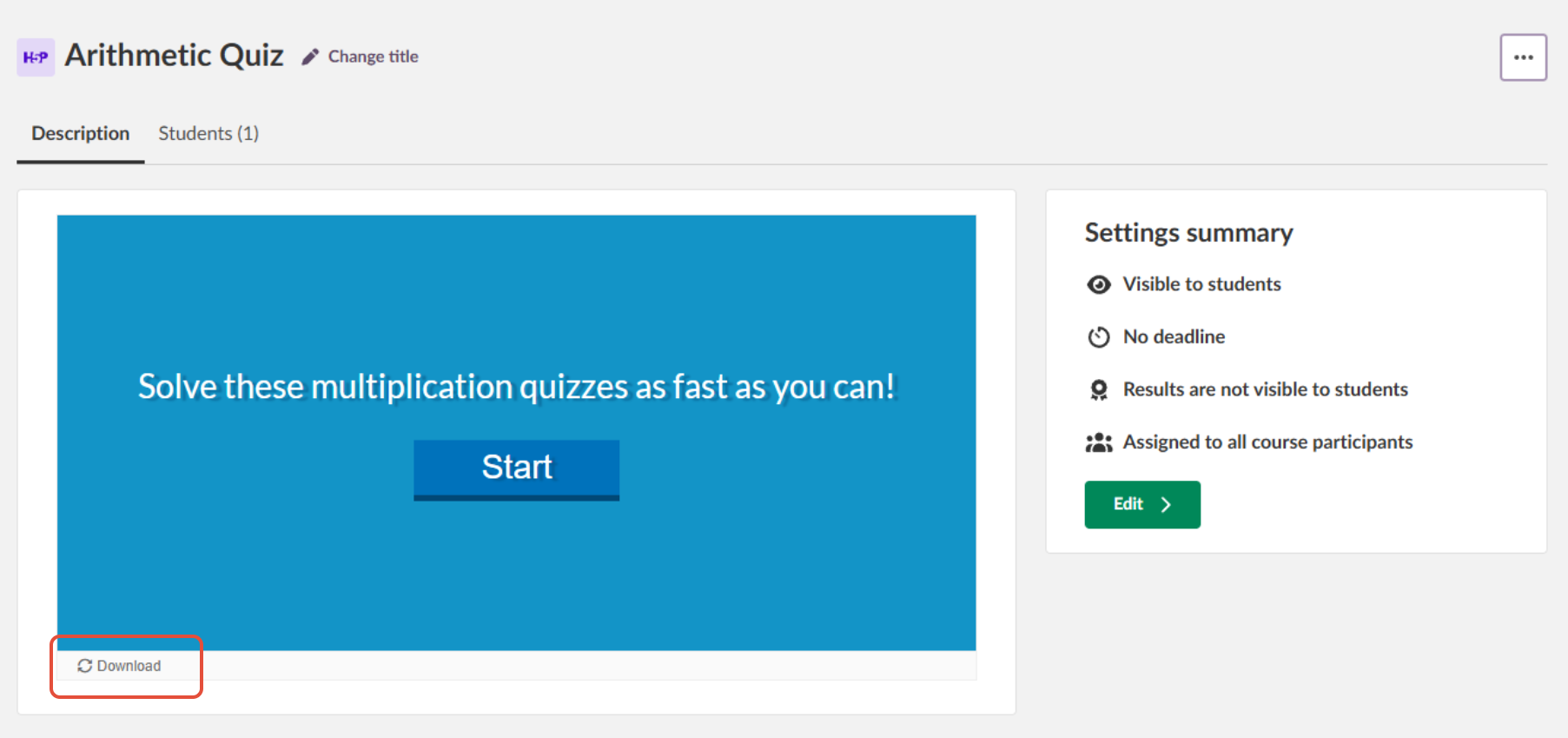
The Download button below an H5P activity on a standalone resource.
- Click Download as an .h5p file. The .h5p file is downloaded to your device.
Note: To use the same H5P activity again within itslearning, copy the resource as you would any other course resource.
5 Troubleshooting
The following error messages may appear when you upload an H5P file.
| Error message | Cause | Solution |
|---|---|---|
| Select a file to upload | Add was clicked before a file was selected. | Select an .h5p file and click Add again. |
| The uploaded file is not an H5P file | The selected file is not in a supported format. | Upload a file in .h5p format. Other file formats are not supported. |
| Unable to upload selected file | The file could not be uploaded, for example because of a server error. | Try again. If the error persists, contact your school administrator. |
| Unable to process file | The file was uploaded but could not be processed, for example because the H5P package is invalid or a server error occurred. | Check that the file is a valid H5P package. Some content types cannot be imported (see the note in section 2.1). |
| We were unable to process this H5P file. The following required components are missing: [components] | The H5P file is missing components required to play it. The message lists the missing components. | Create or export the H5P file again so that it includes the listed components, then upload it again. |
More Help Resources
Have more questions? Please start with asking your school administrator.
Product Release notes
Stay updated with itslearning latest releases: https://itslearning.com/product-updates
Service Status
Check the current status of itslearning services: https://status.itslearning.com/
Ideas Portal
Share your ideas and help shape the future of itslearning: https://ideas.itslearning.com/
Roadmap
Check out our roadmap: https://itslearning.com/global/roadmap/
The features shown are part of the project within the framework of the German Development Project (GDP), a cooperation between four German states and itslearning with the aim of improving digital education in Germany through tailor-made product developments.
Click here to learn more about the GDP roadmap and what other features you can expect.
For German readers: Click here for more information about the project within the framework of the German Development Project.