Login - Getting started
TABLE OF CONTENTS
Introduction
This article explains how to log in to itslearning. After you log in, your dashboard opens and shows your courses.
1 Overview
To log in, you select your institution's site on the itslearning website and enter your username and password. Depending on the site setup, you may have to change your password or set up two-factor login the first time you log in.
Many sites use SSO and have their own login page. See section 4 for details.
2 Prerequisites
- Your username and password, provided by your educational institution.
- Your institution's site name. This is often the name of your school or college.
- An internet connection and a web browser.
Important: Never share your password with others.
3 Step-by-step instructions
3.1 Opening the login page
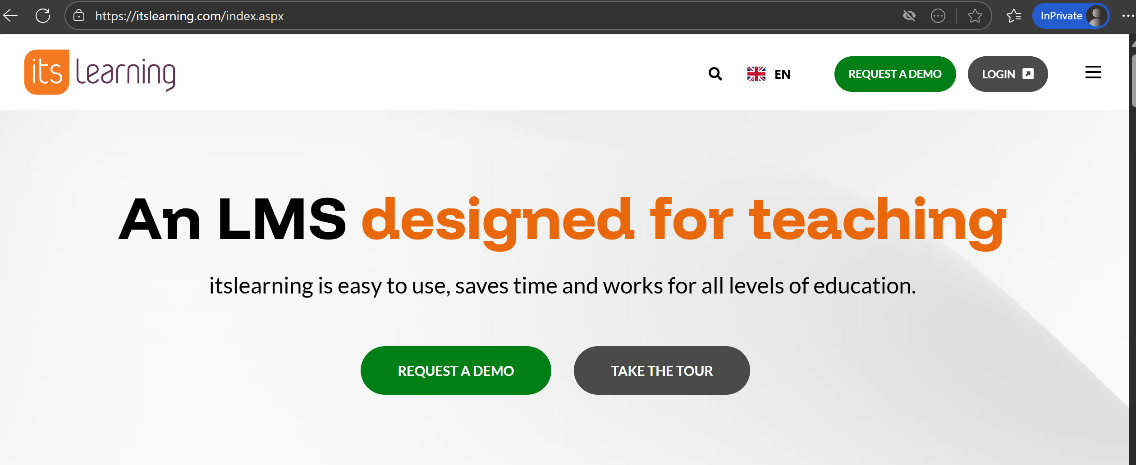
- Go to https://www.itslearning.com in your web browser.
- Select Login in the upper-right corner.
3.2 Selecting your institution
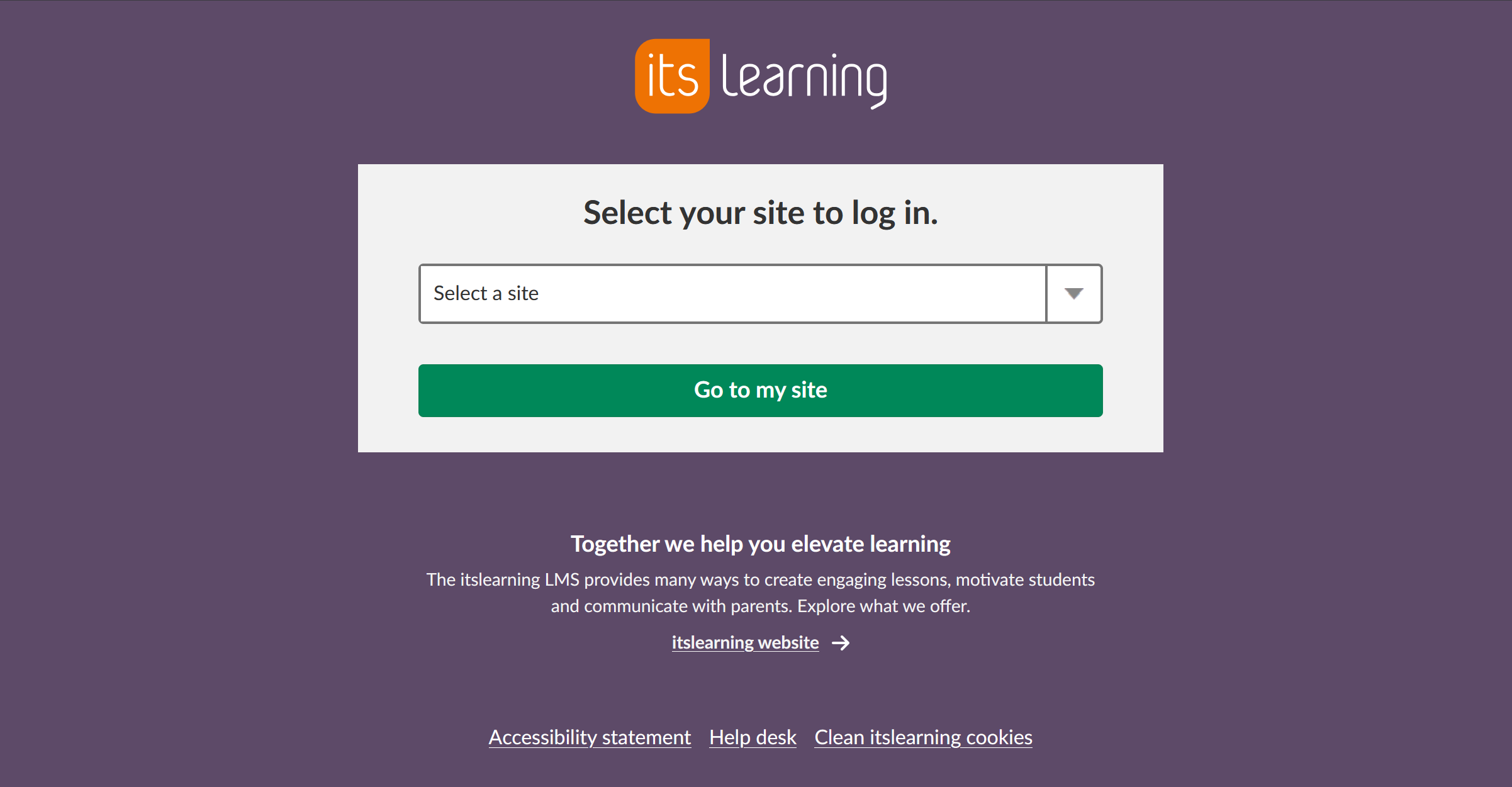
- Select the drop-down list that shows Select your site.
- Type your institution's name, or scroll to find it.
- Select Go to my site.
- Your institution's login page opens.
3.3 Entering your credentials
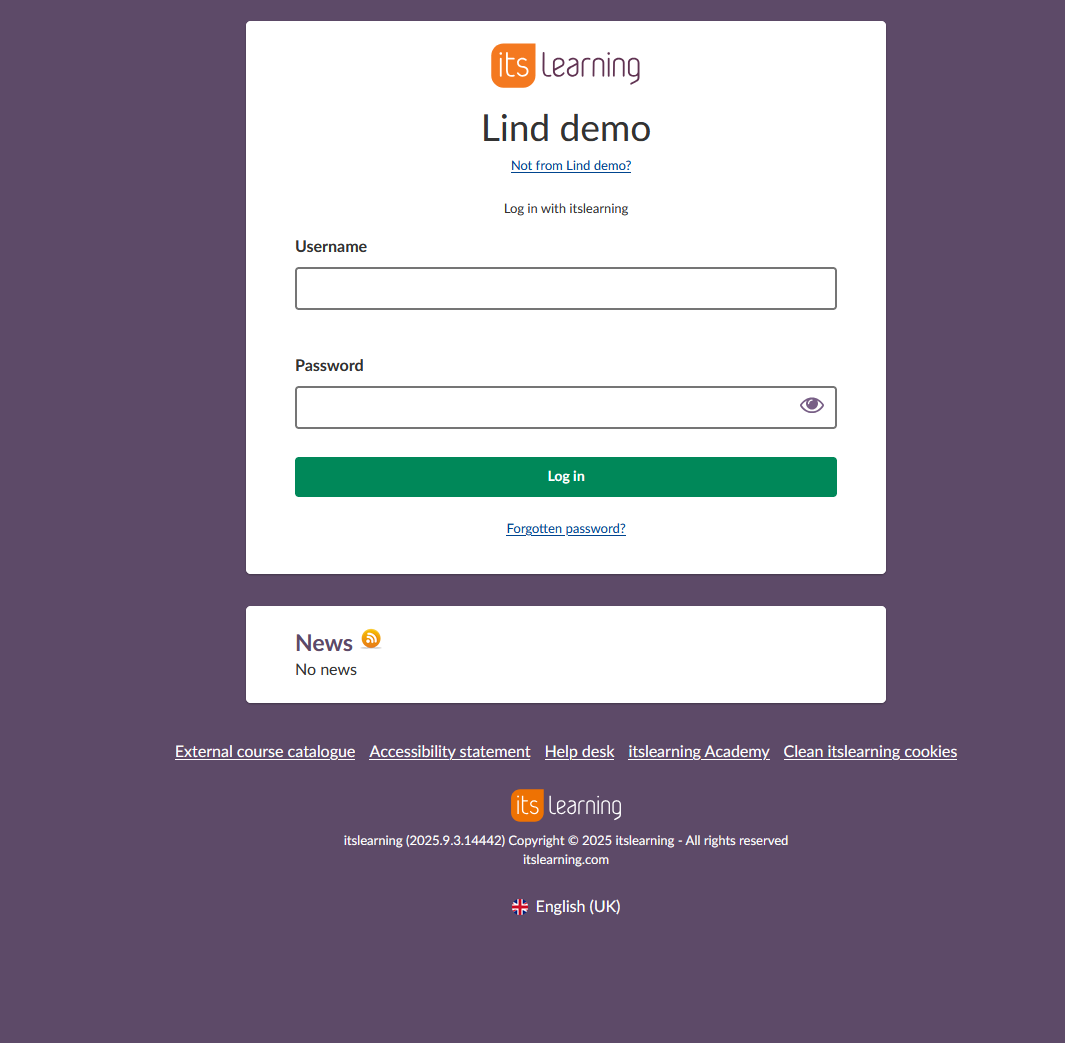
- In the Username field, enter your username exactly as provided.
- In the Password field, enter your password. The characters appear as dots.
- Select Log in.
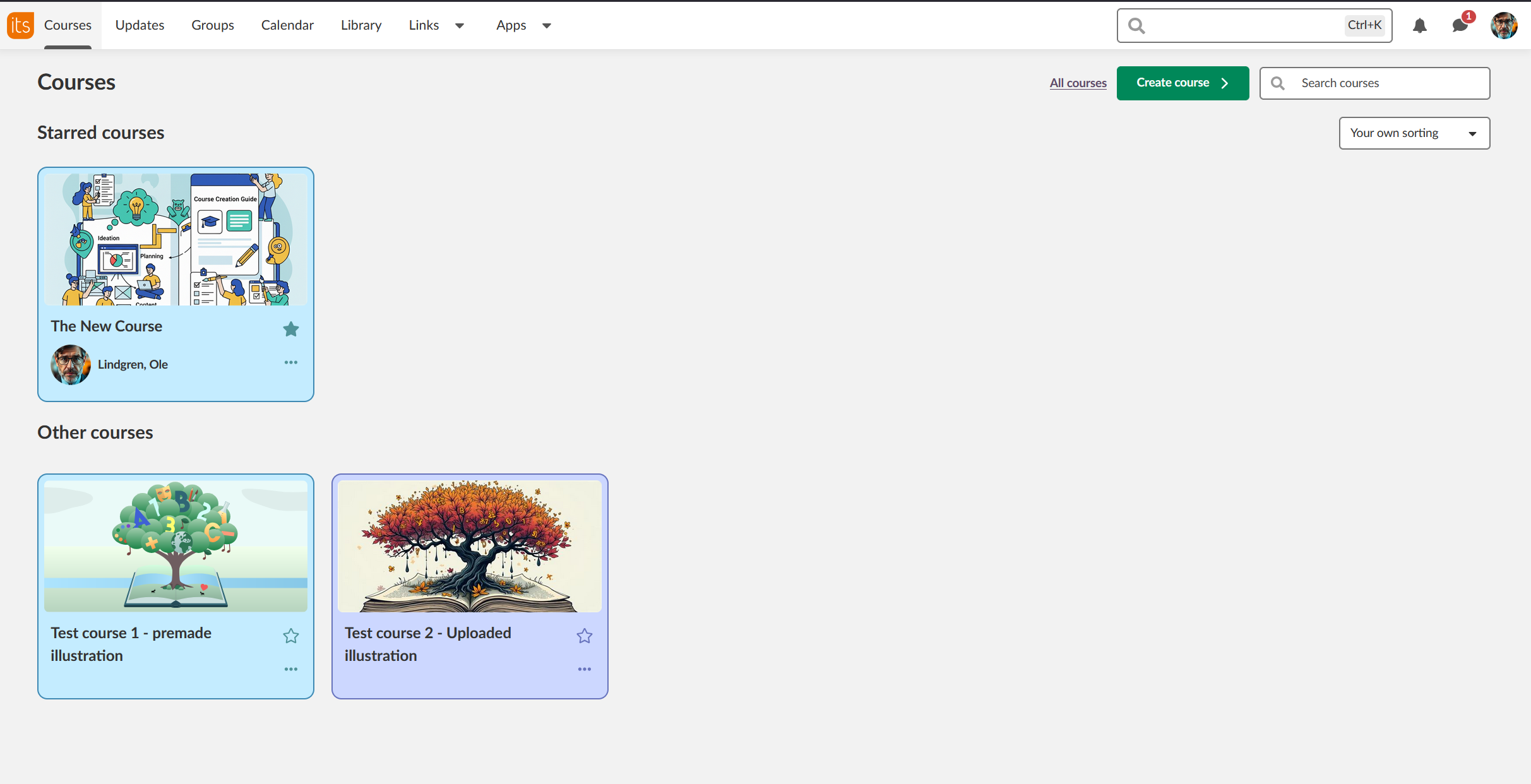
- Your itslearning dashboard opens, with your courses listed.
3.4 Completing first-time setup
Depending on the site setup, you may have to do the following the first time you log in:
- Change your password.
- Set up two-factor login.
3.5 Logging out
- Select your name or profile picture in the upper-right corner.
- Select Log out.
4 Single Sign-On (SSO)
Single Sign-On (SSO) is a form of software authentication. It lets a user log in once and access the resources of several software systems.
Many itslearning sites have SSO solutions. These sites have their own login pages. Users do not log in through the login page at itslearning.com.
Sites with SSO usually have login boxes on their homepages.

More Help Resources
Have more questions? Please start with asking your school administrator.
Product Release notes
Stay updated with itslearning latest releases: https://itslearning.com/product-updates
Service Status
Check the current status of itslearning services: https://status.itslearning.com/
Ideas Portal
Share your ideas and help shape the future of itslearning: https://ideas.itslearning.com/
Roadmap
Check out our roadmap: https://itslearning.com/global/roadmap/