Resources – Overview (Teacher)
TABLE OF CONTENTS
The Resources tab in a course is where teachers add all content and activities for students. When adding an element, itslearning organises available options into four categories: Resources, Activities, AI tools, and Ready-to-use content.
This article gives a short description of each element type and guidance on when to use it. Step-by-step instructions for each element are covered in the dedicated articles linked throughout this guide.
Note: Elements set to inactive or not visible are hidden from students. Teachers and administrators can still see them.
1 Resources
Resources are content elements that students can read, view, or download. They do not require students to submit a response or complete a task.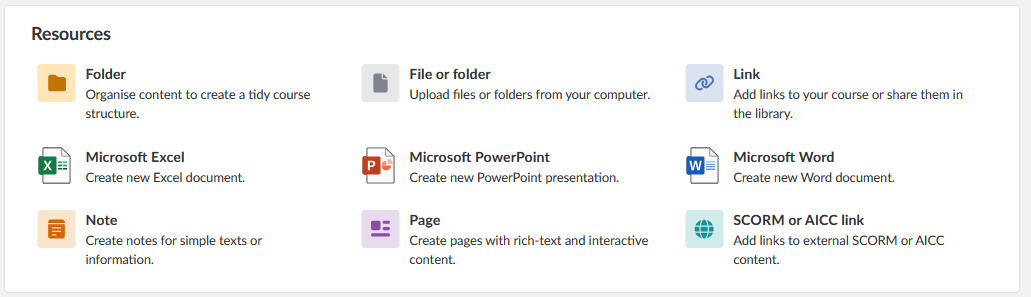
| Element | Description | When to use |
|---|---|---|
| Folder | Organises content within the Resources tab into named groups. | Use to structure a course by topic, unit, or week. Folders created from Plans are added automatically. |
| File or folder | Uploads files or folders directly from your computer, or links files from Google Drive, Dropbox, or OneDrive. Files can be viewed in the browser or app without downloading. | Use to share documents, PDFs, images, or other files that students need to read or refer to. |
| Link | Adds a URL as a standalone resource. Links can also be shared to the library. | Use to point students to an external website, an interactive tool, or a video resource. |
| Microsoft Excel | Creates a new Excel spreadsheet directly in the course. | Use to provide a spreadsheet template or data set for students to work with. |
| Microsoft PowerPoint | Creates a new PowerPoint presentation directly in the course. | Use to share a presentation as course material or as a template for student work. |
| Microsoft Word | Creates a new Word document directly in the course. | Use to provide a document template, instructions, or reading material. |
| Note | A simple content element with a title and a rich text body. The rich text block can include images, links, audio, video, and embedded content. | Use for concise, self-contained text content such as lesson introductions, instructions, or supplementary reading. |
| Page | A structured content element with multiple blocks of rich text and interactive content. Pages can be laid out in one-column, two-column, or wide-left formats. Content blocks include files, images, polls, rich content, and RSS feeds. | Use when content is too complex for a Note, requires multiple sections, or benefits from a structured visual layout. |
| SCORM or AICC link | Adds a link to external SCORM or AICC content packages. | Use to connect externally produced e-learning modules that use the SCORM or AICC standard. |
2 Activities
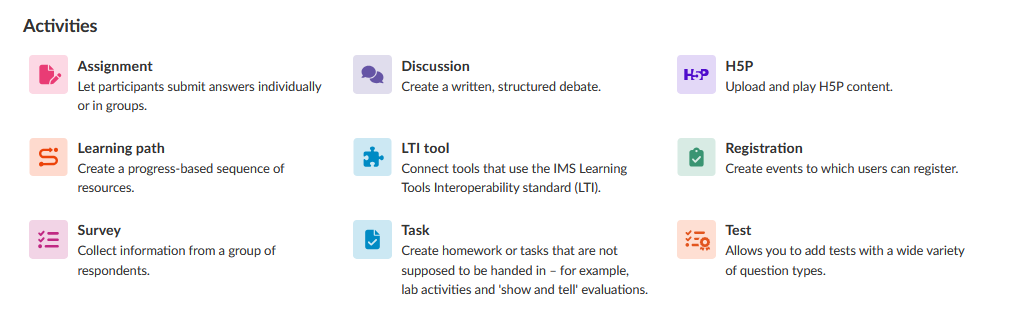
Activities require students to complete a task. When assigned, they appear in the student's task list. As students complete their work, teachers receive follow-up tasks for assessment where applicable.
| Element | Description | When to use |
|---|---|---|
| Assignment | Lets students submit answers individually or in groups. Submissions are collected for teacher assessment. | Use for written work, file submissions, or group projects that require teacher review and a grade or assessment. |
| Discussion | Creates a written, structured debate where students can post and reply. | Use to facilitate class discussion, peer reflection, or collaborative thinking around a topic. |
| H5P | Uploads and plays H5P interactive content directly in the course. | Use to add interactive exercises, quizzes, or multimedia content created in H5P format. |
| Learning path | Creates a progress-based sequence of resources that students work through in order. | Use to guide students through structured content where each step builds on the previous one. |
| LTI tool | Connects external tools that use the LTI standard. | Use to embed third-party learning tools that support the IMS LTI standard, such as publisher content or specialist platforms. |
| Registration | Creates an event to which students can sign up. | Use for excursions, presentations, group sessions, or any activity that requires students to register for a specific slot or date. |
| Survey | Collects information from a group of respondents using structured questions. | Use to gather student feedback, opinions, or self-assessments. Surveys are not assessed. |
| Task | Creates homework or activities that students complete but do not submit digitally, such as lab work or show-and-tell evaluations. | Use for activities that happen offline or in person, where the teacher confirms completion rather than reviewing a file submission. |
| Test | Creates a digital test with a wide variety of question types. | Use for formative or summative assessments where answers are submitted and scored within the platform. |
3 AI tools
Important: AI tools are currently available as a pilot. They will be released as an add-on feature at a later date. Availability depends on your institution's configuration.
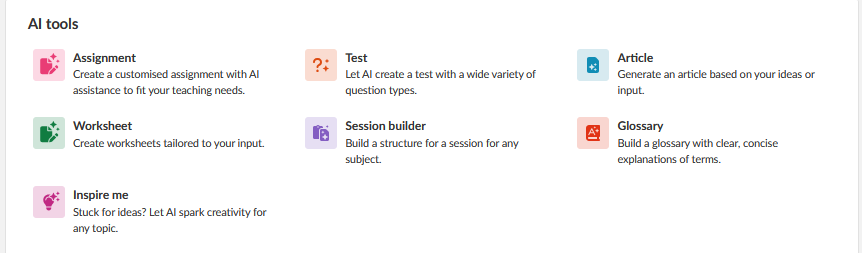
AI tools assist teachers in creating course content by generating drafts based on teacher input. The generated content can be reviewed and edited before being published to students.
| Element | Description | When to use |
|---|---|---|
| Assignment | Creates an assignment based on input. Can be set to generate differentiated versions of the same assignment | When you want to create assigments |
| Test | Lets you create a test for your students with AI | Use to create a test |
| Article | Generates an article based on teacher ideas or input. | Use to create a first draft of course reading material or topic explanations. |
| Worksheet | Creates a worksheet tailored to teacher input. | Use to generate student worksheets for a specific topic or learning objective. |
| Session builder | Builds a lesson session structure for any subject. | Use to draft a structured lesson plan as a starting point for planning a session. |
| Glossary | Builds a glossary with clear, concise explanations of terms. | Use to create a reference glossary for a topic or unit. |
| Inspire me | Generates ideas and suggestions based on a topic or subject. | Use when planning a new unit or looking for activity ideas for a topic. |
4 Ready-to-use content
Ready-to-use content options allow teachers to import existing content from external sources or from the itslearning library.
| Element | Description | When to use |
|---|---|---|
| Content from library | Adds content from your personal collection or searches for shared content in the library. | Use to reuse content you have previously saved to the library, or to access resources shared by colleagues. |
| Course importer | Imports a course from another LMS, such as Moodle. | Use when migrating existing course content from a different platform into itslearning. |
| Import content package | Uploads a SCORM content package directly into the course. | Use to add a complete SCORM package produced externally, such as publisher content or internally developed e-learning. |
More Help Resources
Have more questions? Please start with asking your school administrator.
Product Release notes
Stay updated with itslearning latest releases: https://itslearning.com/product-updates
Service Status
Check the current status of itslearning services: https://status.itslearning.com/
Ideas Portal
Share your ideas and help shape the future of itslearning: https://ideas.itslearning.com/
Roadmap
Check out our roadmap: https://itslearning.com/global/roadmap/