Files – Overview (Teacher, Student)
TABLE OF CONTENTS
- Introduction
- 1 Prerequisites and Requirements
- 2 Accessing Files
- 3 Understanding the Interface and using Files
- 4 Message attachments
- 5 Saved course materials (students only)
- 6 Technical Information
- 7 Troubleshooting
Introduction
Files is your personal storage area in itslearning. Teachers and students can upload, create, organise and manage private files, then reuse them across courses using the file picker.
Files added to courses from Your Files are always copied, ensuring the original file remains unchanged in your personal storage.
The Files area contains the following sections:
| Section | Description |
|---|---|
| Your files | A private workspace for uploading, creating and organising your own files. These files can be reused across courses using the file picker.
|
| Message attachments | Links to files shared in instant message conversations. Each entry links to the relevant place in the conversation where the file was shared. |
| Saved course materials (students only) | A collection of your assignment submissions from courses you no longer have access to. |
The main sections are accessible via tabs at the top of the page. If a tab is missing, your administrator has not enabled it for your profile.
For students: Files also includes Saved course materials, where you can access your assignment submissions from courses you no longer have access to.
Note for teachers: For course-related materials, we recommend working directly in Course resources or Library and reusing content from there.
1 Prerequisites and Requirements
Before using Files, ensure the following:
- Access to Private files must be enabled in your profile settings by a system administrator.
- Web files appears only if this option is enabled in your profile.
- Your browser should support opening PDFs, images, audio and video files directly. If not supported, there will be an option to download the relevant files to your computer.
2 Accessing Files
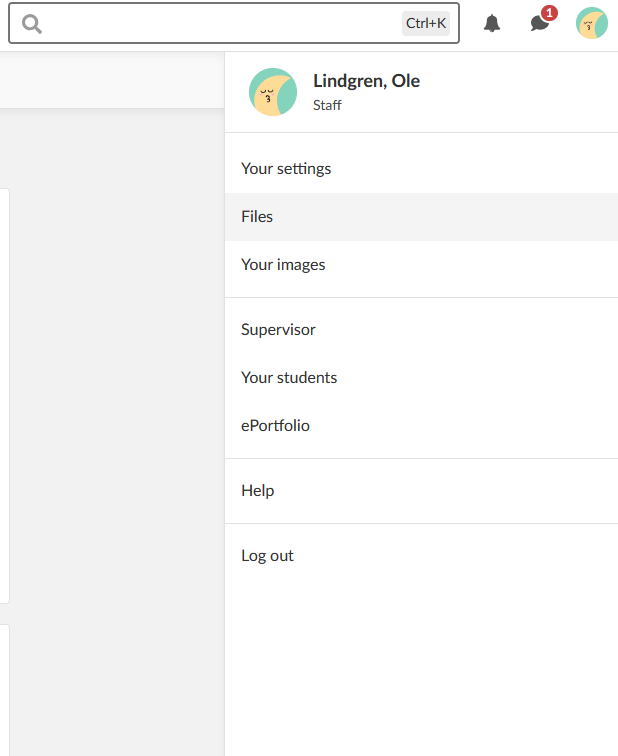
To access Files:
- Click your profile picture or name in the top right corner of the screen.
- Select Files from the personal menu.
3 Understanding the Interface and using Files
The Files area contains multiple sections accessible via tabs at the top of the page.
3.1 Your files
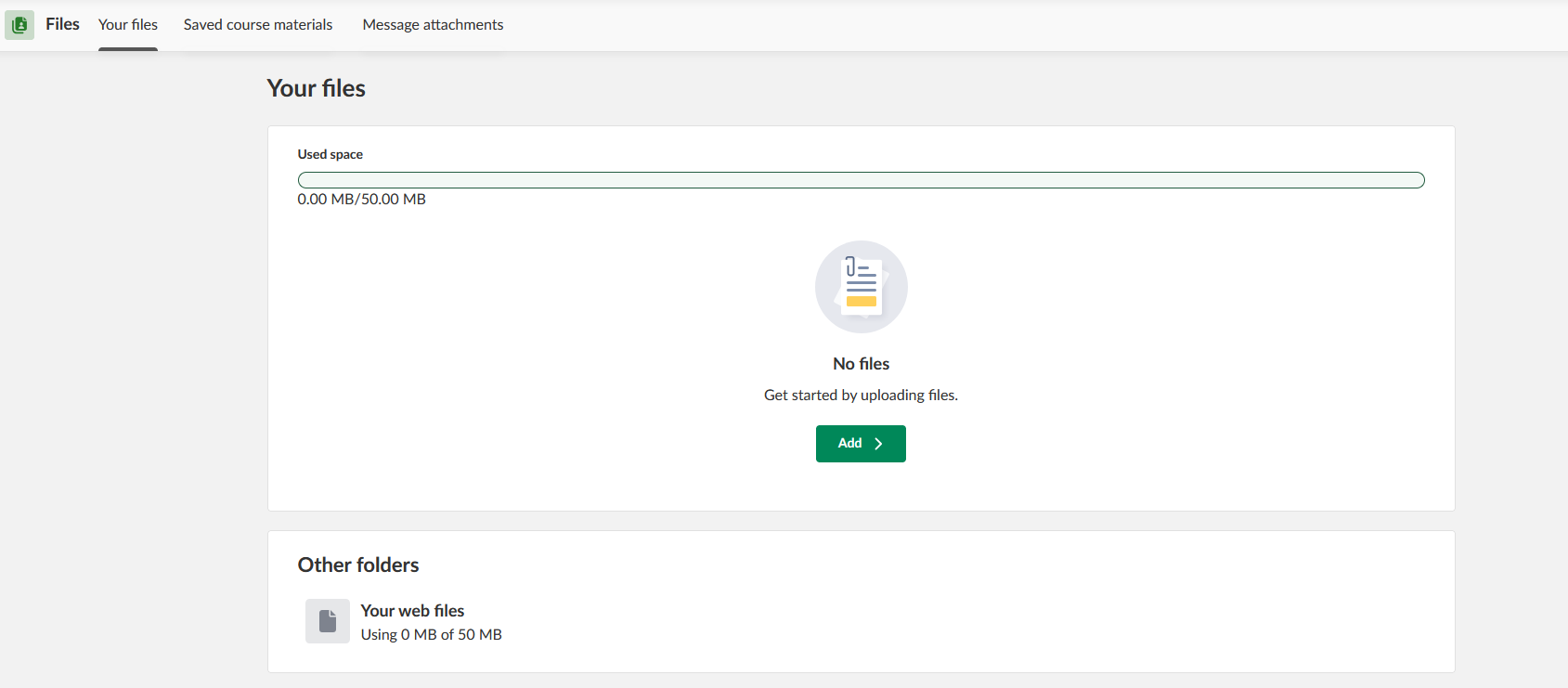
The Your files tab is your private file storage area. The interface displays:
- Add > button: Click to upload files, create folders or create new documents.
- Other folders section: Displays Your web files with its storage usage.
Note: If Office tools (Microsoft or Collabora) are not enabled on your site, the Add button is replaced by separate Upload file and Create folder buttons in the main view.
When the area is empty, a prompt appears: "No files. Get started by uploading files."
3.1.1 File list interface
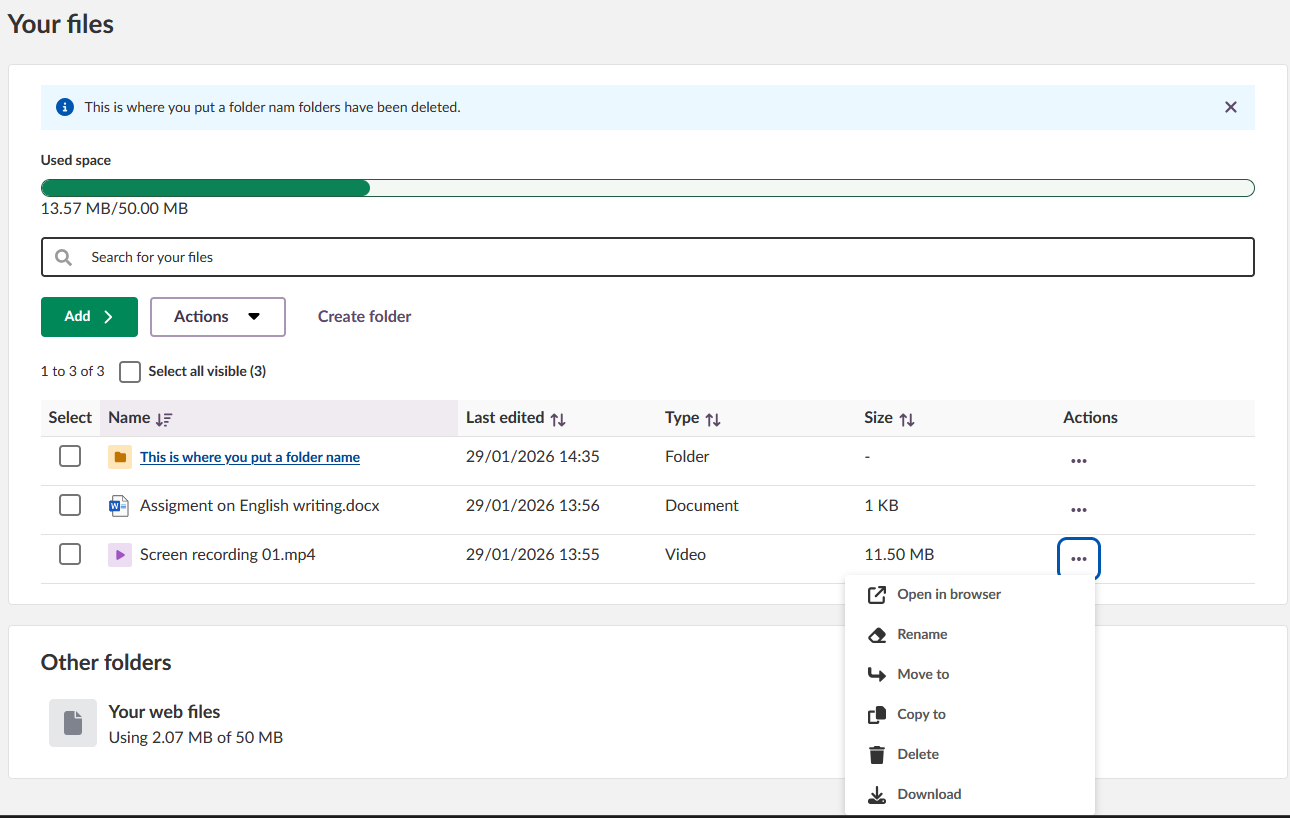
When files are present, the interface displays a table with the following columns:

| Column | Description |
|---|---|
| Select | Checkbox for selecting files |
| Name | File name with icon indicating file type |
| Last edited | Date and time of last modification |
| Type | File format (e.g. Image, Document) |
| Size | File size in KB or MB |
| Actions | Three-dot menu for additional options |
The interface also includes:
- A search field to search within your files
- Add > button for uploading files
- Actions dropdown for bulk operations on selected files
- Create folder option
3.1.2 File actions
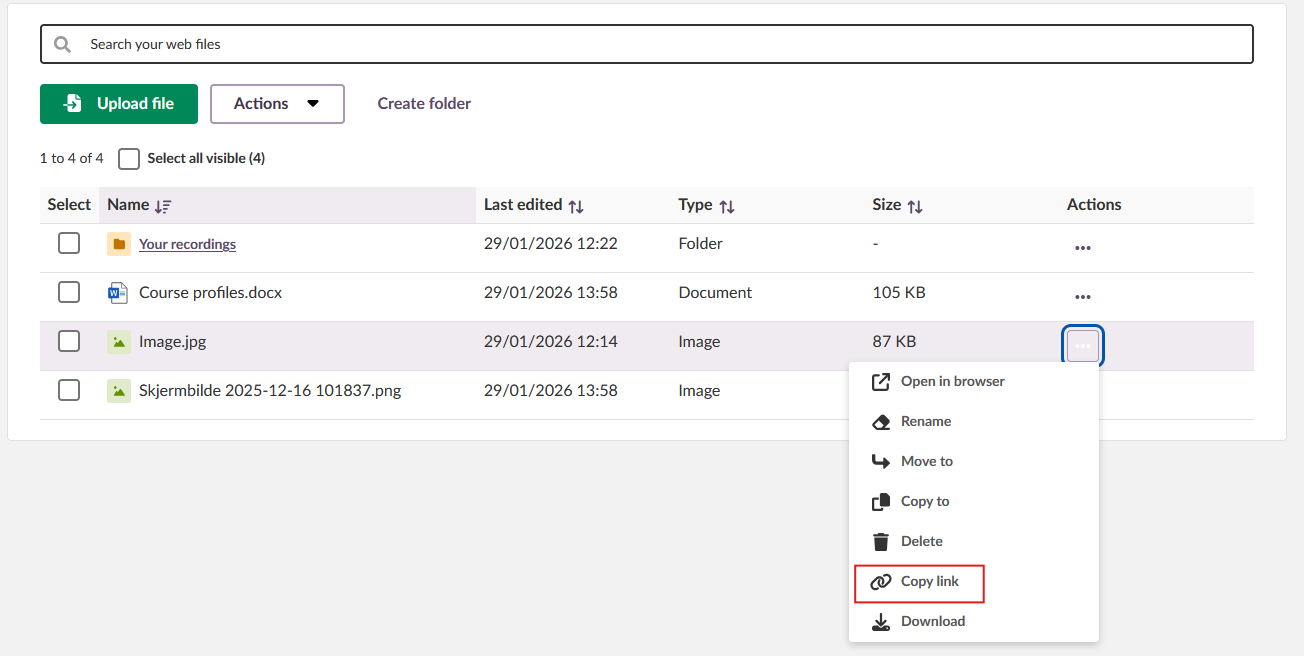
Click the three-dot menu (⋯) in the Actions column for an individual file to access:
- Open in browser
- Edit
- Rename
- Move to
- Copy to
- Delete
- Download
3.1.3 Bulk action toolbar
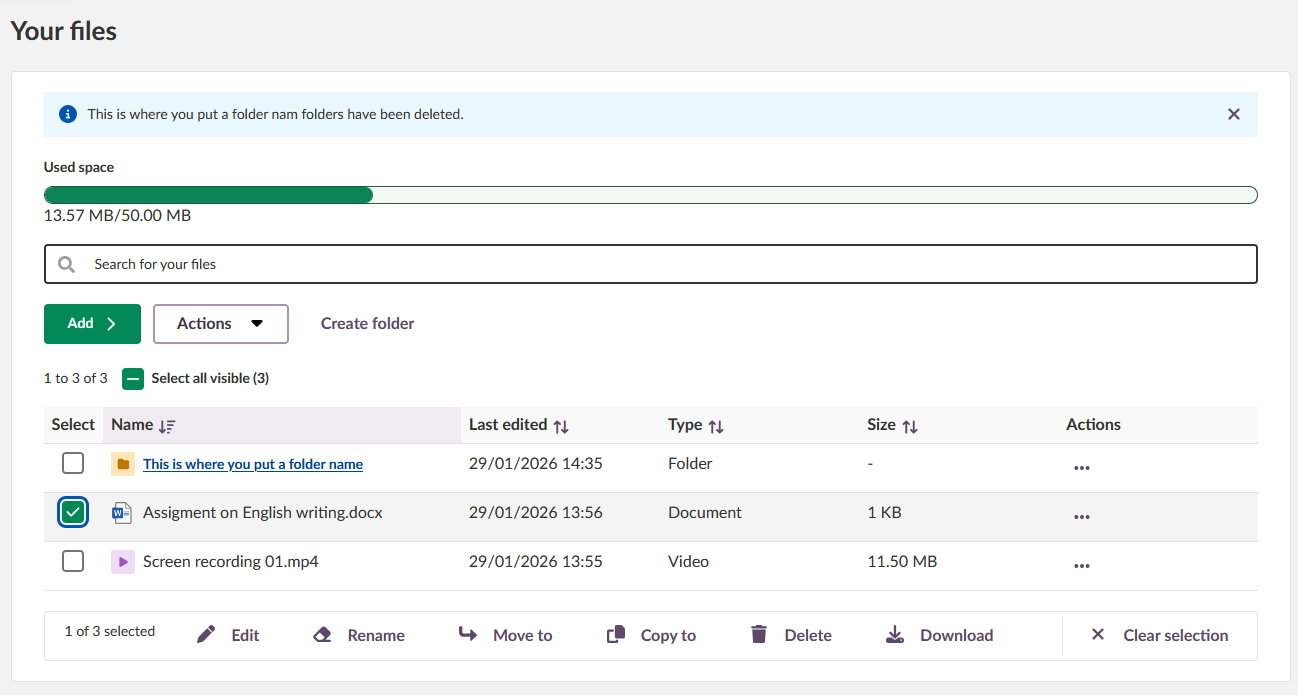
When you select one or more files using the checkboxes, a toolbar appears at the bottom of the screen with bulk actions: Edit, Rename, Move to, Copy to, Delete, Download, and Clear selection.
3.2 Uploading Files
To upload a file to Your files:
- Open Files from the personal menu.
- Select the Your files tab.
- Click the Add button.
- Click Upload file or use available resources for your site.

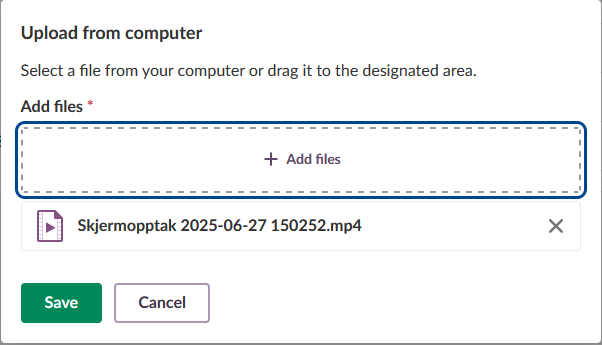
- In the upload dialogue, click + Add files or drag and drop files into the designated area.
- Click Save.
File size limit: The maximum file size you can upload is determined by the lower of:
- Your available storage space (quota minus used space)
- The maximum file size setting configured for your site
If you attempt to upload a file that exceeds the limit, an error message appears displaying the maximum allowed size.
Note: Uploading folders is not supported. Files must be uploaded individually.

3.3 Creating Folders
To create a folder in Your files:
- Open Files from the personal menu.
- Select the Your files tab.
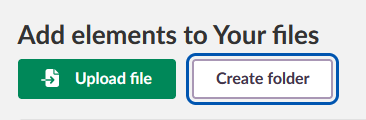
- Click Create folder.
- Enter a folder name in the text field.
- Click Create.
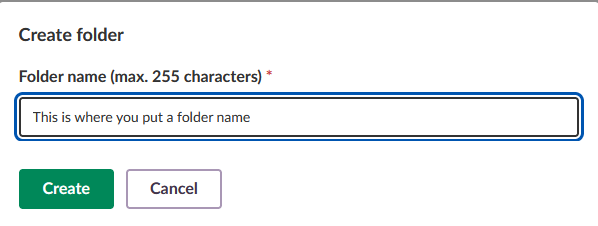
Character limit: Folder names can contain a maximum of 255 characters.
The system warns you if a folder with the same name already exists.

3.4 Creating Documents with Microsoft Office or Collabora
You can create new documents directly in Your files using Microsoft Office or Collabora applications (if enabled by your administrator).
To create a new document:
- Open Files from the personal menu.
- Select the Your files tab.
- Click the Add button.
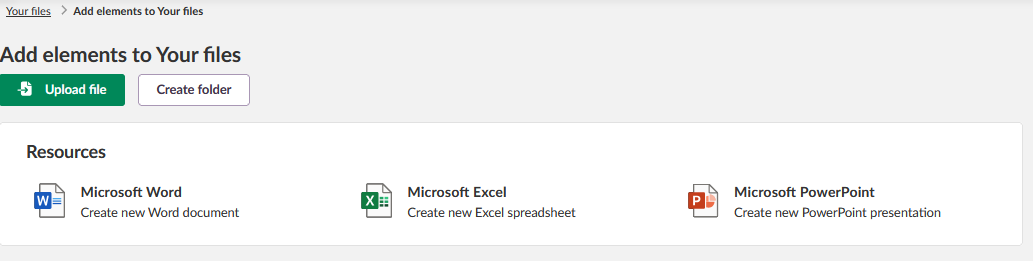
- Under Resources, select one of the following:
Document type Description Microsoft Word Create a new Word document. Microsoft Excel Create a new Excel spreadsheet. Microsoft PowerPoint Create a new PowerPoint presentation.
3.5 Using Files in Courses and Activities
Using the file picker, you can add files from Your Files to various areas including:
For teachers:
- Assignment descriptions
- Course resources
- Library
For teachers and students:
- Assignment answers (students submitting work)
- Working portfolio
- ePortfolio
- Chat messages
- Folders in resources with the correct access permissions
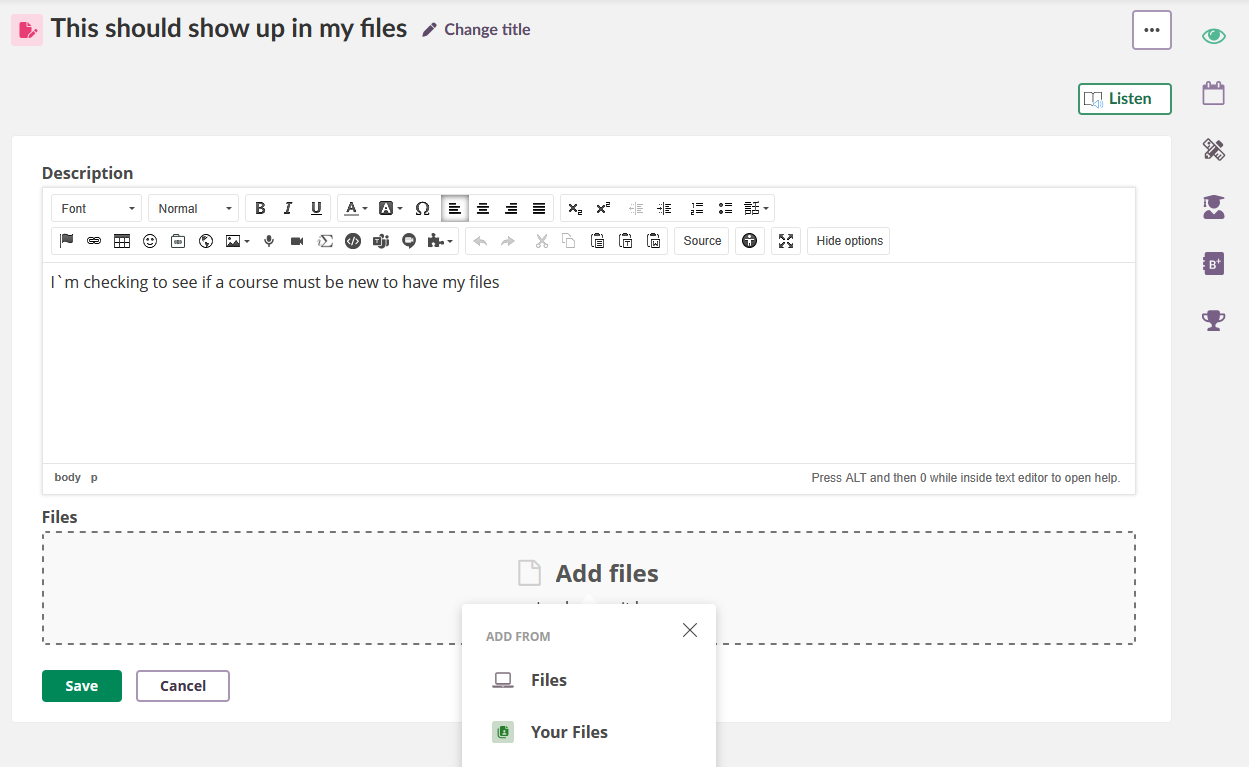
To add a file from Your Files:
- Open the tool where you want to add a file (e.g. an assignment).
- Click Add file or the file picker button.
- Choose Your Files as the source.
- Select the file you want to add.
Important: Files added from Your Files are always copied. The copied file is independent from the original. Modifications to one version do not affect the other.
Note: Selecting multiple files at once when adding to other areas is not supported.
3.6 Your web files
Your web files stores:
- Audio and video recordings created with the recorder (e.g. introduction videos for assignments created in the rich text editor)
- Files that can be made public by sharing through a link
Note: This feature is not being actively developed further. Videos recorded as feedback on student assignments are stored separately with the submission and do not appear in Your web files. When you create a recording, it may initially appear as an empty file; allow a few minutes for the upload to complete before playing.
Your web files uses the same interface as Your files, with one additional action available.
3.6.1 Copy link (Your web files only)
In Your web files, the three-dot menu includes an additional Copy link option. This allows you to share a file via a public link.
To copy a shareable link:
- Navigate to the file in Your web files.
- Click the three-dot menu (⋯) in the Actions column.
- Select Copy link.
The link is copied to your clipboard and can be shared with others.
Note: Copy link is only available through the three-dot menu on individual files. It is not available in the Actions dropdown or the bulk selection toolbar.
Sharing restrictions:
- Your recordings folder: This folder has additional security restrictions. Content from this folder can only be shared with users on the same itslearning site.
- Other content: Files outside the Your recordings folder can be shared with anyone, including users outside itslearning.
Important: Renaming, moving or deleting a file in Your web files breaks any previously shared links to that file.
4 Message attachments
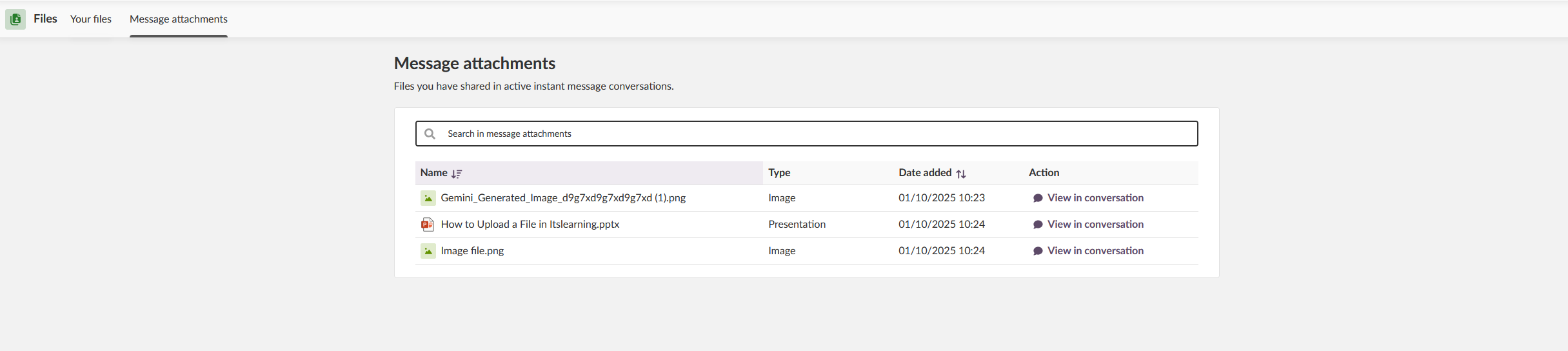
The Message attachments tab displays links to files you have shared in active instant message conversations. Files are not stored directly in this section; each entry links to the relevant place in the conversation where the file was shared. From there, you can download the file through the conversation.
This tab provides:
- A search field to search in message attachments
- A table listing files with columns for Name, Type, Date added and Action
- View in conversation links to navigate directly to the conversation where the file was shared
5 Saved course materials (students only)
The Saved course materials tab is only available to students. It stores your assignment submissions from courses that are no longer active or that you no longer have access to.
This area is read-only. You cannot edit or delete items here, but you can view and download your previous work.
Note for teachers: If you are enrolled as a student in a course and have Saved course materials enabled in your profile, your submissions from that course will also appear here.
Course status
Courses in Saved course materials can have one of three statuses. Your experience differs depending on which status the course has:
| Status | What it means | What you see |
|---|---|---|
| Active | The course is still active and you are enrolled | The course is listed but assignment submissions are not displayed here. Open the course directly to access your submissions. |
| Archived | The course is no longer active, but you still have access to it | When you click an assignment, it opens in the original course view with full context. |
| Closed | You no longer have access to the course (you were removed, or the course was deleted) | When you click an assignment, you see a standalone page with your saved submission files. |
Navigating Saved course materials
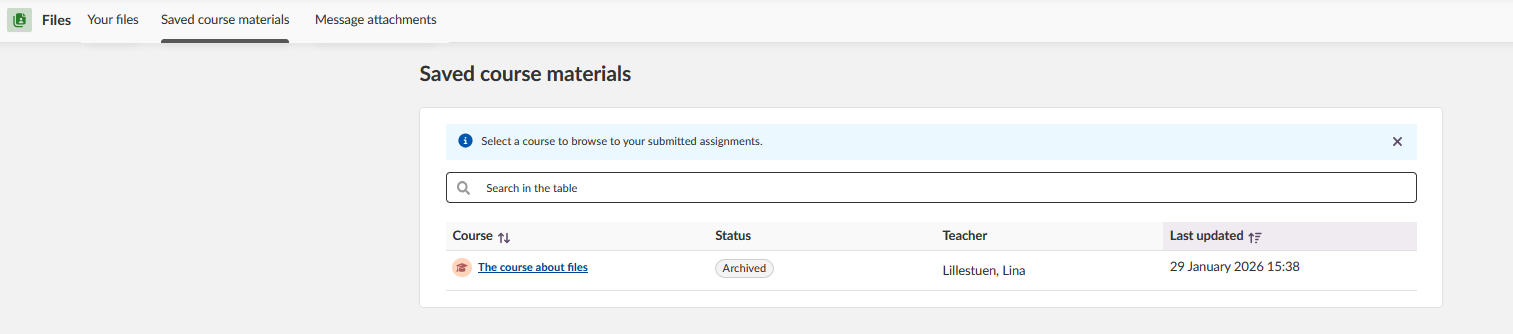
The tab displays a list of courses with the following information:
| Column | Description |
|---|---|
| Course | Course name (click to view submissions) |
| Status | Course status (Active, Archived or Closed) |
| Teacher | Name of the course teacher |
| Last updated | Date of most recent activity |
5.1 Viewing your submissions
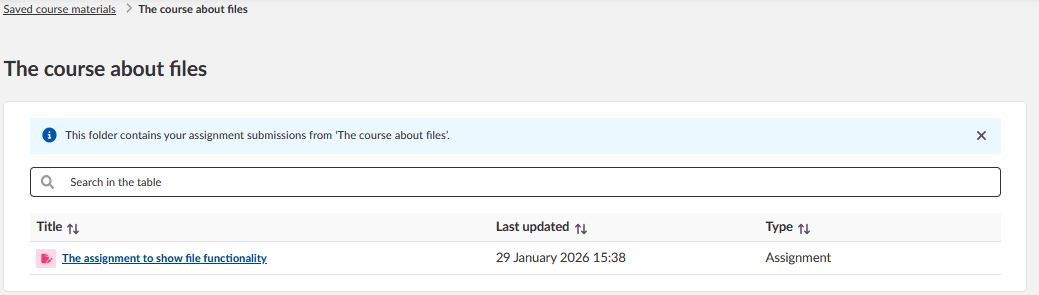
- Click on a course name to see your submissions from that course.
- A message confirms: "This folder contains your assignment submissions from '[course name]'."
- A list of assignments appears showing Title, Last updated and Type.
- Click on an assignment to view the full details.
What you can see
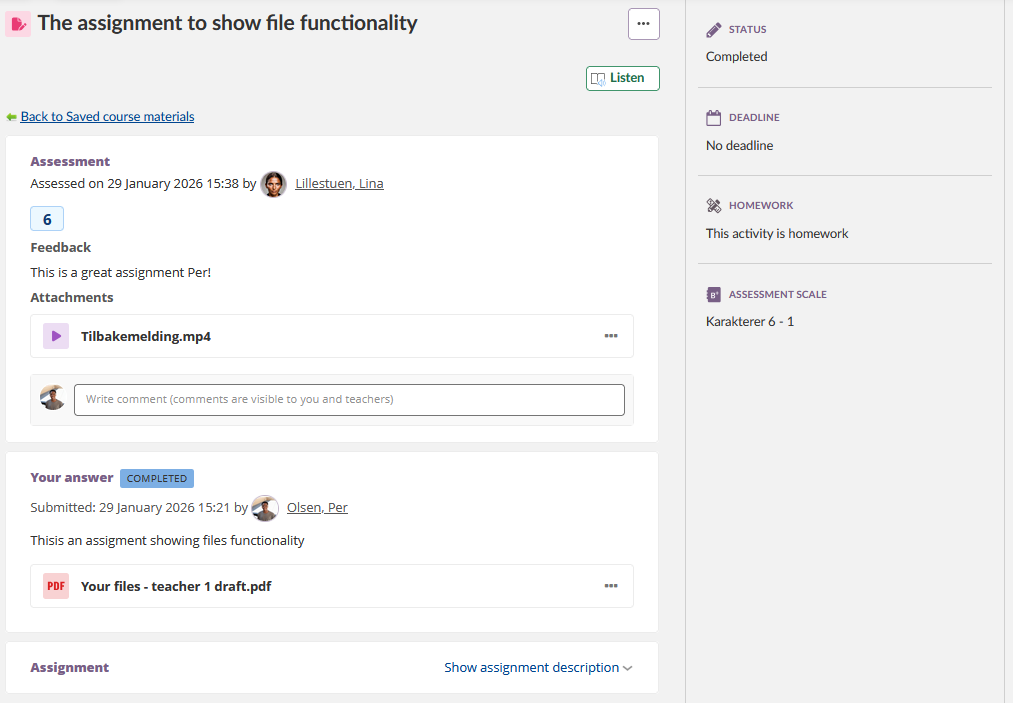
When you open an assignment from Saved course materials, you can view:
- Your submitted answer and any attached files
- The assessment (grade) you received
- Written feedback from your teacher
- Any feedback attachments (such as audio or video comments from your teacher)
For Closed courses, your submission is displayed as a standalone page where you can download your files or open them in the browser. You can also download all assignment files as a zip file.
6 Technical Information
| Specification | Details |
|---|---|
| Maximum file upload size | Limited by available storage space or site-level file size setting (whichever is lower) |
| Maximum folder name length | 255 characters |
| Storage quota | Shared between Your files and Your web files; configured by administrator via profile or policy. Your administrator can adjust this if needed. |
| Saved course materials storage | Counted against site storage quota, not the user's personal storage quota (students only) |
| File linking behaviour | Files are always copied, never linked |
| Folder upload | Not supported |
| Multiple file selection | Not supported when adding to other areas |
| Browser file viewing | Supported for PDF, images, audio, video |
Note: The storage quota applies to both Your files and Your web files combined. For example, if your total quota is 50 MB, this is the combined limit for both areas. Recordings created in the rich text editor are stored in Your web files and count towards this quota.
7 Troubleshooting
Storage is full but I have no files
Symptoms: Storage quota is exceeded despite an empty file list in Your files.
Cause: Your files and Your web files share the same storage quota. Recordings created in the rich text editor are stored in Your web files and count towards your total storage.
Solution:
- Open Your web files (if available in your profile).
- Delete unnecessary recordings or files.
- If Your web files is disabled in your profile, contact your administrator.
Users cannot access a file I shared
Symptoms: A shared public link no longer works.
Cause: You renamed, moved or deleted the file in Your web files.
Solution:
- Restore the file to its original location and name, or
- Share a new link to the file.
Cannot find files in global search
Symptoms: Files do not appear in platform-wide search results.
Cause: The Files area is excluded from global search indexing.
Solution: Use the local search field within Your Files to find specific files.
I cannot see Your files, Your web files or Message attachments
Symptoms: One or more tabs are missing from the Files area.
Cause: Each section in Files is controlled by your profile settings. If a section is not visible, your administrator has not enabled it for your profile.
Solution: Contact your administrator if you need access to a section that is not visible. They can enable it in your profile settings.
Cannot see Saved course materials (students)
Symptoms: The Saved course materials tab is not visible in Files.
Cause: Your administrator has not enabled this feature in your profile settings.
Solution: Contact your teacher or system administrator to enable Saved course materials for your profile.
Course not listed in Saved course materials (students)
Symptoms: You no longer have access to a course, but it does not appear in Saved course materials, or there are no saved assignment submissions.
Cause: The feature to save assignment submissions was not enabled when the course was active. Submissions can only be saved for courses after the feature is enabled; earlier submissions are not added retroactively.
Solution: Contact your teacher or administrator. If the course is still available (archived), they may be able to trigger saving by continuing a discussion in the assignment.
More Help Resources
Have more questions? Please start with asking your school administrator.
Product Release notes
Stay updated with itslearning latest releases: https://itslearning.com/product-updates
Service Status
Check the current status of itslearning services: https://status.itslearning.com/
Ideas Portal
Share your ideas and help shape the future of itslearning: https://ideas.itslearning.com/
Roadmap
Check out our roadmap: https://itslearning.com/global/roadmap/
The features shown are part of the project within the framework of the German Development Project (GDP), a cooperation between four German states and itslearning with the aim of improving digital education in Germany through tailor-made product developments.
Click here to learn more about the GDP roadmap and what other features you can expect.
For German readers: Click here for more information about the project within the framework of the German Development Project.