Create your first plan - Getting started
TABLE OF CONTENTS
1. What You'll Accomplish
By the end of this guide, you'll have created your first plan with basic content and settings configured for your students. This process typically takes 10-15 minutes and gives you a foundation for organising course activities and resources in itslearning.
2. Before You Begin
• Ensure you have teacher access to your course
• Prepare a title for your plan (e.g., "Week 1: Introduction" or "Module A")
• Have any images ready to upload (optional but recommended)
• Know what resources or activities you want to include
3. Quick Start Workflow
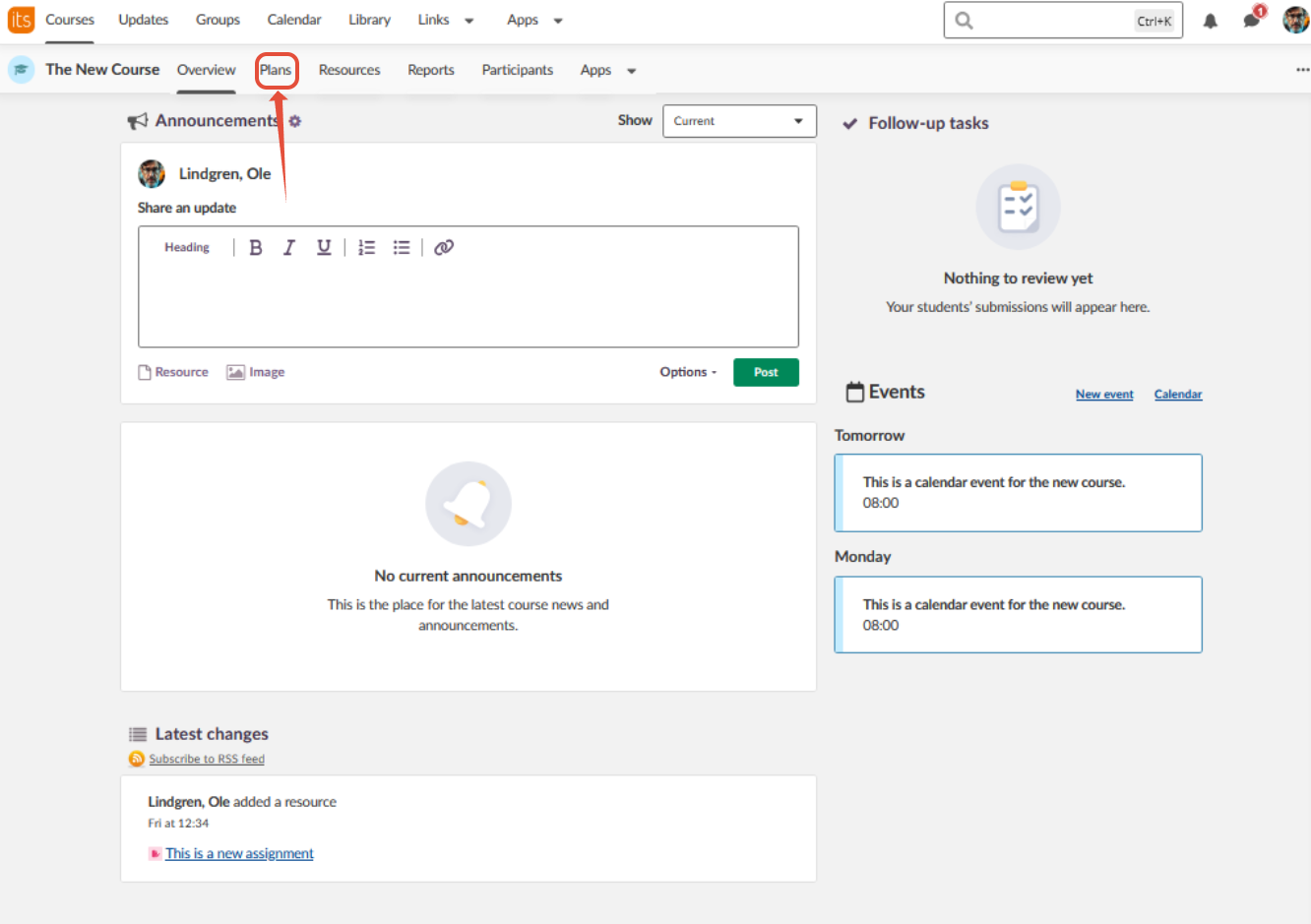
Step 1: Navigate to Plans
From your course overview page, click the "Plans" tab in the main navigation menu.
Step 2: Create New Plan
Click the green "Create plan" button to open the plan creation window.
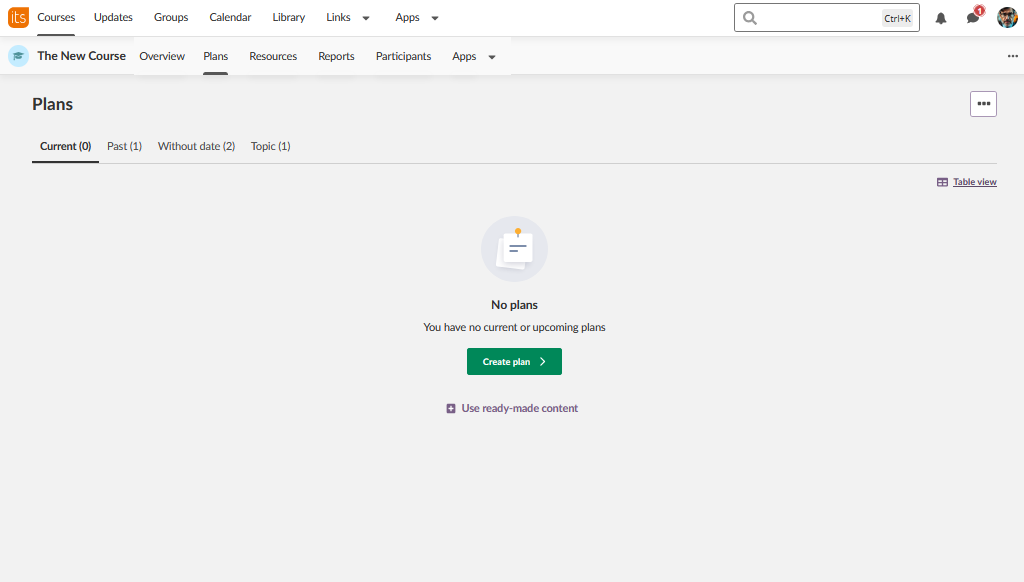
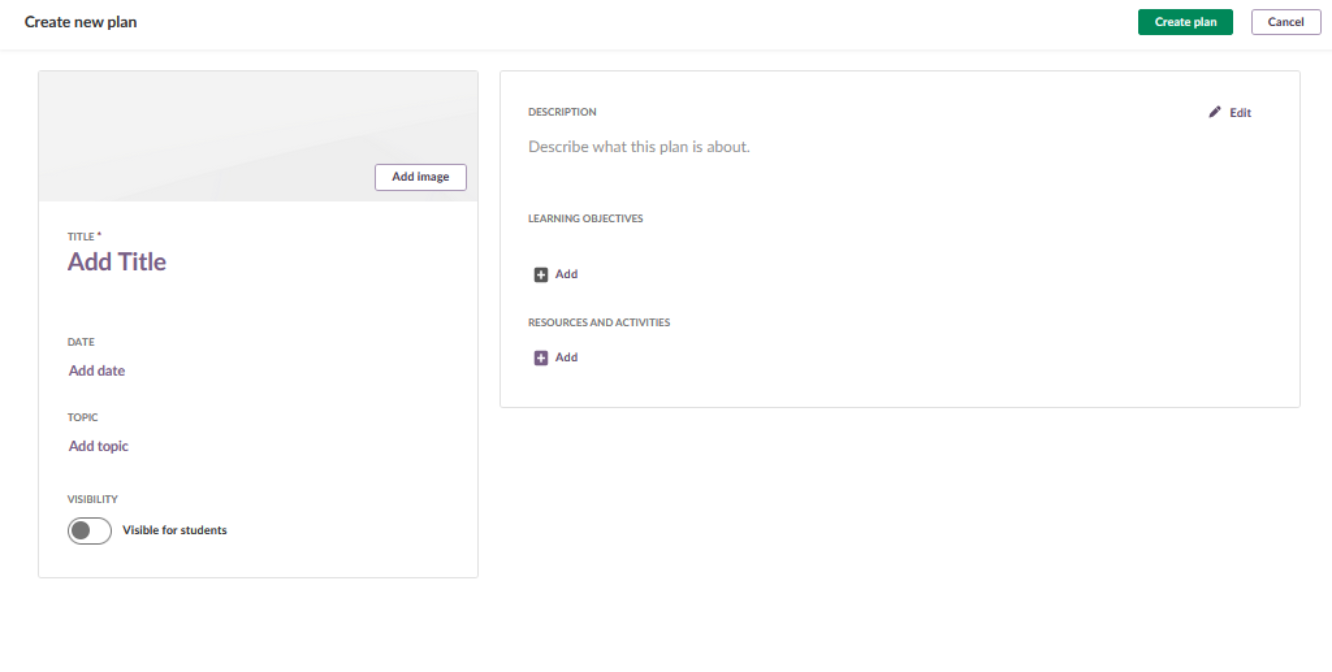
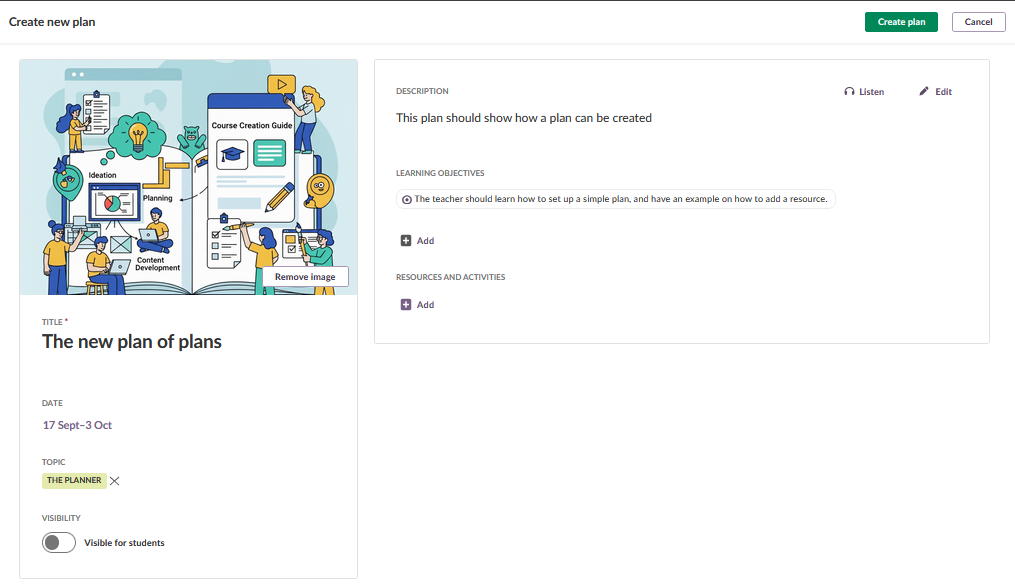
✓ Checkpoint: You should see the "Create new plan" interface with fields for title, date, topic, and description.
Step 3: Add Essential Information
- Title: Enter a clear name for your plan
- Description: Add a brief explanation of what this plan covers
- Date: Click "Add date" to set when the plan becomes active (optional)
Step 4: Configure Plan Settings
- Topic: Click "Add topic" to create or select a topic for organisation
- Visibility: Toggle "Visible for students" when ready to publish
- Add Image: Click "Add image" to upload a visual for your plan (optional)
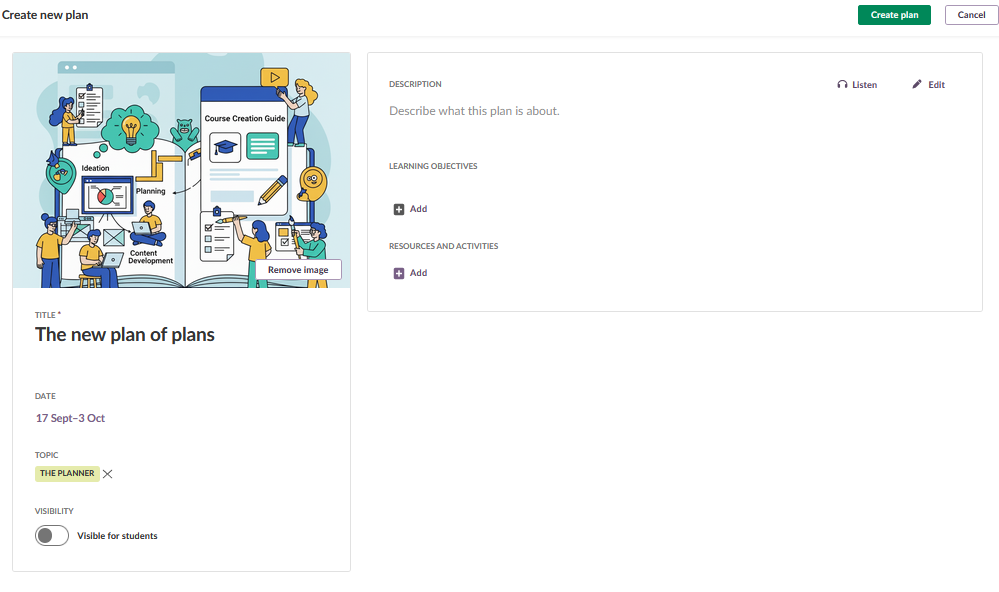
✓ Checkpoint: Your plan should have a title, description, and visibility settings configured.
Step 5: Add Description and (optional) Learning Objectives
The description tells your students what to expect from this plan. A plan can for instance be a whole subject, or just an assignment or a simplelearning path.
In the "Learning Objectives" section, click "Add" to include relevant curriculum objectives for your plan. (In some areas these are auto imported, in other areas these will have to be added to the course manually).
Step 6: Add Resources and Activities
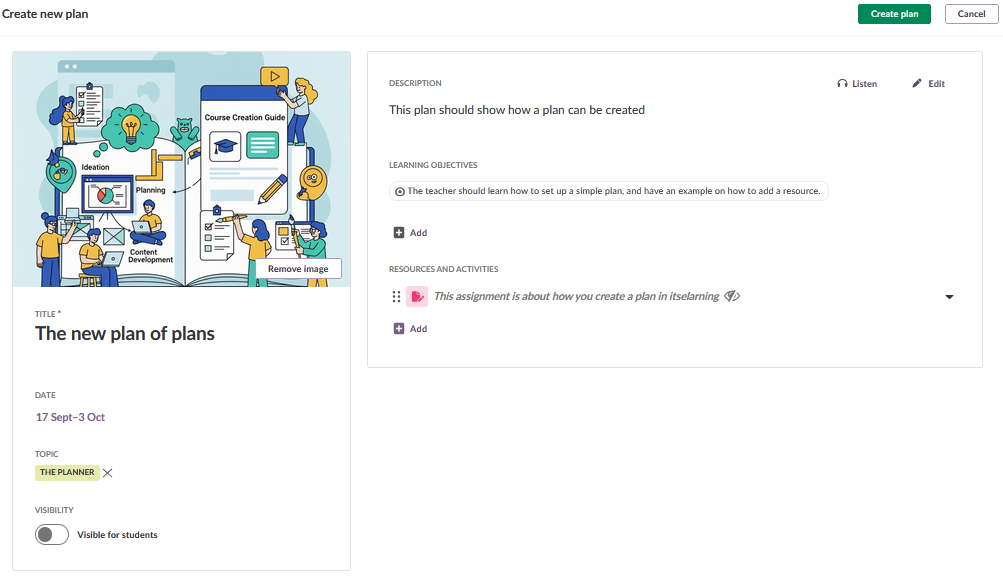
In the "Resources and Activities" section:
- Click "Add" to open the resource menu
- Select from common options like "Assignment," "Page," or "File"
- Choose your desired resource type and configure it
✓ Checkpoint: You should see at least one resource or activity added to your plan.
Step 7: Review and Create
- Verify all information is correct
- Ensure visibility is set appropriately
- Click the green "Create plan" button in the upper right corner to save it

Step 8: Confirm Creation
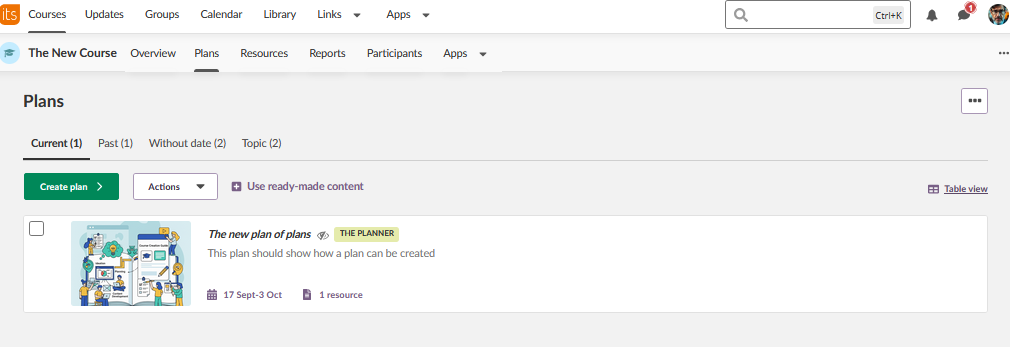
You will be automatically returned to your Plans page to see your new plan listed. it will also appear on the course overview page.
✓ Checkpoint: Your plan appears in the Plans list and shows the correct title, date, and resource count.
More Help Resources
Have more questions? Please start with asking your school administrator.
Product Release notes
Stay updated with itslearning latest releases: https://itslearning.com/product-updates
Service Status
Check the current status of itslearning services: https://status.itslearning.com/
Ideas Portal
Share your ideas and help shape the future of itslearning: https://ideas.itslearning.com/
Roadmap
Check out our roadmap: https://itslearning.com/global/roadmap/