SCORM – Importing and Using Content (Teacher)
TABLE OF CONTENTS
- Introduction
- 1 Overview
- 2 Adding SCORM resources to itslearning
- 3 SCORM resource settings
- 4 SCORM in itslearning reports
- 5 Troubleshooting
- 5.1 Itslearning does not track progress from SCORM
- 5.2 What versions of SCORM does itslearning support?
- 5.3 How to get a SCORM course package?
- 5.4 What is a SCORM dispatch file?
- 5.5 How can we update an existing SCORM course in itslearning?
- 5.6 The option to import SCORM content is not available in Resources
Introduction
SCORM content packages can be imported into itslearning as course resources when SCORM support is enabled on your site. SCORM support is an optional add-on and may not be included in your current subscription. Please contact your itslearning Key Account Manager for information about access and licensing options.
1 Overview
SCORM is a set of technical standards for eLearning interoperability. It defines communication between client-side content and a host system (a run-time environment, commonly a function of a learning management system), and how content is packaged into a transferable ZIP file.
SCORM is largely being replaced by H5P and LTI tools, but many institutions still use it to share read-only resource packages or resources with simple interactions. This is especially common when teachers create content with authoring tools such as Storyline 360, Rise 360, or Adobe Captivate, as these export easily to SCORM. For background on the standard, see SCORM.com: One-Minute SCORM Overview.
2 Adding SCORM resources to itslearning
Once SCORM support is enabled on the site, teachers can import a SCORM content package into a course as a resource.
Go to Resources > Add.
In the Ready-made content section, click Import content package.
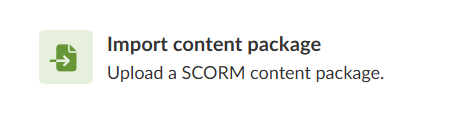
The Import content package option under Ready-made content.
Click Add file and upload the SCORM package as a ZIP file. itslearning supports the SCORM 1.2 and 2004 standards. You can use SCORM Cloud to test a package before uploading it to itslearning.
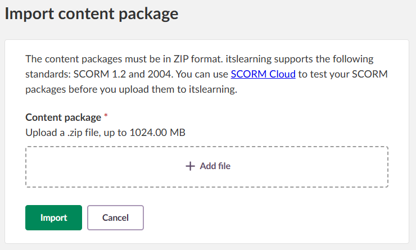
Note: The file size limit depends on the maximum file size set in the site settings. Most sites have a 2GB limit, but some older sites may have a smaller maximum size.
If the content package contains multiple pages, choose how to import it:
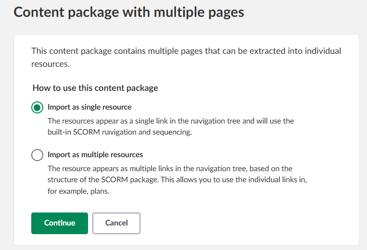
- Import as single resource: the package appears as a single link in the navigation tree and uses the built-in SCORM navigation and sequencing.
- Import as multiple resources: the package appears as multiple links in the navigation tree, based on its structure. This allows the individual links to be used elsewhere, for example in Plans.
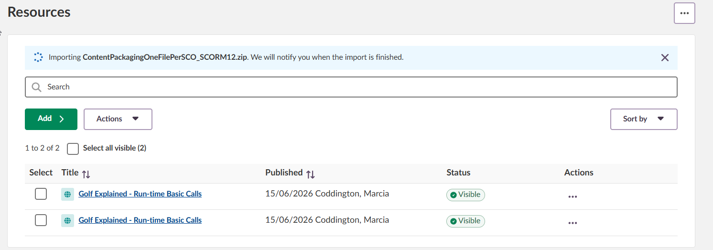
Large SCORM packages can take some time to import. The import runs in the background, so you can stay on the page or leave it safely. Once the import finishes, you receive a bell notification and the resource appears in the Resources list.
3 SCORM resource settings
| Setting | Description | ||||||||
|---|---|---|---|---|---|---|---|---|---|
| Title | Name of the SCORM resource. By default, the name is read from the imsmanifest.xml file inside the content package. | ||||||||
| URL | Location of the extracted content files in itslearning. Only needed for troubleshooting. The extracted files can be accessed in Course settings > Files, if the ‘Files in course’ setting is enabled in Course properties and features. | ||||||||
| Visibility | Options: Visible, Not visible, Scheduled. By default, an uploaded SCORM resource is visible to all course participants. | ||||||||
| Learning objectives | If learning objectives are enabled for the course, they can be added to the SCORM resource. | ||||||||
| Open in | Controls how the SCORM resource is launched:
|
4 SCORM in itslearning reports
Itslearning supports simple reporting from SCORM resources. When a SCORM resource returns a result, the result from the latest attempt is shown in the 360 Progress report and 360 Resource summary.
360 reports track:
- Number of times the user has opened the resource (visits).
- Total time spent (unless tracking time spent is disabled on the site).
- Completion status: Not visited, Not completed, Completed.
- Completion status is always from the latest attempt. A new incomplete or failed attempt overwrites a previous completed attempt.
- Itslearning does not support Passed / Failed status. If an attempt is failed, itslearning reports show status ‘Not completed’.
- SCORM status shows whether the learner has completed the SCORM resource, but cannot track progress within the content package.
- Score (if returned by the SCORM resource).
- Score is always from the latest attempt. A new score overwrites the previous score.
- Itslearning does not store scores from all attempts.
Note: SCORM resources cannot be added to the assessment record automatically.
5 Troubleshooting
5.1 Itslearning does not track progress from SCORM
If itslearning does not receive a score, the issue usually stems from the authoring tool’s tracking settings, browser pop-up blockers, or a communication breakdown between the course and itslearning caused by a network issue or the user closing the browser without exiting the SCORM resource.
We recommend testing your SCORM content package at SCORM Cloud before uploading it to itslearning. The service is free to use but requires registration.
- If reporting does not work as expected, the issue is in the content package itself; contact its creator to resolve the problem.
- If your content works as expected in SCORM Cloud but does not report back once imported to itslearning, the issue may be on the itslearning side.
- Note that SCORM Cloud may record more details than itslearning supports. See SCORM in itslearning reports.
If reporting back to itslearning is inconsistent, this is usually caused by how the user interacts with the content or the user’s local environment, such as:
- The user exited the module by closing the browser tab or the whole browser, instead of using an exit button provided in the content package.
- The user has the SCORM module open in more than one tab or window.
- The user left a module open too long: the module appears to be running, but the session has expired.
- The user’s browser has an add-on or restriction that prevents communication with itslearning.
5.2 What versions of SCORM does itslearning support?
Itslearning supports all SCORM versions. Support is actively tested with SCORM 1.2 and SCORM 2004 (3rd Edition), which are the recommended versions.
5.3 How to get a SCORM course package?
A content package is shared by an eLearning vendor (licensed or free resource) or created as an export from a content authoring tool. SCORM courses are distributed as ZIP files that either contain all content (standalone packages) or are small dispatch files.
5.4 What is a SCORM dispatch file?
A SCORM dispatch file, sometimes called a proxy or wrapper, does not contain the actual learning content. It points to content hosted elsewhere while still reporting results back to the LMS. The benefit of sharing dispatch files is easier updating, as all linked instances automatically use the latest version.
Dispatch files are imported to itslearning the same way as other SCORM content.
SCORM dispatch can introduce CORS issues, as the content is hosted outside itslearning. Symptoms can include content that does not launch, or progress that is not tracked in itslearning. The content provider is responsible for ensuring the content can communicate across domains; itslearning cannot fix cross-origin issues caused by external hosting.
5.5 How can we update an existing SCORM course in itslearning?
If the SCORM course was shared as a dispatch file, the latest version is automatically available to all users.
For self-contained SCORM packages, updates require re-importing the package as a new resource. If users are mid-course, their progress cannot be transferred. They need to start again in the new resource, and their existing progress remains in the old package.
5.6 The option to import SCORM content is not available in Resources
Uploading and playing SCORM courses in itslearning is an optional add-on, not a standard feature. Customers should contact their itslearning representative if support for SCORM courses is needed.
More Help Resources
Have more questions? Please start with asking your school administrator.
Product Release notes
Stay updated with itslearning latest releases: https://itslearning.com/product-updates
Service Status
Check the current status of itslearning services: https://status.itslearning.com/
Ideas Portal
Share your ideas and help shape the future of itslearning: https://ideas.itslearning.com/
Roadmap
Check out our roadmap: https://itslearning.com/global/roadmap/