Files - Administrator guide
TABLE OF CONTENTS
- 1 Overview
- 2 Prerequisites and Requirements
- 3 Profile Settings for File Access
- 4 Configuring File Access
- 5 File Behaviour
- 6 Technical Information
- 7 Troubleshooting
1 Overview
Your Files provides users with personal file storage within itslearning. Administrators control access to file areas and storage quotas through profile settings.
Your Files consists of several areas:
- Private files (Your files) – Personal file storage
- Web files (Your web files) – Storage for recordings and publicly shareable files
- Saved course materials – Storage for student assignment submissions from past courses (students only)
- Messages – Access to message attachments
Each area can be enabled or disabled independently per profile.
2 Prerequisites and Requirements
- Administrator access to Profiles
- Understanding of which file areas should be available for different user roles
- Knowledge of organisational storage policies
3 Profile Settings for File Access
3.1 Available settings
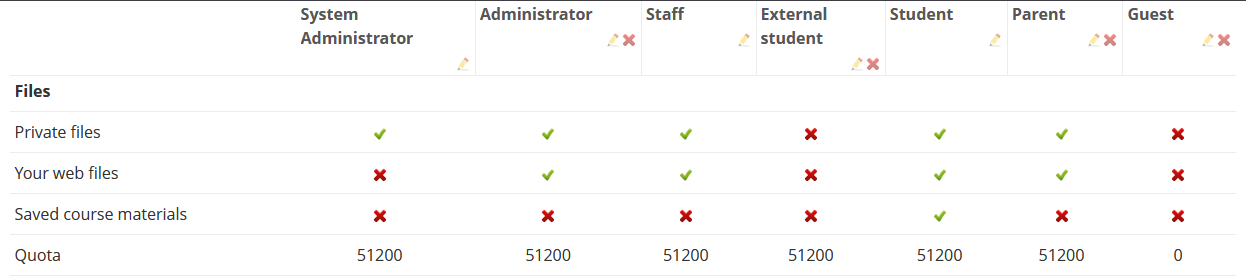
The following settings are available in the Files section of each profile:
| Setting | Description |
|---|---|
| Private files | Enables the Your files tab for personal file storage |
| Your web files | Enables the Your web files area for recordings and shareable files |
| Saved course materials | Enables storage of submitted assignments for past courses (archived courses, courses that student has been removed from, deleted courses). |
| Quota | Sets the storage limit in kilobytes (KB) |

3.2 Storage quota
The quota setting controls the total storage space available for a user's private files and web files combined.
Key points:
- Quota is specified in kilobytes (KB). For reference: 1,024 KB = 1 MB
- Example: A quota of 51200 KB equals 50 MB
- The quota is shared between Private files and Your web files
- Course files are not included in this quota
When users attempt to upload files that exceed their available space, the system displays an error message showing the maximum allowed file size based on remaining quota.
Note: Recordings created in the rich text editor are stored in Your web files and count towards the quota, even if the user cannot see the Your web files area.
3.3 Saved course materials
Saved course materials automatically saves students' assignment submissions when they are removed from a course or when a course is deleted. This ensures students retain access to their work.
Configuration:
- The setting is enabled by default for the default student profile
- It must be enabled separately for other profiles where this functionality is needed
Storage:
- Content in Saved course materials counts towards the site storage quota, not the user's personal storage quoteNote: Max file upload size in itslearning is configured on the site level. By default it is 2.14 GB and can be decreased by itslearning support at request.
Limitations:
- Assignments submitted and assessed before the feature was enabled on your site are not automatically saved
- Workaround: To trigger saving for an older assignment from an active or archived course, start or continue a discussion in the assignment
3.4 Files menu visibility logic
The Files menu item in the personal menu is controlled by the combination of enabled file areas from section 3.1:
| Configuration | Result |
|---|---|
| All file settings disabled | Files menu is hidden |
| At least one setting enabled | Files menu is visible |
| Private files enabled | Your files is the landing page |
| Private files disabled, Your web files enabled | Your web files becomes the landing page |
4 Configuring File Access
To configure file access for a profile:
- Open Administration.
- Select Profiles.
- Select the profile you want to edit.
- Scroll to the Files section.
- Enable or disable the following options as required:
- Private files
- Your web files
- Saved course materials (relevant for student profiles)
- Enter the storage quota in the Quota field (in KB).
- Save the profile.
The changes take effect immediately for users with this profile.
5 File Behaviour
5.1 Copied files
When users add files from Your Files to other areas in itslearning, the files are always copied, never linked. This applies to:
- Assignment descriptions
- Course resources
- Library
- Chat messages
- ePortfolio
- Submissions
This ensures the original file in Your Files remains unchanged when the copied version is modified. It also
ensures that the version added to another area remains if the original file is deleted.
5.2 Web files and sharing
Your web files stores:
- Audio and video recordings created with the recorder
- Files shared via public links
Sharing restrictions:
- Files in the Your recordings folder can only be shared with users on the same itslearning site
- Other files in Your web files can be shared with anyone via public links
Important: If a user renames, moves or deletes a file in Your web files, any previously shared links to that file will no longer work.
6 Technical Information
| Specification | Details |
|---|---|
| Quota unit | Kilobytes (KB) |
| Default quota | Site-dependent (commonly 51200 KB / 50 MB) |
| Quota scope | Shared between Private files and Your web files |
| Global search | Files area is excluded from global search indexing |
| File deletion | Immediate; no trash/recycle bin |
| Folder upload | Not supported |
| Multiple file selection in picker | Not supported |
Folder path length limitation
The maximum length of a folder path is 255 characters total. This is the combined length of all folder names in the hierarchy (similar to the breadcrumb navigation).
The available characters for a new folder name depends on how many characters have already been used in the path. Each folder level also uses 1-2 extra characters for separators.
Example:
Root folder (14 chars)
 └── Subfolder (13 chars remaining = 255 - 14 - separators)
      └── Another level (fewer chars available)
In practice:
- The first folder can use up to 255 characters
- Each nested folder has fewer available characters
- Users will see a warning if they exceed the path limit
7 Troubleshooting
Files menu not visible for users
Symptoms: Users cannot see the Files option in their personal menu.
Cause: All file-related settings are disabled in the user's profile.
Solution:
- Open the user's profile in Administration → Profiles.
- Enable at least one of the following: Private files, Your web files, or Saved course materials.
- Save the profile.
User reports storage is full but has no visible files
Symptoms: User receives quota exceeded errors despite appearing to have no files.
Cause: Recordings created in the rich text editor are stored in Your web files and count towards the quota. If Your web files is disabled, users cannot see or delete these recordings.
Solution:
- Temporarily enable Your web files for the user's profile.
- Ask the user to open Your web files and delete unnecessary recordings.
- Disable Your web files again if required.
Alternative: Increase the user's storage quota.
Prevention: Inform users that recordings count towards their storage quota.
Shared links no longer work
Symptoms: Public links to files in Your web files return errors.
Cause: The file was renamed, moved or deleted.
Solution:
- Ask the user to restore the file to its original location and name, or
- Create and distribute a new link.
Prevention: Advise users to avoid renaming or moving files after sharing links.
More Help Resources
Have more questions? Please start with asking your school administrator or contact your itslearning support.
Product Release notes
Stay updated with itslearning latest releases: https://itslearning.com/product-updates
Service Status
Check the current status of itslearning services: https://status.itslearning.com/
Ideas Portal
Share your ideas and help shape the future of itslearning: https://ideas.itslearning.com/
Roadmap
Check out our roadmap: https://itslearning.com/global/roadmap/
The features shown are part of the project within the framework of the German Development Project (GDP), a cooperation between four German states and itslearning with the aim of improving digital education in Germany through tailor-made product developments.
Click here to learn more about the GDP roadmap and what other features you can expect.
For German readers: Click here for more information about the project within the framework of the German Development Project.