Progress Report – Reference (Teacher)
TABLE OF CONTENTS
- Introduction
- 1 Opening the progress report
- 2 Reading the report
- 3 Filtering the report
- 4 Exporting and messaging
- 5 Configuring course completion criteria
- 6 Configuring the deadline warning
Introduction
The progress report shows how far each student has progressed through the mandatory activities in a course. The report provides a visual activity progress bar and task completion count for each student, along with their overall completion status.
1 Opening the progress report
- Open the relevant course.
- Select Reports in the course navigation bar.
- Under Detailed reports, select Progress report.
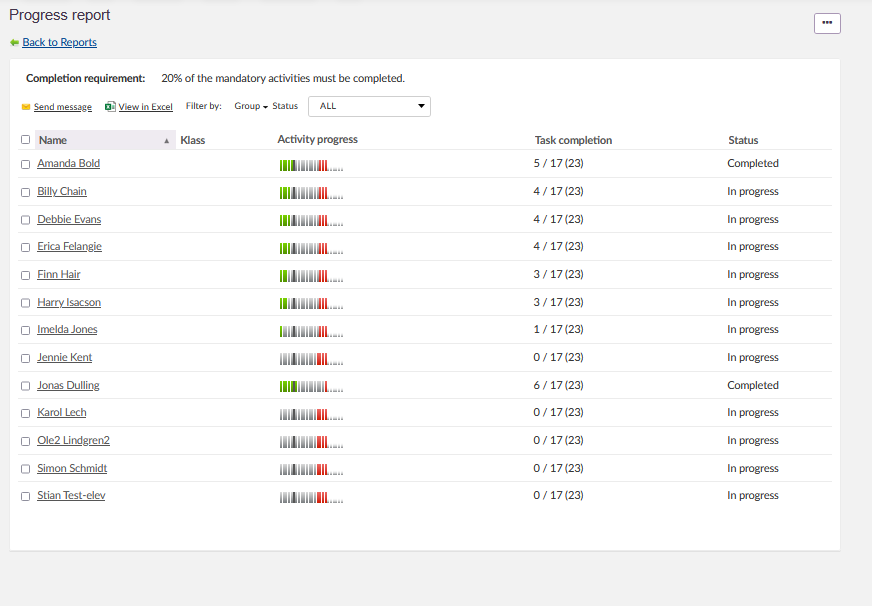
The active course completion requirement is displayed at the top of the report, for example: 20% of the mandatory tasks must be completed
2 Reading the report
The report lists all course participants with their progress data. Each row contains a visual activity progress bar, a task completion count, and an overall completion status.
2.1 Activity progress bar
The activity progress bar represents the student's completion of mandatory activities using colour coding.
| Colour | Meaning |
|---|---|
| Green | Activity completed. The specified number or % of activities must be green for a course to be considered completed. |
| Yellow | Activity status is Deadline approaching. The deadline is within the configured number of days. See Section 6. |
| Red | Activity deadline has passed and the activity is not completed. |
| Grey | Represents the last mandatory activity in the course. |
2.2 Task completion count
The Task completion column shows the number of mandatory activities a student has completed, displayed in the format completed / total mandatory (total activities).
2.3 Completion status
The Status column shows the student's overall completion status based on the active course completion criteria.
| Status | Description |
|---|---|
| Not completed | The student has not yet met the course completion criteria. |
| Completed | The student has met all course completion criteria. |
3 Filtering the report
Use the controls at the top of the report to adjust which students are displayed.
| Control | Function |
|---|---|
| Filter by: Group | Filter the student list to show only members of a specific group. |
| Status | Filter the student list by completion status. Options include ALL, Completed, and Not completed. |
4 Exporting and messaging
The following actions are available at the top of the progress report.
| Action | Description |
|---|---|
| Send message | Send a message to one or more students directly from the report. |
| View in Excel | Export the progress report data to an Excel file. |
5 Configuring course completion criteria
Course completion criteria define what a student must achieve for their status to be set to Completed. The active criteria are displayed at the top of the progress report.
To configure the criteria:
- Open the progress report.
- Select the ellipsis (...) in the upper right corner of the report.
- Select Settings.
- Under Completion criteria for progress report, select one of the three criteria.
- Enter any required values and select Save.
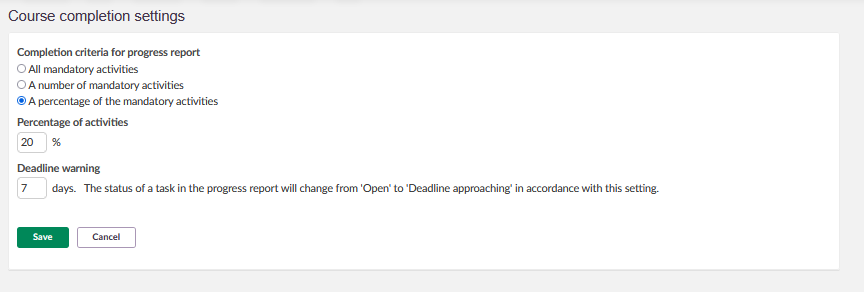
The three available completion criteria are described below.
| Criterion | Description |
|---|---|
| All mandatory activities | The student must complete all mandatory activities in the course. |
| A number of mandatory activities | The student must complete a specified number of mandatory activities. Enter the required number in the Number of activities field. |
| A percentage of the mandatory activities | The student must complete a specified percentage of mandatory activities. Enter the required percentage in the Percentage of activities field. |
6 Configuring the deadline warning
The progress report uses colour coding to indicate when activity deadlines are approaching. The number of days in advance that the yellow deadline warning appears is configurable.
To configure the deadline warning:
- Open the progress report.
- Select the ellipsis (...) in the upper right corner of the report.
- Select Course completion settings.
- In the Deadline warning field, enter the number of days in advance the warning should appear.
- Select Save.
Note: The status of a task in the progress report will change from Open to Deadline approaching in accordance with this setting. Tasks past their deadline are shown in red regardless of this setting.
More Help Resources
Have more questions? Please start with asking your school administrator.
Product Release notes
Stay updated with itslearning latest releases: https://itslearning.com/product-updates
Service Status
Check the current status of itslearning services: https://status.itslearning.com/
Ideas Portal
Share your ideas and help shape the future of itslearning: https://ideas.itslearning.com/
Roadmap
Check out our roadmap: https://itslearning.com/global/roadmap/