Navigation - Getting started (Teacher)
TABLE OF CONTENTS
Introduction
This article shows teachers how to find their way around itslearning. It covers Courses, Updates, notifications, messages and your personal menu.
1 Overview
The menu bar at the top of itslearning contains your primary navigation. This article covers Courses, Updates, notifications and your personal menu.
Other menu items, such as Groups, Calendar, Library and Apps, are covered in separate Getting started articles. For a description of every menu item, see Main menu - Overview (Teacher).

2 Prerequisites
- Your itslearning login credentials.
- itslearning open in your web browser.
- At least one course assigned to your account.
3 Step-by-step instructions
3.1 Opening your courses
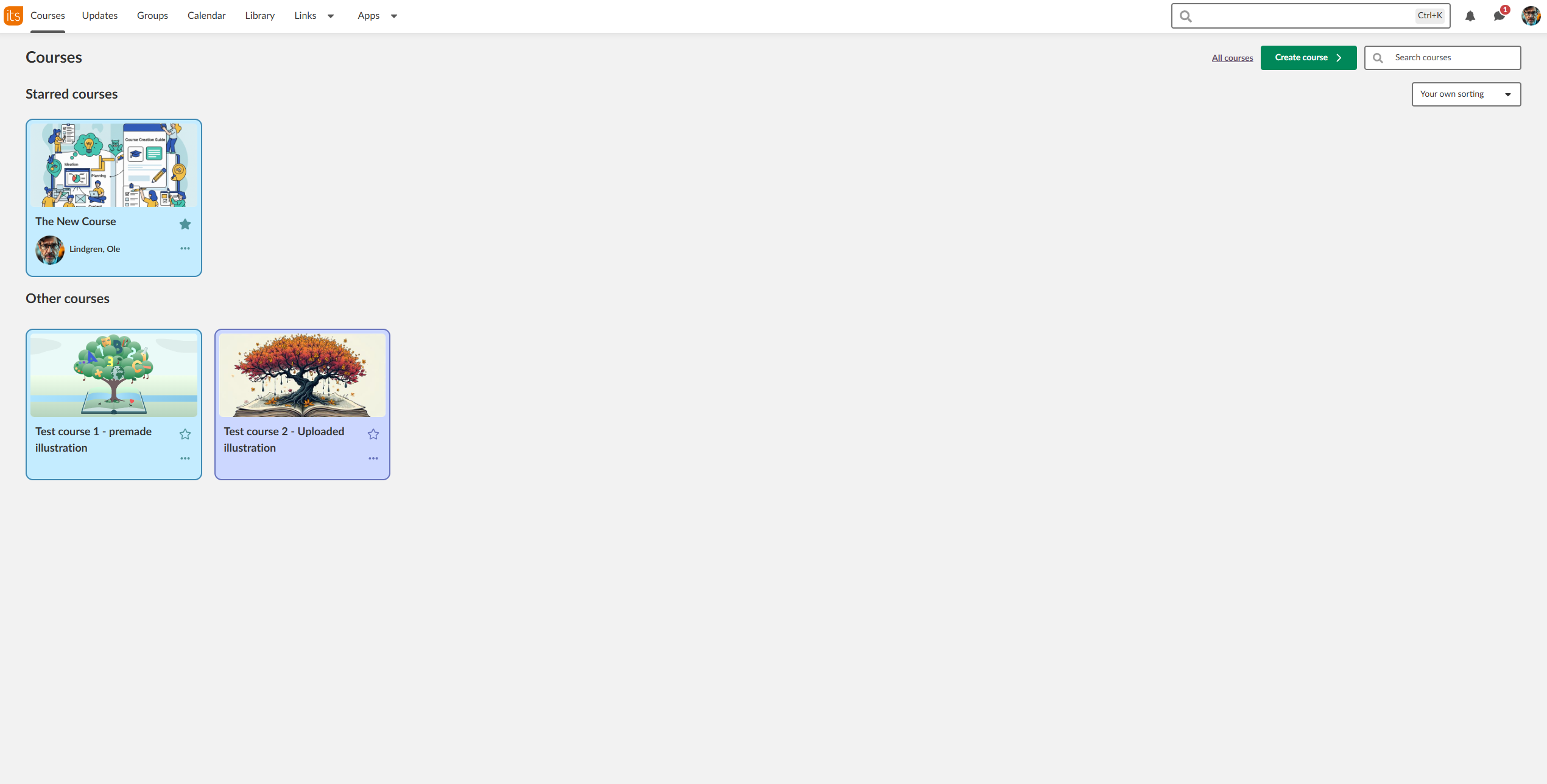
- Select Courses in the menu bar.
- Your Starred courses (favourites) are shown at the top.
- All courses appears on the right side of the page. If you have many courses, scroll down to see them all.
- Course cards show your enrolled courses with recent activity indicators.
3.2 Organising your course view
- Use the Search courses field to find a course.
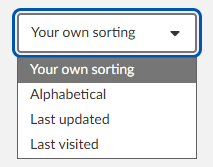
- Select the sorting drop-down list to sort by Alphabetical, Last updated or Last visited. Custom sorting is the default.
- Select the star icon on a course card to add the course to your favourites.
- Drag and drop starred course cards to reorder them, or use the drop-down list to sort them automatically.
3.3 Checking your updates and tasks
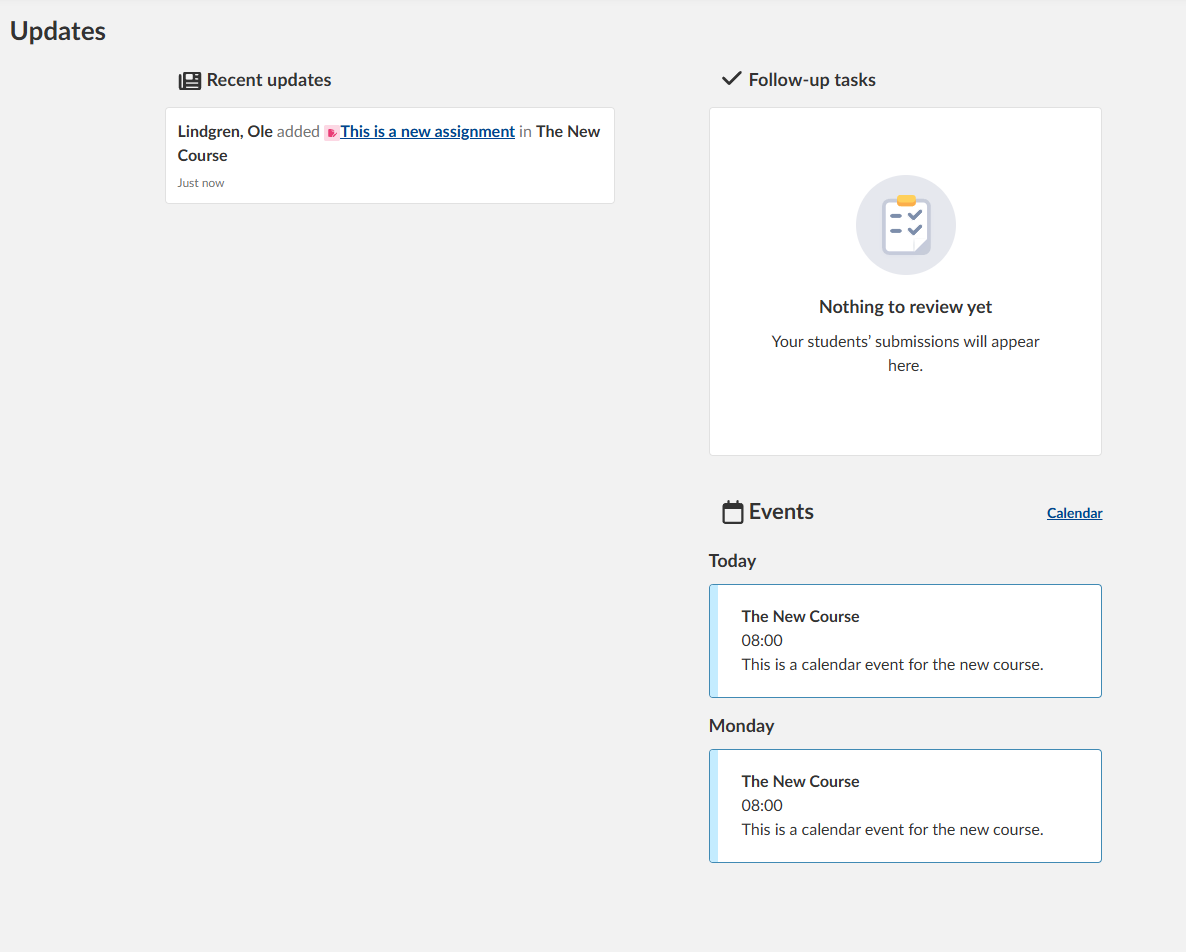
- Select Updates in the menu bar.
- Review Recent updates for course announcements.
- Check Follow-up tasks for assignments that need attention.
- A list of recent activity and outstanding tasks from all your courses is shown, if any exist.
3.4 Opening notifications and messages
- Select the bell icon in the upper-right corner to open your notifications.
- Select the speech bubble icon to open your internal messages.
- A number on either icon shows the number of unread items.

3.5 Using your personal menu
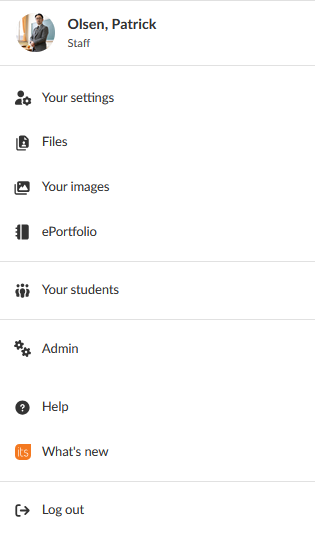
- Select your name or profile image in the upper-right corner.
- Select an option, for example Your settings or Your files.
- Select Log out when you have finished. Always log out for security.
- Your personal menu shows the options that are relevant to your account permissions.
Note: Not all options are available for all profiles. A system administrator controls some options, so they might not be available to you.
To change your profile, language and notifications, see Personal settings - Getting started.
More Help Resources
Have more questions? Please start with asking your school administrator.
Product Release notes
Stay updated with itslearning latest releases: https://itslearning.com/product-updates
Service Status
Check the current status of itslearning services: https://status.itslearning.com/
Ideas Portal
Share your ideas and help shape the future of itslearning: https://ideas.itslearning.com/
Roadmap
Check out our roadmap: https://itslearning.com/global/roadmap/