Assignments - Assessing Assignments in the App (Teacher)
TABLE OF CONTENTS
- Introduction
- 1 Overview
- 2 Accessing assignments
- 3 Assessing a student’s submission
- 4 Marking an assignment as done
- 5 Assessing assignments not in the platform
- 6 Tips
- 7 Frequently asked questions
Introduction
Prerequisite: This article describes the teacher assignment assessment experience in the itslearning mobile app (iOS and Android). You must be enrolled as a teacher in a course to access assignment assessment.
1 Overview
The itslearning mobile app allows teachers to review and assess student assignments directly from a mobile device. This is particularly useful for quickly checking submission status or assessing smaller assignments when away from a computer; for example, during a commute or while moving between classes.
For larger assignments that require extensive feedback or reviewing long submissions, a computer may be more practical. The mobile assessment feature is designed for quick, convenient assessment on the go.
Note: The file attached to an assignment is not overwritten by the file attached as an answer by the teacher. Both the original file and the answer file remain visible to the teacher in the assignment.
Key capabilities in the app include:
| Capability | Description |
|---|---|
| Student list with submission status | See which students have submitted, not yet submitted, or already been assessed. |
| Assess submissions | View answers and set submission status and score or grade. |
| Mark as done | Mark an assignment as completed on behalf of a student when no digital submission is required. |
| Assessing assignments not in itslearning | Assess assignments where the submission was returned outside itslearning. (for example on paper) |
Note: All assessments made on the mobile app sync automatically with the web version of itslearning.
2 Accessing assignments
To access an assignment for assessment in the mobile app:
- Open the itslearning app and select a course.
- If you are a teacher in the course, a list of assignments that already have submissions is displayed.
- Tap the name of the assignment to open the assignment view.
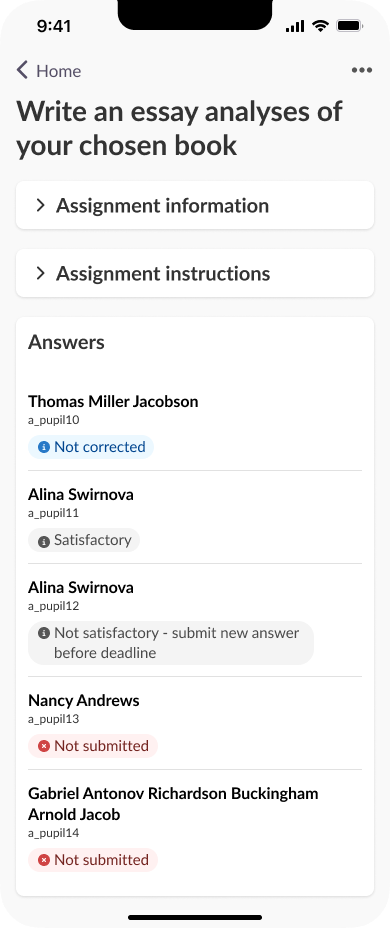
The assignment view displays a student list showing each student’s submission status. Use this list to quickly identify which students have submitted, which have not, and which have already been assessed.
3 Assessing a student’s submission
To assess a student’s submitted work:
- In the student list, tap the student’s name.
- If the assignment requires a submission (for example, a text answer or file), the student’s answer is displayed below the assignment instructions.
- Below the answer, set the submission status, enter feedback and enter a score or grade.
- Tap Save assessment.

4 Marking an assignment as done
For assignments that do not require a digital submission — for example, reading a chapter from a textbook or completing a pair discussion — you can mark the assignment as completed on behalf of the student.
- In the student list, tap the student’s name.
- Since no digital submission is required, the app displays the option to mark the assignment as completed.
- Tap Save assessment.
Note: You can mark an assignment as done for each student individually. This is only available if students have not been allowed to mark the assignment as done themselves.
5 Assessing assignments not in the platform
When an assignment submission has been returned outside itslearning (for example, handed in on paper) and needs to be assessed, the app allows you to record the assessment digitally.
- In the student list, tap the student’s name.
- The app displays assessment options using either a grading scale or points, based on how the assignment is configured.
- Tap Save assessment.
6 Tips
- Use the student list to quickly check how many students have not yet submitted their work - this can be done at a glance without opening individual submissions.
- For assignments with no answer required (for example, “Read chapter 2” or “Complete a pair discussion”), you can mark assignments as done directly in class using the app.
- For larger assignments that require detailed feedback or reviewing long text submissions, consider using a computer instead.
7 Frequently asked questions
7.1 Who can use this feature?
Only teachers enrolled in a course have access to the assignment assessment functionality in the app. Students cannot view the teacher assessment interface.
7.2 Where can I see which students have submitted their work?
Within each assignment, the student list displays the submission status for every student. You can quickly scroll through the list to see who has submitted, who has not yet submitted, and who has already been assessed.
7.3 Can I mark an assignment as completed even if there is no submission?
Yes. If no digital submission is required for the assignment, the app allows you to mark it as done for each student individually.
7.4 Do I need a computer for assessment?
Not necessarily. The mobile app is well suited for assessing smaller assignments quickly. However, for larger assignments that involve reviewing long submissions or writing detailed feedback, a computer is generally more practical.
7.5 Will my assessments sync with the web version?
Yes. All assessments made on the mobile app sync automatically with itslearning on the web
More Help Resources
Have more questions? Please start with asking your school administrator.
Product Release notes
Stay updated with itslearning latest releases: https://itslearning.com/product-updates
Service Status
Check the current status of itslearning services: https://status.itslearning.com/
Ideas Portal
Share your ideas and help shape the future of itslearning: https://ideas.itslearning.com/
Roadmap
Check out our roadmap: https://itslearning.com/global/roadmap/
The features shown are part of the project within the framework of the German Development Project (GDP), a cooperation between four German states and itslearning with the aim of improving digital education in Germany through tailor-made product developments.
Click here to learn more about the GDP roadmap and what other features you can expect.
For German readers: Click here for more information about the project within the framework of the German Development Project.