Resources and activities - Getting started (Teacher)
TABLE OF CONTENTS
Introduction
This article shows teachers how to add content to a plan in itslearning. You add a file, a page, a folder, a link and a task, and then set the visibility.
1 Overview
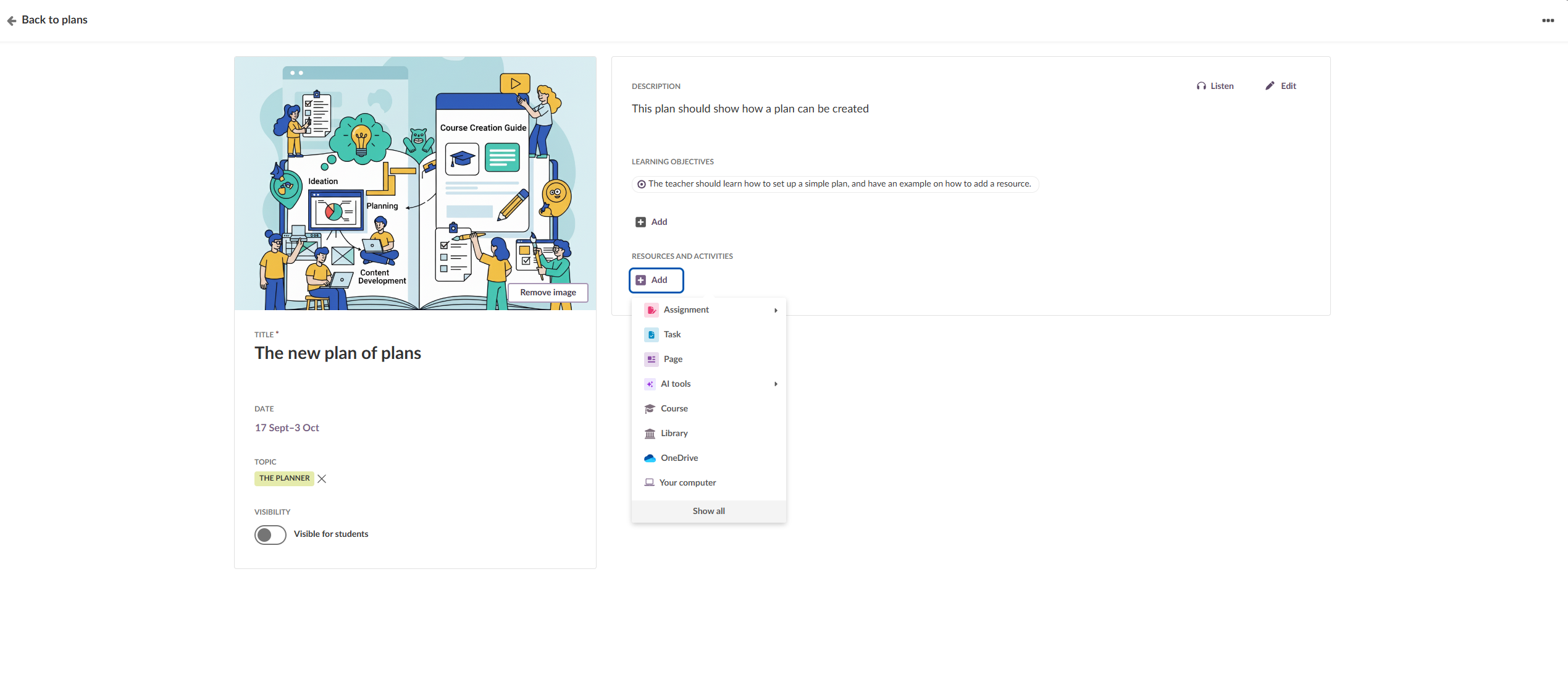
You add content to a plan with the Add button in the Resources and activities section. The menu shows the most commonly used itslearning tools. Select Show all to see all available resources.
For a description of all resource and activity types, see Resources and activities - Overview (Teacher).
2 Prerequisites
- A basic plan that you have already created.
- Content files ready to upload, for example documents and images.
- A list of the learning materials you want to include.
- Teacher permissions in your course.
3 Step-by-step instructions
3.1 Opening your plan
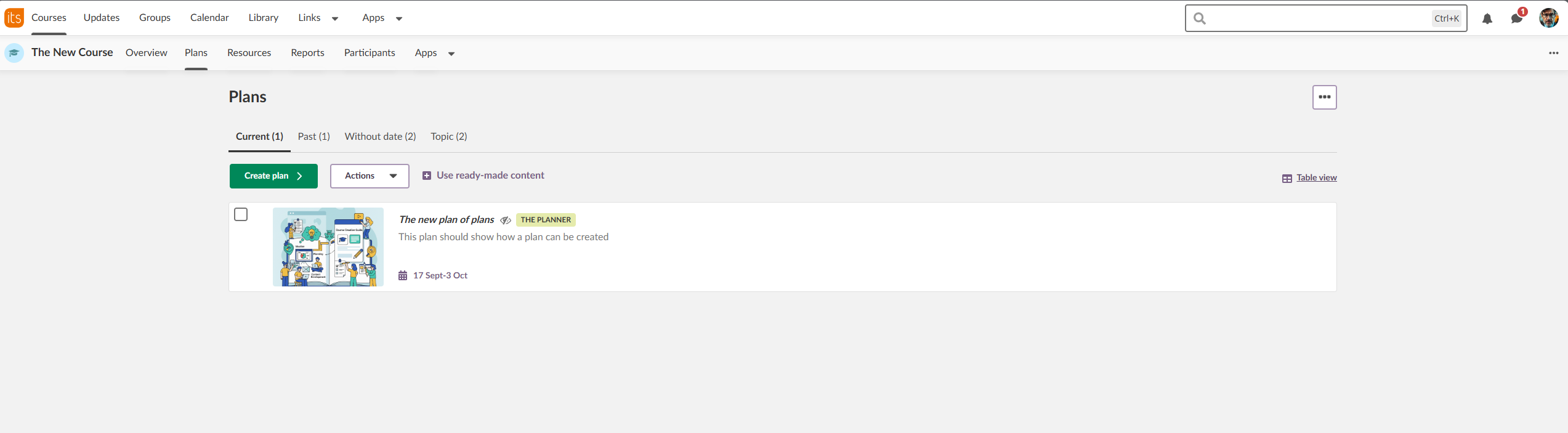
- Go to your course and select the title of your plan.
- If the plan is not on your front page, open the Plans tab and find it there.
3.2 Adding your first resource
- Select the blue Add button in the Resources and activities section.
- The resource selection menu opens. It shows the most commonly used itslearning tools.
3.3 Showing all resources
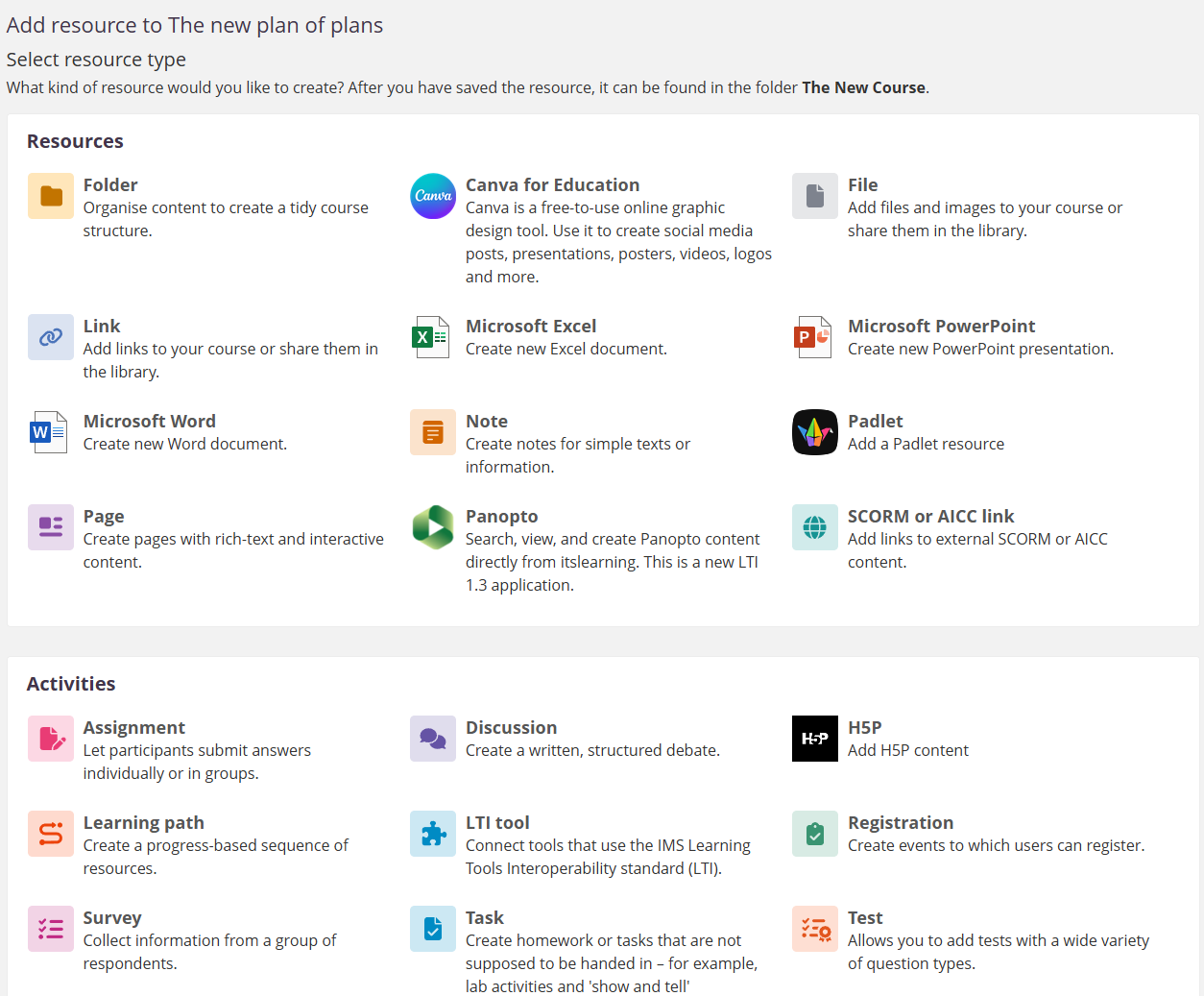
- Select Show all.
- An overview of all the resources available to you opens.
Note: Some resources require an integration or a licence for separate apps.
3.4 Uploading files
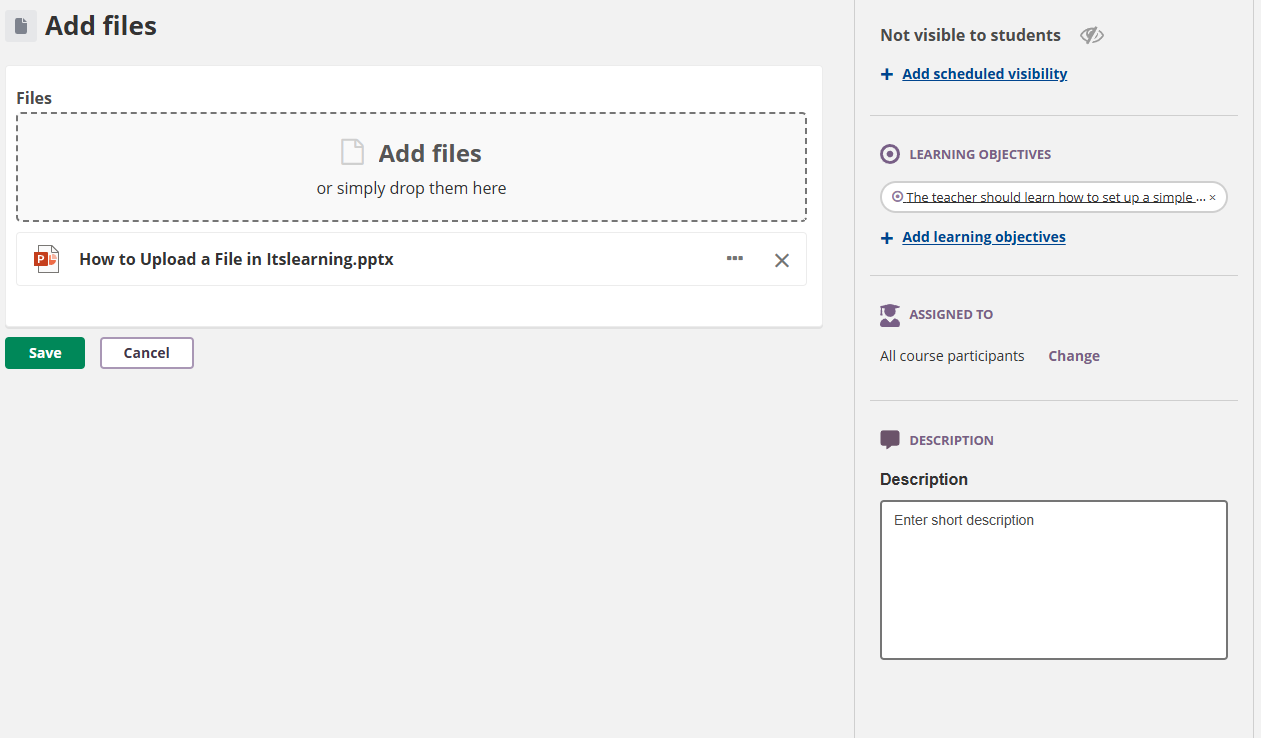
- Select File from the resources list.
- Select Browse, or drag and drop your files.
- Add a descriptive title if needed.
- Select Save.
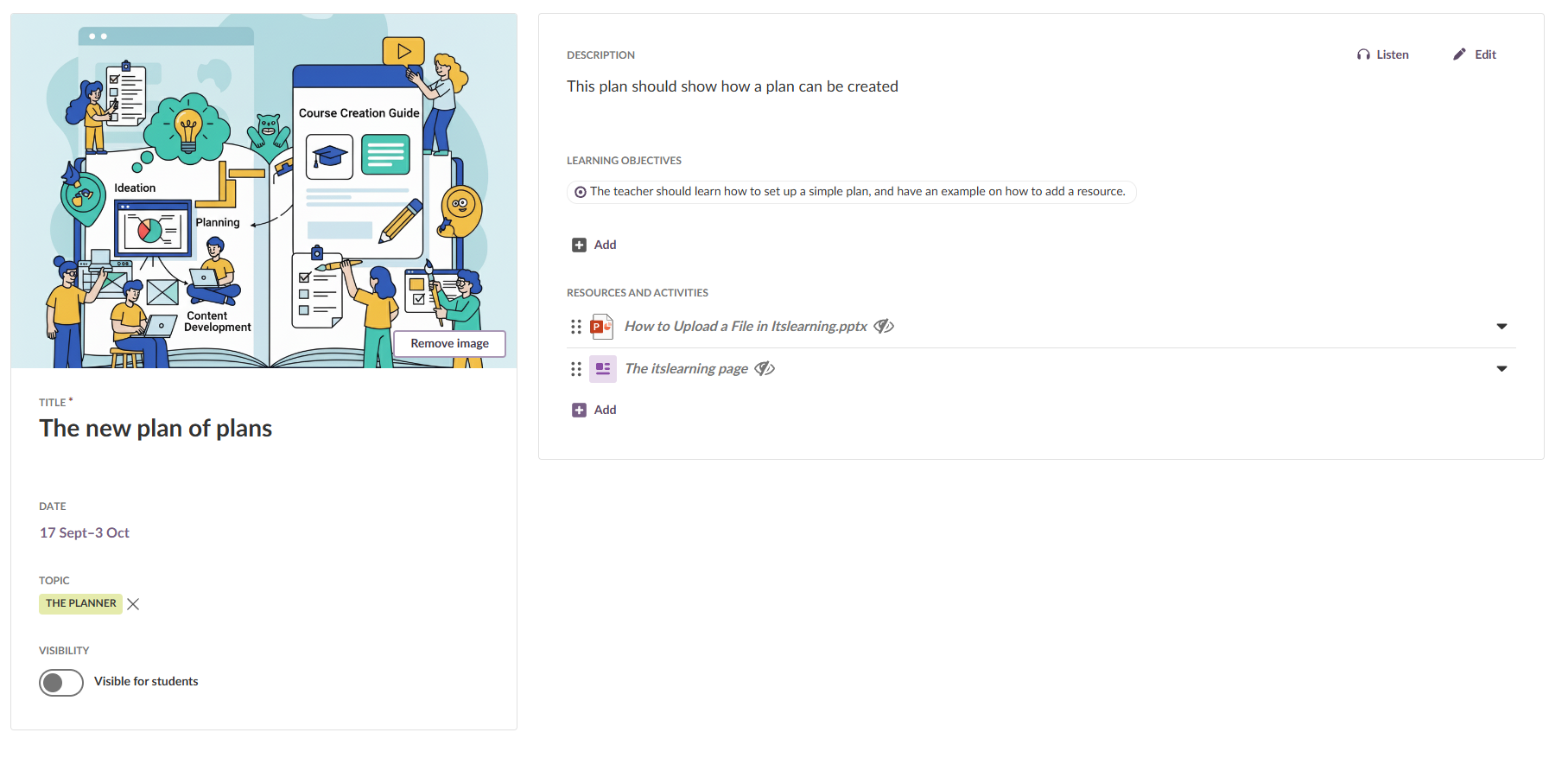
- The file is added to your plan automatically.
Note: In the right-hand side panel, you can schedule visibility, add requirements, assign the file to learners and add a description.
3.5 Creating a welcome page
- Select Add again, and then select Page.
- Enter a title, for example "Welcome to [Topic Name]".
- Add a content block and choose Rich content.
- Use the text editor to add introduction text and instructions.
- Select Save.
- Your plan now shows the uploaded file and the welcome page in the content area.
3.6 Organising content with folders
Use folders to organise the content in a plan.
- Select Add, and then select Folder.
- Enter a clear name, for example "Link collection" or "Reading list".
- Drag existing resources into the folder, or add new ones directly.
- Select Save.
3.7 Adding external links
- Select Add, and then select Link.
- Paste the web address in URL.
- Enter a clear title.
- Choose whether the link opens in a new window.
- Select Save.
3.8 Creating a simple task
- Select Add, and then select Task from the activities.
- Enter a task title and instructions.
- Set a due date if needed.
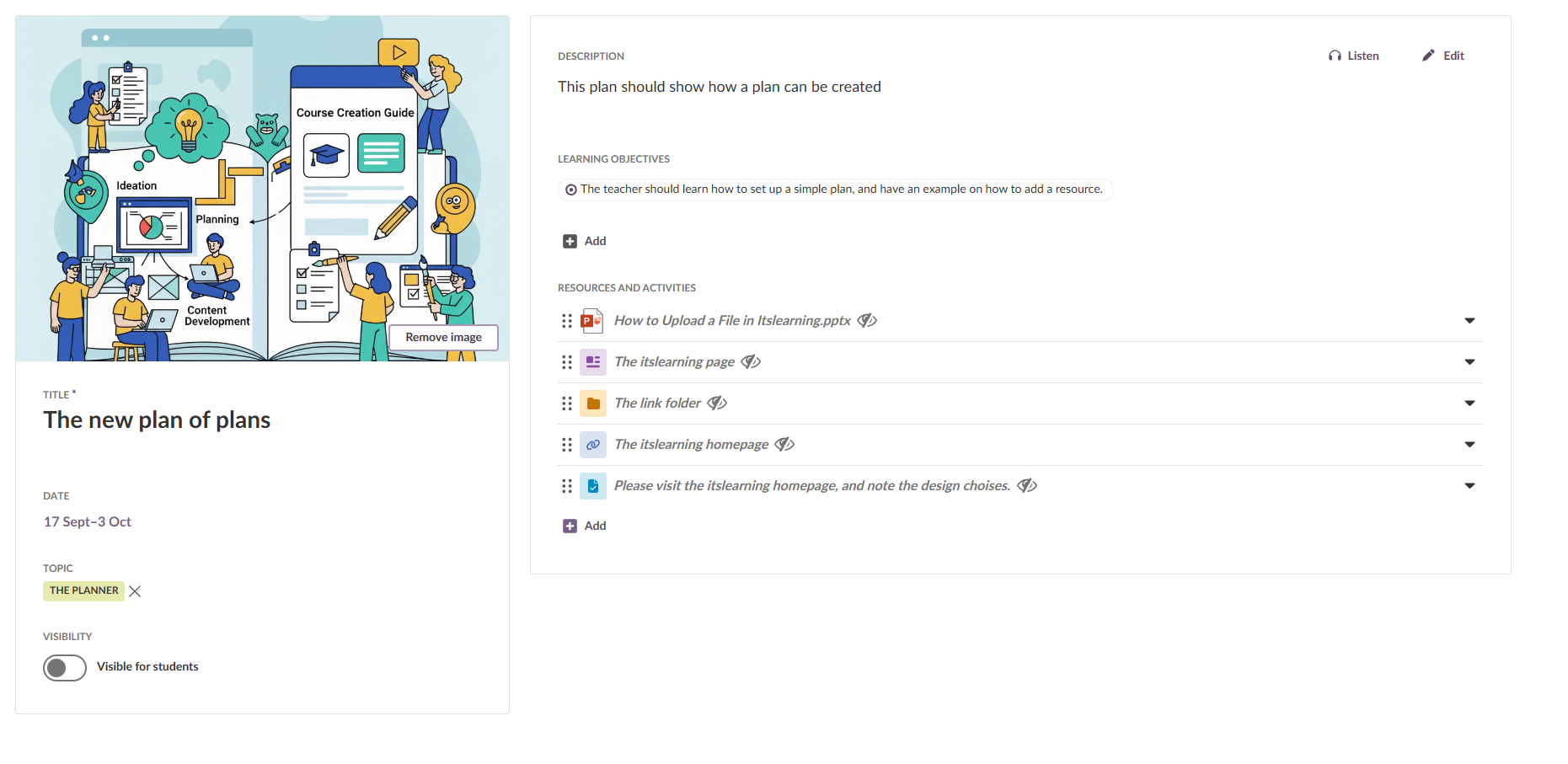
- Select Save.
- Your plan now contains several content types.
3.9 Setting visibility
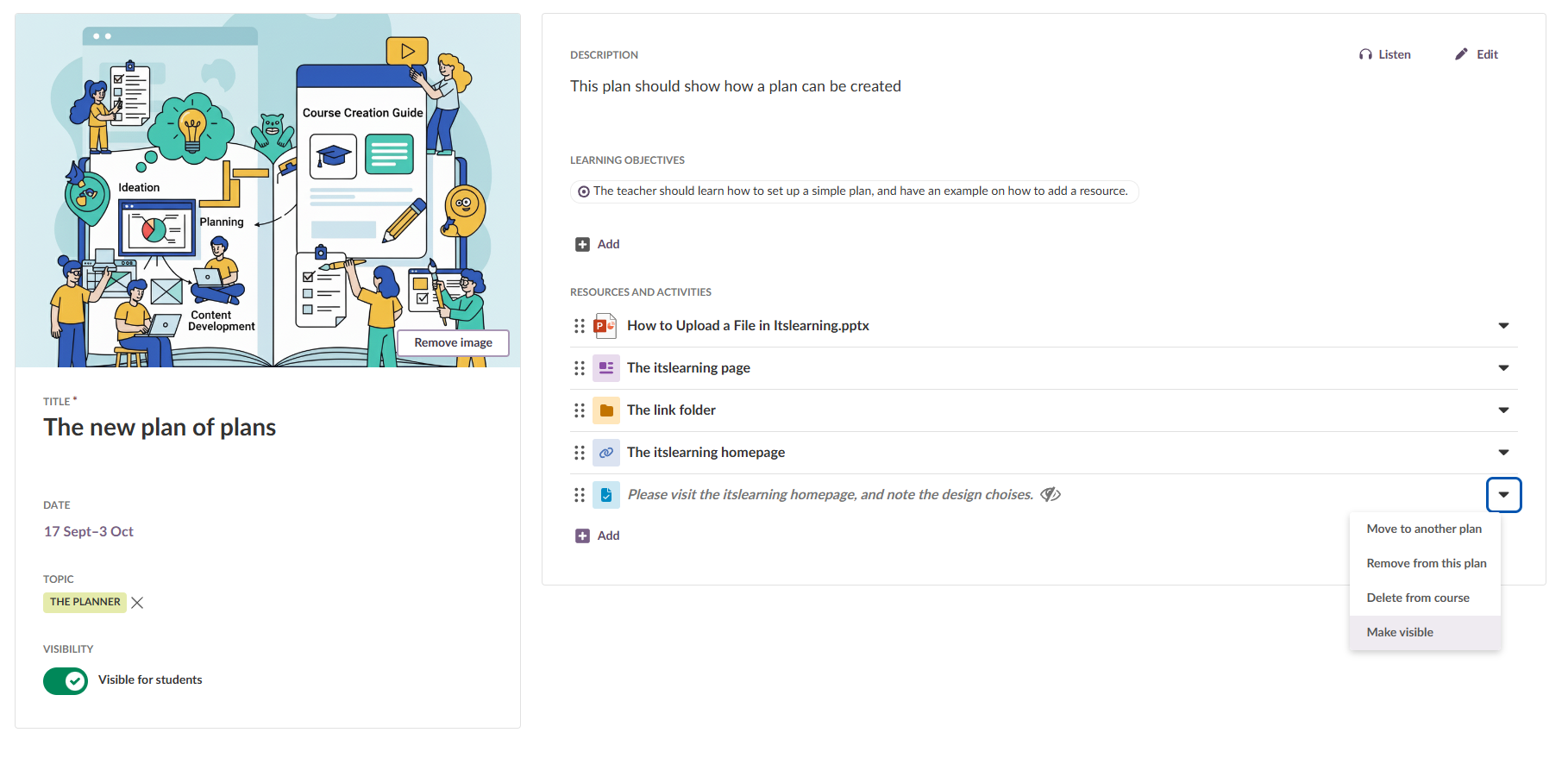
- Review the Visibility setting of your plan.
- Turn on Visible for students on the plan, and on each resource that you want students to see when they are ready to access the content.
More Help Resources
Have more questions? Please start with asking your school administrator.
Product Release notes
Stay updated with itslearning latest releases: https://itslearning.com/product-updates
Service Status
Check the current status of itslearning services: https://status.itslearning.com/
Ideas Portal
Share your ideas and help shape the future of itslearning: https://ideas.itslearning.com/
Roadmap
Check out our roadmap: https://itslearning.com/global/roadmap/