Creating your first assignment - Getting started (Teacher)
TABLE OF CONTENTS
1. What You'll Accomplish
By the end of this guide, you'll have created your first functional assignment with basic settings configured and ready for
students to submit work. This process typically takes 10-15 minutes and gives you a solid foundation for collecting and assessing student submissions in itslearning.
2. Before You Begin
- Ensure you have teacher access to your course
- Have your assignment instructions ready (can be written or uploaded files)
- Know your preferred deadline date and time
- Decide if you want to add any supporting files for students
3. Quick Start Workflow
Step 1: Navigate to Add Assignment
- Go to your course and enter your current plan.
- Click "Add" under resources and activities and select "Assignment" from the dropdown menu.
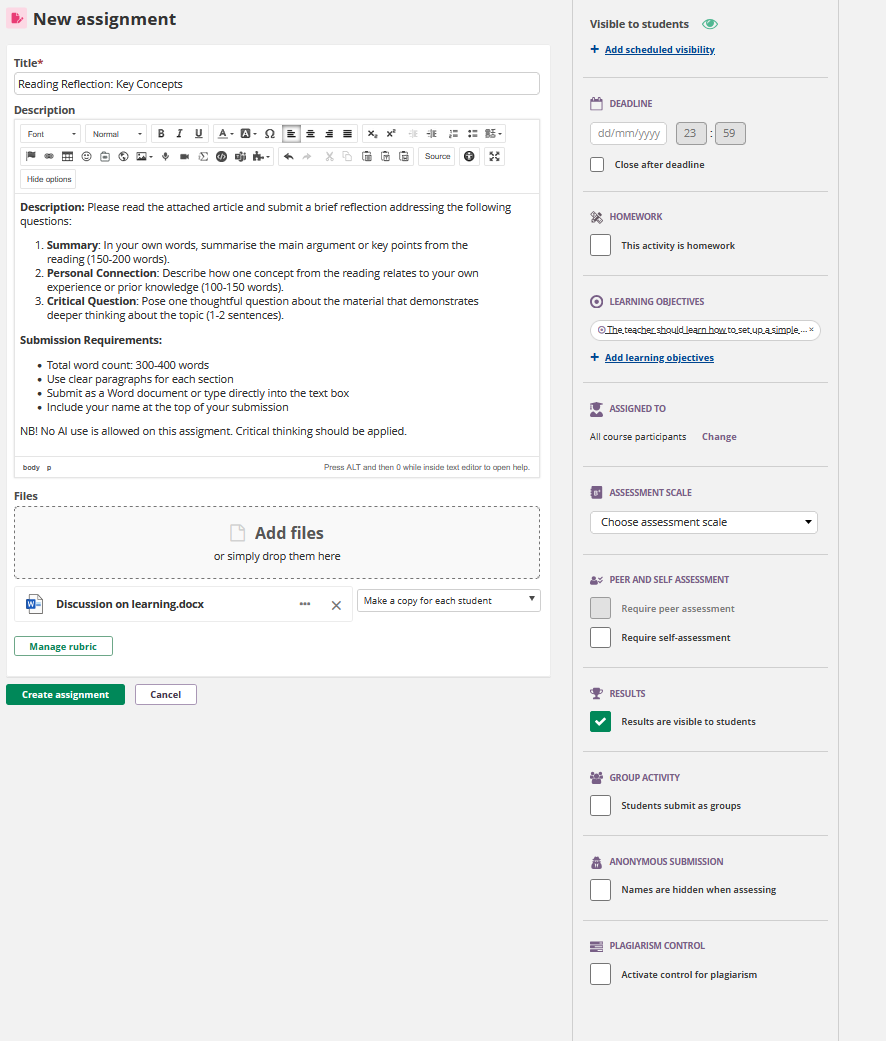
Step 2: Create Your Assignment Content
Complete these essential fields:
- Title: Enter a clear, descriptive assignment name
- Description: Write your instructions using the rich text editor
- Add any supporting files by clicking "Add files" or dragging them to the upload area
✓ Checkpoint: You should see your title, instructions, and any files displayed in the main assignment window.
Step 3: Set Visibility and Deadline
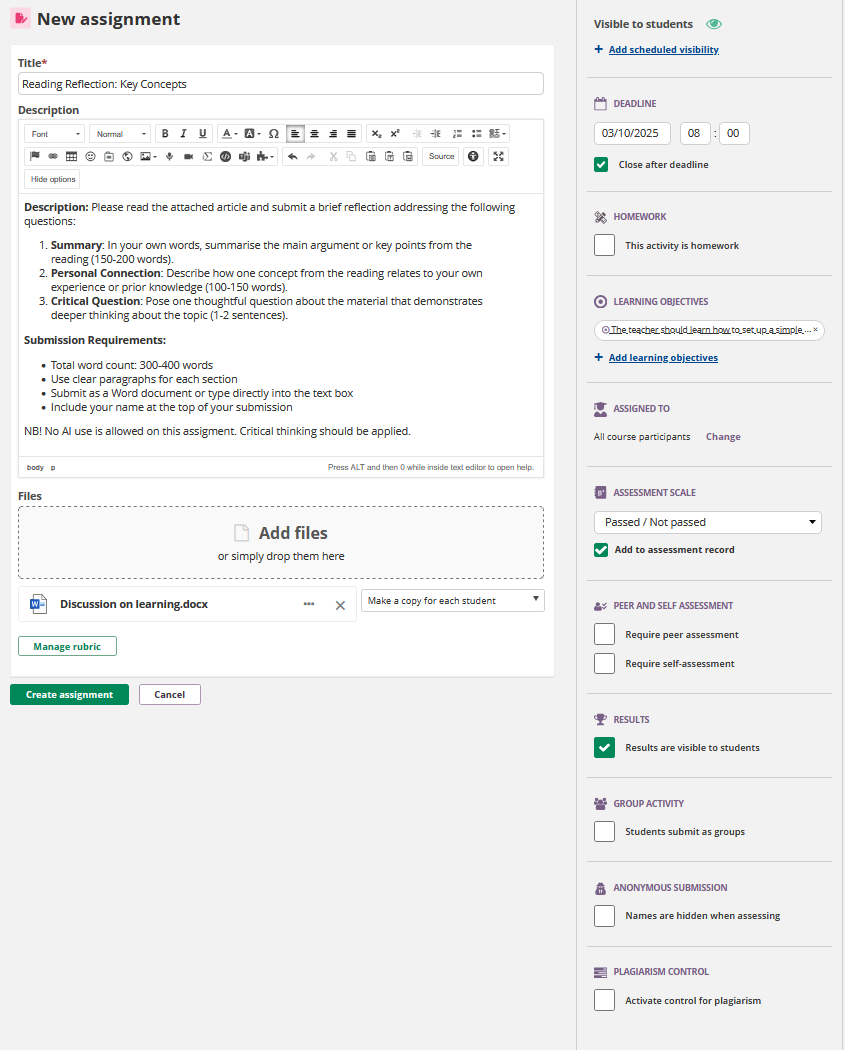
In the right panel, configure:
- "Visible to students": Toggle this on when ready to publish
- "Deadline": Set your preferred date and time using the calendar picker
- Optionally tick "Close after deadline" to prevent late submissions
Step 4: Choose Assessment Settings
Under "Assessment Scale":
- Select your preferred grading scale from the dropdown
- Ensure "Results are visible to students" is ticked if you want them to see grades
✓ Checkpoint: Your deadline should appear in the right panel, and you should see your selected assessment scale.
Step 5: Review Assignment Recipients
Under "Assigned to":
- Confirm "All course participants" is selected (or click "Change" to assign to specific students)
Step 6: Create Your Assignment
Click the green "Create assignment" button at the bottom left.
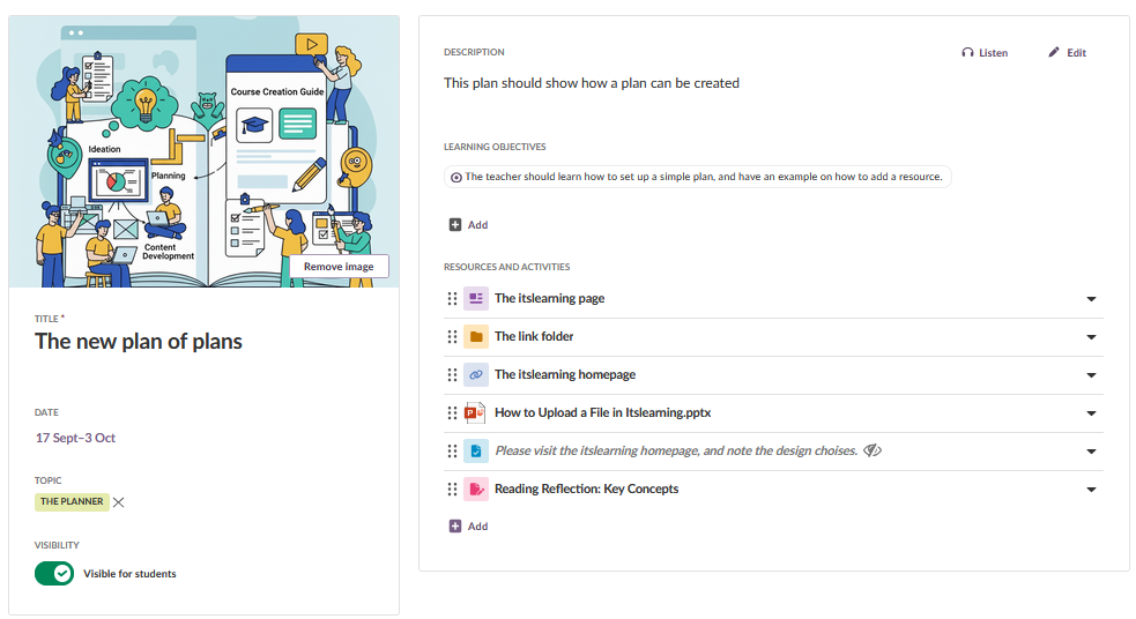
✓ Checkpoint: You should be redirected to the planner, where your new assignment will show.
More Help Resources
Have more questions? Please start with asking your school administrator.
Product Release notes
Stay updated with itslearning latest releases: https://itslearning.com/product-updates
Service Status
Check the current status of itslearning services: https://status.itslearning.com/
Ideas Portal
Share your ideas and help shape the future of itslearning: https://ideas.itslearning.com/
Roadmap
Check out our roadmap: https://itslearning.com/global/roadmap/