Log into itslearning - Getting started
TABLE OF CONTENTS
1. What You'll Accomplish
By the end of this guide, you'll successfully log into your itslearning account and access your dashboard. This process takes 2-3 minutes and gives you access to all your courses and learning materials.
2. Before You Begin
• Your username and password (provided by your educational institution)
• Your institution's site name (often your school or college name)
• Internet connection and web browser
• Important: Never share your password with others
3. Quick Start Workflow
Step 1: Visit the Login Page
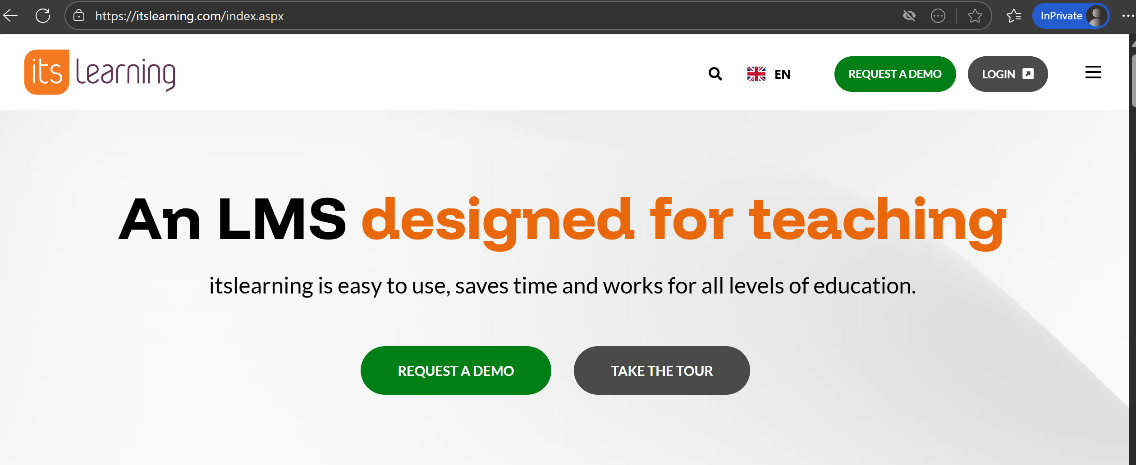
- Go to https://www.itslearning.com in your web browser.
- Press "Login" in the upper, right corner.
Step 2: Select Your Institution
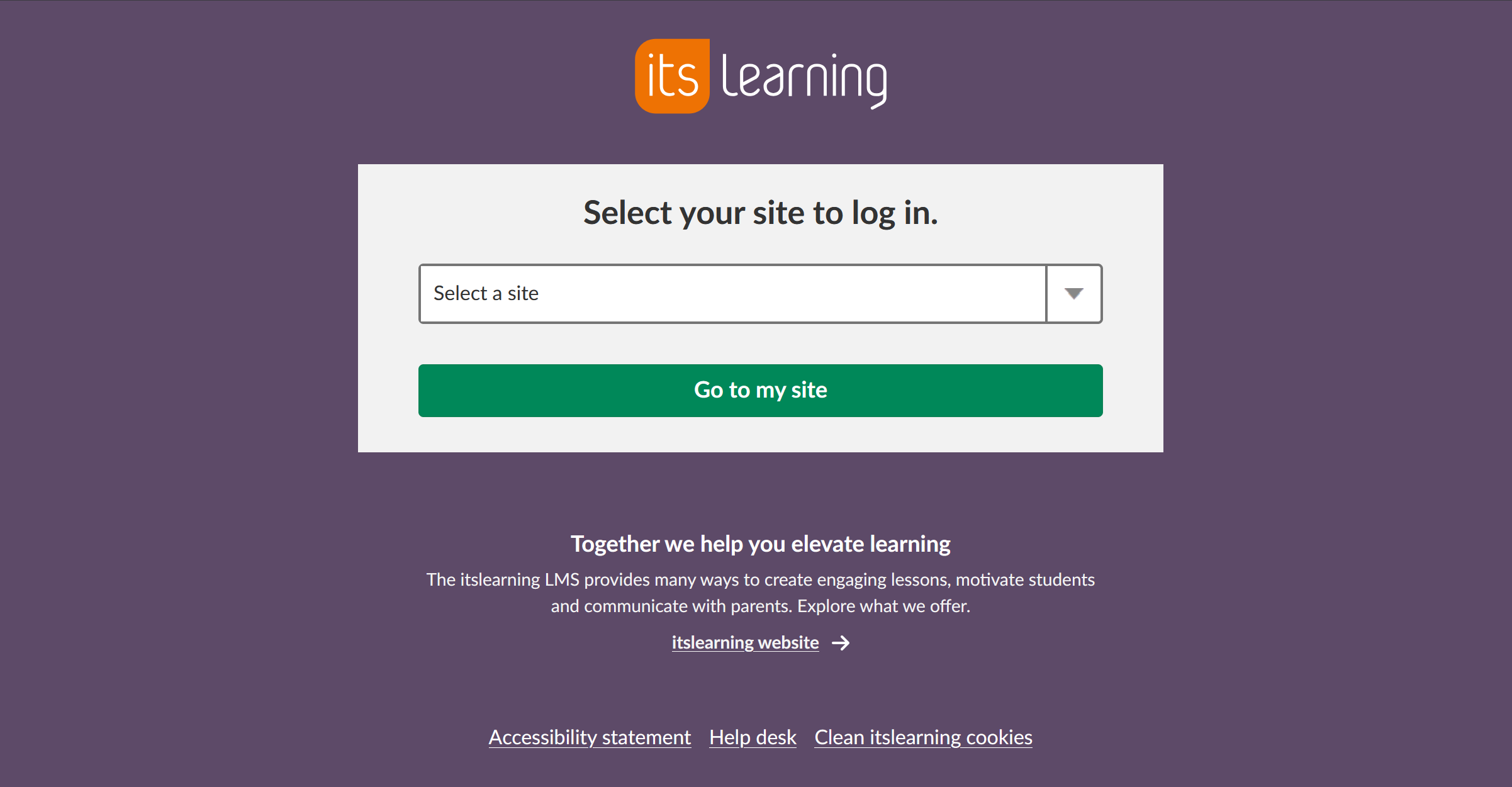
- Click the dropdown list showing "Select your site"
- Type your institution's name or scroll to find it
- Click "Go to my site"
✓ Checkpoint: You should now see your institution's login page
Step 3: Enter Your Credentials
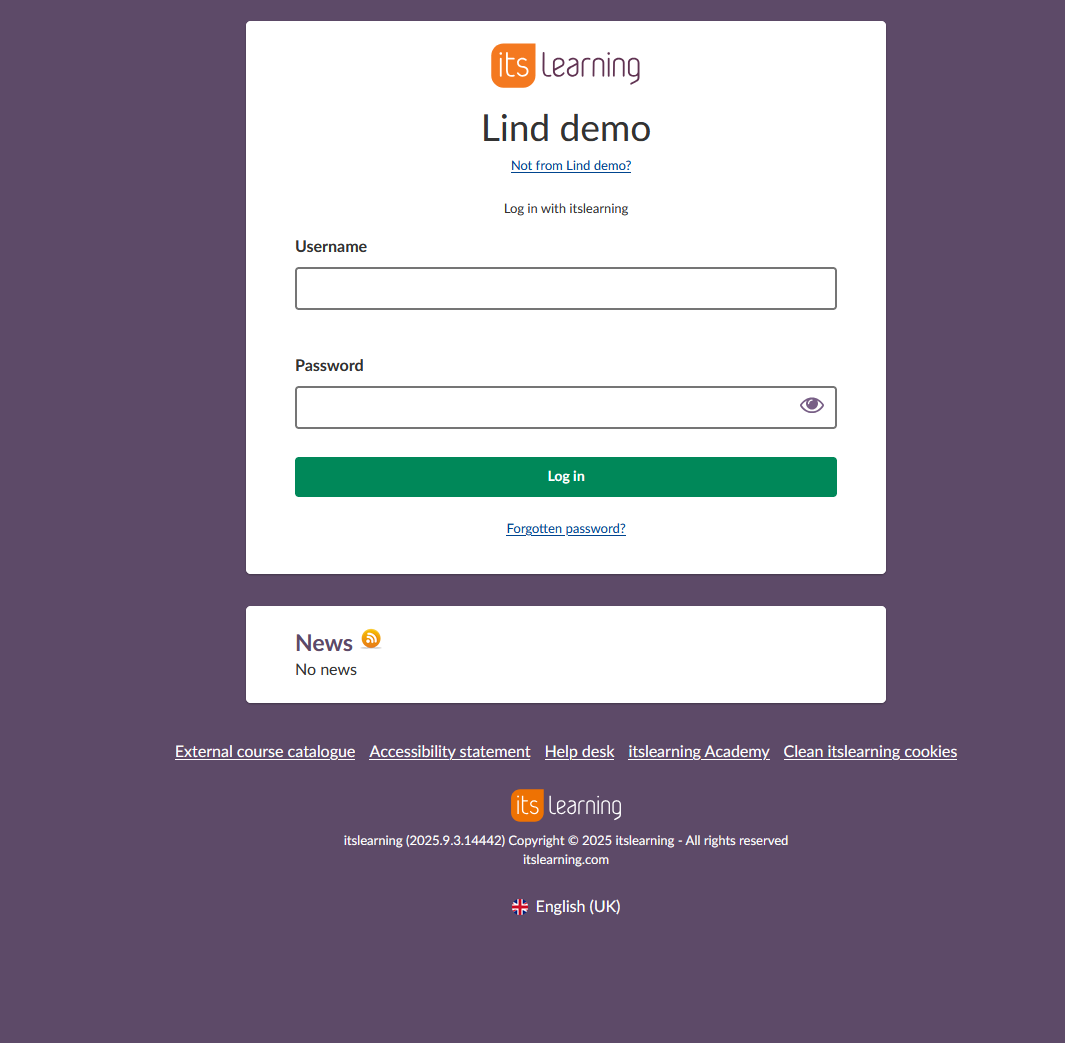
- Username field: Enter your username exactly as provided
- Password field: Enter your password (characters will appear as dots)
- Click "Log in"
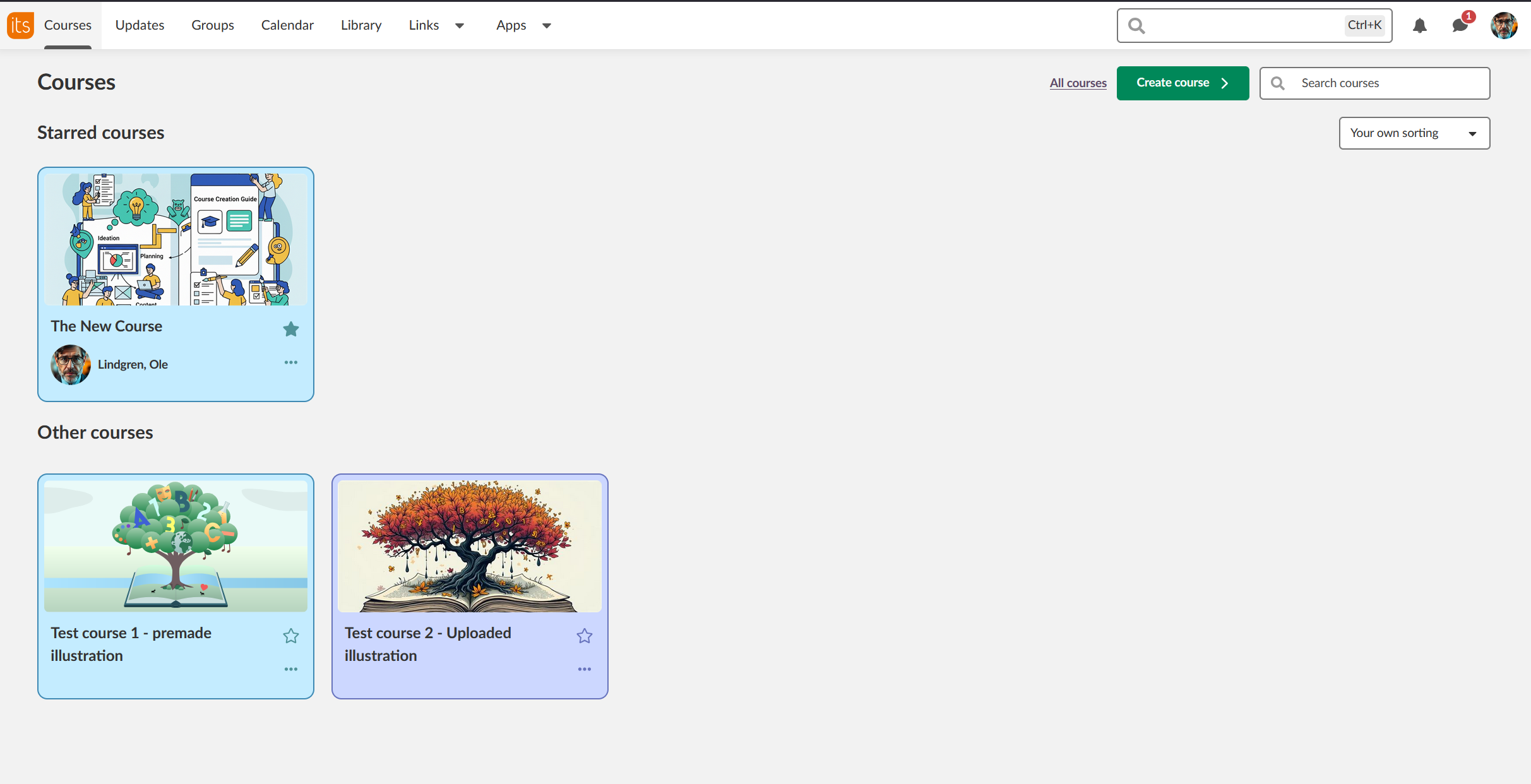
✓ Checkpoint: If successful, you'll see your itslearning dashboard with courses listed
Step 4: Complete First-Time Setup (if prompted)
If this is your first login, depending on site setup, you may need to:
- Change you password
- Set up 2 factor login
Step 5: Other login options
Single Sign-On
Single Sign-On (SSO) is a specialized form of software authentication that enables a user to log in once and gain access to the resources of multiple software systems. Many itslearning sites have single sign-on solutions. These sites have their own log in pages and users do not log in through the log in page at itslearning.com. Usually, sites with SSO have log in boxes at their sites' respective homepages.

Quick Tip: To log out safely, click your name or profile picture in the top right corner and select "Log Out".
More Help Resources
Have more questions? Please start with asking your school administrator.
Product Release notes
Stay updated with itslearning latest releases: https://itslearning.com/product-updates
Service Status
Check the current status of itslearning services: https://status.itslearning.com/
Ideas Portal
Share your ideas and help shape the future of itslearning: https://ideas.itslearning.com/
Roadmap
Check out our roadmap: https://itslearning.com/global/roadmap/