Courses - Administration - Reference (Sysadmin)
TABLE OF CONTENTS
- 1 Overview
- 2 Access and scope
- 3 Searching and filtering courses
- 4 The course list
- 5 Creating a course
- 6 Course actions
1 Overview
Course Administration gives system administrators a centralised view of all courses and communities on the site. From this area, administrators can search and filter courses, monitor course activity, create new courses, and perform management actions including archiving, deleting, and enrolling in courses.
Admin setting: Administration > Courses

2 Access and scope
The scope of access within Course Administration depends on the administrator's role in the organisational hierarchy.
| Role | Scope |
|---|---|
| Site administrator | All courses and communities across the entire site. |
| School administrator | Courses and communities within their own organisational hierarchy only. |
3 Searching and filtering courses
3.1 Search
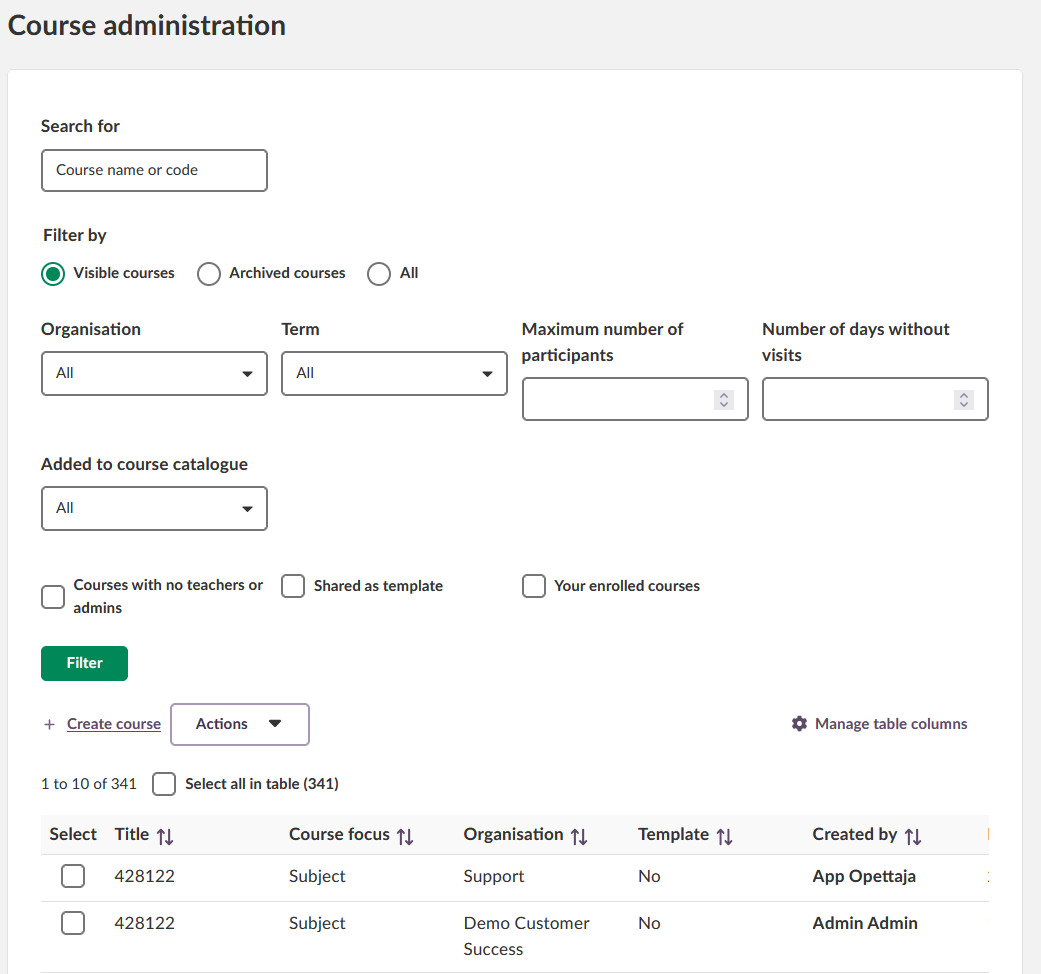
Use the Search for field to find courses by name or course code. Type the search term and click Filter to apply.
3.2 Filter options
The following filters are available to narrow the course list. Click the green Filter button to apply any combination of filters.
| Filter | Description |
|---|---|
| Visible courses / Archived courses / All | Filters the list by course status. Defaults to Visible courses. |
| Organisation | Filters by organisational unit. Defaults to All. |
| Term | Filters by academic term. Defaults to All. |
| Maximum number of participants | Returns courses with a participant count at or below the value entered. |
| Number of days without visits | Returns courses that have not been accessed within the specified number of days. |
| Added to course catalogue | Filters by whether the course has been added to the course catalogue. Defaults to All. |
| Courses with no teachers or admins | When selected, returns only courses that have no assigned teachers or administrators. |
| Shared as template | When selected, returns only courses that are shared as a template. |
| Your enrolled courses | When selected, returns only courses in which you are currently enrolled as an administrator. |
4 The course list
The course list displays all courses and communities matching the active filter criteria. The total number of results and the current page range are shown above the table.
4.1 Table columns
The Title column is always visible and displays the course name or course code. All other columns can be enabled or disabled via Manage table columns. Columns with ↑↓ can be sorted by clicking the column header.
| Column | Description | Visible by default |
|---|---|---|
| Friendly name | An alternative display name for the course. | ✗ |
| Course focus | The course type. Values include Subject, Self-paced learning, Information hub, and Class. Sortable. | ✓ |
| Code | The course code. | ✗ |
| Organisation | The organisational unit the course belongs to. Sortable. | ✓ |
| Template | Indicates whether the course is shared as a template (Yes / No). Sortable. | ✓ |
| Created by | The name of the user who created the course. Sortable. | ✓ |
| Participants | The total number of participants enrolled in the course. | ✓ |
| Last visited | The date the course was last accessed by any user. | ✓ |
| Last updated | The date the course content was last modified. | ✓ |
| Course catalogue | Indicates whether the course has been added to the course catalogue. | ✓ |
| Created | The date the course was created. | ✗ |
4.2 Managing visible columns
Click the Manage table columns gear icon in the upper right of the course list to configure which columns are displayed. Select or deselect columns using the checkboxes, then click Apply to save changes. Click Cancel to discard changes.
4.3 Pagination and results per page
The course list displays 10 results per page by default. Use the page navigation controls at the bottom of the table to move between pages. To change the number of results displayed per page, use the dropdown at the bottom right of the table.
To select all courses across all pages at once, use the Select all in table checkbox above the table. To select individual courses, use the checkbox in the Select column of each row.
5 Creating a course
Click + Create course above the course list to create a new course.
6 Course actions
To perform an action on one or more courses, select them using the checkboxes in the course list, then click the Actions dropdown.
| Action | Description |
|---|---|
| Delete | Moves the selected course or community to the trash. A confirmation dialog appears before the action is applied. Deleted courses remain in the trash for a quarantine period configured by the sysadmin, after which they are permanently removed. |
| Archive | Archives the selected course or community. Archived courses can be retrieved using the Archived courses filter. |
| Unarchive | Restores an archived course or community to active status. |
| Enrol me | Enrols you as an administrator in the selected course. Once enrolled, you can add users and create or modify course content. |
| Withdraw me | Removes your enrolment from the selected course. |
| Remove from course catalogue | Removes the selected course from the course catalogue. |
Important: Deleted courses are moved to the trash and held for a quarantine period before being permanently removed. The quarantine period is configured by the sysadmin and applies to all deleted items on the site, including users and projects.
Note: The Actions dropdown is only available when at least one course is selected in the list.