Resources and activities - Overview (Teacher)
TABLE OF CONTENTS
- Introduction
- 1 Overview
- 2 Prerequisites
- 3 Opening the add content menu
- 4 Resources
- 5 Activities
- 6 Ready-to-use content
Introduction
This article explains the types of content that teachers can add to a course in itslearning. It helps you choose the right type for your teaching needs.
1 Overview
The add content menu has three sections:
| Section | Content |
|---|---|
| Resources | Content for students to read, watch or download. |
| Activities | Interactive tasks that require student participation. |
| Ready-to-use content | Pre-made content from libraries or imports. |
The menu displays a grid with an icon and a description for each content type.
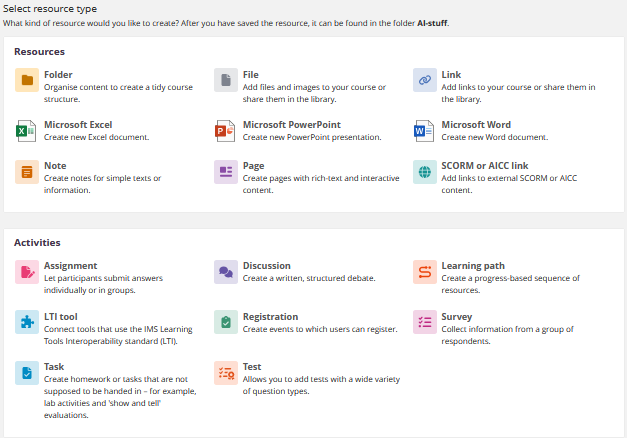

Resources are for consuming content. Activities are for student interaction and assessment. Choose a resource if students only need to view the content. Choose an activity if students need to submit work or take part.
2 Prerequisites
- Teacher access to your course.
- Basic knowledge of course navigation.
3 Opening the add content menu
3.1 From a plan
- Open your course and enter a plan.
- Under Resources and activities, select Add.
- Select Show all.
3.2 From the Resources tab
- Open the Resources tab in your course.
- Select the green Add button.
Note: Resources that you add from the Resources tab are not added to a plan.
4 Resources
Resources share information without requiring student submissions.
| Resource | Description |
|---|---|
| Folder | Organise content to create a structured course. |
| File or folder | Upload files or folders from your computer or from the cloud. |
| Link | Add links to your course, or share them in the Library. |
| Page | Include content blocks with information about a single topic. A page can contain polls, videos, images and other content. Page is also a good tool for student-created content. |
| SCORM or AICC link | Add a link directly to externally created content. |
| Microsoft Office documents | Create new Word, Excel or PowerPoint files, if this feature is enabled on your platform. |
Note: For Microsoft Office documents, learners do not need their own licence. Collaborative editing is supported.
5 Activities
Activities require student participation and appear in the students' task lists.
| Activity | Description |
|---|---|
| Assignment | The main assignment tool in itslearning. Participants submit answers individually or in groups. A submission can be, for example, a typed essay, a PowerPoint presentation, a video or an image that demonstrates the participant's knowledge. You can align assignments to standards or learning objectives, and use rubrics and assessment criteria to track standards mastery. See Assignments - Getting started (Teacher). |
| Discussion | Creates a discussion forum that you can use for a written, structured debate. |
| Learning path | Create a progress-based sequence of resources. |
| LTI - Tool | Connect tools that use the IMS Learning Tools Interoperability (LTI) standard. |
| Registration | Allows instructors to create a list of options for participants to register for, such as a study session, a presentation time or a group project. |
| Survey | Collect information from a group of respondents. You can use a survey within a course, and you can open it to external participants. |
| Task | For non-digital submissions, such as student artwork, oral presentations, hand-written essays or face-to-face discussions. You provide digital directions and grading specifications. The work is submitted, assessed and graded manually. |
| Test | Quick quizzes or formal exams. You can align questions to standards, categorise them and assign point values. You can also import questions. There are several question types. Each question, and in some cases the answer alternatives, includes the rich text editor. Videos, sound clips and images can therefore be part of a question or an answer. See Tests - Getting started (Teacher). |
6 Ready-to-use content
Ready-to-use content includes elements that you can import from other learning management systems or platforms. It also includes content in a shared library of resources, sometimes known as a learning object repository (LOR).
| Option | Description |
|---|---|
| Content from library | Add content from your collection, or search for shared content. |
| Course importer | Import a course from another learning management system, such as Moodle. |
| Import content package | Upload a SCORM content package. |
More Help Resources
Have more questions? Please start with asking your school administrator.
Product Release notes
Stay updated with itslearning latest releases: https://itslearning.com/product-updates
Service Status
Check the current status of itslearning services: https://status.itslearning.com/
Ideas Portal
Share your ideas and help shape the future of itslearning: https://ideas.itslearning.com/
Roadmap
Check out our roadmap: https://itslearning.com/global/roadmap/