Users and access rights - Reference (Sysadmin)
TABLE OF CONTENTS
- Introduction
- 1 Overview
- 2 Accessing User and Access Rights
- 3 Searching and Filtering Users
- 4 Actions for Individual Accounts
- 5 Bulk Operations
- 6 Adding Users
- 7 Editing a User Account
- 8 Password Management
- 9 Deleting and Restoring Users
Introduction
User and Access Rights is the central administration area for managing user accounts on an itslearning site. From this area, administrators can add, edit, and delete user accounts, manage passwords, assign hierarchy roles, and review account details and permissions.
Prerequisite: Administrator permissions are required to access and manage user accounts. Some functions may be disabled depending on country-specific or client-specific configuration. Contact your system administrator if functions are unavailable.
1 Overview
New users must be registered in itslearning and provided with a username and password before they can be added to courses. There are three methods for registering users:
| Method | Description |
|---|---|
| SIS import | Users are synchronised automatically from an external student information system. This process does not take place in the User and Access Rights area. |
| File import | Users are added in batches by importing a CSV file via the User and Access Rights area. |
| Manual entry | Individual user accounts are created one at a time via the Admin panel. Only administrators can add users to itslearning. |
Note: If users are managed via an external integration or imported from a file, a warning is displayed when editing those accounts: "This user is managed by an integration. Editing this user could lead to discrepancies between itslearning and the integration." Manual changes may be overwritten at the next synchronisation.
2 Accessing User and Access Rights
Admin setting: Administration > User and Access Rights
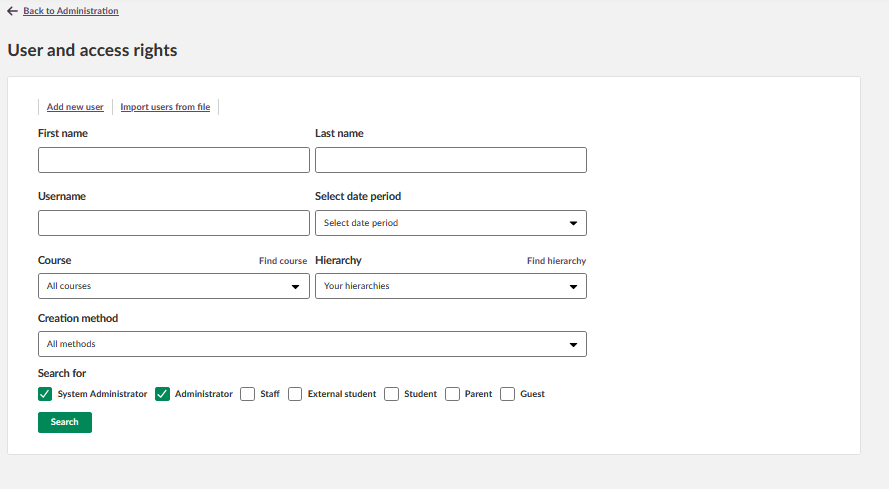
The User and Access Rights area contains:
- Navigation links at the top: Add new user and Import users from file
- Search and filter fields for locating existing accounts
- A results list showing matching accounts with their username, creation date, last login date, profile, and action icons
3 Searching and Filtering Users
Use the filter fields to locate user accounts. You can search by any combination of the following criteria:
| Field | Description |
|---|---|
| First name / Last name | Partial name search is supported. |
| Username | Search by the user's login username. |
| Time period | Filter accounts by a specified time period. |
| Course | Show only users enrolled in a specific course. Use Find course to search by course name. |
| Hierarchy | Restrict results to a specific hierarchy node. Use Find hierarchy to search. |
| Profile type | Filter by role. Multiple options can be selected: System administrator, School admin, Staff, Student, Parent, Guest. |
Click Search to display matching accounts. Results show each user's name, username, creation date, last login date, and profile type.
4 Actions for Individual Accounts
Each user row in the search results contains action icons at the right end of the row. The icons available depend on whether an email address is stored in the account, your administrator permissions, and which features are enabled on the site.
| Icon | Action | Description |
|---|---|---|
 | Delete | Moves the account to the recycle bin. The account can be restored from Administration > Recycle Bin. See section 9. |
 | Edit | Opens the user's detail view with all tabs. See section 7. |
 | Progress | Shows an overview of the learner's progress and completion status across all enrolled courses. |
 | Attendance report | Displays the attendance report for this user. Only visible if the attendance tool is enabled on the site. |
 | Print new password | Resets the user's password, generates a credential sheet, and opens the print dialogue. See section 8. |
 | Send email | Sends an email with new login credentials to the address stored in the account. Resets the current password. Only visible if an email address is stored. |
Note: If some icons are not displayed for a user, either no email address is stored in the account, you do not have the required permissions, or the relevant feature is not enabled on your site.
5 Bulk Operations
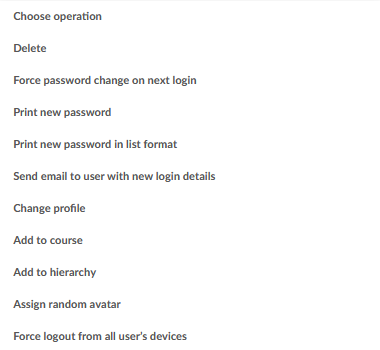
The Operation dropdown above the results list allows you to apply actions to multiple accounts simultaneously. Select accounts using the row checkboxes, or use the header checkbox to select all results in the current search. Then choose an operation and click OK. Additional configuration fields appear for certain operations (for example, course selection when using Add to course).
| Operation | Description |
|---|---|
| Delete | Moves all selected accounts to Administration > Recycle Bin. |
| Force password change | Does not set a new password. Selected users must set a new password at their next login. |
| Print new password | Resets passwords for selected users and prints one credential sheet per user. |
| Print new password in list format | Resets passwords and prints credentials for all selected users in a condensed list format on fewer pages. |
| Send email with new credentials | Sends a welcome email with the username and new password to each selected user's stored email address. Resets the current password. |
| Change profile | Changes the base profile (and therefore base permissions) for all selected accounts. |
| Add to course | Enrols selected users in a specified course. Fields for course selection and course role appear after selecting this operation. |
| Add to hierarchy | Assigns selected users to a specified hierarchy node. |
| Assign random avatar | Assigns an avatar to the selected users' profile pictures. |
| Remove from hierarchy | Removes selected users from a hierarchy node. Only displayed when a specific hierarchy has been selected in the search filter at the top of the page. |
6 Adding Users
6.1 Adding a user manually
Use this method to create individual user accounts directly in itslearning.
- Go to Administration > User and Access Rights.
- Click Add new user.
- Enter the required user data. Fields marked with an asterisk (*) are mandatory.
- Complete the optional fields where appropriate.
- Click Save.
Note: If the password field is left blank, itslearning generates an automatic initial password. An email address must be stored in the account for this to work. Users are prompted to set a new password at first login by default.
▶ User information fields
| Field | Required | Notes |
|---|---|---|
| First name | ✓ | Displayed as the profile name in the top right corner of the platform. For teachers, a teacher abbreviation can be used instead of the first name if they should not appear with their personal name on classroom displays. |
| Last name | ✓ | Displayed alongside the first name as the profile name. |
| Username | ✓ | Used to log in to itslearning. A common convention is FirstName.LastName. Avoid special characters such as umlauts. |
| Select profile | ✓ | Defines the user's base permission level on the platform. Default profiles: System administrator, Administrator, Staff, Student, Parent, Guest. |
| Hierarchy | ✓ | Assigns the user to a hierarchy node. Click Find hierarchy to search for a specific node. |
| Password | Optional | Leave blank to generate an initial password automatically. An email address must be entered for the system to send the credentials. |
| Password change | Optional | Sets the user's ability to change their password. Options: Allowed, Not permitted, Must change at next login. Default: must change at next login. |
| Password never expires | Optional | Overrides any global password expiry period for this individual account. Only relevant if a global expiry period is configured in global settings. |
▶ Personal information fields
These fields can be updated later by the user in their personal settings.
| Field | Notes |
|---|---|
| Email address | Required for the "Forgot password" function and for sending login credentials by email. Administrators can disable self-service email changes in site settings. |
| Date of birth | Relevant if the parent portal is enabled and age-dependent platform functions are configured. |
| Mobile / Telephone / Address | Optional contact fields. Only populate these if there is a clear purpose, in accordance with data protection requirements. |
▶ Account information fields
| Field | Notes |
|---|---|
| Synchronisation key | Uniquely identifies the account in integration scenarios. Primarily relevant for accounts managed via external connections. Manual entry is rarely necessary. |
| Account expiry date | Sets a date from which the account is locked. Set to the current date to lock the account immediately. Leave blank for no expiry. |
| Send email to user | If checked and an email address is entered, clicking Save sends the user an email with their login credentials immediately. |
| Allowed login from IP addresses [VERIFY] | Restricts login to specified IP addresses or subnets. Leave blank to allow login from any address. Supports CIDR notation (e.g. 158.36.191.0/24). |
6.2 Importing users from a file
The file import function allows you to add multiple users in a single operation. You can create the list in a spreadsheet application such as Excel, export it as a CSV file, and import it via Import users from file in the User and Access Rights area.
A typical CSV file structure for import: See the article "User import by CSV" for detailed information.
Note: You can include a preset password in the CSV file, or allow the system to generate an initial password. If the system generates the password, users are prompted to set a new password at their first login.
6.3 Importing from a student information system
If your itslearning site is connected to an external SIS, user accounts are synchronised automatically. This synchronisation does not take place in the User and Access Rights area. Contact your system administrator for details of your integration configuration.
Note: Manual changes made to externally synchronised accounts in User and Access Rights may be overwritten at the next synchronisation cycle.
7 Editing a User Account
To open the detail view for a user account:
- Go to Administration > User and Access Rights.
- Search for the user using the filter fields and click Search.
- Click the pencil (edit) icon at the right end of the user's row in the results list.

Important: For accounts managed via an external integration or file import, a warning is displayed at the top of the edit screen. Only edit the fields your integration permits; other changes may be overwritten at the next synchronisation.
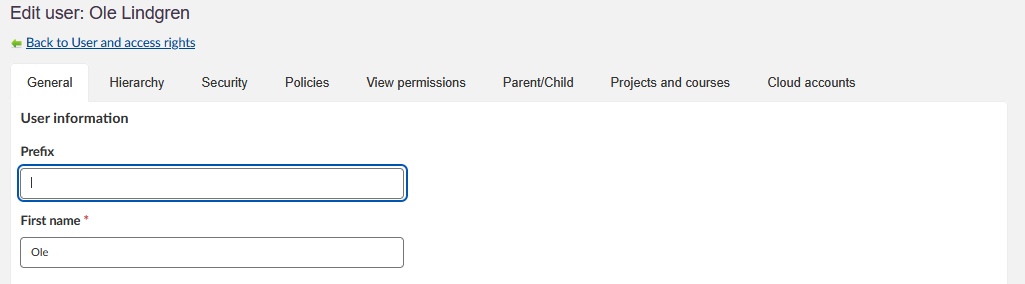
The edit view is organised into seven tabs:
7.1 General tab
Allows the administrator to modify personal account details and account settings. The tab is divided into four subsections:
| Subsection | Content |
|---|---|
| User information | First name, last name, username, profile, and home organisation. Required fields are marked with a red asterisk. The home organisation is typically the highest hierarchy level for this user. |
| Personal information | Email address, date of birth, address, and telephone. Users can update these fields themselves in their personal settings. |
| Custom information | Displays up to 5 additional fields defined under Administration > Global Settings > Layout. These fields cannot be populated via CSV import. |
| Account information | Synchronisation key (for integration use), account expiry date, and allowed login IP addresses. |
Note: To change a user's home organisation (for example, when a user transfers between schools within the same site), first add the new school on the Hierarchy tab. It will then appear in the Home Organisation dropdown on the General tab.
7.2 Hierarchy tab
Provides visibility and modification settings for the user's hierarchy memberships. The tab shows all hierarchy nodes currently assigned to this account. A user can hold different roles at different levels of the hierarchy.
| Action | Description |
|---|---|
| Add to hierarchy | Assigns the user to an additional hierarchy node. |
| Delete | Removes the user from the selected hierarchy node. Select the checkbox next to the entry before clicking Delete. |
| Change role | Changes the user's role at a specific hierarchy level (e.g. from Guest to Teacher). Click Save after selecting the new role. |
7.3 Password tab
Administrators can set a new password for the user and configure the password change policy for this individual account.
| Option | Description |
|---|---|
| New password / Confirm new password | Enter and confirm the new password manually for this user. |
| Password change: Allowed | The user may change their password at any time. No change is required at the next login. |
| Password change: Not permitted | The user cannot change their password. |
| Password change: Must change at next login | The user must set a new password at their next login. After changing, the setting reverts to Allowed. |
| Password never expires | Overrides any global password expiry period for this account individually. Only relevant if a global expiry period is set in global settings. |
7.4 Policies tab
Shows the policies linked to this user account. Policies are pre-configured in a separate administration area and are used to grant additional permissions or to restrict the user's base profile. Only policies for organisations within your administrator scope are visible.
Use Add policy or Delete policy to adjust permissions for this individual user.
7.5 View Permissions tab
Displays the combined effective permissions for this user. These are calculated from the user's base profile permissions plus any applied policies. This tab is read-only and is used to verify the user's actual permission level on the platform.
7.6 Parent/Child tab
Relevant when the parent portal is enabled for the site and parent-child relationships have been configured. Shows the relationships between this user account and any linked parent or child accounts.
Relationships can be created from either the child's account (using Add guardian) or from the parent's account (using Add child). When a relationship is created from one account, the link is automatically shown in the other account.
7.7 Communities and Courses tab
Lists all courses and communities in which the user is enrolled or which they lead. Administrators cannot add or remove users from courses or communities from within this tab. To manage enrolments, navigate to the relevant course or community and manage participants from there.
7.8 Cloud Accounts tab
Administrators can see connected cloud accounts on this tab.
8 Password Management
When users do not log in via SSO, passwords can be managed from Administration > User and Access Rights. To share or reset passwords, use the options in the Operation dropdown (section 5) or the individual action icons (section 4).
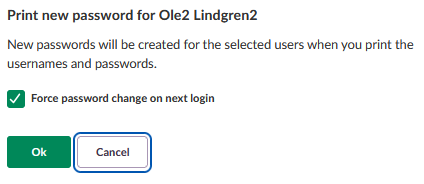
The password operations are:
- Print new password: Prints the login credentials for each selected user on a separate page.
- Print new password in list format: Prints credentials for all selected users in a condensed list.
- Send email with new credentials: Emails login credentials to the selected users.
Note: Printing or emailing credentials always creates new passwords. Current passwords are never available in plain text. Generated passwords are one-time passwords by default and must be changed at first login. To remove this requirement, uncheck Force password change on next login in the confirmation dialogue.
Note: To set a specific password for an individual user without printing or emailing, use the Password tab in the user's edit view. See section 7.3.
9 Deleting and Restoring Users
Deleting a user
Deleting a user account moves it to the recycle bin. The account is not permanently removed and can be restored at any time.
To delete a single user, click the Delete icon in their row in the results list (see section 4). To delete multiple users at once, use the Delete bulk operation (see section 5). Deleted accounts are moved to Administration > Recycle Bin.
Restoring a deleted user
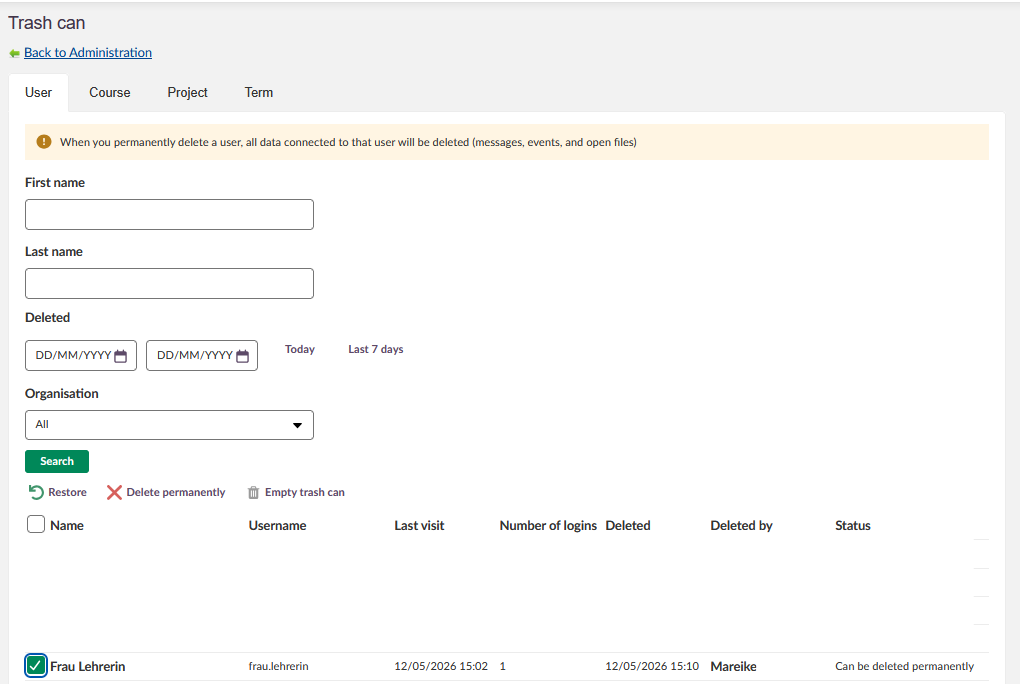
- Click the Admin tab in the main menu.
- Select Recycle Bin.
- Click the User tab.
- Search for the user you want to restore.
- Select the checkbox next to the user's name.
- Click Restore.
Once restored, the user can log in with their original credentials and access all previous data and courses.
Important: You can also permanently delete users, courses, projects, exams, and terms from the recycle bin. Permanent deletion cannot be undone.