Font selection in itslearning - Overview (All users)
TABLE OF CONTENTS
itslearning supports font selection to improve readability and accessibility across the platform. Users can choose from four typefaces based on their preferences and needs. Administrators control the site default and can manage whether users are permitted to change their font.
1 Available fonts
The following four fonts are available in itslearning. They were carefully selected to improve readability, support accessibility needs such as dyslexia-friendly reading, and give users more flexibility to choose the typography that works best for them while still maintaining a consistent experience across itslearning.
| Font | Description |
|---|---|
| Lato | The default typeface in itslearning. Clean, modern appearance with strong general legibility across interfaces. |
| Atkinson Hyperlegible | An accessibility-focused alternative with highly distinguishable letter shapes for improved readability. Note: does not support Cyrillic characters (e.g. Russian, Ukrainian). |
| PT Serif | A serif typeface for schools that prefer or require a serif font. Offers high legibility and broad language support. |
| Open Dyslexic | An optional accessibility typeface that can significantly improve readability for some users with dyslexia. This font should always be user-selected and must not be set as the site default. |
Allowing students and teachers to personalise their reading experience helps ensure itslearning works well for as many learners as possible. For users with dyslexia or other reading difficulties, selecting a more legible typeface, such as Atkinson Hyperlegible or Open Dyslexic, can make a noticeable difference to reading comfort and comprehension.
2 Admin settings
Admin setting: The settings in this section require system administrator access.
Administrators can set the site default font and manage whether individual users or groups are permitted to change their font.
itslearning aims to give all users the freedom to choose the font that best suits their reading needs and preferences. At the same time, schools may want to manage font selection centrally, for example to maintain a consistent visual identity. To support both approaches, the Allowed to change font permission in Profiles lets administrators control whether users are permitted to change their personal font.
2.1 Setting the site default font
- Navigate to Admin > Edit Global Settings. Locate the Appearance section and click Font.
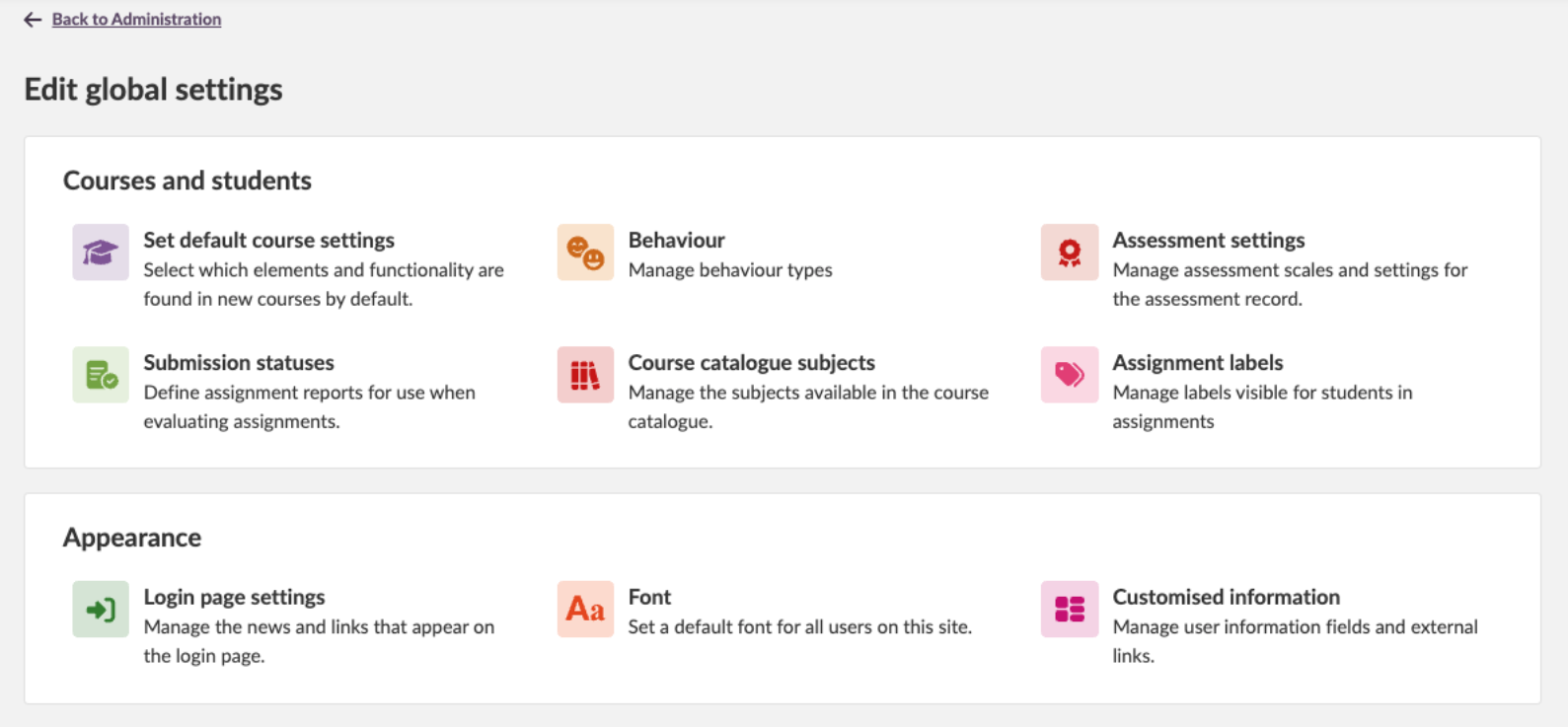
- Select the font to use as the site default. Lato is selected by default.
- Click Save.
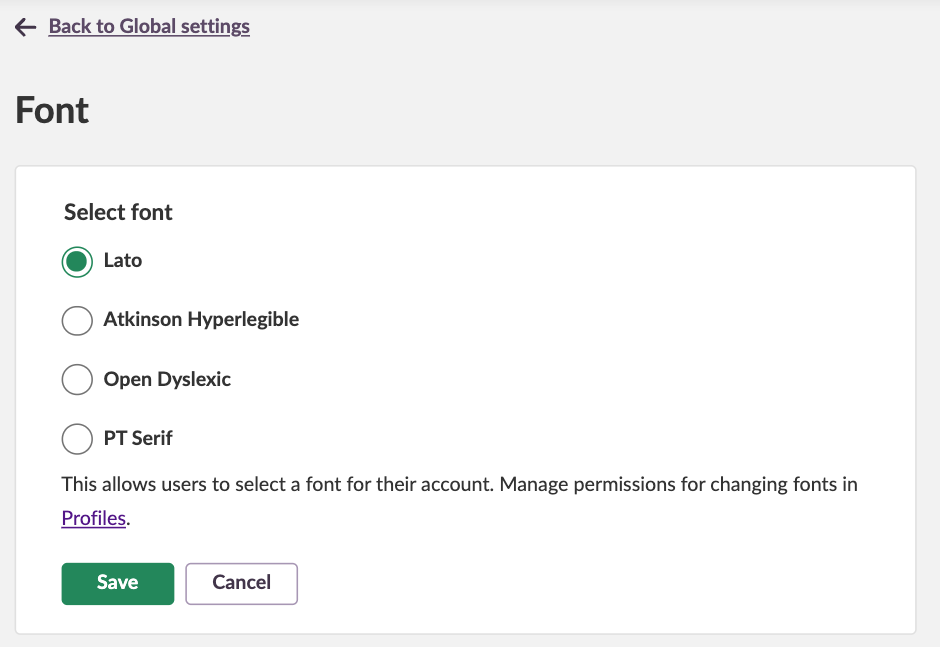
Important: Open Dyslexic is not recommended as a site-wide default. It is intended to be selected by individual users based on personal needs.
2.2 Managing font permissions in Profiles
By default, all users can change their font in their personal settings. Administrators can restrict this permission to specific users or groups using Profiles.
- Administrator overview page, click Profiles.
- In Profiles, locate the Allowed to change font permission and adjust it as required.

Note: To restrict font changes to specific students only, create policies for those students in the Profiles settings.
3 Changing your font
All users can change their display font through their personal settings, provided the administrator has not restricted this permission.
- Click your profile icon in the top right corner to open the personal menu.
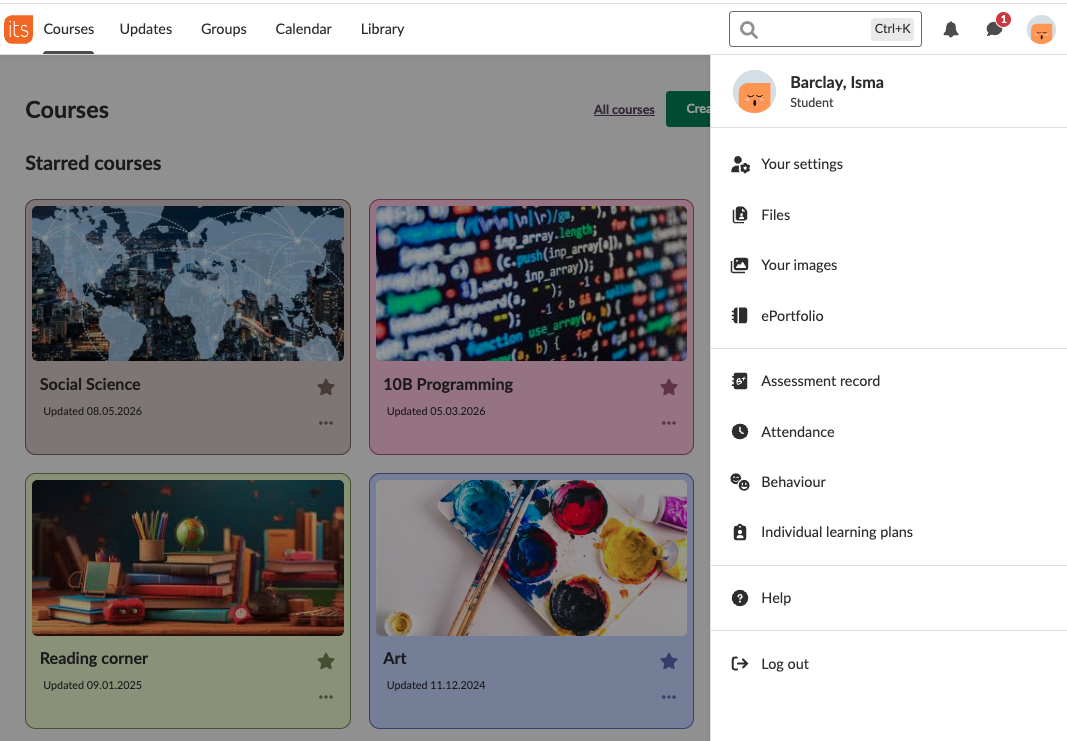
- Click Your settings.
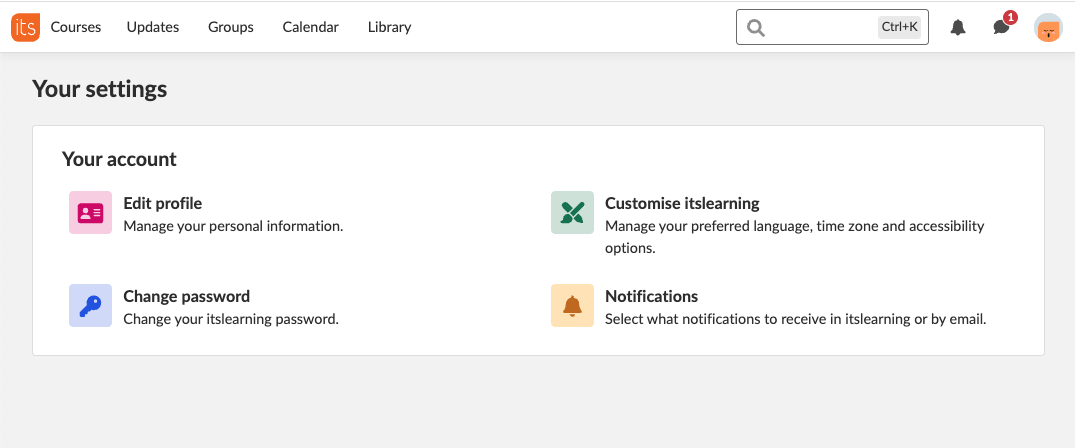
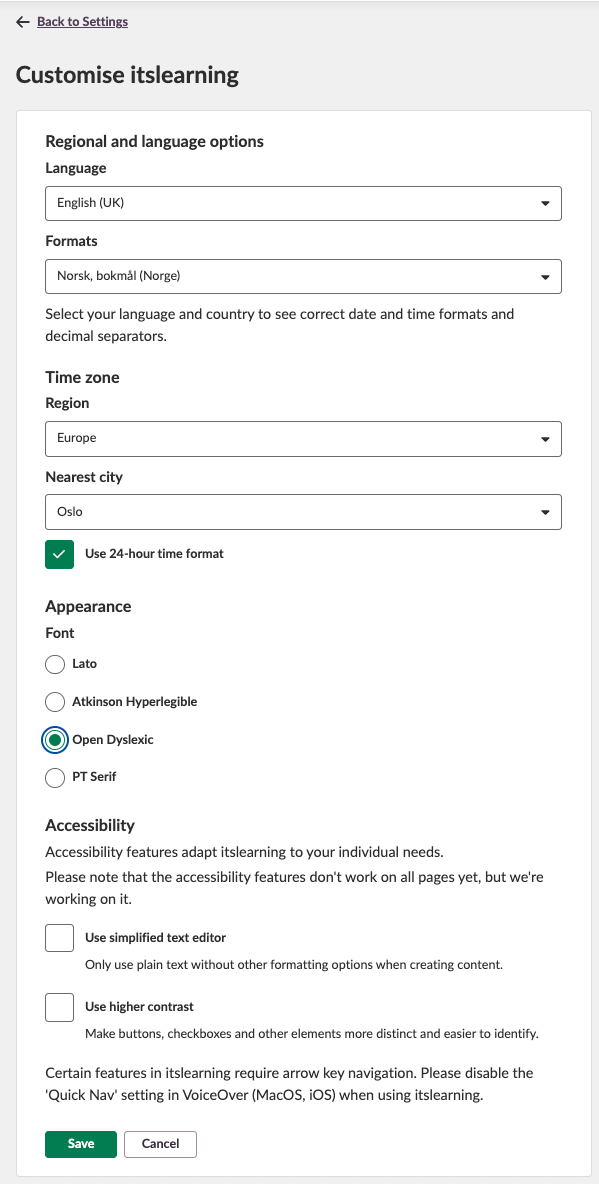
- Click Customise itslearning.
- Under Appearance, select your preferred font.
- Click Save. The selected font is applied immediately across itslearning.
More Help Resources
Have more questions? Please start with asking your school administrator.
Product Release notes
Stay updated with itslearning latest releases: https://itslearning.com/product-updates
Service Status
Check the current status of itslearning services: https://status.itslearning.com/
Ideas Portal
Share your ideas and help shape the future of itslearning: https://ideas.itslearning.com/
Roadmap
Check out our roadmap: https://itslearning.com/global/roadmap/