AI Toolkit – Overview and Getting Started (Teacher)
TABLE OF CONTENTS
- Introduction
- 1 AI Toolkit – tools at a glance
- 2 AI Guidelines and AI Settings
- 3 Using the AI Toolkit from Resources
- 4 Using the AI Toolkit from Plans
- 5 Differentiation in Assignment
- 5.1 Step 1 – Open the Assignment tool and enable Differentiation
- 5.2 Step 2 – Add learning objectives and supporting resources
- 5.3 Step 3 – Review the three generated versions
- 5.4 Step 4 – Select which versions to create
- 5.5 Step 5 – Edit and configure each version
- 5.6 Step 6 – Return to the plan or resource folder
- 6 Prompting – patterns that work
- 7 Pilot setup process
- 8 Frequently asked questions
Introduction
Important: This is a pilot feature and is not yet released for all customers.
This article is a teacher-facing guide to the AI Toolkit in itslearning. It describes each AI tool, where to find them, how AI Settings and AI Guidelines work, and shows step-by-step how to create content from both Resources and Plans. A general and technical FAQ is included at the end.
The AI Toolkit is a long-term initiative in itslearning, focused on supporting teachers in creating meaningful, high-value learning content. The first pilot of the AI Toolkit took place in Norway in autumn 2025. In April 2026 the pilot expanded to Norway, Sweden, Finland, the UK, Germany, the Netherlands, and Denmark.
Prerequisite: The AI Toolkit is opt-in. The customer administrator activates the tools before teachers can use them. Once activated, AI Guidelines are shown the first time a teacher opens any tool in the AI Toolkit.
1 AI Toolkit – tools at a glance
The AI Toolkit currently includes the tools listed below. The Survey tool is enabled separately for all users and is not part of the AI Toolkit, although it can also use AI to generate content.
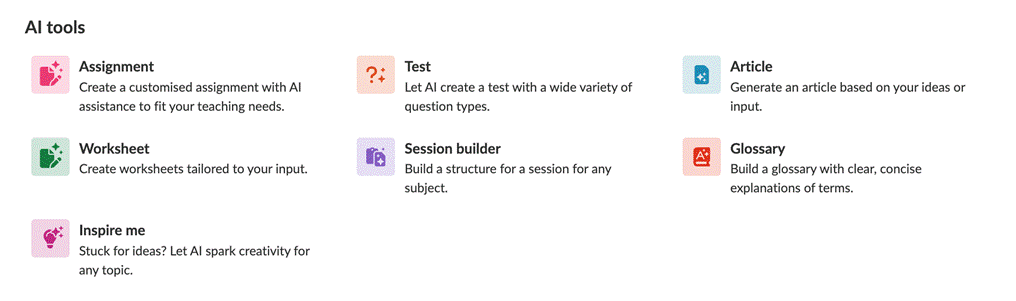
The AI tools panel in itslearning
| Tool | Description |
|---|---|
| Assignment | Builds on the integrated Assignment tool. The AI option helps teachers create clear instructions, learning objectives, and structured tasks. New in 2026 Differentiation generates three versions of the same assignment (basic, standard, advanced). See section 5. |
| Test | Builds on the existing Test tool and allows teachers to generate tests using AI. It can create a variety of question types and provides a starting point for assessments. The language and difficulty of the questions can be adjusted to match the age group set in AI Settings. |
| Article | Used to create an article or a longer explanatory text on a topic. The article can be based on the teacher's own resources and produces text that students can use for learning and exploration. External references or links are only included if the teacher has supplied them. |
| Worksheet | Collects different types of tasks onto a single worksheet. The teacher chooses which task types to include. The worksheet opens in a Page. |
| Session builder | Helps the teacher structure a single teaching session. The teacher selects the duration and the tool suggests a structure. The session opens in a Page. Session builder is not the same as the Planner. A generated session typically includes an introduction, activities, and a wrap-up. |
| Glossary | Helps students build understanding of new or complex terms. The teacher selects the number of glossary entries. The glossary opens in a Page. |
| Inspire me | Designed to spark new ideas for teaching when the teacher feels stuck or wants fresh inspiration. Opens in a Page with suggestions that can be built on. Each suggestion typically describes the activity, the materials needed, and the expected outcome. |
| Survey | Survey is not part of the AI Toolkit. It is enabled for all users, and within the Survey tool AI can be used to generate surveys for students. |
2 AI Guidelines and AI Settings
2.1 First-time use and AI Guidelines
The first time a teacher opens any tool in the AI Toolkit, the AI Guidelines are shown. These guidelines describe responsible and general use of AI within itslearning. The guidelines appear once per tool, the first time it is opened.
After the teacher selects Confirm, the guidelines are not shown again unless the teacher actively chooses to open them. The Read our AI Guidelines link is available at the top of every AI tool dialog.
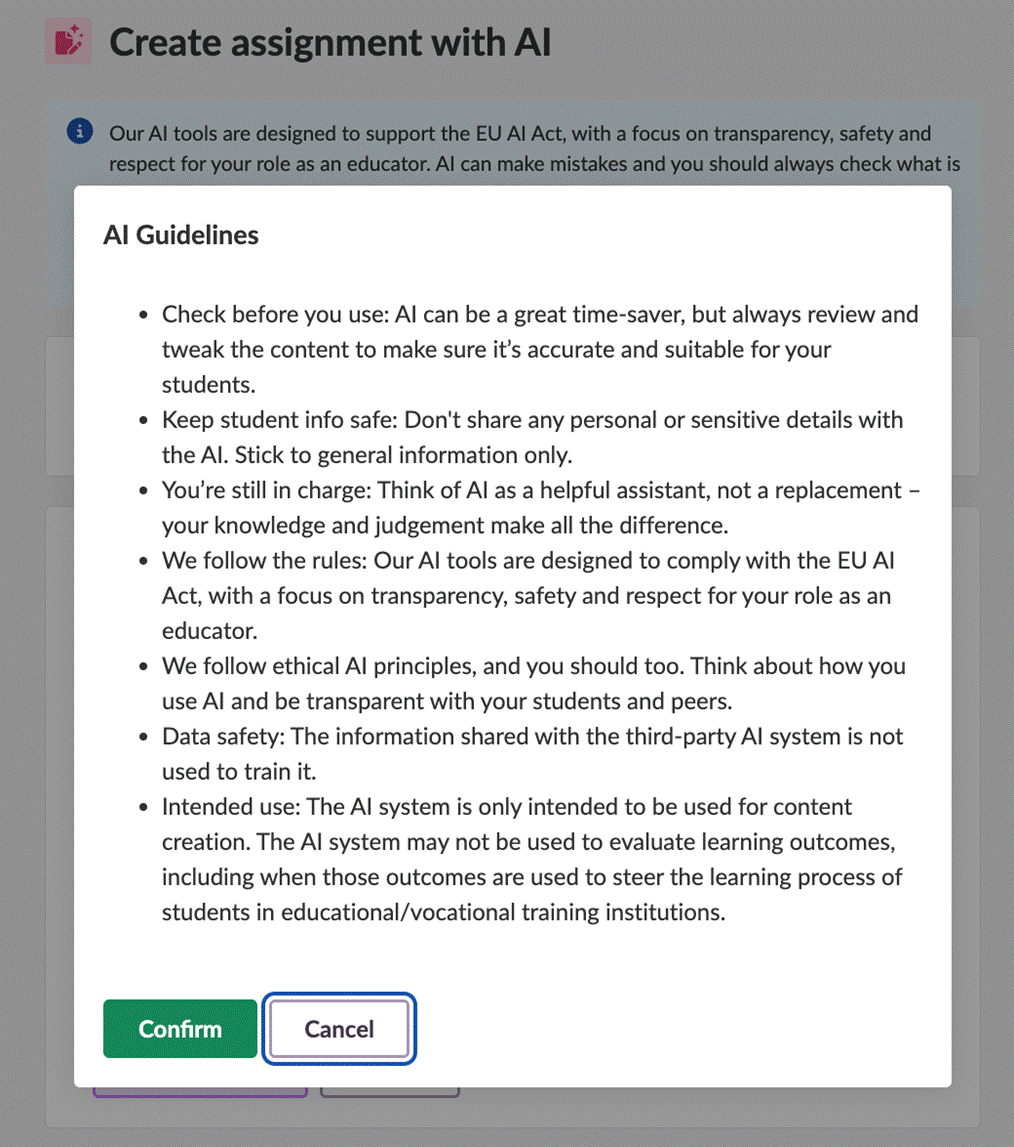
The AI Guidelines dialog, shown the first time a teacher opens a tool
The guidelines cover the following points:
- Check before you use: AI can save time, but content must always be reviewed for accuracy and suitability before sharing with students.
- Keep student information safe: do not share personal or sensitive details with AI. Stick to general information only.
- You are still in charge: AI is an assistant, not a replacement for the teacher's knowledge and judgement.
- We follow the rules: the AI tools are designed to support the EU AI Act, with a focus on transparency, safety, and respect for the teacher's role.
- Ethical AI principles: think about how AI is used and be transparent with students and peers.
- Data safety: information shared with the third-party AI system is not used to train it.
- Intended use: the AI system is only intended for content creation. It must not be used to evaluate learning outcomes, especially where those outcomes steer the learning process of students in educational or vocational training institutions.
2.2 AI Settings
AI Settings is a section available in every AI Toolkit tool. It functions as the foundation for how the AI generates content. The teacher can define:
| Setting | Purpose |
|---|---|
| Subject | The subject or topic covered in the course. |
| Student age or educational level | For example, Bachelor's or equivalent level. |
| Curriculum | Entered as the country or region used to find a curriculum. |
| Content language | The language the generated content should be written in. |
When the teacher selects Save these preferences for this course, the settings are remembered for future use and applied consistently across all tools opened from that course.
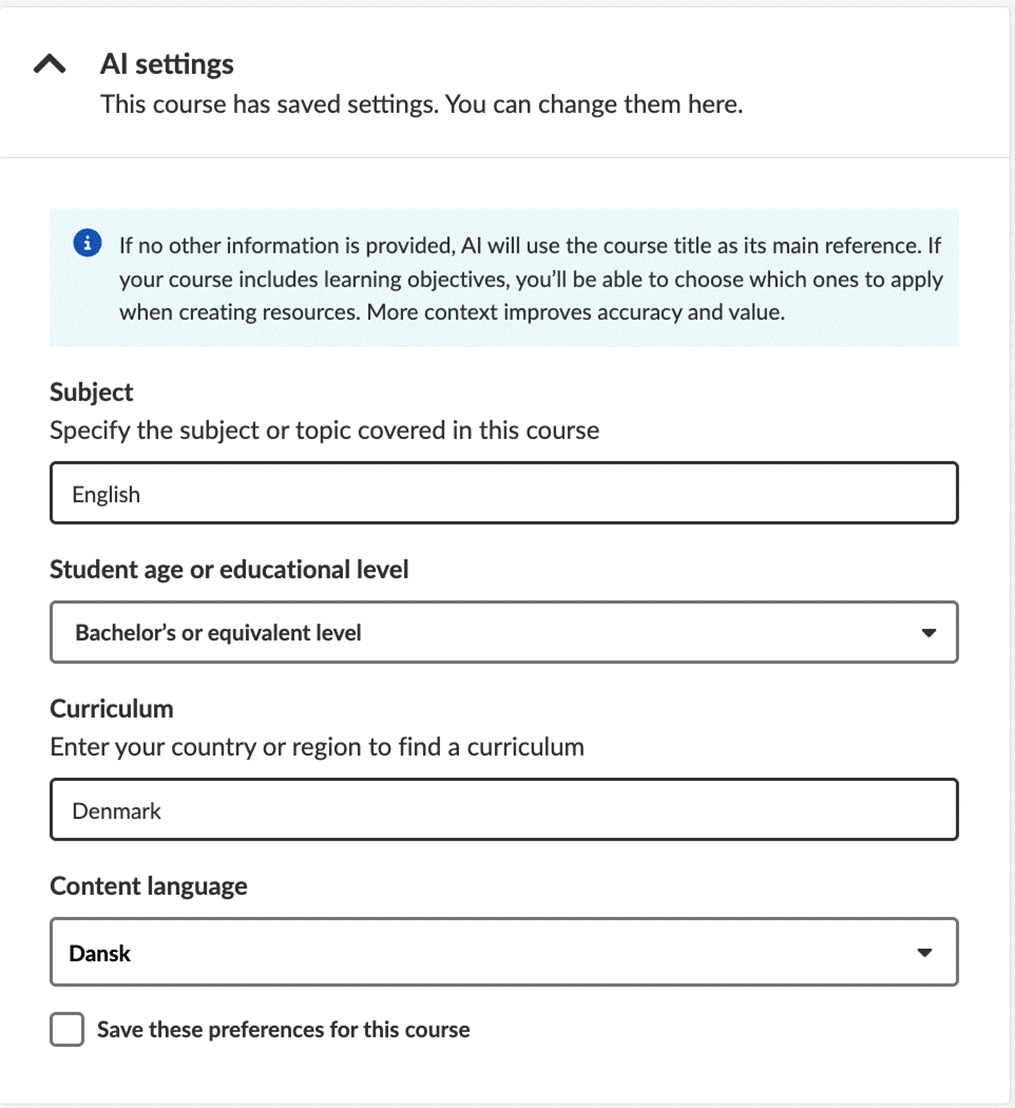
AI Settings: subject, student age or educational level, curriculum, and content language
Note: If no other information is provided, AI uses the course title as its main reference. If the course includes learning objectives, the teacher can choose which ones to apply when creating resources. More context improves accuracy and value.
3 Using the AI Toolkit from Resources
All tools in the AI Toolkit are built on the same underlying structure. Once a teacher has used one tool, the layout and workflow feel familiar across the others. Functionality varies from tool to tool, but the overall experience is consistent.
This section shows how to use the AI Toolkit from the Resources area, with the Worksheet tool as the example.
3.1 Step 1 – Select Worksheet under AI tools
- Open the course and select Resources.
- Select Add.
- In the Add menu, scroll to AI tools.
- Select Worksheet.
3.2 Step 2 – Configure and generate
- Review AI Settings. Adjust them if needed, or keep the existing settings.
- Enter the prompt — what should the worksheet cover.
- Select the worksheet options to include.
- Choose the learning objectives that should be covered.
- Optionally, add up to three additional resources from the computer or from the course.
- Select Generate.
Note: Links are not accepted under Add resources because of potential copyright issues. Use files uploaded from the computer or selected from the course.
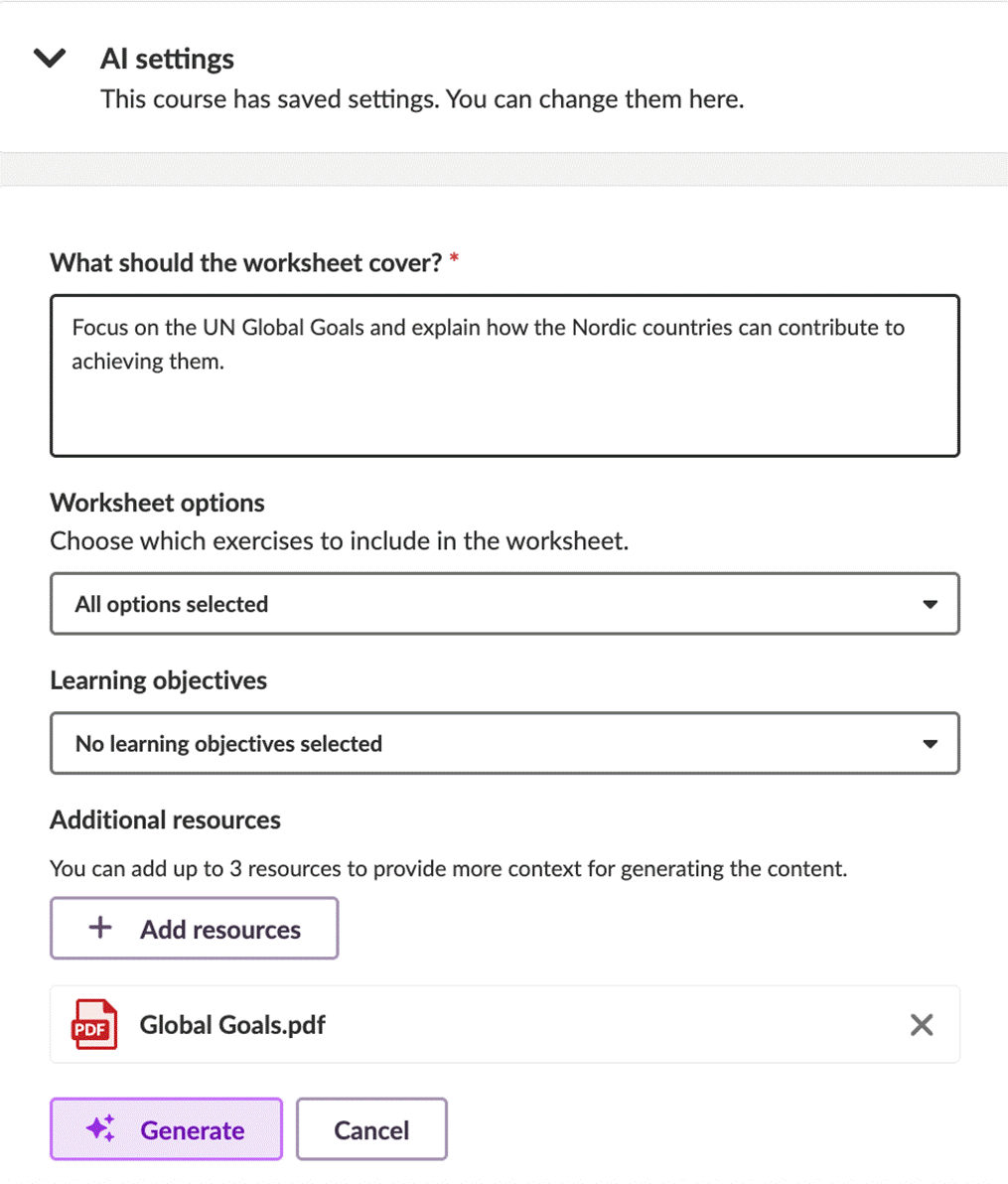
The Create worksheet with AI dialog with prompt, options, learning objectives, and additional resources
3.3 Step 3 – Review the generated worksheet
Review the worksheet before saving. At this stage, AI can be asked to adjust or refine the content. When the content is ready, select Save.
3.4 Step 4 – Open and edit the saved worksheet
After saving, the worksheet opens in a new Page. The content can be edited freely from there.
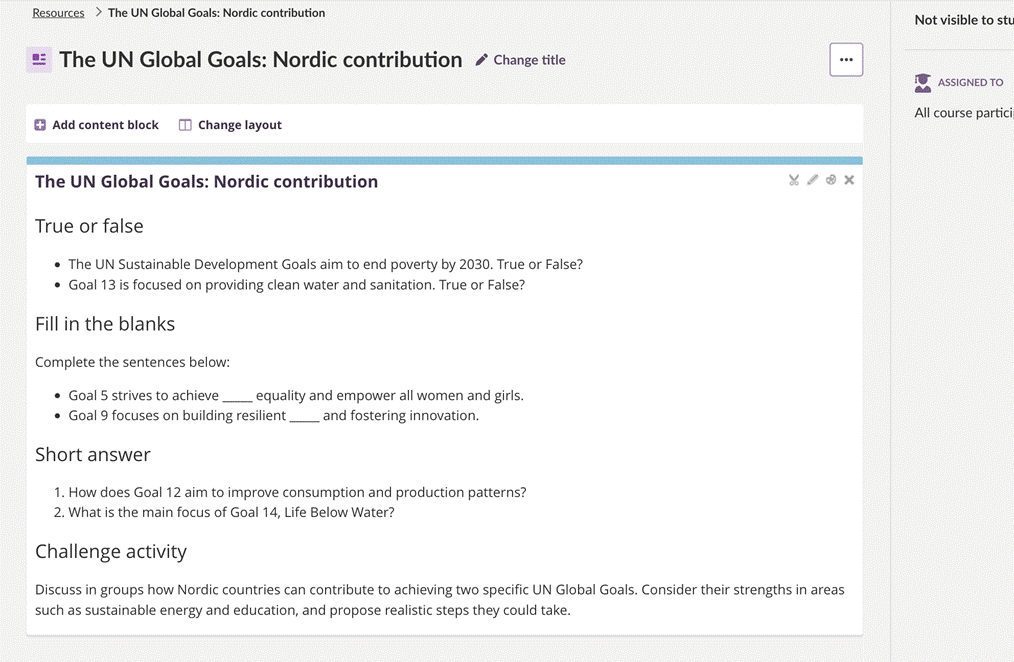
The saved worksheet opened in a Page, ready for editing
Important: In most AI Toolkit tools, the teacher must make the content visible to students. By default, generated content is not visible when created, except for assignments.
4 Using the AI Toolkit from Plans
This section shows how to use the AI Toolkit from the Plans area, with the Assignment tool as the example.
4.1 Step 1 – Open the plan
- Open the course and select Plans.
- Open the plan to which new content should be added.
4.2 Step 2 – Add an AI Assignment
- Inside the plan, scroll to Resources and Activities.
- Select Add.
- Select AI tools.
- Select Assignment.
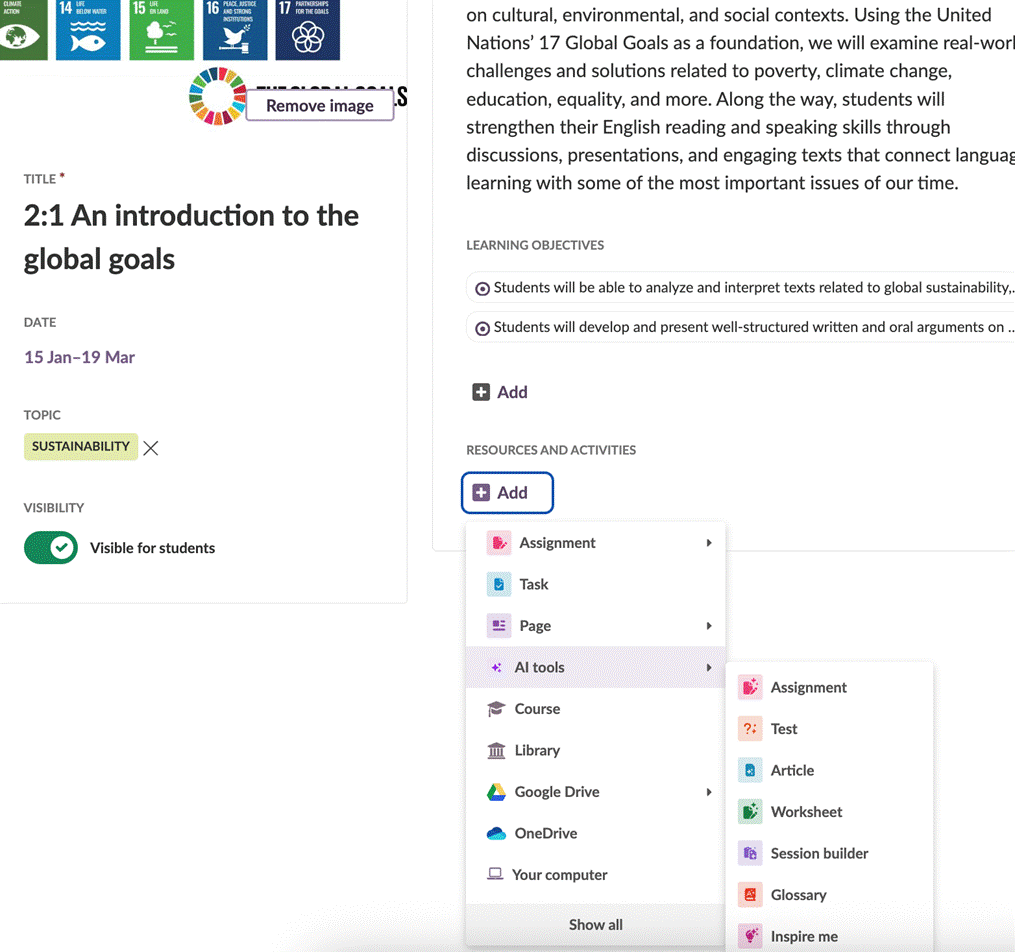
The Add menu inside a plan, showing AI tools and the Assignment option
4.3 Step 3 – Configure and generate
The flow is the same as for Resources. Adjust AI Settings if needed, or keep the current ones. Enter the prompt, choose learning objectives, and optionally add additional resources. Select Generate when ready.
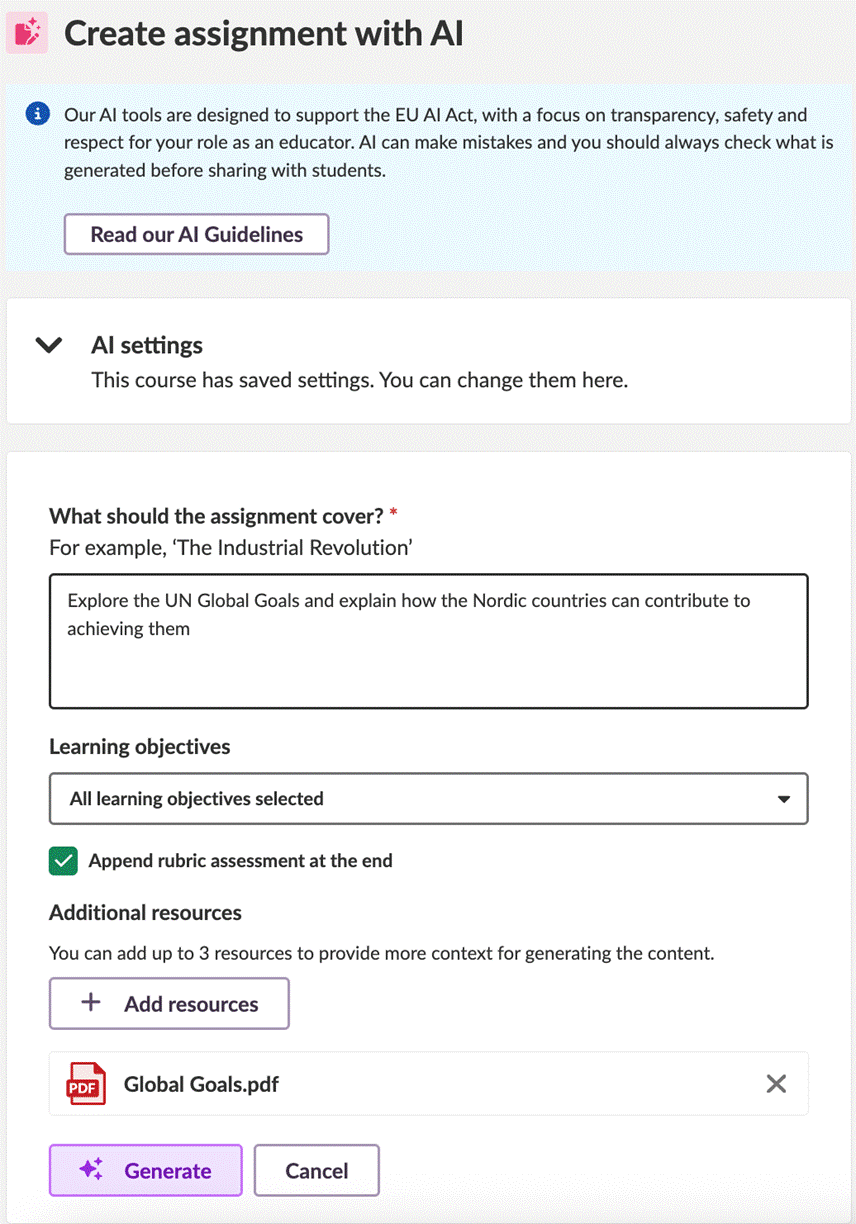
The Create assignment with AI dialog, with prompt, learning objectives, rubric option, and additional resources
Note: Append rubric assessment at the end is a checkbox in the Assignment tool. When selected, AI also generates a rubric to accompany the assignment.
4.4 Step 4 – Review the generated assignment
Review the assignment before saving. At this stage, AI can be asked to adjust or refine the content. When the content is ready, select Save assignment.
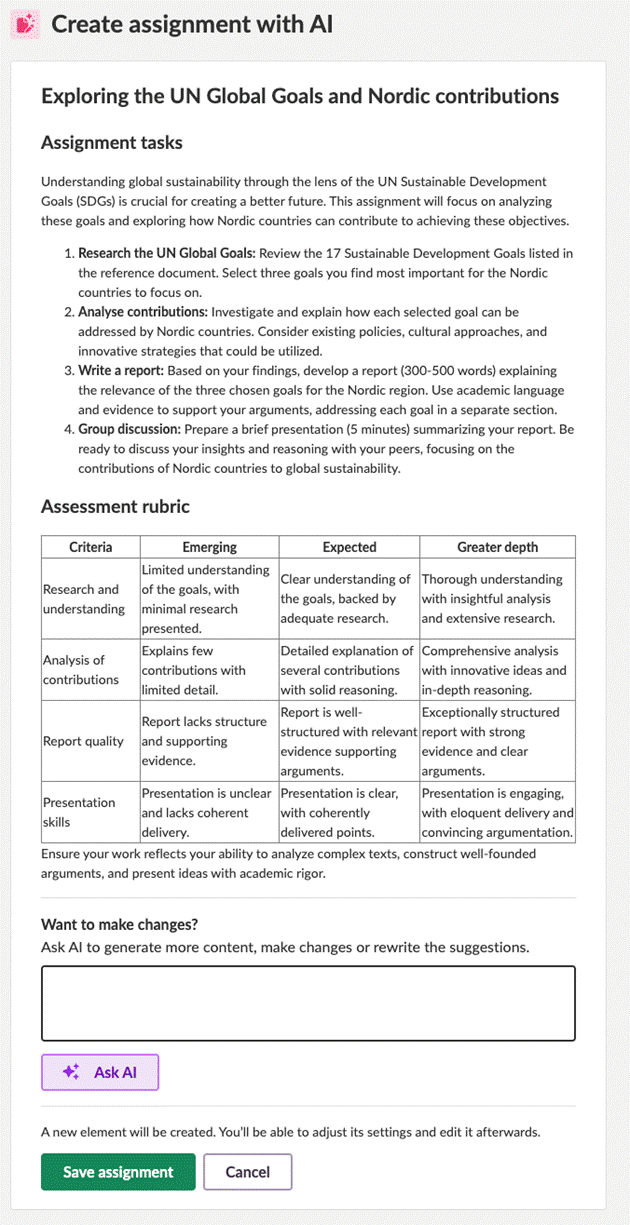
The Create assignment with AI review screen, with the rubric appended and the Ask AI prompt box
4.5 Step 5 – Open and edit the saved assignment
After saving, the view returns to the plan. The new assignment is listed under Resources and Activities. Open the assignment to use the integrated Assignment tool. From there, the content can be edited freely.
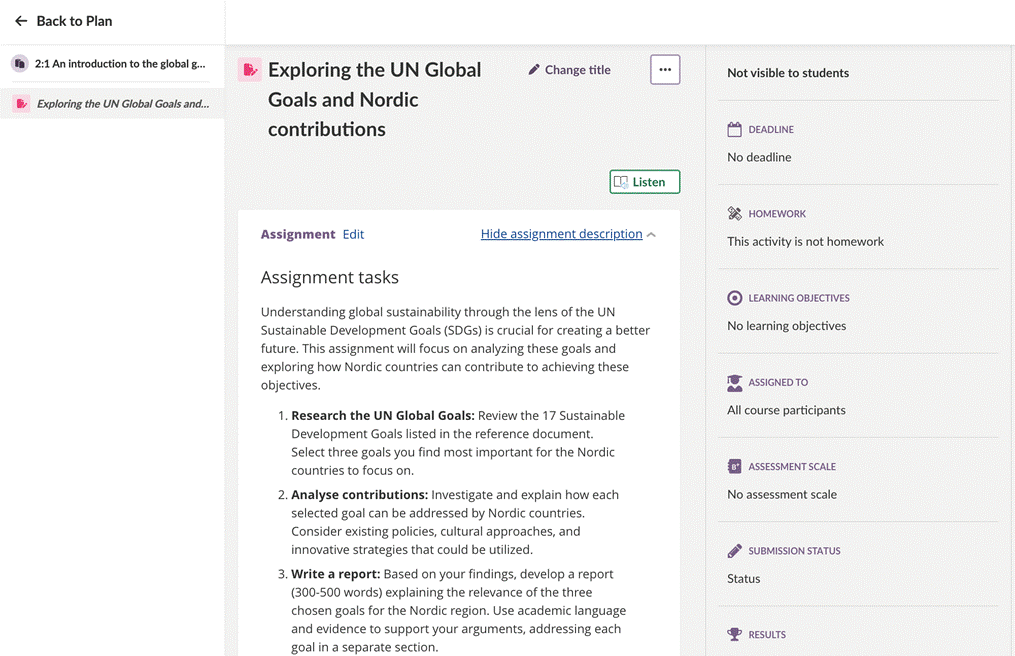
The saved assignment opened in the integrated Assignment tool
Important: As with all AI Toolkit tools, the teacher must assign the assignment to participants and make sure the assignment settings are correct before students can use it. Note that assignments will be visible to students by default.
5 Differentiation in Assignment
New in 2026
Differentiation is an optional setting in the AI Assignment tool. When enabled, the tool generates three versions of the same assignment — basic, standard, and advanced — based on a single prompt. The teacher can then choose which versions to keep and edit each one individually.
Prerequisite: Differentiation is currently in Beta. It is available in the AI Assignment tool from both Resources and Plans, once the AI Toolkit has been activated by the customer administrator.
5.1 Step 1 – Open the Assignment tool and enable Differentiation
- Open the AI Assignment dialog from Resources or from Plans (see section 3 or section 4).
- Enter the prompt describing what the assignment should cover.
- Select the learning objectives to apply.
- Tick Differentiation (Beta).
- Optionally, tick Append rubric assessment at the end.
- Optionally, add up to three additional resources.
- Select Generate.
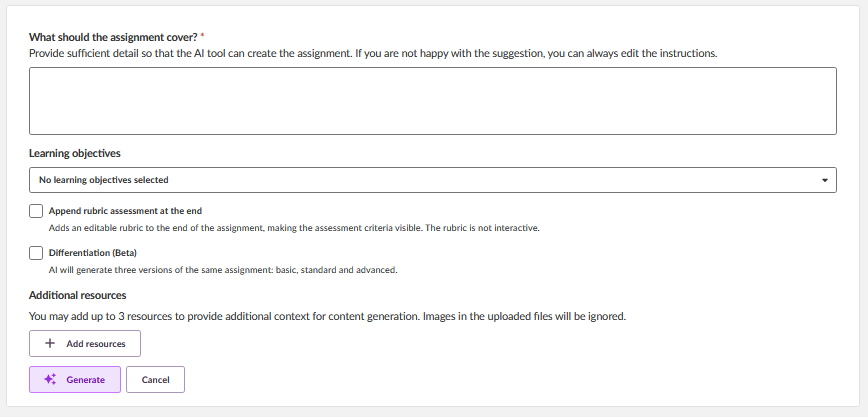
The Create assignment with AI dialog with the Differentiation (Beta) option enabled
5.2 Step 2 – Add learning objectives and supporting resources
Select learning objectives from those configured on the course. If the course already has learning objectives attached, they appear in the dropdown.
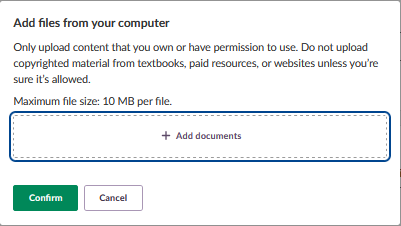
Uploading supporting resources for the AI Assignment
Note: Maximum file size is 10 MB per file. Only upload content the teacher owns or has permission to use. Images in the uploaded files are ignored when generating content.
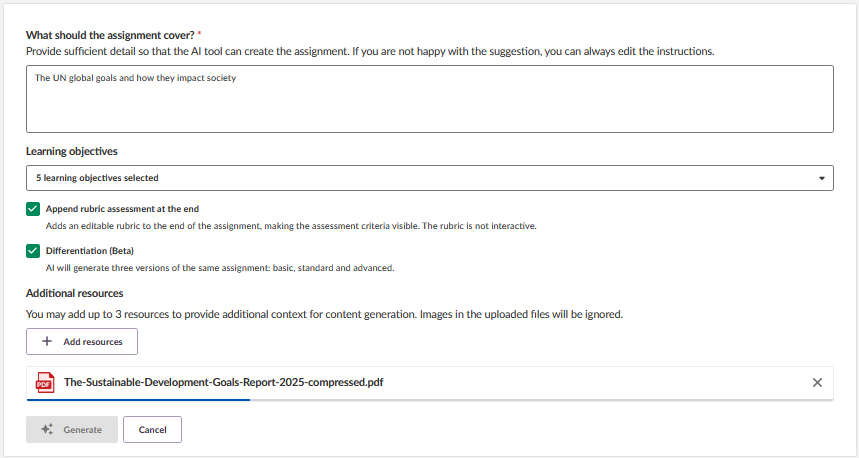
Assignment setup with prompt, learning objectives, rubric, differentiation, and an additional resource
5.3 Step 3 – Review the three generated versions
AI generates three versions of the same assignment, side by side: Basic, Standard, and Advanced. Each version is adapted to a different level of complexity in language, scope, and expected output. A rubric is included with each version when the rubric option is selected.
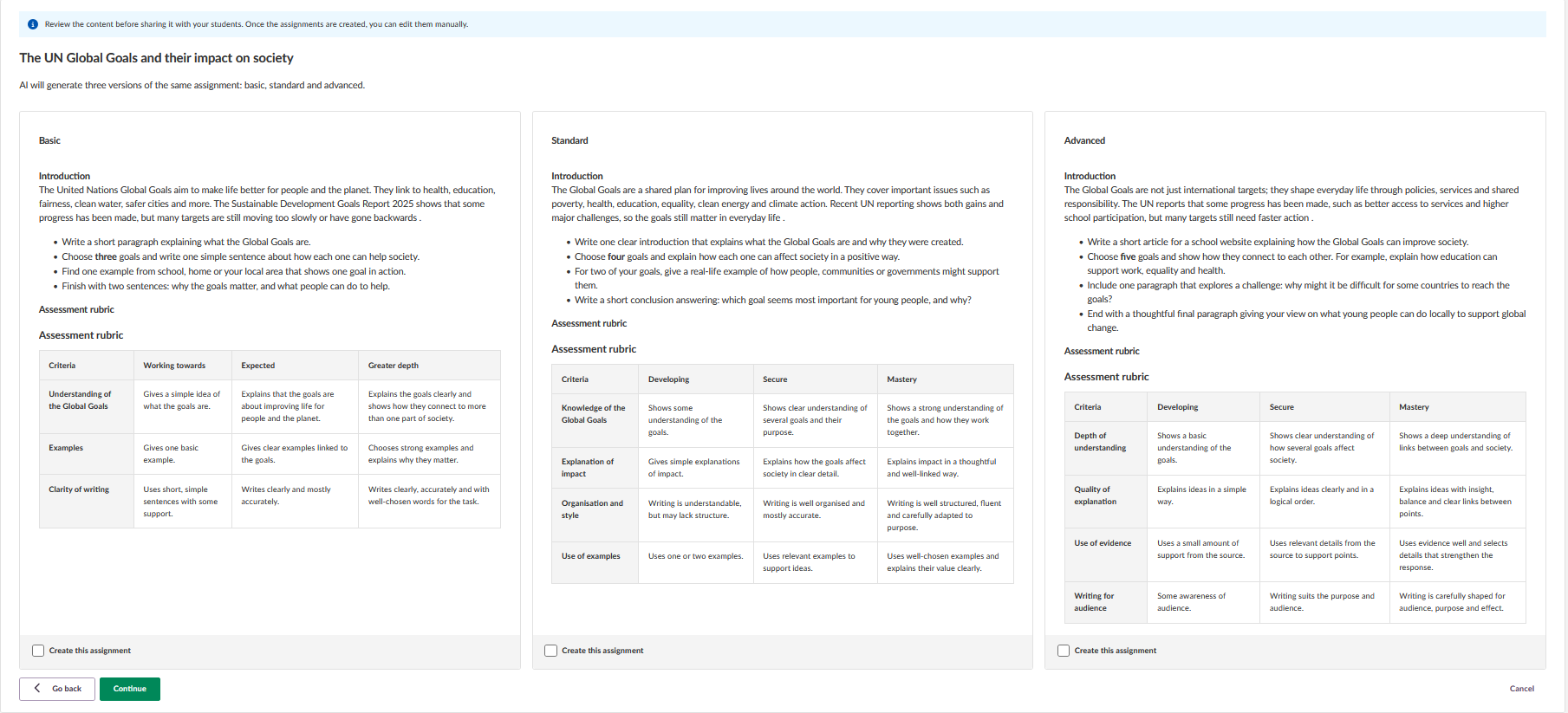
Three versions of the assignment generated by AI: Basic, Standard, and Advanced
5.4 Step 4 – Select which versions to create
At the bottom of each version, a Create this assignment checkbox controls whether that version is created. Tick the versions to keep, then select Continue.
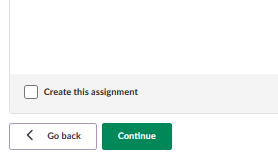
The Create this assignment checkbox at the bottom of each generated version
5.5 Step 5 – Edit and configure each version
Each selected version opens in the integrated Assignment tool, one at a time. The dialog title shows progress: New assignment (1 of 3), then (2 of 3), then (3 of 3).
For each version, set the standard assignment properties:
- Title (pre-filled with the version label, for example The UN Global Goals and their impact on society (Basic)).
- Description (pre-filled with the generated content).
- Deadline.
- Homework toggle.
- Learning objectives.
- Assigned to.
- Assessment scale.
- Peer and self-assessment.
- Results visibility.
- Group activity.
Select Create assignment 1 of 3 to create the first version and move on to the next.
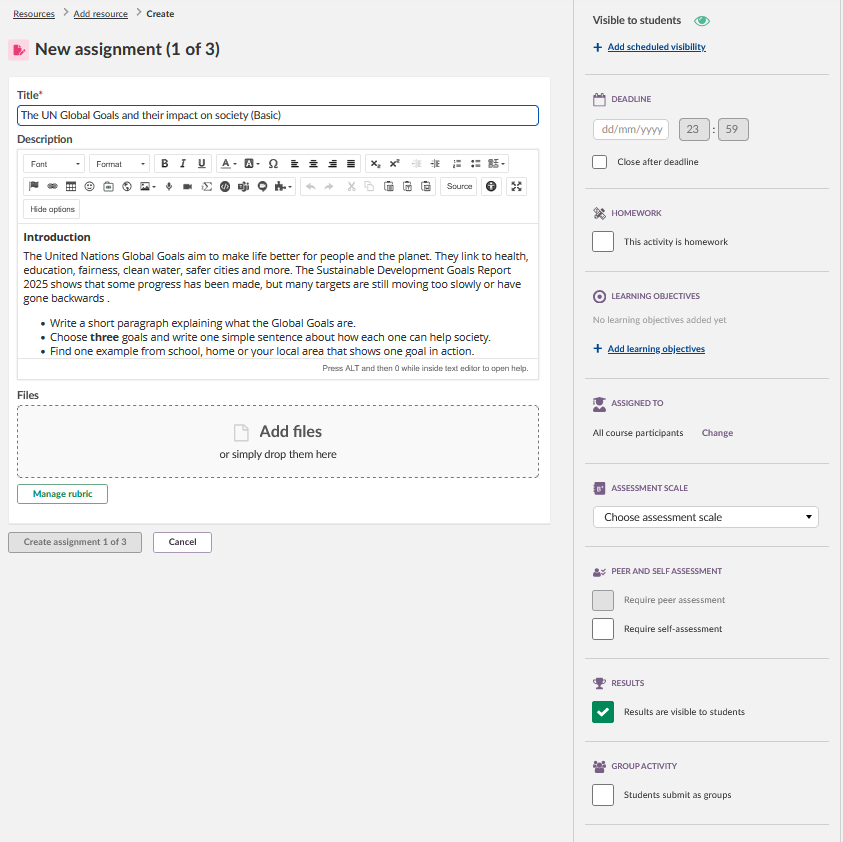
The first version (Basic) opened in the integrated Assignment tool
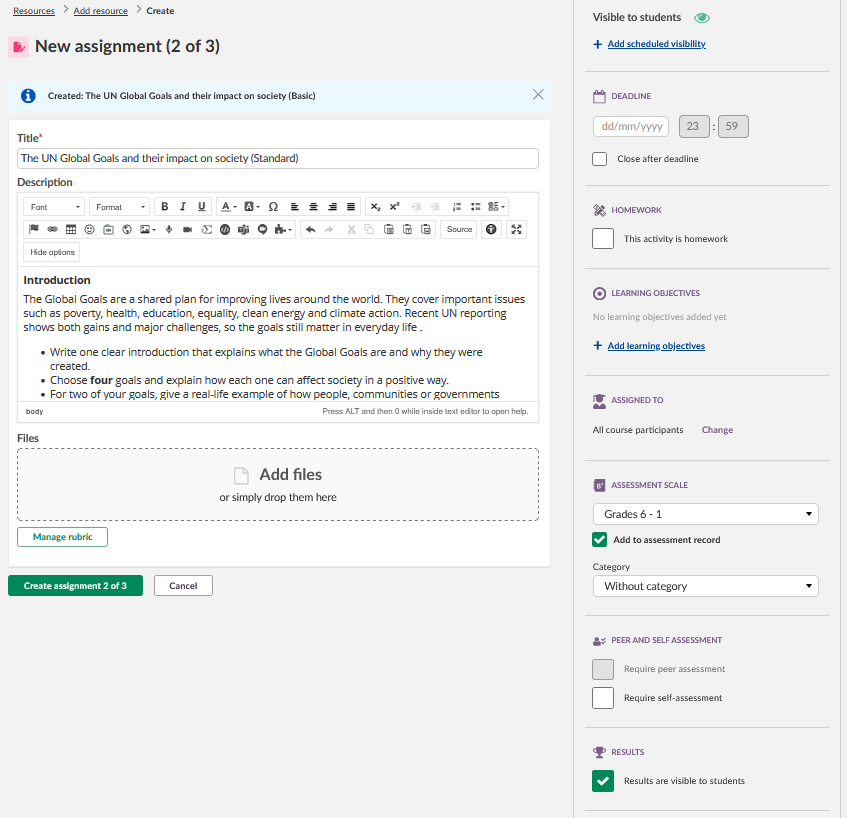
The second version (Standard) opened after the Basic version is created
5.6 Step 6 – Return to the plan or resource folder
After the last version is created, the view returns to the plan or resource folder. All three assignments are listed under Resources and Activities.
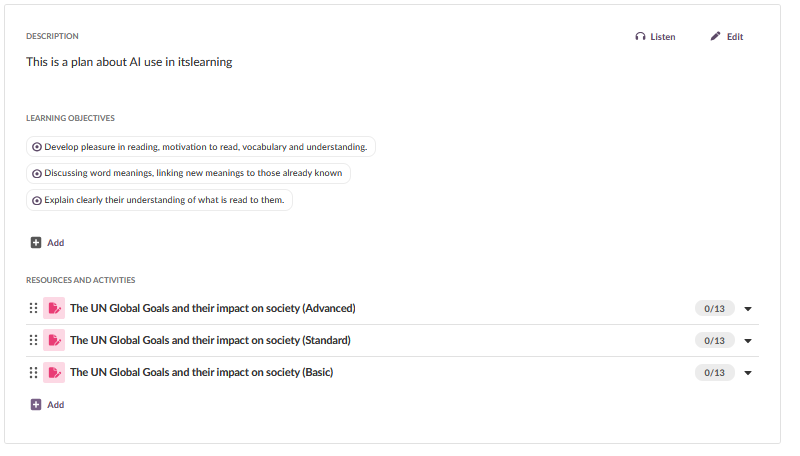
The plan with all three assignment versions listed under Resources and Activities
Important: Each version must be assigned to participants individually. The three versions are independent assignments. Take care to assign the right version to the right group of students.
6 Prompting – patterns that work
Prompt quality has a direct effect on the quality of the generated content. The following patterns have proven useful across several subjects, languages, and age groups.
6.1 What works
- Match the prompt to the age group, not to the competence goal. When the competence goal alone drove the output, the language was too difficult for younger pupils. Asking AI to adapt the language for a specific age group produced better results.
- Use AI Settings as the main context. Setting subject, age, curriculum, and content language correctly produced more relevant output than packing the same details into the prompt.
- Ask for an explicit student task. Prompts like "Students should write…" produced an actual task. Prompts that only described a topic sometimes produced an informative text rather than a task.
- Re-prompt to adjust the language level. If the first output is too complex, asking AI to make the language easier produced a usable result without restarting from scratch.
- Ask for examples when needed. Prompts that asked for example answers, sample CVs, or sample sentences produced more usable output for language learners.
- Specify the format. When the desired output was a table or a structured list, asking for that explicitly produced cleaner output than free-form text.
6.2 What to avoid
- Vague prompts with only a competence goal. These produced overly broad output with difficult terminology, regardless of the age group set in AI Settings.
- Relying on AI to cite specific texts. AI invented references to articles and works that do not exist (for example, a work attributed to Arne Garborg that he did not write). Sources must be supplied by the teacher.
- Using the tool without re-reading the output. Output frequently included terminology unsuitable for the age group. The teacher review step is essential.
6.3 Prompt library – starting points
These are starting points. Adjust the wording to fit the subject, the class, and the desired output.
| Use case | Prompt pattern |
|---|---|
| Assignment based on a competence goal | Create an assignment that matches the age group set in AI Settings and is based on the selected competence goal. Use clear, age-appropriate language. The output must be a task for the students, not an informative text. |
| Assignment for younger pupils | Create a short assignment for pupils aged 9–10. Use simple words. Avoid abstract terms. Include a short example to help the pupils get started. |
| Test on a topic | Create a test on [topic]. Adjust the language and the question difficulty to the age group set in AI Settings. Include a mix of question types. |
| Article for student reading | Write an informative article on [topic] for students at the age set in AI Settings. Use the curriculum and content language from AI Settings. Do not include references or links that have not been provided. |
| Worksheet with mixed tasks | Create a worksheet on [topic] that includes true/false, fill in the blanks, short answer, and a challenge activity. The language and difficulty must match the age group in AI Settings. |
| Glossary for a topic | Create a glossary of the [N] most important terms in [topic]. Write each definition in language suitable for the age group set in AI Settings. Order the entries alphabetically. |
| Session builder | Build a session of [N] minutes on [topic] for the age group set in AI Settings. Include an introduction, two activities, and a wrap-up. |
| Inspire me | Suggest three different ways to teach [topic] to the age group set in AI Settings. For each, describe the activity, the materials needed, and the expected outcome. |
| Differentiation | Used with Differentiation (Beta): Create an assignment on [topic] for the age group set in AI Settings. Make the basic version concrete with a clear example, the standard version a balanced task, and the advanced version open-ended with critical analysis. |
| Re-prompt – simplify language | Make the language easier. Replace abstract or technical words with everyday language suitable for the age group set in AI Settings. |
| Re-prompt – add examples | Add a short example for each task so students can see what is expected. |
| Re-prompt – shorten | Shorten the text. Keep the structure but reduce each section to no more than a few sentences. |
6.4 The underlying prompt
Teachers do not normally need to see or change the underlying system prompt. It is provided here for transparency. The active prompt establishes that:
- The assistant supports a teacher in developing and refining educational content.
- Output is shaped by the AI Settings parameters: subject, curriculum, student age, educational level, and content language.
- Content is written in a tone suitable for a teacher addressing students.
- Output must align with the specified learning objectives and the conventions of the selected curriculum.
- Length and complexity are adjusted to the age and educational level.
- If English is selected, British spelling and phrasing are used.
- Output is returned as raw HTML body content. Markdown, JavaScript, and input fields are not allowed.
- Headings use sentence case (only the first word capitalised).
- External sources are only used if the teacher provides a valid link.
- Deadlines, user-facing explanations, and conversational text are not included.
7 Pilot setup process
To prepare for the pilot, itslearning Support receives the list of participating teachers from the customer's system administrator or designated contact person. Once the list is processed, itslearning sends an email to each selected teacher informing them about their participation.
Teachers are notified as soon as the AI Toolkit has been activated for their accounts. The notification confirms when they can begin using the tools.
8 Frequently asked questions
Note: This section answers common questions about how AI works in itslearning, why it is used, and how data is handled.
8.1 General
Do I have to use AI in itslearning?
No. The AI systems are opt-in. The customer administrator chooses whether to turn them on.
Will there be a cost for AI services?
Most AI providers charge for use of their AI engines, or only offer them for free if data is shared. itslearning is looking at how to best offer value to customers. There may be a cost or limit on how many AI calls are made. Pricing will be shared transparently as part of any implementation.
Do the AI tools "take" course materials?
No. When AI is used to enhance existing resources (for example, a lesson plan being developed), the content is not retained by the AI system or added to its large language model. The AI engine uses the input to build a new version and then forgets it.
What content is shared with the AI service? Is it GDPR-compliant?
The AI-powered systems do not share personal data with the AI engine. itslearning uses Microsoft Azure OpenAI as the AI service provider. This is an EU-hosted AI service with support for GDPR. Personal data such as name, username, or email is not sent to the AI service.
What if we want to avoid using US-based vendors?
Use of AI is optional. The AI system can work with different providers, and if suitable non-US vendors emerge, itslearning can look to work with them as well.
How can customers take an active part in the development process?
The Toolkit pilot is running. Customers are welcome to register their interest in taking part in our pilot program.
How does itslearning plan to collaborate with European providers?
itslearning currently uses Microsoft Azure OpenAI as the AI service provider. Other solutions are being explored, and the AI systems are built to work with other providers in the future.
Some AI vendors offer automatic assessment of students. How does itslearning plan for this in the future?
In the long term, the Sanoma group is looking at how AI can guide students' learning and help teachers assess students. A trustable solution will take time to develop. The EU AI Act is being taken into account, and any such systems will only come about after careful consideration of the impact on teachers and students.
8.2 Technical
Is any personal data, such as username or email, sent to the third-party AI system?
No. No personal data such as email or username is shared with the AI system. Only the itslearning platform communicates with the third-party AI tool. The individual teacher is anonymous to the AI service.
Where is the third-party AI system hosted?
Azure OpenAI is currently used, hosted in Europe (Sweden).
What kind of model does itslearning use?
The model used in the AI Toolkit is from the OpenAI family, accessed via Azure. The specific model in use may change as new models are released.
Does the AI Toolkit use the same providers and conditions as the existing AI Survey tool?
Yes. Azure is the AI service provider for all AI features. The models are from the OpenAI family, but the specific model is subject to change as new models are released.
Is the information or files used to create AI responses stored or added to the third-party AI model?
No. Files uploaded to help generate content are not added to the AI model. See the Microsoft documentation on Data, privacy, and security for Azure Direct Models in Microsoft Foundry for details.
Microsoft's documentation mentions storing data for abuse monitoring. Does this mean user data is stored for longer on Microsoft's side and can be viewed by Microsoft personnel?
No. itslearning uses a setting called Modified Abuse Monitoring on Azure OpenAI. This means Microsoft does not store prompts or AI replies, and no Microsoft employee can review the content.
Because Microsoft does not keep this data, itslearning is responsible for making sure AI is used safely and responsibly. Safeguards are in place to protect data and meet relevant guidelines.
How long does the AI provider keep generated content on their servers?
The content is not stored on the AI provider's servers. When AI content is generated in itslearning using OpenAI services via API-based integration, the data used to generate responses is not retained.
What happens if a teacher enters personal data such as student names?
Microsoft does not store the data. Since itslearning uses Azure OpenAI with Modified Abuse Monitoring enabled, prompts and responses are not stored or reviewed by Microsoft, and there is no human review.
Responsibility for data use remains local. Any personal data added to an AI prompt is processed in real time and not retained, but teachers and schools are still responsible for using AI in line with data protection regulations such as GDPR.
Important: Avoid entering identifiable student data when using generative AI, unless there is a clear educational purpose and the use complies with local data privacy policies.
Is it possible to turn AI in itslearning on and off?
By default, all AI tools are disabled until the customer administrator activates them. A feature is planned where school administrators can decide which teachers are permitted to use AI.
Will the customer administrator control which tools can be accessed?
At present, opting in gives access to all tools in the AI Toolkit. In the near future, access controls will be updated so that each AI tool (for example, Survey, AI Toolkit, AI Assignment Generation, AI Test Generation) can be turned on and off individually. Profile policies will be used to apply settings to individual profiles, users, or organisations.
Has the customer opted in to allow training of the model?
No. itslearning's policy is not to train any AI models when a customer is using AI.
More Help Resources
Have more questions? Please start with asking your school administrator.
Product Release notes
Stay updated with itslearning latest releases: https://itslearning.com/product-updates
Service Status
Check the current status of itslearning services: https://status.itslearning.com/
Ideas Portal
Share your ideas and help shape the future of itslearning: https://ideas.itslearning.com/
Roadmap
Check out our roadmap: https://itslearning.com/global/roadmap/