Immersive Reader – Overview (All users)
TABLE OF CONTENTS
- Introduction
- 1 Where Immersive Reader is available
- 2 Opening Immersive Reader
- 3 Features
- 4 Troubleshooting
Introduction
Immersive Reader is a reading assistant from Microsoft, designed to help people with reading and learning difficulties understand text. It is also useful for anyone learning a new language.
In itslearning, Immersive Reader helps students understand content and work more independently. It makes text more accessible and allows students to personalise their reading experience.
1 Where Immersive Reader is available
Immersive Reader is available in most areas of itslearning, including:
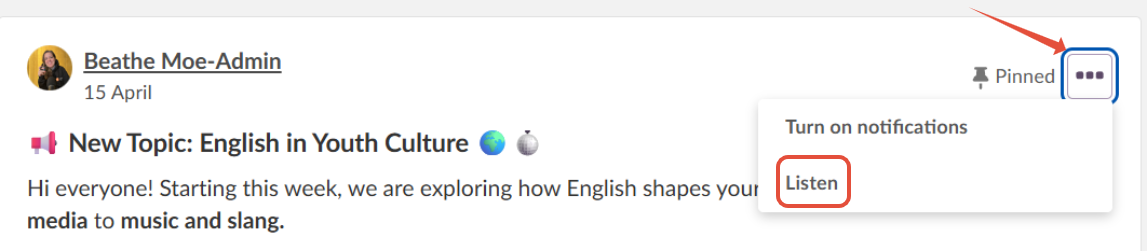
Announcements, both on the Home page and in Course overview
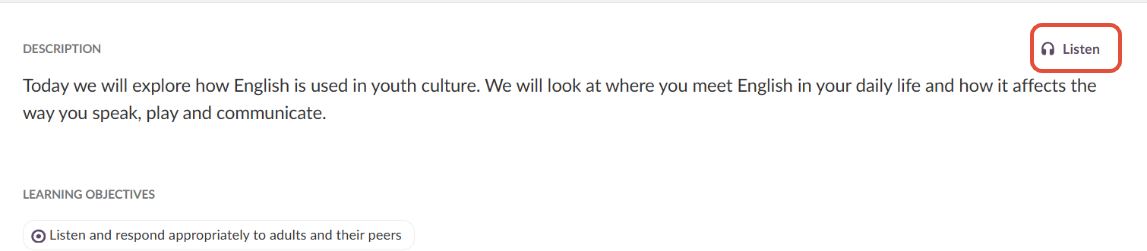
Plan description
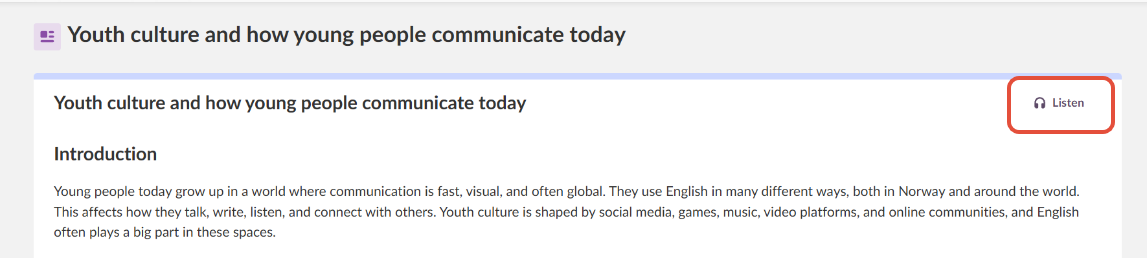
Page
Assignment
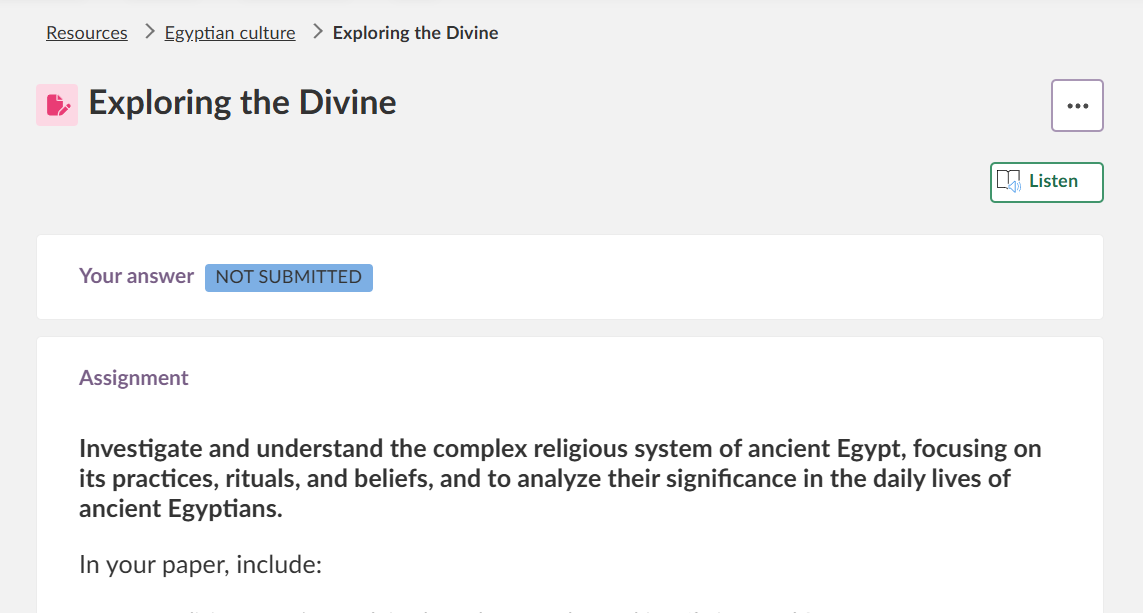
2 Opening Immersive Reader
- Go to an area where Immersive Reader is available.
- Click Listen.
The text from that area opens in a new window.
3 Features
The following features are available in the Immersive Reader window:
| Feature | Description |
|---|---|
| Read aloud | Reads the text aloud with a choice of voice (male or female) and adjustable speed. |
| Translation | Translates individual words or the entire document. Supports 68 languages. |
| Background colour | Changes the background colour to improve readability. |
| Font size and text spacing | Adjusts the font size and the spacing between words and lines. |
| Syllable splitting | Splits words into syllables to aid reading. |
| Parts of speech | Highlights nouns, verbs, and other parts of speech in the text. |
| Line focus | Highlights specific lines to reduce distractions while reading. |
| Picture dictionary | Displays images for words in the text to support vocabulary learning. |
| Maths and equations | Supports reading of mathematical content and equations. |
4 Troubleshooting
4.1 Immersive Reader opens in the wrong language
Symptom: Immersive Reader displays in a different language than expected when opened.
Solution:
- Delete the OneNote webpage cookies in your browser.
- Reopen Immersive Reader.
More Help Resources
Have more questions? Please start with asking your school administrator.
Product Release notes
Stay updated with itslearning latest releases: https://itslearning.com/product-updates
Service Status
Check the current status of itslearning services: https://status.itslearning.com/
Ideas Portal
Share your ideas and help shape the future of itslearning: https://ideas.itslearning.com/
Roadmap
Check out our roadmap: https://itslearning.com/global/roadmap/