The Parent Dashboard
TABLE OF CONTENTS
- Introduction
- What you can see on your dashboard
- Messaging
- Calendar and RSS feed
- Frequently asked questions
Introduction
The Parent Dashboard gives you a consolidated view of your child's activity in itslearning. From here, you can see your child's courses, tasks, events and reports, and send messages to your child's school.
Note: Your school's administrator decides which blocks appear on your dashboard. Not every school shows the same information, so your dashboard may look different from the examples in this article
What you can see on your dashboard
Your dashboard is built up of content blocks. Depending on how your school has set things up, these can include relevant information, your child's course overview, tasks, events, and an aggregated summary of recent activity, conversations, gradebook and learning objectives.
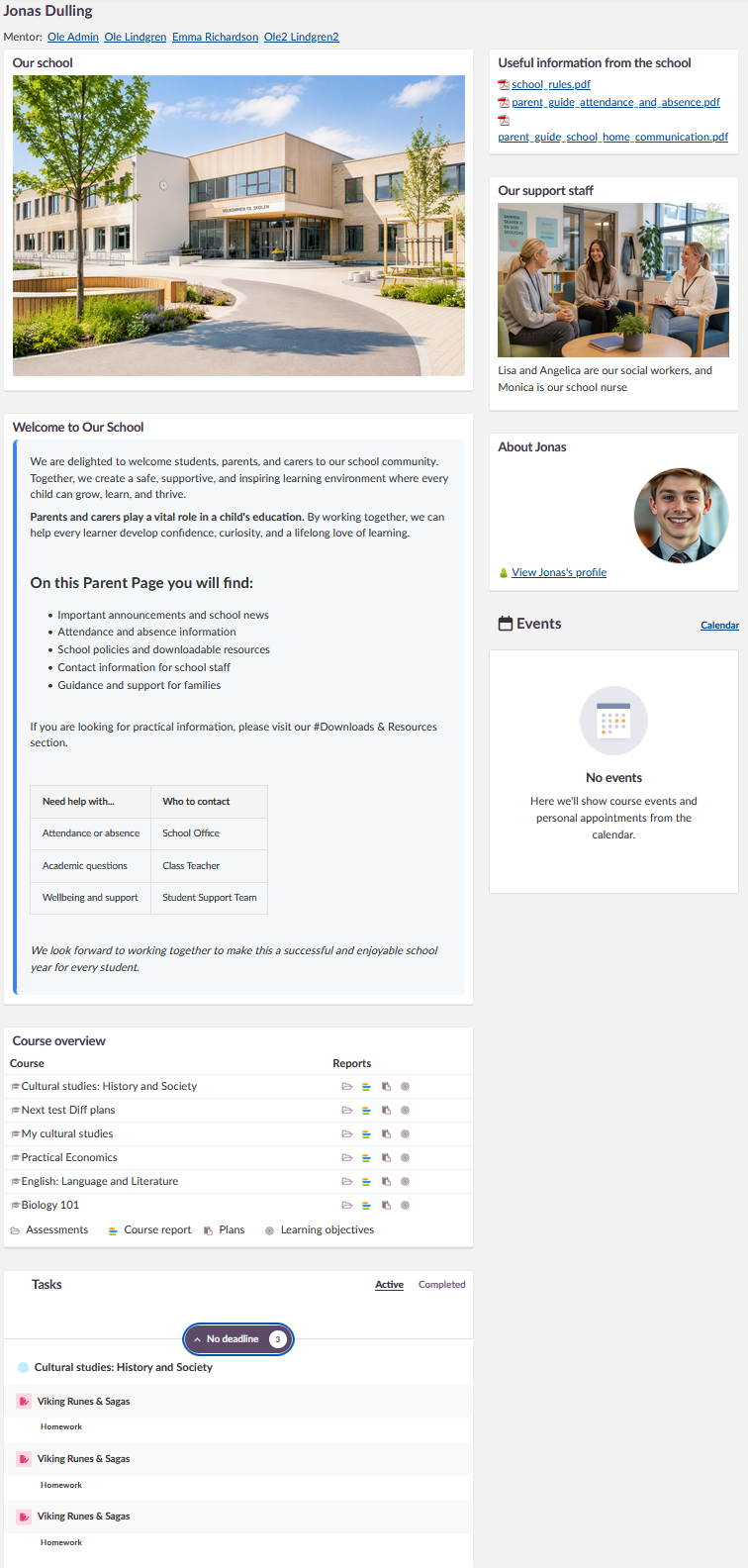
Note: A block only shows information for features your child's school actively uses. For example, if the school does not use the calendar feature, no calendar events will appear on your dashboard.
Course overview and reports
The course overview block lists your child's courses. Next to each course, you can click on report icons to see more detail: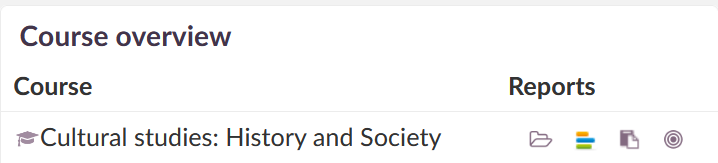
| Report | What it shows |
|---|---|
Assessments  | Your child's grades and averages for the course. |
Course report  | A detailed description of what your child has and has not completed. Items on this list are not necessarily mandatory, but this gives an indication of what your child has looked at. |
Plans  | A detailed outline of what will be covered in a lesson. You may be able to view assignments and resources linked to the plan if this has been enabled by the teacher. |
Learning objectives report  | Shows whether your child is meeting specific learning standards. This report only appears if the teacher has aligned tests, tasks and assignments to those standards. |
Note: Whether you can open a resource listed in a plan, or only see that it exists, depends on a setting configured by your school. Contact your school administrator if you expect to see more detail than what is currently shown.
Individual learning plan and ePortfolio
From your child's profile, you can also view their individual learning plan and ePortfolio, where these features are in use at your school.
Tasks and events
Your dashboard can show your child's tasks, including personalised tasks assigned directly to them, alongside upcoming events such as test dates or other major dates in the course.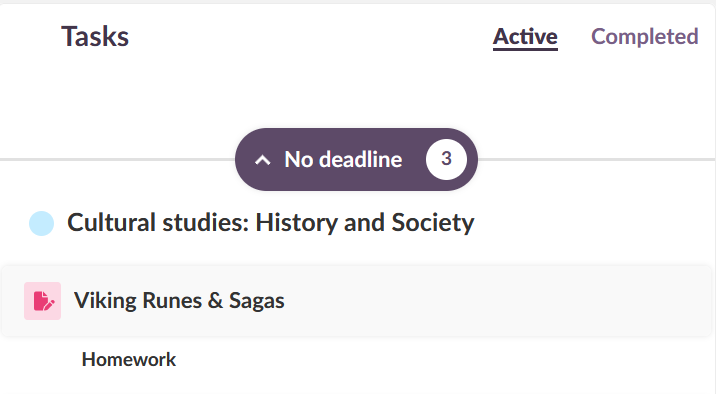
Frequently asked questions
Why does my dashboard look different from other parents I know in other schools?
Each school configures its own dashboard. The blocks you see, and the information within them, depend on how your school has set things up. The content on this page is also reliant on the teacher and that they keep their courses and calendars up to date.
Why can't I open a resource listed in my child's plan?
This depends on a setting configured by your school. Some schools allow parents to open and view resources in plans, while others only show that a resource exists without allowing it to be opened.
Can I message other parents?
Not directly. You can only message another parent if you are both members of the same course or project and your school has enabled the relevant setting.
Why can't I find someone to message?
There is no address book. You need to already know the name of the person you want to message. Your child's mentors, if assigned, are listed at the top of the messaging page.
Can I message staff from the Parent mobile app?
No. Messaging is only available through the web-based Parent Dashboard, not the mobile app.
How do I find out about test dates and events?
Check the events block on your dashboard, or subscribe to your child's course events using the RSS feed, where this is available at your school.
More Help Resources
Have more questions? Please start with asking your school administrator.
Product Release notes
Stay updated with itslearning latest releases: https://itslearning.com/product-updates
Service Status
Check the current status of itslearning services: https://status.itslearning.com/
Ideas Portal
Share your ideas and help shape the future of itslearning: https://ideas.itslearning.com/
Roadmap
Check out our roadmap: https://itslearning.com/global/roadmap/