360° Reports – Activity Report (Teacher)
TABLE OF CONTENTS
Activity report
The Activity report shows student activity and visit duration over time. Use it to see how often students visit the course, when they are most active, and how they engage with course content.
You will find the Activity report inside the Reports tab in your course, under 360° Reports.
Note: For courses with more than 1000 participants, the report summary and export are hidden and you can only sort by name.
1 Activity overview
The Activity overview shows student activity over the past seven days (including the current day) compared to the course averages. You can search for a student and filter by groups.
The visit duration is calculated in real-time and may fluctuate if a student is currently active in the course.
Top section
The top section displays:
- The total number of students who were active (visited) in the course in the previous 7 days and the total number of students in the course.
- A bar chart of the last 7 days of course activity. This is calculated as the total time spent in the course (of all students) divided by the number of visits on that day.
- The average visit duration, calculated by taking the visits of all students in the course since the start of the course. This value may fluctuate at the beginning but will stabilise over time.
Hover over the bar chart to see more details. The tooltip displays the date, the total number of visits that day, the number of visitors, and the approximate average visit duration.
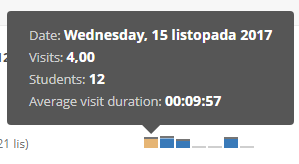
The value is usually updated 1–2 minutes after a course participant has made some activity in the course (for example, visited or viewed the course page for more than one minute). If there is no data, the tooltip will not appear.
Student list
The student list shows students who are active in the course. It does not list students who have left the course. If you have course groups set up, you can filter the view to show only members of those groups.
| Column | Description |
|---|---|
| Last 7 days activity | Bars representing a student's activity during the last 7 days, calculated by summing up the duration of visits for each day. |
| Average duration | The approximate total time spent in the course by the student divided by the number of visits to the course. |
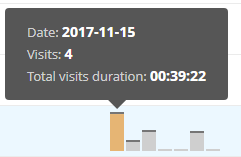
Hover over a student's bar chart to see the date, the total number of visits that day, and the approximate duration of the visit. If there is no data, the tooltip will not appear.
2 Activity details report
The Activity details report shows detailed activity information for an individual student. At the top of the report you can navigate to a different student, switch to the Progress or Grades report for the same student, or return to the overview.
Visits
| Metric | Description |
|---|---|
| Duration, average per day | The approximate average duration of visits to the course, calculated by dividing the total visit duration by the total number of days in which the student was active. This number will fluctuate if the student is currently active. |
| Number of visits, average per day | The average number of visits to the course, calculated by dividing the total number of visits by the total number of days in which the student was active. |
| Week to week activity | Compares the visit duration in the previous week to the visit duration this week. |
| Total duration | The approximate total of all time the student has spent in the course. |
| Total number of visits | The total number of visits the student has made to the course. |
| Last visit | The date the student last visited the course. |
Activity per day
You can switch between a duration view or a number of visits view. This provides a detailed summary of course visits or approximate time spent in the course each month.
Activity heat map
The heat map shows an overview of a student's activity for the last 12 months. You can toggle between:
- Visit duration – information about a student's visit duration time and number of visits on a particular day.
- Actions taken – the student's activity shown as visits to course elements (divided into resources and activities) and their communication activity, for example, taking part in discussions or sending instant messages. Deleted elements or posts are also included in the totals if there is activity.
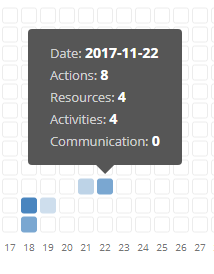
Hover over the heat map to see more information:
| Tooltip field | Description |
|---|---|
| Date | When the activity occurred. |
| Actions | The total number of actions that day. An action is viewing a resource or activity, or adding a communication such as an announcement comment. |
| Resources | The total number of resources (e.g. pages, files) viewed that day. |
| Activities | The total number of activities (e.g. tasks, assignments) viewed that day. |
| Communication | The total number of announcements and discussion posts created that day. |
Communication
This section shows how the student is engaging with the communication aspects of the course:
| Metric | Description |
|---|---|
| Threads started | The number of new threads started by the student within discussions. |
| Discussion posts | The total number of posts in all discussions for the student in the course. The first post created when starting a thread is also counted. |
| Announcement comments | The number of comments in announcements. |
3 About course visit time and time online
The course visit time and time online for course elements should be understood as a helpful indicator of time spent on itslearning, rather than an exact measurement.
The system does not measure exact time down to the second. Access is tracked every few minutes. The reports cannot record time spent outside itslearning — for example, if a student opens Office 365 or a Google account to work on a course assignment. However, if a student opens a course document and then leaves the computer for a short period, this is still counted towards online time.
While not accurate down to the second, this measurement is useful for identifying patterns in how students invest their time:
- It can show comparative time students spend online within itslearning on activities and resources.
- It can indicate where students are struggling — for example, spending too long on a task or resource.
- It can show where students are skipping information — for example, not spending enough time on a resource.
- It provides a more meaningful measure than a simple "accessed yes or no" indicator.
For example: a teacher uploads a 10-minute video and asks students to review it. The Progress report can show which students ignored the video, who watched it for only a few minutes, and who spent about the full time or longer watching it.