-
-
- Users and access rights - Reference (Sysadmin)
- Supervisor (Mentor and Headteacher) Roles – Configuration (Sysadmin)
- Workflow
- Hierarchy – Reference (Sysadmin)
- Hierarchy - Roles and Permissions (Sysadmin)
- User Management – Importing Users by CSV (Sysadmin)
- Profile Pictures and Avatars - System Administrator Guide
-
- Setting up the course catalogue (admin)
- Individual Learning Plans – Template Configuration (Sysadmin)
- Courses - Administration - Reference (Sysadmin)
- Projects – Administration (Sysadmin)
- Bookins mangement - Room and Resources - Administrator Guide
- Terms - Manually Managing Terms (Sysadmin)
- Settings for Learning Objective Reports - System Administrator
- Learning Objectives Repository - Sysadmin
- Learning Objective Repository – Importing via XLSX (Sysadmin)
- Trash Can – Overview (Sysadmin)
- Cross site templates - sysadmin
- Attendance system
- Calendar – Managing External Calendars for Organisations (Sysadmin)
-
- Automated integration with a Student Information System
- LTI Integrations
- Single Sign-On - Updating SAML IdP Metadata and Certificates (Sysadmin)
- SIS Integration – IMS Enterprise Import Status Emails (Sysadmin)
- Test Mode Browser (Overview)
- Test Mode Browser – Installing the itslearning LockDown Browser Extension for Chromebooks (Sysadmin)
- Microsoft Cloud Services – Connecting Microsoft 365 to itslearning (Sysadmin)
- MS Team Integration - setup
- Outlook integration - Paid add-on
- Connecting your G Suite domain to itslearning
- Swedish integration- Skola24 – Calendar Integration for Swedish Customers (Sysadmin)
- German integration- Univention UCS@school – Provisioning API (Sysadmin)
- German integration- Univention UCS@school - ID Broker Connector (Sysadmin)
- Univention UCS@school – Itswizard) Connector (Sysadmin)
- Dutch integration: Timetable integration -
- Dutch integrations - Timetable Integration Notification – Assigning Appointments
-
-
- Main menu - Overview (Teacher)
- Login - Getting started
- Navigation - Getting started (Teacher)
- Personal settings - Getting started
- Courses - Getting started (Teacher)
- Plans - Getting started (Teacher)
- Resources and activities - Getting started (Teacher)
- Resources and activities - Overview (Teacher)
- Assignments - Getting started (Teacher)
- Calendar - Getting started (Teacher)
- Messages - Getting started (Teacher)
- Keyboard shortcuts - Overview
- Tests - Getting started (Teacher)
-
- Notification Preferences – Overview (Teacher, Admin)
- Profile Pictures and Avatars – Overview (All users)
- Personal Settings – Overview (All users)
- Product Updates – Release Note Sharing (All users)
- Supervisor Roles – Mentors and Headteachers (Teacher)
- Font Selection – Overview (All users)
- Rich Text Editor – Reference (All users)
- Search – Overview (All users)
-
- Course Focus - Choosing the Right Course Type (Teacher)
- Class Course – Reference (Teacher)
- Self-Paced Courses – Complete Guide
- Information hub course – Overview
- Subject Course settings - Reference (Teacher)
- Course Participants Page (Teacher)
- Course Templates – Reference (Teacher)
- Using the course catalogue (Teacher)
- The permission system - Admin and teacher guide
- Learning Objectives – Reference (Teacher)
- Courses – Student View (Teacher)
- Courses – Archiving (Teacher)
- Course Card Images
- Image selector - Teacher guide
- Course Templates – Cross-Site Templates (Teacher)
- Teacher - Course Import Guide
- Teacher - Course export guide
-
- Resources – Overview (Teacher)
- Resource Page – Reference (Teacher)
- Immersive Reader – Overview (All users)
- Test – Updating from Test 2.0 to Test 3.0 (Teacher)
- Files – Overview (Teacher, Student)
- Files – Saving Course Materials (All users)
- Library – Reference (Teacher)
- Brand Icons – Reference (All users)
- H5P – Upload and Play Content (Teacher)
-
- AI Toolkit - Overview and getting started (Teacher)
- AI toolkit prompt suggestions (Teacher)
- Assignment - Reference (Teacher)
- Tasks - Overview (Teacher)
- Discussions – Reference (Teacher)
- Registrations – Reference (Teacher)
- Learning Paths - Reference (Teacher)
- Tests – Reference article (Teacher)
- Survey Tool - Reference article (Teachers)
- Page - Create and Manage Content (Teacher)
- Task & Assignment (teacher)
- Using custom labels for assignments - teacher guide
- SCORM – Importing and Using Content (Teacher)
-
- Reports - Overview (Teacher)
- Assignment Report - Overview (Teacher)
- Progress report - Reference (Teacher)
- Learning Objectives Allignment Report - Overview (Teacher)
- Learning Objectives Progress Report - Overview (Teacher)
- Attendance – Overview.
- 360° Reports – Overview (Teacher)
- 360° Reports – Activity Report (Teacher)
- 360° Reports – Progress Report (Teacher)
- 360° Reports – Grades Report (Teacher)
- 360° Reports – Resources Summary (Teacher)
- 360° Reports – Notifications and Weekly Updates (Teacher)
- Assessment Record / Gradebook - Reference (Teacher)
- ePortfolio – Overview (Teacher)
- ePortfolio – Managing Your Portfolio (Overview)
-
- LTI tool – adding external tools to a course (2026)
- H5P integration – Creating a Learning Activity in a Plan (Teacher)
- Microsoft Office templates in the Assignment tool
- Google templates in the Assignment tool
- Using MS Teams in itslearning and Fronter 19
- Using Google Meet in itslearning and Fronter 19
- Equation editor - iMathEQ
- Accessibility Checker (Plugin)
- MS Teams Integration
-
-
-
360° Reports – Resources Summary (Teacher)
Resources summary report
The Resources Summary Report shows how many students have accessed each course resource and how much time they have spent on each resource.
Access the report from the Reports tab in your course, under 360° Reports, then select Resource summary.
This report helps teachers to:
- See at a glance how well students are using resources.
- Identify which resources students are looking at and spending time on.
- See which students are viewing which resources.
- Use the information to refine and improve course resources.
1 Report overview
The report lists all course elements with the following information for each:
| Column | Description |
|---|---|
| Element | The name of the course element, shown in its folder structure. |
| Status | How many students have accessed the element out of the total number of students, and whether the element is open or not active. |
| Total time spent | The total time all students have spent on the element. |
| Completion | Click "View details" to see which individual students have visited the element, how many times, and when. |
| Details | Whether the element is mandatory and the average result (for assessable elements). |
You can filter the list by element type and by visibility using the Type and Show drop-downs. You can also switch between Course content and Plan content views.
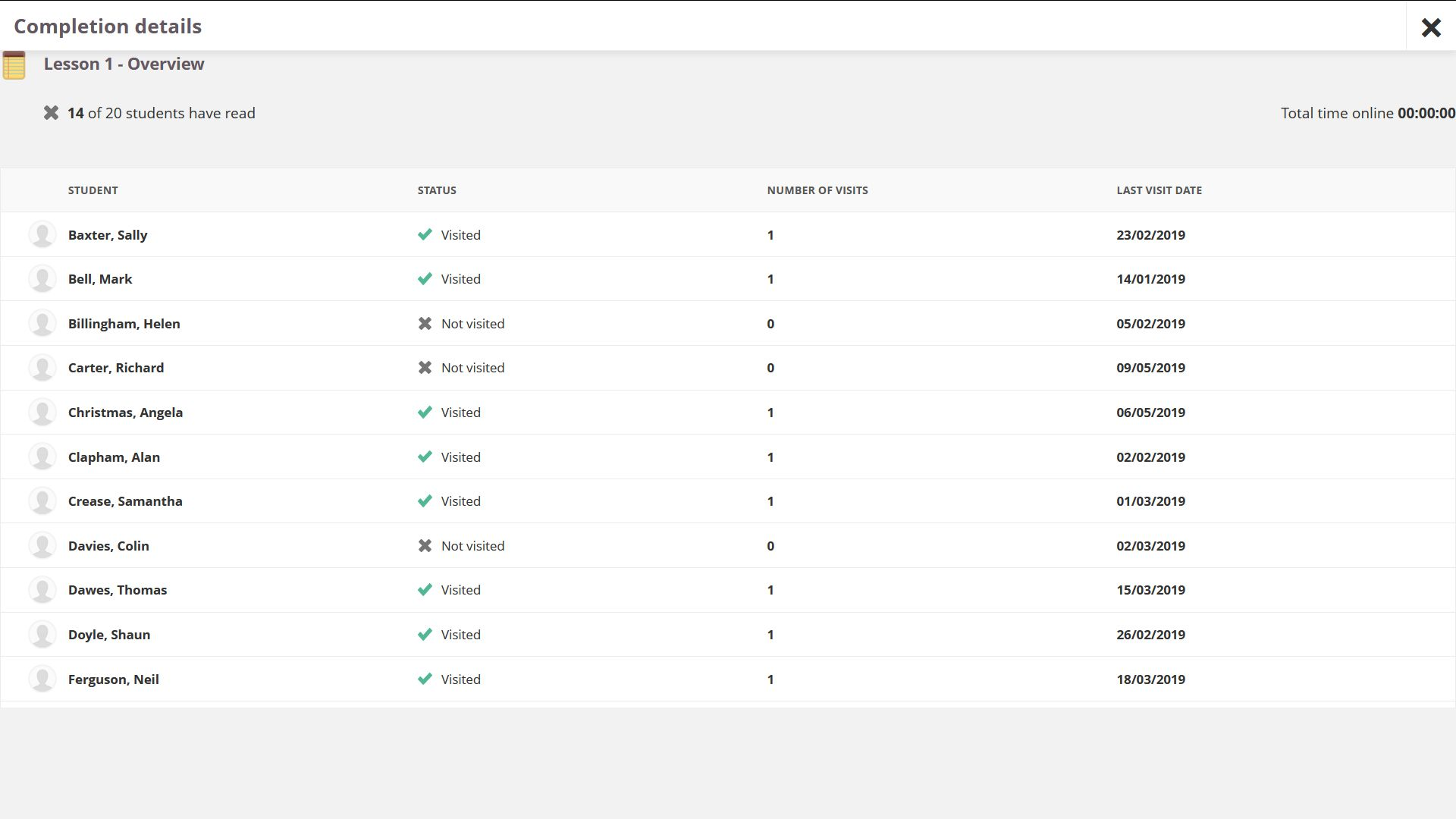
2 Completion details
Click View details on any element to see a breakdown per student. The completion details panel shows:
| Column | Description |
|---|---|
| Student | The student's name. |
| Status | Whether the student has visited the element or not. |
| Number of visits | How many times the student has visited the element. |
| Last visit date | The date the student last accessed the element. |
Note: This report is only visible if your organisation has activated 360° Reports. Consult your system administrator if you are unsure. The "Time on task" column is hidden for courses with more than 1300 participants.