AI Toolkit Pilot: Request Allocation and Access Settings (Sysadmin)
TABLE OF CONTENTS
This article explains how AI requests are allocated to teachers during the extended pilot, and how system administrators can enable, configure, and restrict access to the AI Toolkit.
Admin setting: The AI Toolkit must be enabled in Administration > AI Settings before teachers can use it. See Section 4.1 for instructions.

1 Pilot details
| Detail | Information |
|---|---|
| Pilot end date | End of October |
| Content created during pilot | All content created during the pilot remains available after the pilot ends |
| Individual usage monitoring | Administrators cannot view individual teacher usage during the pilot |
| End-of-pilot report | A usage summary is sent to the system administrator at the end of the pilot |
| AI Dashboard | A full AI Dashboard for system and local administrators is planned before full launch of AI toolkit |
2 How AI requests work
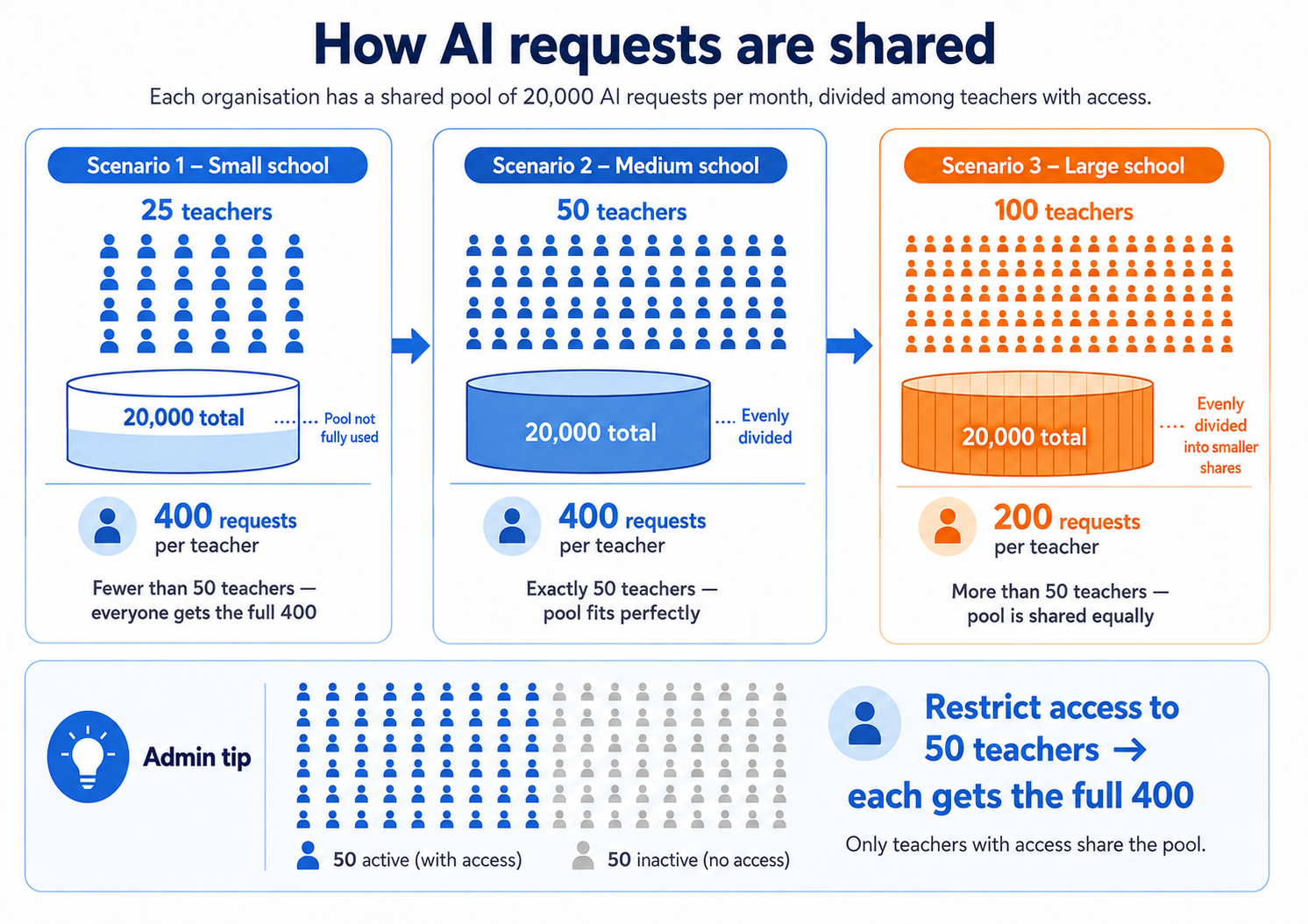
Each organisation has a monthly pool of 20,000 AI requests. The number of requests available to each teacher depends on how many teachers have access to the AI Toolkit.
| Teachers with access | Requests per teacher per month |
|---|---|
| Fewer than 50 | 400 (unused portion of the pool is not redistributed) |
| 50 | 400 |
| More than 50 | 20,000 ÷ number of teachers with access |
| Example: 100 teachers with access | 200 requests each |
Note: The monthly pool resets automatically at the start of each calendar month.
2.1 What uses a request
| Action | Requests used |
|---|---|
| Generate a worksheet | 1 |
| Generate an article | 1 |
| Generate a test | 2 or more depending on follow up questions |
| Use Differentiation (Basic, Standard, and Advanced versions) | Multiple requests 3 or more |
| Improve or regenerate content | 1 per attempt |
| Adding resources | Depends on size and amount of resource |
Note: Each improvement or regeneration uses a request. Requests are consumed when the action is submitted, regardless of whether the output is saved or used. This must be seen as an indication of use. Token usage can vary between the different tools and usage patterns.
2.2 When a teacher reaches their limit
There are two separate limit scenarios that produce different messages:
| Scenario | What the teacher sees | Resolution |
|---|---|---|
| Individual teacher allocation used up | You have used all available AI requests for this period. Please contact your administrator if you have any questions. | AI Toolkit features pause until the pool resets at the start of the next month. No action required. |
| Organisation pool exhausted | "Your organisation's AI allowance has been used. Please contact your administrator." | AI Toolkit features pause for all teachers until the monthly pool resets. Administrator must be notified. |
3 Recommendation for larger schools
If your school has more than 50 teachers but only some will actively use AI features, restrict AI Toolkit access to those teachers via Profile settings and Policies. Only teachers with active access count in the allocation calculation.
| Configuration | Result |
|---|---|
| 100 teachers with access (unrestricted) | 200 requests each |
| 50 teachers with access (restricted via policy) | 400 requests each |
See Section 4.3 for step-by-step instructions on restricting access.
4 AI permission settings
4.1 Enabling AI features
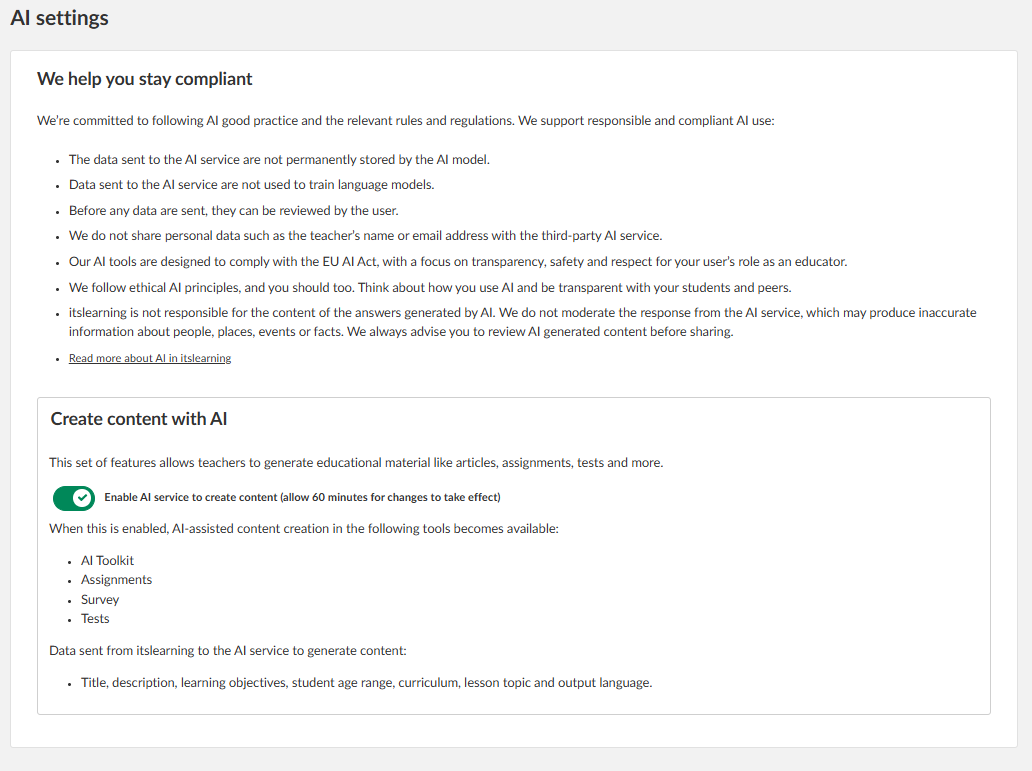
The main AI configuration is located under:
Admin setting: Administration > Edit Global Settings > AI Settings
From here, enable the AI service to allow content creation.
4.2 Default access
By default, access to AI content creation is granted to the following profiles:
- System Administrator
- Administrator
- Staff

4.3 Restricting access
To restrict AI Toolkit access to a specific group of teachers, remove the default profile permissions and replace them with a policy-based approach. Policies can be applied at organisation level or at individual user level.
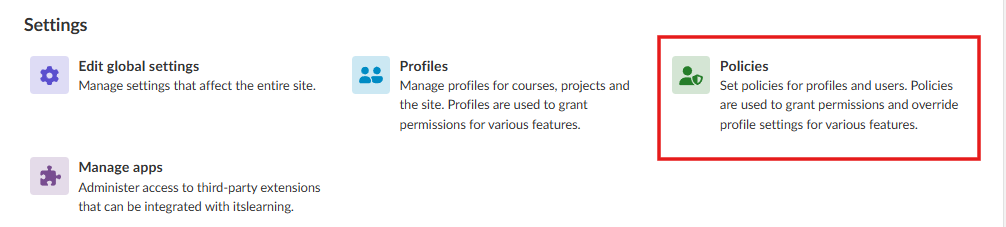
Turn off AI tools for the default profiles, then add the policy AI toolkit
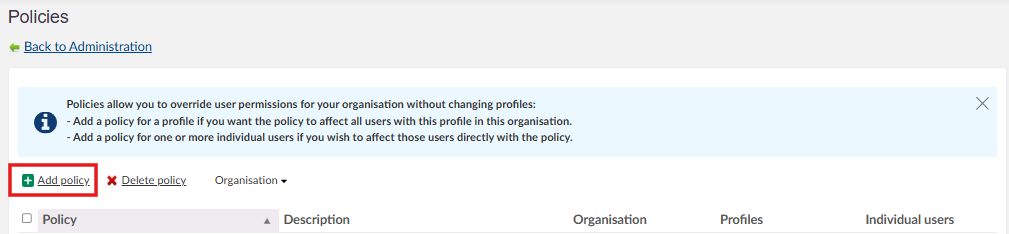
Assign the policy to either profile types or individual users.
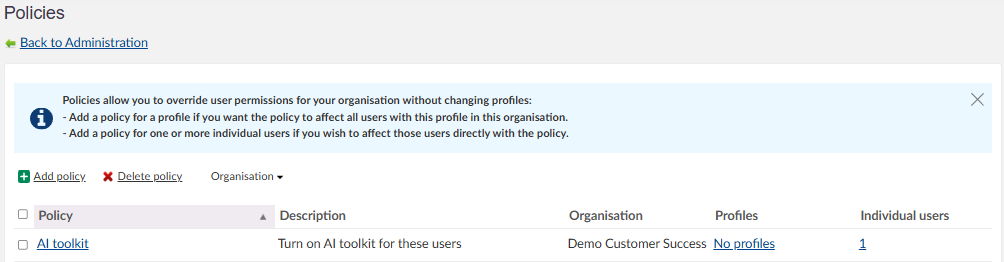
Option A: Individual users (reccomended)
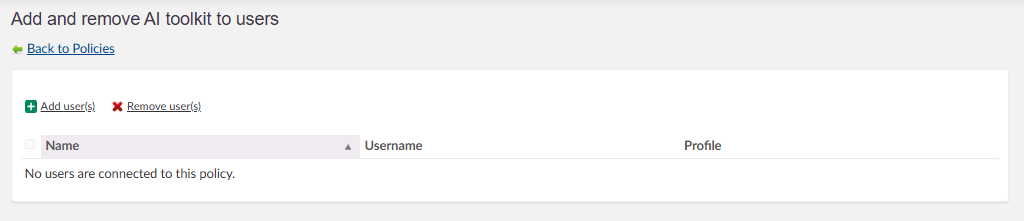
To find a user press "add user"
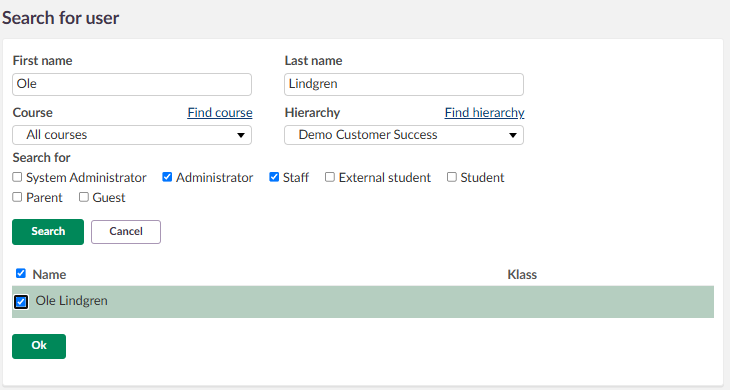
In this window you can search by name, role, hiearchy or a combination of all three. Tick the checkbox next to the users you want to add and click "OK"
The user will now show up on the list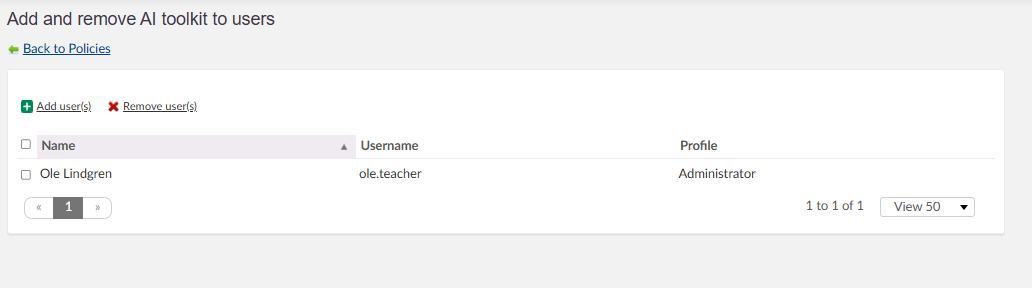
Option B: Profile types
You can always assign a policy to a profile type. In this case you should not need to use this as you have turned off AI tools for standard profiles so you can filter who has access on an individual level.
More Help Resources
Have more questions? Please start with asking your school administrator.
Product Release notes
Stay updated with itslearning latest releases: https://itslearning.com/product-updates
Service Status
Check the current status of itslearning services: https://status.itslearning.com/
Ideas Portal
Share your ideas and help shape the future of itslearning: https://ideas.itslearning.com/
Roadmap
Check out our roadmap: https://itslearning.com/global/roadmap/