Calendar - Overview (Parent)
TABLE OF CONTENTS
Introduction
This article gives parent accounts an overview of the itslearning Calendar: how to view your schedule, show or hide a child's calendar, and subscribe to your calendar from another calendar app.
1 Overview
Selecting Calendar in the top menu opens the Schedule view. This is the only view available in the parent Calendar. It displays your itslearning calendar as a Day, Week or Month grid, and shows events from the calendars you have selected in the sidebar.
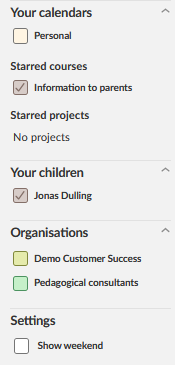
The sidebar lists the calendars available to you:
| Sidebar section | Shows |
|---|---|
| Your calendars | Your Personal calendar. |
| Starred courses | Events from the courses you have starred. |
| Starred projects | Events from any projects you have starred. Shows “No projects” if none apply. |
| Your children | The name of each child linked to your parent account. |
| Organisations | Organisations you belong to. |
Note: The itslearning Calendar is not intended to be used as your primary personal calendar. To see your itslearning schedule in another calendar app, subscribe to it using an iCal feed. See 2.5 Getting an iCal feed for a personal calendar app.
2 Step-by-step instructions
2.1 Opening the Calendar tab
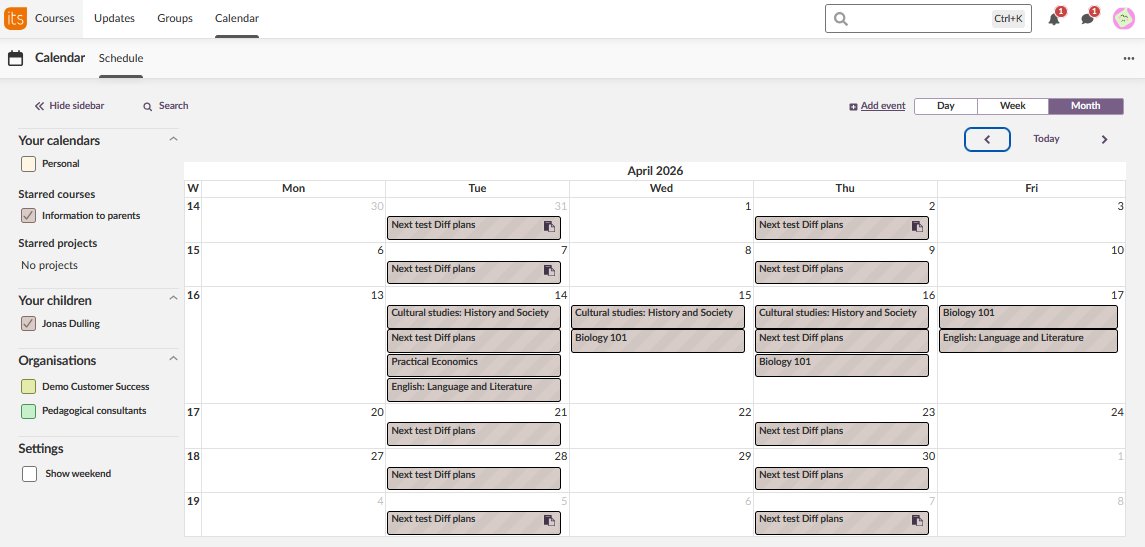
- Select Calendar in the top menu.
- The Schedule view opens, showing your calendar.
2.2 Switching between Day, Week and Month view
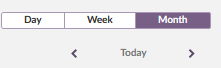
- Select Day, Week or Month in the upper-right corner to change how the schedule is displayed.
- Use the arrow icons to move to the previous or next period.
- Select Today to return to the current date.
2.3 Choosing which calendars to display
- In the sidebar, select or clear the checkbox next to a calendar to show or hide its events in the schedule: your Personal calendar, a starred course or project, a child under Your children, or an organisation.
- Under Settings, select Show weekend to include Saturday and Sunday in the view.
- Select Hide sidebar to collapse the sidebar.
2.4 Adding, editing and moving events
- Select Add event, or select any date in the calendar, to add an event.
- Select an existing event to open its details and edit it.
- Move an event to a different date by dragging and dropping it.
2.5 Getting an iCal feed for a personal calendar app
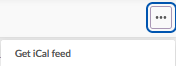
- Select the more options icon (…) in the upper-right corner of the Schedule view.
- Select Get iCal feed.
- Add the feed to your personal calendar app to see your itslearning schedule alongside your other calendars.
Important: This feed covers calendars for courses you are a member of. It does not include your child's calendar.
More Help Resources
Have more questions? Please start with asking your school administrator.
Product Release notes
Stay updated with itslearning latest releases: https://itslearning.com/product-updates
Service Status
Check the current status of itslearning services: https://status.itslearning.com/
Ideas Portal
Share your ideas and help shape the future of itslearning: https://ideas.itslearning.com/
Roadmap
Check out our roadmap: https://itslearning.com/global/roadmap/