Personal Settings - Overview (Parent)
TABLE OF CONTENTS
Introduction
This article explains the personal settings menu available to parent accounts in itslearning. It covers where to find the menu, what each settings option controls, and how to update your profile picture, email address and regional preferences.
1 Overview
Parents open their personal settings from the profile picture in the top-right corner of any page. This menu also gives access to Files, Help, and the option to log out. If more than one child is linked to your parent account, each child's name appears in this menu, allowing you to switch between their parent dashboards.
Selecting Your settings opens a page with the following options:
| Setting | Description |
|---|---|
| Edit profile | Manage your personal information. |
| Customise itslearning | Manage your preferred language, time zone and accessibility options. |
| Change password | Change your itslearning password. |
| Access permissions | Manage access permissions for mobile apps. This is automatically granted when a parent profile is made, but it is possible to completely revoke access to the information for the itslearning app. Note that you can not use the app to follow up your child if you do this. Browser based login will still function. |
| Connected accounts | Manage the personal cloud accounts connected to your itslearning account. (Not relevant for most schools) |
Admin setting: Whether you can change your profile picture, edit information or email address under Edit profile depends on the school's configuration. Some schools allow picture changes, and most schools allow email changes. Because itslearning is not typically used as a primary communication channel with parents, these fields are sometimes locked.
Admin setting: Change password only applies if the school uses a native itslearning login. Most schools sign parents in through SSO instead, in which case this option does not apply.
Note: Connected accounts is not typically relevant for parent accounts.
2 Step-by-step instructions
2.1 Opening your settings menu
- Select the profile picture in the top-right corner of the page.
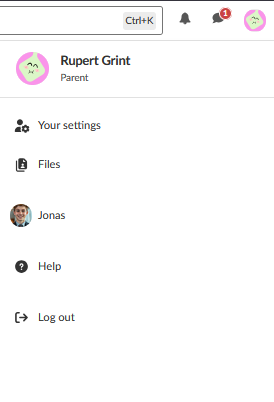
- Select an option from the menu: Your settings, Files, Help, or Log out. If you have more than one child, they will all be listed here. Select a child to switch to that child's parent dashboard.
- Select Your settings to continue to the settings described below.
Your settings: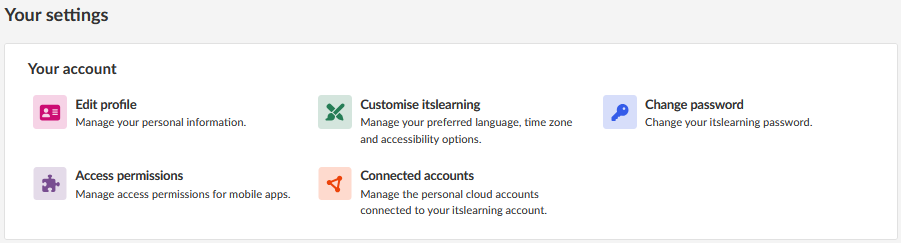
2.2 Changing your profile picture
- From Your settings, select Edit profile.
- On the Personal information tab, select Change picture to upload a new picture, or Remove to delete the current picture.
- Select Save preferences.
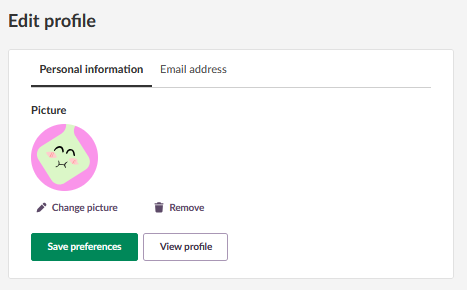
2.3 Changing your email address
- From Your settings, select Edit profile.
- Select the Email address tab.
- Enter your new email address and your current password.
- Select Update email address. A confirmation email is sent to complete the change.
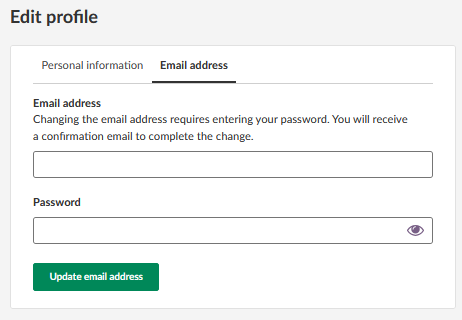
2.4 Customising language, time zone and appearance
- From Your settings, select Customise itslearning.
- Under Regional and language options, select your preferred Language and Formats.
- Under Time zone, select your Region and Nearest city, and choose whether to use 24-hour time format.
- Under Appearance, select a Font: Lato, Atkinson Hyperlegible, Open Dyslexic, or PT Serif.
- Under Accessibility, select Use simplified text editor and/or Use higher contrast if needed.
- Select Save.
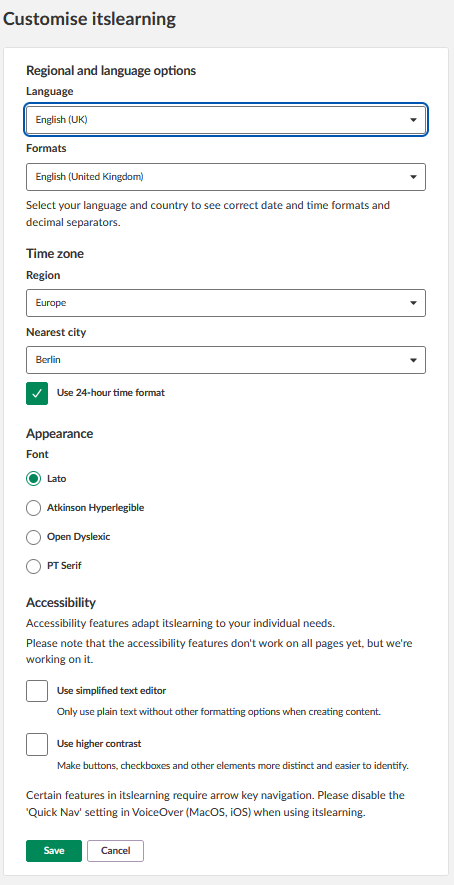
Note: Accessibility features do not yet work on all pages. If you use VoiceOver on macOS or iOS, disable the Quick Nav setting to use itslearning.