Learning Paths – Reference (Teacher)
TABLE OF CONTENTS
- Introduction
- 1 Creating a learning path
- 2 Learning path builder
- 3 Linear steps
- 4 Adaptive paths
- 5 Completing and publishing the path
- 6 Student view
Introduction
A learning path is a sequence of steps that guides students through resources and activities towards a learning goal. Each step contains a single resource, and students progress through the steps in order.
It is also possible to use assessments (such as tests) to create different branches within the same path. This can be used as:
| Option | Description |
|---|---|
| Gatekeeper | Prevent students from continuing until they pass an assessment. |
| Remedial track | Provide additional resources to students who do not pass. |
| Exit ticket | Allow students who pass to skip ahead to the finish. |
1 Creating a learning path
There are two ways to create a learning path: from scratch, or from an existing folder.
1.1 Create from scratch
- In the course, go to Resources > Add resource > Activities > Learning path.
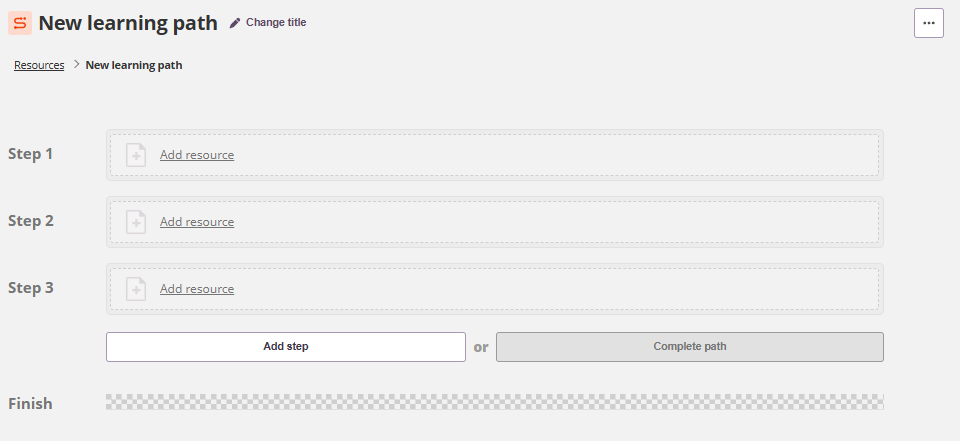
A new learning path is created with three steps by default. Steps can be added or removed as needed.
This approach works best when you already have the content you need in the course, the library, or on your computer.
1.2 Create from folder
You can convert an existing folder into a learning path. This is useful if you have already collected content in a folder.
- Open the folder in Resources.
- Click the three-dot menu (...) and select Make learning path.
A step is created for each resource in the folder. The resources are placed in the same order as they were in the folder, but you can reorder them by dragging and dropping.
The Make learning path option is disabled when:
- The folder contains content that cannot be copied (e.g. Hangman game).
- There is content that already has results.
The option is also not available if the folder is a topic folder (created via the planner) or the root folder.
It is always possible to change a learning path back to a regular folder. This does not affect any results that students may have on activities in the path.
2 Learning path builder
2.1 Adding a step
Click the Add step button to add a new step. New steps are always added at the bottom. To reorder steps, hover over the step to reveal the drag handle (three vertical dots), then drag and drop to the new position.
2.2 Adding content to a step
Each step must contain a single resource. You can add an existing resource from the course, the itslearning Library, or upload from your computer.
To edit the content of a resource, click on its name in the learning path builder.
Note: Access to content is managed by the learning path. It is not possible to manually set permissions on the content of the path, or to change content visibility to students independently.
2.3 Content limitations
The following content cannot be added to a learning path:
- Resources that cannot be copied between courses (e.g. Hangman game).
- Activities (such as assignments) that already have at least one answer or assessment. Either remove the results from these activities, or make a copy without results.
Group assignments are automatically changed to individual assignments when added to a learning path, as group assignments prevent students from progressing at their own pace.
3 Linear steps
By default, all steps allow the student to move to the next step when the resource is completed. For resources such as notes, pages, files, and links, this means the student can move on once they have opened or viewed the resource.
For activities such as tests, surveys, assignments, and tasks, the student must complete the activity before they can move on.
For activities that can be assessed (tests, assignments, tasks), the teacher can configure the path to branch to a different step based on results.
3.1 Assessment tools
| Tool | Trigger | Description |
|---|---|---|
| Assignment | Submitted | The student can move to the next step when the answer is submitted. No teacher intervention is needed. |
| Completed | The teacher must review the student's work before the student can move on. | |
| Task | Completed | The task can be completed by the teacher or the student. For the student to complete it, the option "Also allow participants to set completion" must be enabled. |
| Test | Completed | The student can move on once the test is completed. If the test contains open answer questions requiring manual assessment, the student cannot continue until the teacher has assessed those questions. |
4 Adaptive paths
You can configure a different path based on the result of an assessment. For tests, assignments, and tasks, select Student scores at least as the trigger. This opens three additional fields:
- The minimum score required to pass.
- Which step the student goes to when they pass.
- Which step the student goes to when they do not pass.
4.1 Remedial track
Students who do not pass the assessment are given additional resources in the following steps. Students who pass skip ahead to a step further down the path.
4.2 Exit ticket
Students who pass the assessment are taken directly to the finish of the path.
4.3 Gatekeeper
Students cannot move to the next step unless they pass the assessment. Students who do not pass must retake the activity.
Tip: Consider setting unlimited attempts for tests to avoid students getting stuck.
5 Completing and publishing the path
All changes in the learning path builder are saved automatically. When all steps have a resource, click the Complete path button.
For students to see and start the learning path, it must be made visible using the visibility toggle.
As long as no student has started the learning path, you can make changes by clicking Edit path. When editing, the visibility is automatically changed to prevent students from starting while changes are being made. Remember to make the path visible again after editing.
6 Student view
Students can find the learning path in Course Resources. A learning path can also be added to an announcement or included in the planner.
When a student opens a learning path, the learning path player opens in full screen. It displays a menu on the left and the content of the selected step on the right.
6.1 Progress messages
A message is displayed in the bottom right corner when the next step becomes available. The following messages may appear:
| Condition | Message |
|---|---|
| The student has viewed (opened) the resource. | |
| The student has reached the end of the path. | |
| The student has completed an assessment and can continue. For assignments, submitting the assignment can also unlock the next step. | |
| The student has completed an assessment, but the teacher must assess it before the student can continue. | |
| The student did not meet the requirement (such as passing a test) and must retake the activity. |
6.2 Viewing progress
Teachers can view each student's progress in the 360° report.
For assignments, tasks, and tests included in the learning path, progress can also be viewed within those tools. Students who have not yet reached a particular step — or have skipped it via a remedial track or exit ticket — are not shown in the student list for that step's activity.
More Help Resources
Have more questions? Please start with asking your school administrator.
Product Release notes
Stay updated with itslearning latest releases: https://itslearning.com/product-updates
Service Status
Check the current status of itslearning services: https://status.itslearning.com/
Ideas Portal
Share your ideas and help shape the future of itslearning: https://ideas.itslearning.com/
Roadmap
Check out our roadmap: https://itslearning.com/global/roadmap/