Rich Text Editor - Reference
TABLE OF CONTENTS
- Introduction
- 1 Overview
- 2 Prerequisites & requirements
- 3 Getting started
- 4 Features & functions
- 5 Step-by-step workflows
- 6 Settings & customisation
- 7 Technical information
- 8 HTML and CSS filtering
- 9 Troubleshooting
- 10 Additional resources
- 9 Troubleshooting
- 10 Additional resources
Introduction
The Rich-text editor is a content creation tool used throughout itslearning for formatting text and integrating media. Use the Rich-text editor when creating course content, assignments, discussions, announcements, or other text-based materials. The editor provides word processing functions alongside tools for embedding videos, recording audio, inserting mathematical formulas, and linking to course resources.
1 Overview
Teachers and students with appropriate course permissions can access the Rich-text editor when creating or editing content. The editor is used in numerous locations throughout the platform and appears in either a full or reduced version, depending on where it is opened.
Note: Not all functions are available for all users at all times. This can depend on the setup of your itslearning site.
2 Prerequisites & requirements
User permissions required:
- Editing rights in the relevant course area (varies by location)
- For media uploads: appropriate file storage quota
System/browser requirements:
- Modern web browser (Chrome, Firefox, Safari, Edge)
- Microphone access (for audio recording features)
- Camera access (for video recording features)
- Stable internet connection for media uploads
Prerequisite: Extension Library features require platform-level enablement. Teams and Google Meet integration require institutional configuration.
3 Getting started
3.1 Accessing the editor
The Rich-text editor appears automatically when creating or editing content in itslearning. You will encounter it in numerous locations throughout the platform, but in some places a newer version with fewer options may be encountered.
- Course content pages
- Assignment creation
- Discussion posts
- Announcement (new, simplified version)
- Messages (new, simplified version)
3.2 Expanding the full toolbar
In some cases, you might initially see a reduced version of the editor where not all functions are displayed.
To access all editor functions:
- Look for the "More options" button in the toolbar.
- Click "More options" to expand the hidden icons.
The full toolbar will then display all available editing functions.
4 Features & functions
Note that not all functions are available for all users at all times. This can depend on the setup of your itslearning site.
4.1 Text formatting tools
The first section of the toolbar contains standard text formatting functions. These symbols and functions should be familiar from other word processing programmes.

Available formatting options:
- Font selection
- Text size (Normal, Heading, etc.)
- Bold, Italic, Underline
- Text colour
- Background colour
- Special characters (Ω)
- Text alignment (left, centre, right, justify)
4.2 Text alignment and structure
The next section provides tools for structuring your content.

Structure functions:
- Subscript (lower text on the line)
- Superscript (heighten text on the line)
- Increase indentation
- Decrease indentation
- Numbered lists
- Bullet points
- Language definition for text sections
4.3 Media integration icons
The toolbar includes numerous icons for integrating different types of media and content.

| Icon | Function |
|---|---|
| Anchor: Sets a marker ("anchor") in a text that you can directly refer to with a link. | |
Link: Inserts a link, for example to another webpage or an anchor. When you paste a link, the editor tries to embed the content behind it. There are three possible outcomes:
| |
| Table: Inserts a table. | |
| Smiley: Opens a selection of smileys to insert into the text. | |
| Tree link: Inserts a link to a resource in the course you are in. | |
| File from "My web files": Sets a link to a file in your personal storage area on itslearning. | |
| Image: Inserts an image from the computer, or from your files in itslearning. | |
| Audio recording: Here you can record audio or upload an audio file. | |
| Video recording: Here you can record a video or upload a video file. | |
 | iMathEQ formula editor: Inserts mathematical symbols and formulas. |
| Embed video: Here you can embed a video from another webpage. | |
| Teams meeting: Here you can create a Teams meeting for your course, and add the link to this page. | |
| Google Meet: Here you can create a Meet room for your course and add the link to this page. | |
| Extension library: Here you can access additional functions enabled for your platform. |
4.4 Additional functions
The next section of the toolbar provides:
- Undo (regret actions in the editor window)
- Redo (go forward with actions)
- Cut, Copy, and Paste shortcuts

4.5 Display options
The final icons are:
- The "Source" button, which displays your content in HTML code format
- The check accessibility button
- Full screen editor, especially useful for smaller screens

5 Step-by-step workflows
5.1 Embedding media content
Objective: Add external video or media content.
Steps:
- Copy the URL of the video or media content.
- Click the Link icon or Embed video icon.
- Paste the URL.
- The editor will attempt to embed the content automatically.
- If embedding fails, the link will appear as a standard hyperlink.
Result: Embedded media content displayed directly in your page, or a link to external content.
5.2 Inserting tables
Objective: Create a structured table for data presentation.
Steps:
- Click the Table icon.
- Select the number of rows and columns.
- Click to insert the table.
- Fill in your content.
- Use table properties to adjust formatting as needed.
Result: A formatted table for organising information.
5.3 Recording audio and video
Objective: Create recorded content directly in itslearning.
For audio recording:
- Click the Audio recording icon.
- Allow microphone access if prompted.
- Click record and speak.
- Click stop when finished.
- Save or upload your recording.
For video recording:
- Click the Video recording icon.
- Allow camera and microphone access if prompted.
- Click record.
- Click stop when finished.
- Save or upload your recording.
Result: Embedded audio or video content created directly within itslearning.
5.4 Creating mathematical formulas
Objective: Insert mathematical notation and formulas.
Steps:
- Click the iMathEQ formula editor icon.
- Use the formula editor interface to build your equation.
- Click Insert when complete.
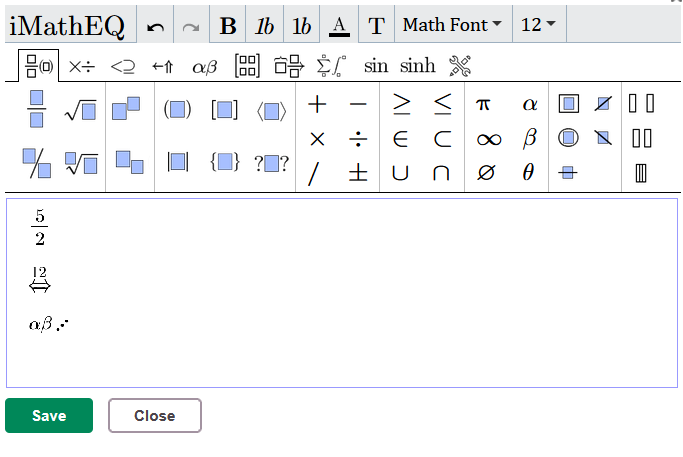
Result: Professional mathematical notation displayed in your content.
6 Settings & customisation
6.1 Language selection
Define which language is used when writing specific text sections. This assists with spell-checking and accessibility features.
To set language:
- Select the text.
- Choose the language from the language dropdown in the alignment section.
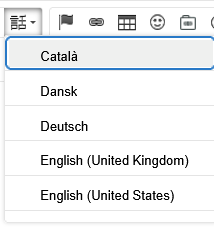
- The spell-checker will use the selected language for that text.
6.2 Source code view
Advanced users can view and edit the HTML source code directly.
To access source view:
- Click the "Source" button on the far right of the toolbar.
- View or edit the HTML code.
- Click "Source" again to return to visual editing mode.
Use cases:
- Fine-tuning formatting
- Troubleshooting display issues
- Copying clean HTML for use elsewhere
7 Technical information
7.1 Editor versions
The Rich-text editor may appear in reduced or full versions depending on the context within itslearning. The reduced version displays core formatting functions, while the full version shows all available tools.
7.2 Link embedding behaviour
When pasting URLs, the editor follows this hierarchy:
- First attempt: Retrieve embed code automatically.
- Second attempt: Build an object based on page metadata.
- Final fallback: Display as a standard hyperlink.
This behaviour ensures that content displays optimally when embedding is supported, whilst maintaining functionality when it is not.
7.3 Supported media types
The editor supports:
- Standard web video formats through embedding
- Audio recordings in common formats (MP3, M4A)
- Video recordings in common formats (MP4, WebM)
- Images (JPEG, PNG, GIF)
- External content from supported platforms (YouTube, Vimeo, etc.)
8 HTML and CSS filtering
Rich-text content is displayed to other users as part of the itslearning interface. Unrestricted HTML and CSS could be used to run scripts or other active content, load content from untrusted external sources, place content over buttons, links or other controls, hide or imitate parts of the itslearning interface, change the layout outside the author’s content area, or track users through external resources.
For this reason, itslearning checks HTML elements, attributes and CSS when content is saved. The filtering applies to content created with the toolbar, entered in Source view, pasted from another application, or imported from another system.
Important: Source view does not bypass the security filter.
8.1 Allowed HTML code levels
Admin setting: A user’s effective Allowed HTML code level is assigned by the site administrator through Profiles or Policies.
The levels are cumulative:
- Restricted includes the elements available at Highly restricted.
- Less restricted includes the elements available at Restricted.
| Level | Summary |
|---|---|
| Highly restricted | Basic text formatting without user-supplied attributes or styling |
| Restricted | Standard rich content, including images, links, tables, headings, lists, audio and video |
| Less restricted | Restricted content plus embedded frames, classes, IDs and additional formatting attributes |
8.2 Highly restricted
Allowed elements:
p, b, i, u, em, emphasis, strong, pre, br
Note: The non-standard emphasis element exists for compatibility. Authors should normally use the editor’s standard emphasis function.
Allowed attributes: None.
This means Highly restricted does not retain:
- Inline styling
- Classes or IDs
- Language or title attributes
- Image dimensions
- Links or link destinations
- Internal editor data attributes
Images, tables, headings, links, audio, video and embedded frames are removed at this level.
8.3 Restricted
Restricted includes all Highly restricted elements and adds the following.
Media and links:
oembed, video, audio, source, img, a
Text and semantic structure:
abbr, address, article, aside, bdi, bdo, cite, code, del, details, dfn, figcaption, figure, ins, kbd, mark, meter, q, s, samp, section, summary, time, wbr, blockquote
Ruby annotations:
ruby, rb, rp, rt, rtc
Tables:
table, caption, col, colgroup, thead, tbody, tfoot, tr, td, th
Lists:
ol, ul, dl, li, dt, dd
Containers, headings and separators:
span, div, h1, h2, h3, h4, h5, h6, hr
Text positioning and legacy formatting:
sup, sub, big, small, font, align, vspace, hspace
Note: Some names in this group are retained for compatibility with older content and are not standard modern HTML elements.
Mathematical content:
math, mrow, mo, mtable, mtr, mtd, mi, mtet, munder, mn, mtext, mfrac, msubsup, munderover, mover, msup, msub, msqrt, mroot
Note: Some mathematical content may be created and managed by editor tools rather than entered manually.
Allowed attributes:
Media, links and embedded content:
controls, loop, preload, autoplay, muted, frameborder, sandbox, target, src, type, alt, title, allowfullscreen, mozallowfullscreen, webkitallowfullscreen
Dimensions, direction, tables and lists:
hspace, width, height, align, vspace, border, dir, valign, colspan, cellspacing, cellpadding, rowspan, start
Styling and language:
color, style, lang
Internal editor and content attributes:
data-link-id, data-link-target-element-id, data-richtextfile-id, data-richtextfile-tempfile-filerepoid, data-plugin-settings, data-mathml, data-tex
Link destinations using href are also retained. Link destinations are handled separately from the finite attribute list and may be subject to additional URL security checks.
Important: Restricted does not retain user-supplied class or id attributes.
8.4 Less restricted
Less restricted includes all Restricted content and additionally allows embedded frames using iframe.
It also adds the following attributes:
class, id, size, face, font, data-slideshow-settings
This permits:
- Classes and IDs on retained content
- Additional legacy font formatting
- Slideshow settings created by supported editor functionality
- Embedded frames
Note: External embedded content may still be checked against separate approved-service, URL or domain rules.
Important: The configuration contains a legacy element named o, but current testing shows that it is removed when content is saved. It should therefore not be treated as a supported authoring element.
8.5 CSS and inline styling
Highly restricted removes the complete inline style attribute.
Restricted and Less restricted retain inline styling, but the contents are passed through a separate CSS security filter.
Verified retained CSS properties:
color, background-color, font-size, font-family, text-align, margin, margin-left, padding, border, border-collapse, border-spacing, width, height, max-width
Current testing also confirms that the following types of values are retained where appropriate:
- Pixel values
- Integer and decimal percentages
- Viewport-width units
- Automatic height
- Calculated width expressions
- Multiple margin and padding values
- Hexadecimal colours
Examples of responsive image styling that are retained at Restricted and Less restricted include:
- A percentage width
- A maximum width of 100 per cent
- A width of 100 per cent
- Automatic height
Removed CSS properties:
display, position, top, left, z-index, opacity, object-fit, aspect-ratio
Note: The positioning, stacking and opacity restrictions help prevent content from covering, hiding or imitating parts of the itslearning interface.
When all declarations inside an inline style are rejected, the element may remain with an empty style attribute.
Note: The lists above describe verified current behaviour. CSS properties not listed should not be assumed to be supported until they have been confirmed against the current CSS filter.
8.6 Embedded style sheets
Embedded style sheets and style elements are not supported at Highly restricted, Restricted or Less restricted.
Important: When a style element is removed, its contents may remain as visible plain text. Authors should therefore not paste complete style sheets into Source view. Use supported inline styling instead.
8.7 What happens to unsupported content
The result depends on the type of content being filtered:
- An unsupported container element is normally removed while its text remains.
- An unsupported image or other element without child text may disappear completely.
- Unsupported attributes are removed from an otherwise supported element.
- Unsupported CSS declarations are removed from an otherwise retained inline style.
- HTML comments are removed.
- Attribute order, whitespace and empty Boolean attributes may be normalised when the content is saved.
8.8 Image widths and responsive images
The Image Properties dialog in the full editor accepts numeric width and height values. It does not provide an option for percentage widths.
Note: This is a limitation of the editor dialog, not a restriction imposed by the Restricted or Less restricted HTML levels.
Advanced users can enter percentage widths through Source view. Verified supported approaches at Restricted and Less restricted include:
- Percentage-based width attributes
- Percentage-based inline width
- Maximum width of 100 per cent
- Width of 100 per cent with automatic height
Highly restricted does not retain images.
The final rendered size can also be affected by the surrounding page layout and product stylesheet.
8.9 Additional findings confirmed through testing
Note: The findings in this section were confirmed through direct testing in a live itslearning course content area at the Less restricted level, in August 2026. They supplement, and in some cases go beyond, the properties and behaviours described earlier in this section.
Additional CSS properties confirmed retained:
min-width, min-height, font-family, text-align, letter-spacing, text-decoration, text-transform, text-shadow, float, clear, list-style-type, table-layout, line-height
Also confirmed:
- Named CSS colours (for example
tomato,lightyellow), not only hexadecimal values currentColorrgba()andhsla(), including the alpha (transparency) channel- Additional length units:
em,rem,pt,cm,ch(alongside pixel values, percentages and viewport-width units already confirmed)
Additional CSS properties confirmed removed:
outline, filter, background-image (including url() and linear-gradient()), white-space, vertical-align
Important: border-radius, box-shadow and transform were explicitly tested and confirmed not retained in this editor. Content using these properties renders as plain rectangular boxes with no shadow or rotation.
Element and attribute behaviour notes:
| Element/attribute | Confirmed behaviour |
|---|---|
<meter> | The element itself is retained, but its value, min and max attributes are stripped. The meter renders without reflecting the intended value. |
align attribute on <img> | Does not cause surrounding text to wrap around the image. This differs from the CSS float: left / float: right properties, which are confirmed to wrap text as expected. |
Note: The following have not yet been tested and should not be assumed either way: target and title attributes on links, data-* custom attributes, class/id retention, the datetime attribute on <time>, the legacy <o> element, object-fit/aspect-ratio, and cursor (which can only be confirmed by hovering over live content, not from a static view).
8.10 What this means for your content
The sections above describe the filter in technical terms. This section translates the same findings into plain questions about what you can actually create, without needing to read any code.
| What you want to do | Works? | What you will actually see |
|---|---|---|
| Give a text box a coloured background to make it stand out | ✓ | Coloured background, exactly as designed |
| Give a box rounded corners | ✗ | Always renders as a plain square-cornered box |
| Add a drop shadow behind a coloured box | ✗ | No shadow appears, regardless of what was set up |
| Add a shadow behind text (letters), not a box | ✓ | Text like this, with a visible shadow |
| Tilt or rotate a box slightly for a decorative effect | ✗ | Always renders straight, never rotated |
| Make text wrap around a picture, like in a newspaper column | ✓ | Works, but only when set up in Source view. The ordinary left/right alignment button in the image tool does not achieve this – the text simply continues below the picture instead. |
| Add extra spacing between letters, for a title or heading effect | ✓ | Spaced out like this |
| Underline text with a coloured or wavy line instead of a plain one | ✓ | Underlined like this |
| Show text automatically in capital letters, without retyping it | ✓ | shown like this |
| Increase the space between lines of text, for readability | ✓ | Works as expected |
| Keep exact spacing and line breaks as typed (for example a poem, a postal address, or a code sample) | ✗ | Extra spaces and line breaks typed directly may collapse into a single line. Use a real line break (Enter, or the line break tool) or a list instead of relying on spacing. |
| Line up content at the top, middle or bottom inside a table cell | ✗ | Content always sits in the same position regardless of what was set up |
| Use a picture as the background behind a text box | ✗ | No picture appears, only a plain colour if one was also set |
| Use a smooth colour blend (gradient) as a background | ✗ | Renders as a flat, single colour instead |
| Layer two colours so they blend softly into each other | ✓ | Works as expected |
| Show a progress or completion bar filled to a specific amount | ▲ | The bar shape appears, but the fill amount is not kept. It will not show 60 per cent, 90 per cent, or any specific value – consider building the visual with a plain coloured box instead if an exact fill level matters. |
Note: A green tick means the effect works reliably. A red cross means it will not appear at all, however it is set up. An orange triangle means it partly works, but not in the way you might expect.
9 Troubleshooting
9.1 Common issues
Problem: Editor toolbar is incomplete or missing functions
Solution:
- Look for the "More options" button.
- Click "More options" to expand hidden icons.
- If functions remain unavailable, verify your permissions for the content area.
Problem: Pasted content appears with unexpected formatting
Solution:
- Use the Source view to examine the HTML code.
- Consider pasting as plain text first, then reformatting.
- Use undo (Ctrl+Z / Cmd+Z) if formatting goes wrong.
Problem: Cannot embed video from external source
Solution:
- Verify the video URL is correct.
- Check that the external platform supports embedding.
- If embedding fails, the link will still work as a standard hyperlink.
- Alternative: upload video files directly if embedding is not available.
9.2 Missing toolbar functions
Problem: Extension Library or integration icons (Teams, Google Meet) not visible
Cause: These features require platform-level enablement by your institution.
Solution: Contact your itslearning administrator to verify which features are enabled for your platform.
10 Additional resources
More help resources
Have more questions? Please start by asking your school administrator.
Product release notes
Stay updated with the latest itslearning releases: https://itslearning.com/product-updates
Service status
Check the current status of itslearning services: https://status.itslearning.com/
Ideas portal
Share your ideas and help shape the future of itslearning: https://ideas.itslearning.com/
Roadmap
Check out our roadmap: https://itslearning.com/global/roadmap/
9 Troubleshooting
9.1 Common issues
Problem: Editor toolbar is incomplete or missing functions
Solution:
- Look for the "More options" button.
- Click "More options" to expand hidden icons.
- If functions remain unavailable, verify your permissions for the content area.
Problem: Pasted content appears with unexpected formatting
Solution:
- Use the Source view to examine the HTML code.
- Consider pasting as plain text first, then reformatting.
- Use undo (Ctrl+Z / Cmd+Z) if formatting goes wrong.
Problem: Cannot embed video from external source
Solution:
- Verify the video URL is correct.
- Check that the external platform supports embedding.
- If embedding fails, the link will still work as a standard hyperlink.
- Alternative: upload video files directly if embedding is not available.
9.2 Missing toolbar functions
Problem: Extension Library or integration icons (Teams, Google Meet) not visible
Cause: These features require platform-level enablement by your institution.
Solution: Contact your itslearning administrator to verify which features are enabled for your platform.
10 Additional resources
More help resources
Have more questions? Please start by asking your school administrator.
Product release notes
Stay updated with the latest itslearning releases: https://itslearning.com/product-updates
Service status
Check the current status of itslearning services: https://status.itslearning.com/
Ideas portal
Share your ideas and help shape the future of itslearning: https://ideas.itslearning.com/
Roadmap
Check out our roadmap: https://itslearning.com/global/roadmap/