Setting up the course catalogue (admin)
TABLE OF CONTENTS
- 1 Overview
- 2 Recommended Prerequisites
- 3 Initial Configuration
- 4 External Course Catalogue Configuration
- 5 Internal Course Catalogue Configuration
- 6 User Permissions and Rights
- 7 Subject Management
- 8 Notification Configuration
- 9 Managing courses and external users
- 10 Troubleshooting
Introduction
This article explains how to set up and manage the internal and external course catalogue: enabling the catalogue, configuring access, registration and notifications, setting user permissions, and managing subjects, courses and external users.
1 Overview
The course catalogue functionality enables users to discover and enrol in courses within your itslearning environment. Two distinct catalogue types can operate simultaneously:
Internal Course Catalogue: Restricts course visibility to authenticated users within your organization. Users must possess valid itslearning accounts to access and enrol in courses.
External Course Catalogue: Provides anonymous access to course listings. External users can browse available courses and create accounts during the enrolment process.
System Requirements
- Administrative access to Edit global settings
- Understanding of organizational user structure and permissions
- Defined user roles and profile configurations
Implementation Impact
- Course visibility changes across the organization
- New user registration workflows for external users
- Additional notification requirements for course teachers
- Subject taxonomy management requirements
2 Recommended Prerequisites
Before configuring the course catalogue, ensure the following requirements are met:
Administrative Access
- System administrator profile with global settings modification rights
- Access to user profile and policy management
- Permission to configure organizational features
Organizational Setup
- Defined user profiles for different roles (students, teachers, administrators)
- Established school/organization structure within itslearning
- Clear understanding of course access requirements per user type
Content Preparation
- Subject categories defined for course classification
- Terms and conditions document prepared (for external catalogue)
- Organizational policies established for external user management
Note: Course profile settings: for teachers to have the tab Applicants on Participants page the teacher course profile must be "allowed to manage participants and groups when course is synchronised." This setting is critical to ensure a teacher can control who enters a course.
3 Initial Configuration
3.1 Enabling Course Catalogue Functionality
Admin setting: Navigate to Administration > Edit global settings > Features and security
- Locate the course catalogue sections
- Enable the catalogue types as needed:
- Enable external course catalogue: For anonymous users with account creation
- Enable internal course catalogue: For authenticated users only
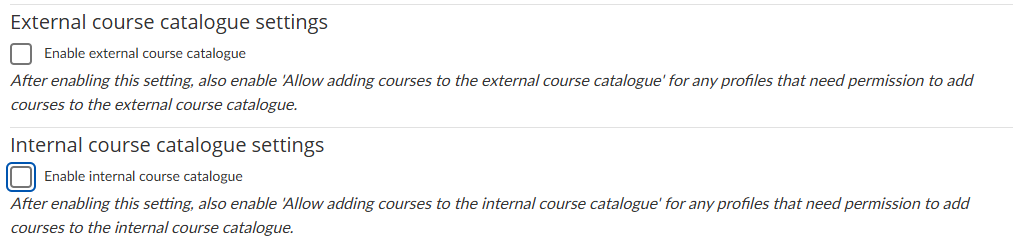
Important: After enabling either setting, you must also enable the corresponding permission "Allow adding courses to the [external/internal] course catalogue" for profiles that need to add courses to the catalogue. You should also check the different permissions on other profiles on your site.
4 External Course Catalogue Configuration
4.1 Configuration Options
Navigate to the external course catalogue settings section to configure access methods:
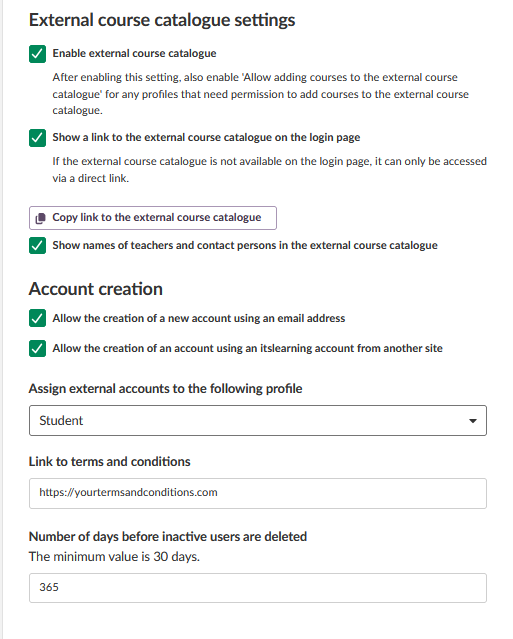
Note: This is an example screenshot where both internal and external catalogues are enabled.
4.1.1 Access Settings
| Setting | Description | Impact |
|---|---|---|
| Show a link to the external course catalogue on the login page | Displays "External course catalogue" link on login page | Users can access catalogue without logging in |
| Copy link to the external course catalogue | Button to copy direct URL to clipboard | Can be placed on organizational websites |
| Show names of teachers and contact persons in the internal and external course catalogue | Displays the names of teachers and contact persons in the course catalogue | When checked, teacher names are shown in the internal/external course catalogue |
Note: If the external course catalogue is not available on the login page, it can only be accessed via the direct link.
Note: By default, when a course is added to the course catalogue, the names of its teachers are shown on the course. Clear Show names of teachers and contact persons in the external course catalogue to hide them.
4.1.2 Account Creation Settings
Email-Based Account Creation
Setting: Allow the creation of a new account using an email address
When enabled:
- Anonymous users can create accounts using email addresses
- Login credentials are sent via email after registration
- Users must verify email addresses before account activation
Cross-Site Account Creation
Setting: Allow the creation of an account using an itslearning account from another site
When enabled:
- Users with existing itslearning accounts from collaborating organizations can create accounts
- Role verification occurs through the external itslearning site
- Enables staff-only course access for external organizational users
4.1.3 Profile Assignment Configuration
External User Profile Settings
Setting: Assign external accounts to the following profile
Configuration requirements:
- Select any existing non-administrator profile from dropdown
- Chosen profile determines default course role for external users
- Profile must have "Use this profile for default membership" enabled under Profiles - Courses
- Profile must also have "Allowed to use standard itslearning login" enabled under Profiles - Functionality
Recommendation: Consider creating a dedicated profile specifically for external users to control their access and functionality. This allows you to configure appropriate restrictions, such as limiting messaging capabilities to course participants only, or restricting access to certain site features that should remain internal to your organization.
4.1.4 Legal and Compliance Settings
Terms and Conditions
Setting: Link to terms and conditions
Requirements:
- External users must agree to terms during account creation
- Enter complete URL to accessible terms and conditions document
- Required for data protection compliance when storing external user progress data
User Data Management
Setting: Number of days before inactive users are deleted
Configuration options:
- Enter number of days: Field is initially empty - Sysadmin must define period of time.
- Example shown: 100 days
- Inactive external users are automatically deleted after specified period
5 Internal Course Catalogue Configuration
5.1 Registration Type Configuration
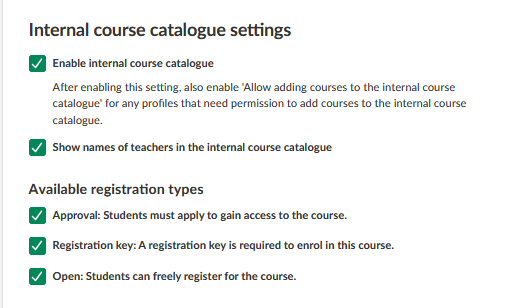
Configure available registration methods for internal course catalogue:
5.1.1 Available Registration Types
| Registration Type | Description | Teacher Requirements | User Experience |
|---|---|---|---|
| Approval | Students must apply to gain access to the course | Review applications on Participants page > Applicants tab | Must wait for teacher approval |
| Registration key | A registration key is required to enrol in this course | Create and distribute registration codes | Immediate enrolment with correct key |
| Open | Students can freely register for the course | No action required | Immediate enrolment |
Note: Multiple registration types can be selected for a site. System administrator controls which types are available organization-wide. Teachers will choose the appropriate type when adding courses to the catalogue.
5.2 Teacher Name Visibility
Setting: Show names of teachers in the internal course catalogue
- When checked, the names of course teachers are shown in the internal course catalogue
- When unchecked, teacher names are hidden in the internal course catalogue
Note: A corresponding setting is available for the external course catalogue. See section 4.1.1.
5.3 Unlisted Courses
When adding a course to the internal course catalogue, teachers can select Unlisted (available only via link or QR code) under Availability in internal course catalogue.
- An unlisted course is hidden in the internal course catalogue
- Users can still enrol in the course via the direct link or QR code
6 User Permissions and Rights
6.1 Profile-Based Permissions
After enabling course catalogue functionality, configure user access through profiles or policies. The course catalogue permissions appear in the Courses section of profile management.
6.1.2 Selected Course Catalogue Access Permissions
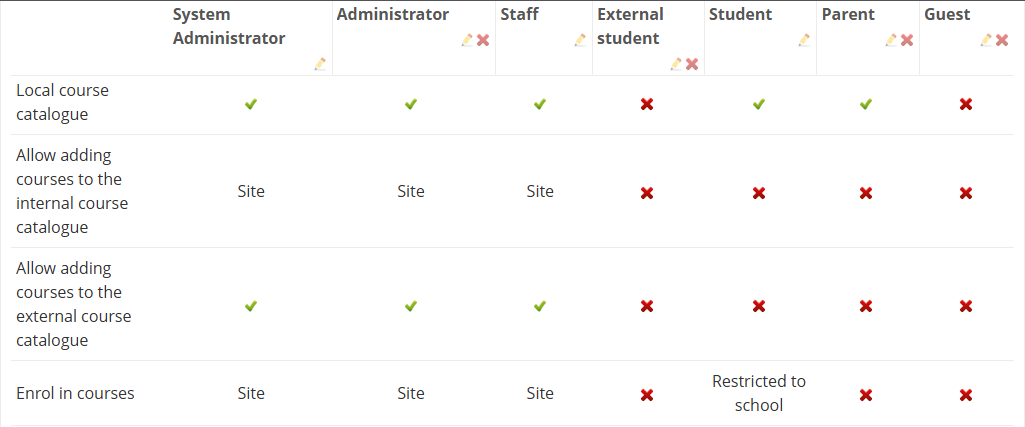
User Right: Local course catalogue
- Function: Determines which profiles can view internal course catalogue and enrol in courses
- Configuration: Enable for profiles that should have course discovery access
User Right: Allow adding courses to the internal course catalogue
- Scope Options:
- Site: User can make courses available to all users on the itslearning site
- School: User can make course available to all users in their school
- Function: Enables course teachers to add their courses to internal catalogue
User Right: Allow adding courses to the external course catalogue
- Available to: System Administrator, Administrator, Staff profiles only
- Function: Enables course teachers to add their courses to external catalogue
- Note: No scope restrictions apply to external catalogue
6.2 Optional: Policy-Based Permissions
Alternative to profile-based permissions:
- Create specific policies for course catalogue access
- Assign policies to individual users as needed
- Provides granular control over catalogue functionality
7 Subject Management
7.1 Accessing Subject Configuration
Admin setting: Navigate to Edit global settings > Course catalogue subjects to manage available subjects.
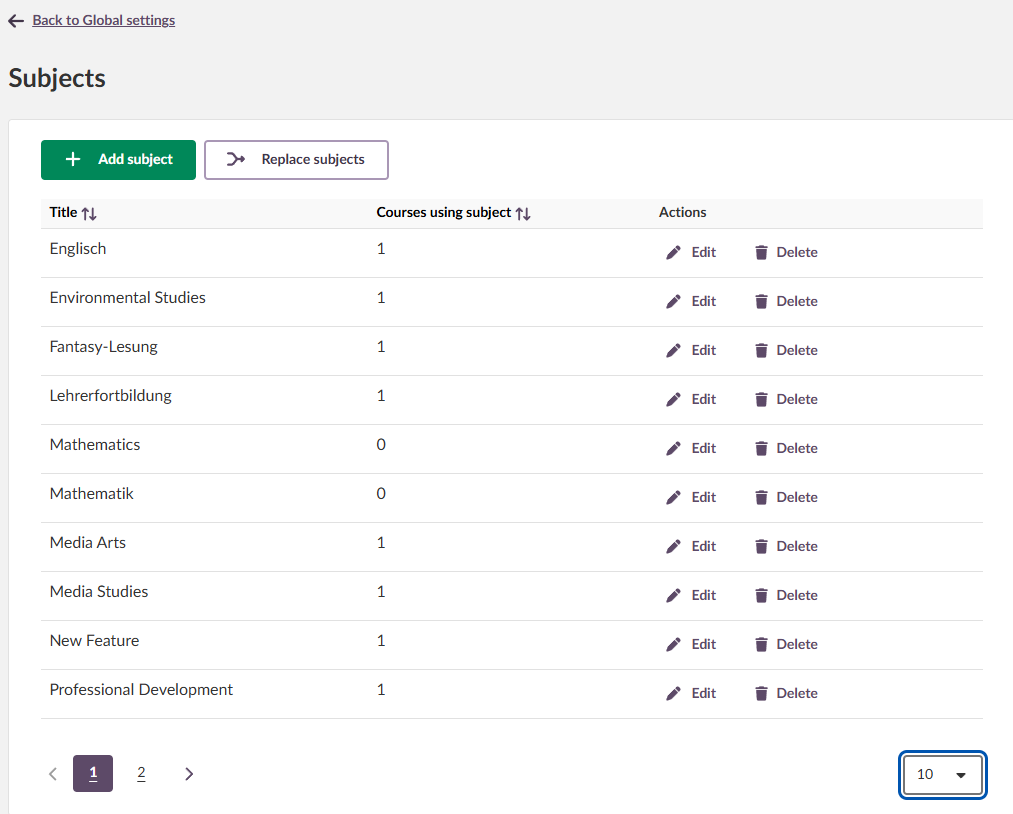
7.1.2 Subject Management Actions
Adding New Subjects
- Click Add subject
- Enter subject name
- Save to make available for course tagging
Managing Existing Subjects
| Action | Description | Impact |
|---|---|---|
| Replace subjects | Merge similar subjects (e.g., "Math" and "Mathematics") | All courses tagged with replaced subject get new subject tag |
| Edit | Change subject name | Updated name appears in all tagged courses |
| Delete | Remove subject from system | Subject removed from all tagged courses and selection options |
Teacher-Added Subjects
- Teachers can create subjects when adding courses to catalogue
- Teacher-created subjects appear in administration subject list
- System administrators can manage teacher-created subjects using standard actions
Subject Usage Information
The "Courses using subject" column shows the number of courses currently tagged with each subject. This information helps identify:
- Subjects with low usage that may be candidates for removal or replacement
- Popular subjects that are actively used across multiple courses
8 Notification Configuration
8.1 Daily Notification Types
Course teachers receive aggregated daily notifications for:
- New enrolment applications requiring approval
- New enrolments for courses with registration key or open enrolment
8.1.2 Notification Timing Configuration
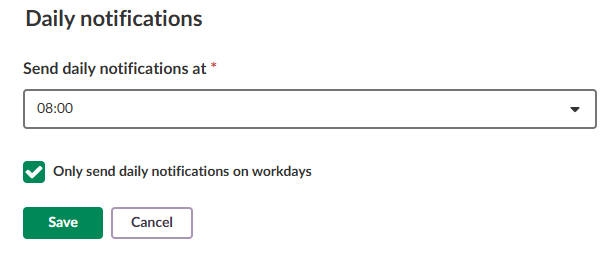
Admin setting: Navigate to Edit global settings > Regional settings to configure notification timing.
The Daily notifications section appears at the bottom of the Regional settings page. Changing the notification time only affects notifications that are send from that moment onwards.
Configuration Options
| Setting | Description | Interface Element |
|---|---|---|
| Send daily notifications at | Time when aggregated notifications are sent | Dropdown time selector (e.g., 08:00) |
| Only send daily notifications on workdays | Prevents weekend notifications | Checkbox (unchecked = notifications sent all days) |
Weekend Notification Handling
- Default: No notifications sent Saturday/Sunday
- Weekend activity notifications sent on Monday
- Can be disabled to send notifications all seven days
9 Managing courses and external users
9.1 Managing courses
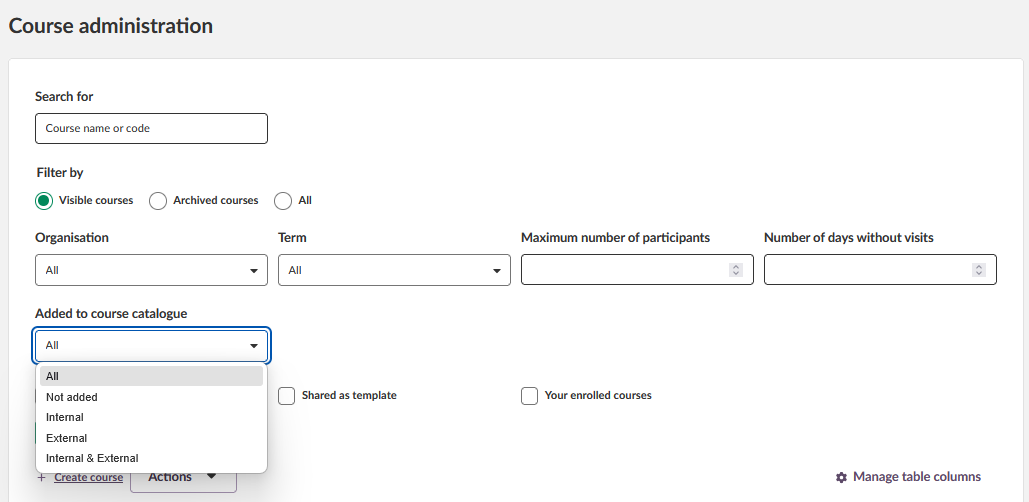
Commonly teachers can add courses to the course catalogue, but it is also possible for the (system) administrator to - in addition to managing courses in general - manage the courses that have been added to the course catalogue. For this they can use the page "Course administration".
The filter "Added to the course catalogue" makes it possible to only find courses that are added to the internal and/or external course catalogue.
The options are:
All - shows all courses, regardless if they are added to the course catalogue or not.
Not added - shows only courses that are not added to the course catalogue
Internal - only shows courses that are added to the internal course catalogue (courses that are also added to the external course catalogue will show as well).
External - only shows courses that are added to the external course catalogue (courses that are also added to the internal course catalogue will show as well).
Internal & External - only shows courses that are added to both the internal as well as the external course catalogue
This filter is not available if both the internal as well as the external course catalogue are disabled.
Additional filters
There are also three additional filter checkboxes available:
- Courses with no teachers or admins: when checked, only shows courses that have no teachers or admins enrolled.
- Shared as template: when checked, only shows courses that are shared as a template.
- Your enrolled courses: when checked, only shows courses that the logged-in administrator is enrolled in.

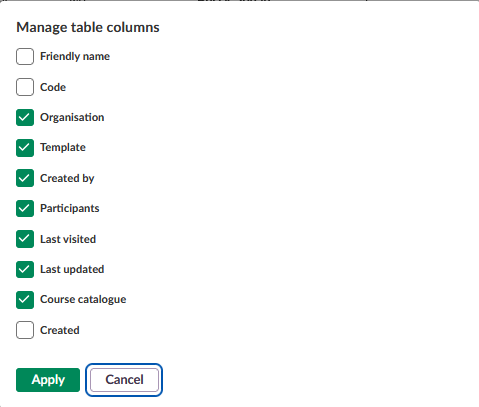
Manage table coloumns
Administrators can customize which columns are displayed in the course list by clicking "Manage table columns" above the results table. Note! The Title column is always visible and cannot be hidden.
Click "Apply" to save your selection or "Cancel" to discard changes.
9.2 Managing external users
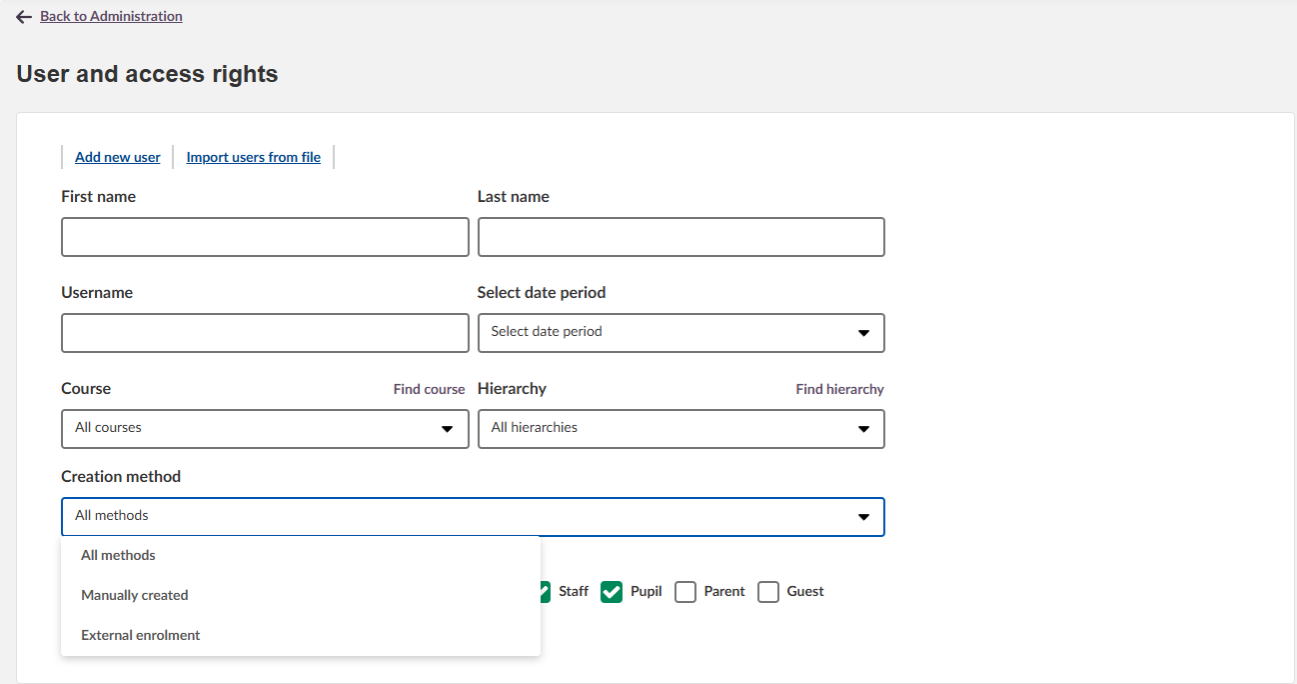
If the external course catalogue is enabled for a site, administrators have the option on the page "User and access rights" to quick find users created via external enrolment. For this, they can select the option "External enrolment" in the filter "Creation method".
In addition to giving insight in the amount of external users, it also allows administrators to manage them. For example, if a dedicated profile has been created for external users after they were initially assigned to the Guest profile, the administrator can quickly assign this new profile to all external users using the bulk actions.
10 Troubleshooting
Course Catalogue Not Visible
Symptoms: Users cannot access course catalogue functionality
Solution:
- Verify course catalogue is enabled under Features and security
- Check user profile has "Local course catalogue" permission
- Confirm courses have been added to the catalogue
External Users Cannot Create Accounts
Symptoms: Account creation options not available or failing
Cause: External course catalogue account creation settings disabled
Solution:
- Check "Allow the creation of a new account using an email address" setting
- Verify email system configuration is functional
- Confirm terms and conditions link is accessible
Course Teachers Not Receiving Notifications
Symptoms: No daily notifications about enrolments or applications
Solution:
- Verify notification timing is configured under Regional settings
- Check that courses use registration types that generate notifications
- Confirm email system is delivering notifications properly
Subjects Not Appearing in Course Addition
Symptoms: Subject selection empty when adding courses to catalogue
Cause: No subjects configured in system
Solution:
- Add subjects under Edit global settings > Course catalogue subjects
- Inform teachers they can create subjects during course addition process
Contact Support: For additional support, contact your itslearning administrator or visit the itslearning support pages
For unresolved issues, contact your itslearning Key Account Manager or support team with error messages and screenshots.
---------------------------------------
The features shown are part of the project within the framework of the German Development Project (GDP), a cooperation between four German states and itslearning with the aim of improving digital education in Germany through tailor-made product developments.
Click here to learn more about the GDP roadmap and what other features you can expect.
For German readers: Click here for more information about the project within the framework of the German Development Project.