Support Portal - Submitting a Ticket (Sysadmin)
TABLE OF CONTENTS
Important: Before submitting a ticket via the Support Portal, please read this article carefully.
1 Who Can Use the Support Portal
The Support Portal is for use by Support Representatives appointed by the Customer. Support Representatives are typically system administrators responsible for user access, course memberships and system configuration. Unless otherwise agreed, the Customer may nominate two Support Representatives. Support Representatives must have completed relevant itslearning training, including basic training and super user training.
Teachers, students and parents should always contact their local administrator first. The local administrator channels requests, carries out preliminary checks, and liaises with itslearning support where necessary.
Note: Basic support covers products and software produced by itslearning only. For support regarding products or software supplied by itslearning partners or other third-party providers, please contact the relevant supplier directly.
itslearning support will commence assistance within 1 business day of receiving a request.
Note: A business day is Monday to Friday. The Support Centre is not staffed on Saturdays, Sundays, Christmas Eve, New Year's Eve or public holidays. For some countries, support is provided by a local itslearning partner.
2 Support Levels
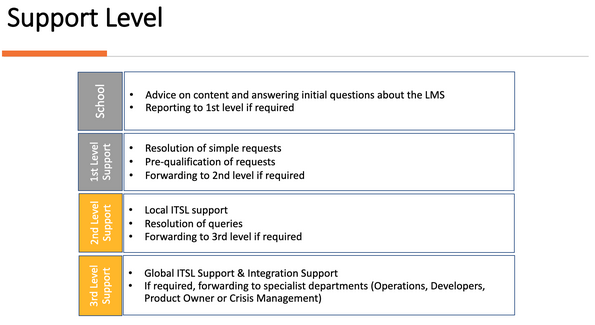
Support requests are handled across four levels. Local school administrators are the first point of contact and are responsible for resolving or escalating issues as needed.
3 General Requests
3.1 Feature Requests
We often receive questions about whether certain features exist or are planned for development. We welcome your feedback on our product, but we kindly ask you to direct such feedback to your itslearning contact or to the idea portal. You are welcome to check our Idea Portal, Roadmap or Product Updates to see if your idea has already been mentioned.
3.2 Planning of Tool Connections or Integrations
The planning and implementation of tool connections is handled by the Service Management team. For inquiries regarding a planned tool connection or integration of services from our partners or other third-party providers, please first contact your customer consultant at itslearning. Third-party providers can find technical information on integration options in our Developer Portal.
3.3 What's New?
As an administrator, you should keep up to date with new developments, bug fixes, online offers and events. Please subscribe to our newsletter and check the whats new feature in your personal menu: 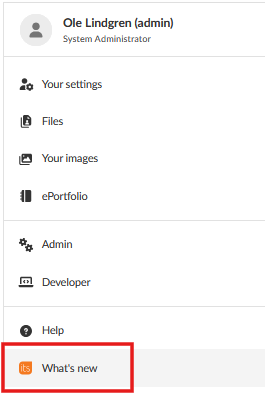 .
.
4 Requests about Technical Issues
Experience shows that many issues can already be resolved by the following actions:
- Check that your browser is up to date.
- Enter the URL again manually (without using bookmarks or links from history).
Note: As with most browser-based applications, working in several browser tabs at the same time may result in error messages or access problems. Please use different browsers and log out of a session properly before starting a new one.
Note: Before creating a ticket, make sure you have the information listed in section 4.3 ready. Incomplete tickets could delay resolutions significantly .
4.1 System Disturbances
In case of access problems, error messages or slow loading times, please check the Service Status page first. This page informs about any known operating restrictions and their current processing status.
4.2 Reporting a Technical Issue via the Support Portal
We only provide support to registered support users.
If you are a support representative for your school and do not yet have access to the Support Portal, please contact your itslearning account manager. If you need help, please use our chat at https://itslearning.com/support/contact-us.
When registered, you will receive an email with your Support Portal credentials.
To log in, click Create a ticket in the top right-hand corner of the Support Portal.


You can access the list of your tickets via My Tickets. There you can filter by Open or Pending, or by Solved or Closed, and sort by Creation Date, Last Modified or Status. You can track the status of a bug directly from this view.

Via Submit a ticket, you can add details about the issue and attach supplementary files using the contact form.
Note: Please create separate tickets for different issues.
4.3 Minimum Information for Processing a Ticket
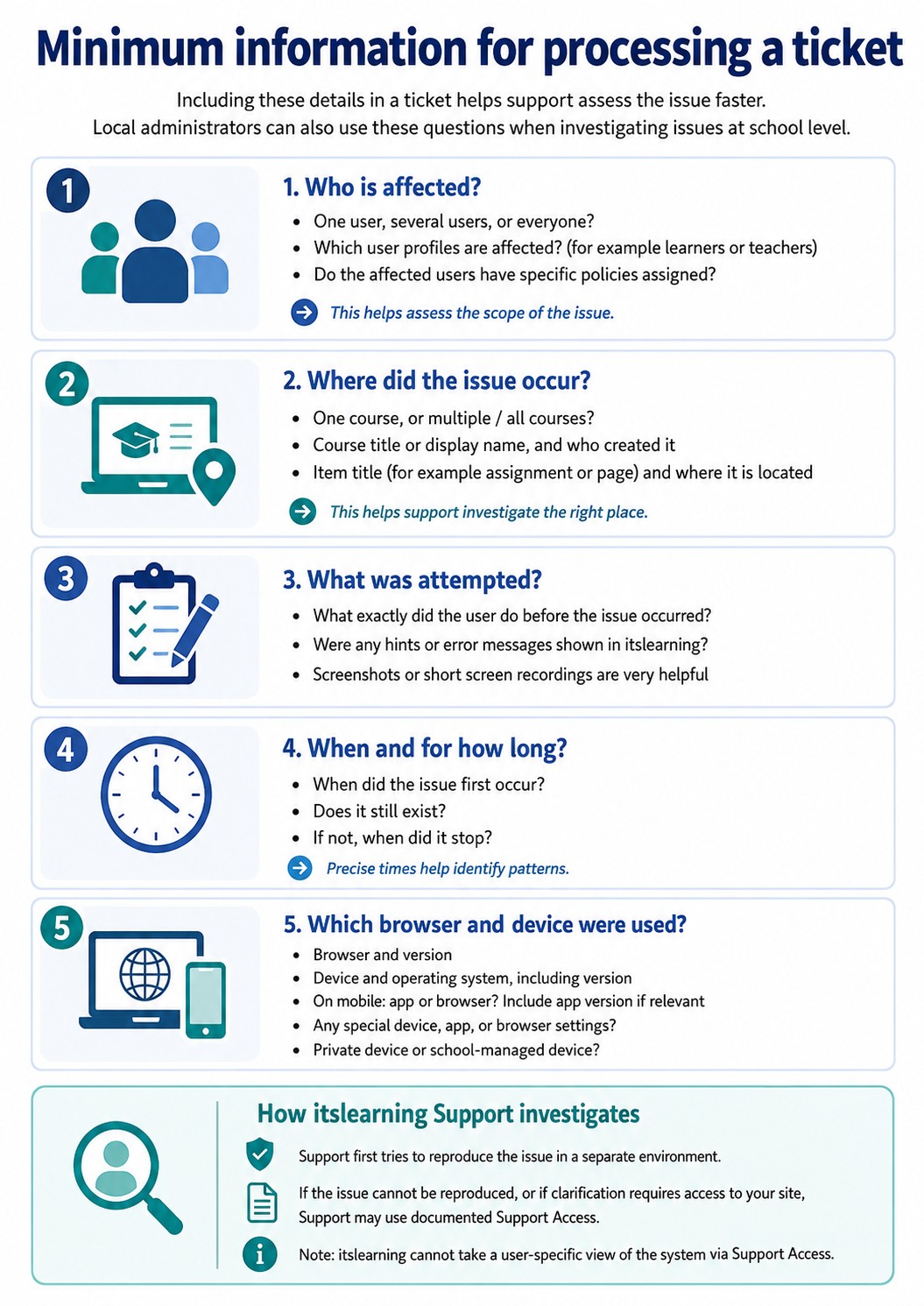
The following are examples of questions that we regularly ask in order to address concerns in a timely manner and to better assess the nature and priority of an issue. If these questions are already answered in the ticket, it can reduce the time it takes to handle the issue. Local administrators are also encouraged to use these questions when assessing an issue at school level.
Product Release notes
Stay updated with itslearning latest releases: https://itslearning.com/product-updates
Service Status
Check the current status of itslearning services: https://status.itslearning.com/
Ideas Portal
Share your ideas and help shape the future of itslearning: https://ideas.itslearning.com/
Roadmap
Check out our roadmap: https://itslearning.com/global/roadmap/