Login - Two-Factor Authentication (Sysadmin)
TABLE OF CONTENTS
- 1 Overview
- 2 Setting up two-factor authentication
- 3 Logging in with two-factor authentication
- 4 Backup access via email
- 5 Switching to a new phone
1 Overview
System administrators have access to all data in the system. To protect this access, two-factor authentication (2FA) is mandatory for all sysadmin accounts in itslearning.
When you log in as a system administrator for the first time, you will be prompted to set up 2FA. You can postpone this for up to 5 logins, after which setup becomes mandatory.
With 2FA enabled, you log in using your username, password, and a time-based code from an authenticator app on your mobile device.
2 Setting up two-factor authentication
The setup wizard consists of four steps. You only need to complete this process once.
2.1 Step 1 of 4: Install an authenticator app
Download and install one of the following authenticator apps on your mobile device:
- Microsoft Authenticator
- Google Authenticator
- LastPass Authenticator
- Duo Mobile
- Authy
Once the app is installed, click Next.
2.2 Step 2 of 4: Connect your authenticator app
A QR code is displayed on screen. Open your authenticator app and scan the QR code.
Note: If you cannot scan the QR code, you can enter the key shown on screen manually into your authenticator app instead.
Enter the code generated by your app into the code field on screen, then click Next.
2.3 Step 3 of 4: Confirm setup
A confirmation screen indicates that two-factor authentication has been connected successfully. The next time you log in, you will be asked to enter a code from your authenticator app.
Click Next to continue to step 4.
2.4 Step 4 of 4: Verify your back-up email
itslearning will redirect you to your Edit profile page to confirm that your email address is valid. A back-up email is used to send a one-time code if you cannot generate a code from your authenticator app.
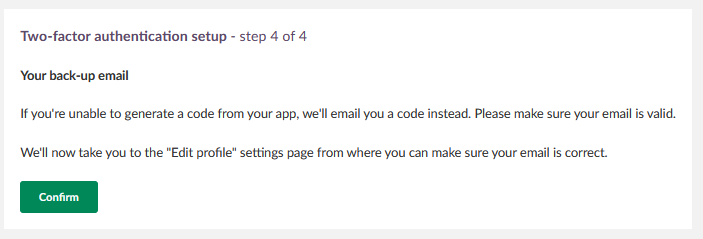
Important: Ensure that the email address in your profile is valid before clicking Confirm. Without a valid email address, backup access via email will not be available.
Click Confirm to complete the setup.
3 Logging in with two-factor authentication
Each time you log in as a system administrator, you will be prompted to enter a code from your authenticator app after entering your username and password.
The code in your authenticator app is updated every 30 seconds. Enter the current code and click Next.
4 Backup access via email
If you cannot generate a code from your authenticator app, you can request a one-time code by email instead.
- On the 2FA login page, click Problems with the code.
- A code will be sent to the email address registered in your profile.
- Enter the code on the login page. The code is valid for 5 minutes.
Note: Ensure the email address in your Edit profile page is valid. Without a valid email address, backup access via email is not available.
5 Switching to a new phone
If you have a new mobile device, you must disconnect 2FA from your old device before reconnecting it to your new device.
Note: If you no longer have access to your old device, use Problems with the code on the login page to receive a backup code by email. You can then follow the steps below.
- Click your name in the top menu to open your personal settings.
- Select Your settings.
- Select Two-factor authentication and click Disconnect.
- Log out.
- Log in again and follow the setup steps in section 2 to connect 2FA to your new device.
More Help Resources
Have more questions? Please start with asking your school administrator.
Product Release notes
Stay updated with itslearning latest releases: https://itslearning.com/product-updates
Service Status
Check the current status of itslearning services: https://status.itslearning.com/
Ideas Portal
Share your ideas and help shape the future of itslearning: https://ideas.itslearning.com/
Roadmap
Check out our roadmap: https://itslearning.com/global/roadmap/