Notification Preferences – Overview (Teacher, Admin)
TABLE OF CONTENTS
- Introduction
- 1 Prerequisites
- 2 Managing Notification Categories
- 3 How to Manage Bell Notifications
- 4 How to Manage Email Notifications for Chat/Messenger
- 5 How to Activate and Manage Email Alerts
- 6 Selecting Email Alert Types
- 7 Managing Course Notifications
- 8 Troubleshooting
Introduction
Notification preferences allow you to control which notifications you receive from itslearning. You can manage notifications through three methods:
- Notification categories - Select which types of notifications you want to receive
- Email alerts - Choose whether to receive notifications via email
- Course notifications - Enable or disable notifications for specific courses
This feature is available to teachers and administrators. All notification categories are enabled by default.
1 Prerequisites
Required permissions:
- Teacher role or Administrator role
Required setup:
- For email alerts: A valid email address
2 Managing Notification Categories
Notification categories allow you to control which types of notifications you receive from itslearning. All categories are enabled by default.
Note: The number of tabs on the Notifications page depends on whether the chat/messenger feature is enabled for your site. If chat/messenger is enabled, you will see three tabs: Bell notifications, Email notifications, and Email alerts. If chat/messenger is not enabled, you will see two tabs: Bell notifications and Email alerts.
2.1 Available Categories
itslearning organises notifications into categories. The categories you see depend on your role and enabled features.
| Category | Description |
|---|---|
| Assessment | Notifications when new comments or notes are added to assessments |
| Attendance | Notifications when students comment on absence marks |
| Reminders | Notifications about incomplete attendance or final assessments |
| Individual learning plans | Notifications about changes or comments in individual learning plans |
| Course announcements | Notifications about new course announcements |
| Comments to course announcements | Notifications about comments on course announcements |
| Course participants | Notifications about course invitations or participant changes |
| Course resources | Notifications when course resources are moved or removed |
| Bookable resources | Notifications about availability, removal, or deletion of physical resources |
| Learning objectives | Notifications when learning objectives are synchronised with the repository |
| Hierarchy management | Notifications about additions, removals, and deletions from the hierarchy |
2.2 Category Visibility
Not all categories are visible to all users:
- Attendance - Only visible if Attendance 1 or Attendance 2 is enabled
- Bookable resources - Only visible if turned on in profiles by sysadmin.
- Hierarchy management - Only visible to administrators
3 How to Manage Bell Notifications
Follow these steps to select which notification categories you want to receive.
- Click your profile picture to open the personal menu.
- Select Your settings.
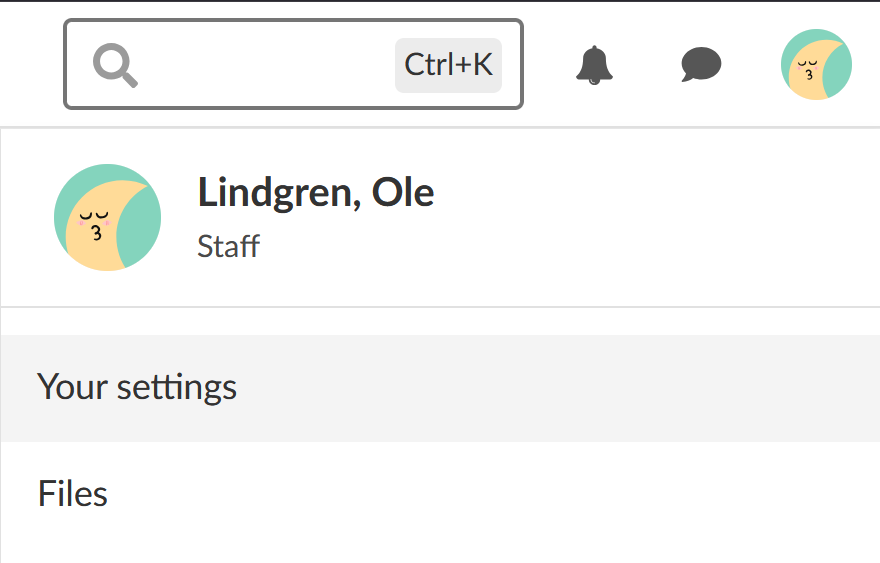
- Click Notifications.
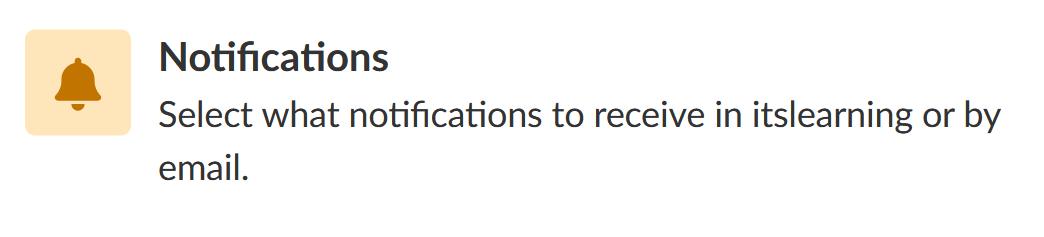
- Deselect the categories you do not want to receive notifications from, or select the categories you want to receive notifications from.
- Click Save.
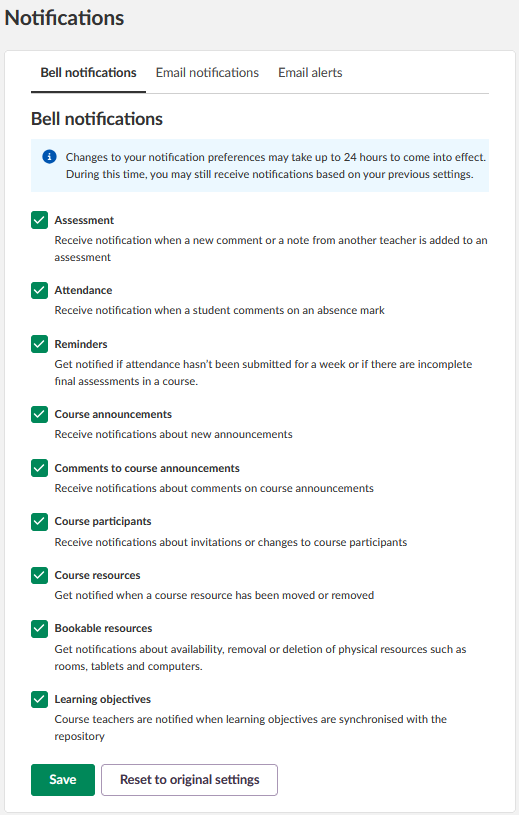
Note: The "Reset to original settings" button will select all categories.
4 How to Manage Email Notifications for Chat/Messenger
This tab is only available if the chat/messenger feature has been enabled for your site by an administrator.
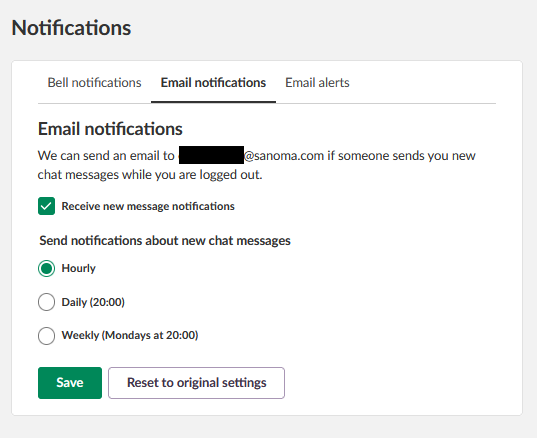
When you receive new chat messages while you are logged out of itslearning, the platform can send you an email notification. You can choose how often these email notifications are sent.
- Click your profile picture to open the personal menu.
- Select Your settings.
- Click Notifications
- Select the Email notifications tab
- Select or deselect Receive new message notifications
- Under Send notifications about new chat messages, select the preferred frequency:
- Hourly
- Daily (20:00)
- Weekly (Mondays at 20:00)
- Click Save
Note: The "Reset to original settings" button will restore the default settings for this tab.
5 How to Activate and Manage Email Alerts
- Click your profile picture to open the personal menu.
- Select Your settings.
- Click Notifications
- Select the Email alerts tab
- Click the Activate email button
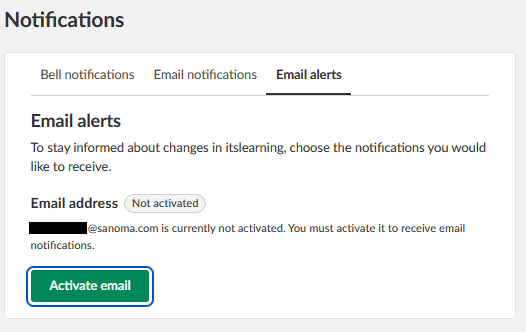
Note: If you do not have an email address registered in itslearning, you will see this message instead:
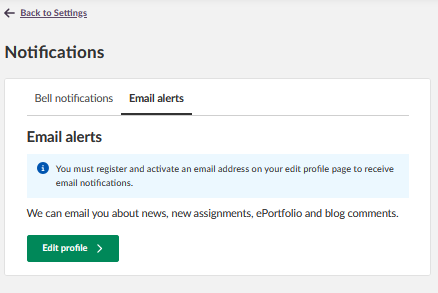
To register an email address:
- Click Edit profile.
- Select the Email address tab, enter your email address and your password, and click Update email address.
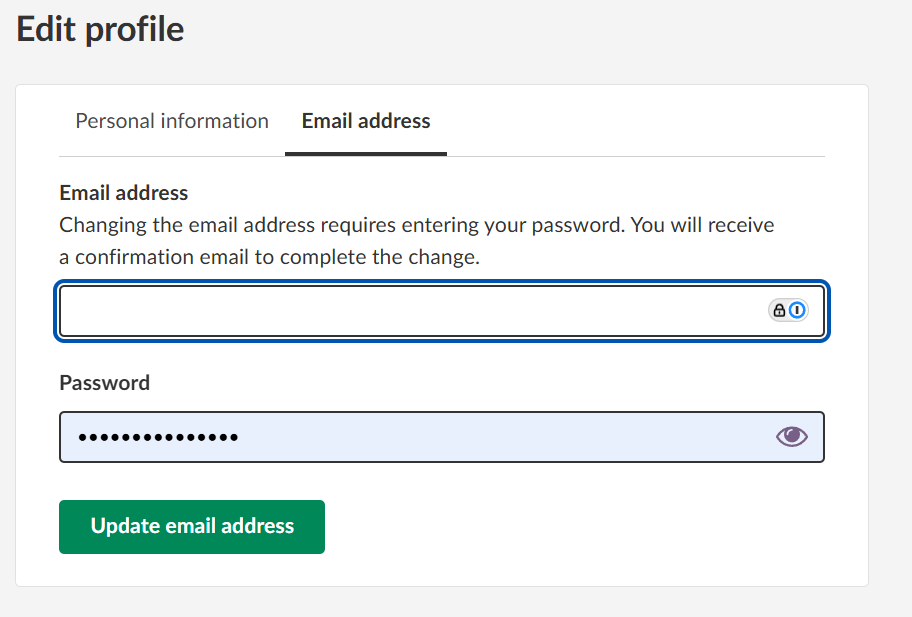
6 Selecting Email Alert Types
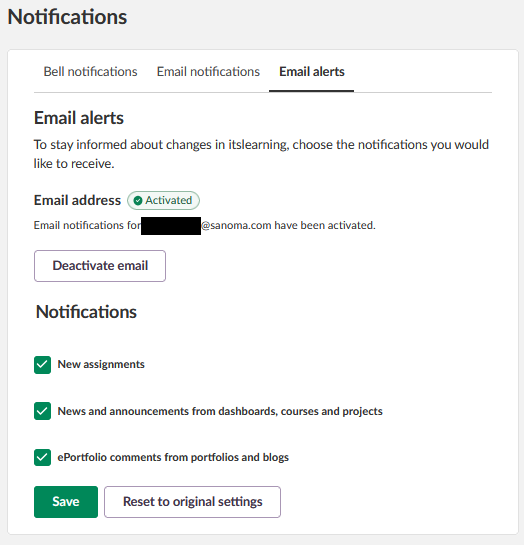
After activating email alerts, you can choose which types of alerts you want to receive via email. All options are enabled by default.
Available email alert types:
- New assignments
- News and announcements from dashboards, courses, and projects
- ePortfolio comments from portfolios and blogs
Deselect any notification types you do not want to receive via email.
7 Managing Course Notifications
Course notifications allow you to disable all notifications from a specific course. This is useful if you are assisting in a course but do not need regular updates.
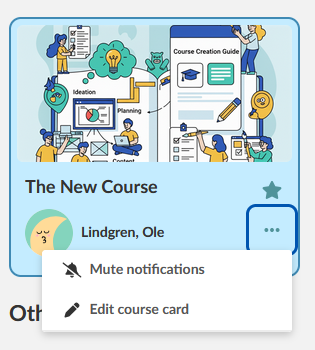
- Go to the Courses page
- Locate the course card for the course you want to manage
- Click the ellipsis icon (three dots) in the upper right corner of the course card
- Select Mute notifications to disable notifications or Turn on notifications to enable them
Important: Changes to course notifications may take up to 24 hours to take effect.
7.1 When Course Notifications Are Muted
When you mute notifications for a course, you will not receive any notifications from that course, including:
- Assignment updates
- Course announcements
- Comments
- Assessment notifications
8 Troubleshooting
8.1 Cannot Find Specific Notification Category
Symptoms: A notification category is missing from the list
Cause: The category is only visible if specific features are enabled or if you have the required permissions
Solution:
- Verify the feature is enabled:
- Attendance requires Attendance tool to be enabled
- Bookable resources requires Booking Management to be enabled
- Hierarchy management requires administrator permissions
- Contact your system administrator if you need access to a specific feature
8.2 Email Notifications Not Arriving
Symptoms: You are not receiving email notifications despite enabling them
Solution:
- Verify you have clicked the confirmation link in the email sent to your email address
- Check that the Activate email button has been clicked
- Verify you have selected the notification types you want to receive via email
- Check your email spam or junk folder
- Verify your email address is correct in your settings
8.3 Course Notifications Still Arriving After Muting
Symptoms: You continue to receive notifications from a muted course
Cause: Changes to course notifications can take up to 24 hours to take effect
Solution:
- Wait up to 24 hours for the changes to take effect
- Verify you have saved the settings correctly
- Check that you muted the correct course
More Help Resources
Have more questions? Please start with asking your school administrator.
Product Release notes
Stay updated with itslearning latest releases: https://itslearning.com/product-updates
Service Status
Check the current status of itslearning services: https://status.itslearning.com/
Ideas Portal
Share your ideas and help shape the future of itslearning: https://ideas.itslearning.com/
Roadmap
Check out our roadmap: https://itslearning.com/global/roadmap/
The features shown are part of the project within the framework of the German Development Project (GDP), a cooperation between four German states and itslearning with the aim of improving digital education in Germany through tailor-made product developments.
Click here to learn more about the GDP roadmap and what other features you can expect.
For German readers: Click here for more information about the project within the framework of the German Development Project.