Personal Settings – Overview (All users)
TABLE OF CONTENTS
Introduction
By clicking on your profile picture or name in the top navigation bar, you access a personal menu. From this menu, you can navigate to your files, your settings, your images, ePortfolio, and other areas depending on your role.
The Your settings page allows you to manage your personal account, customise the platform, change your password, connect cloud accounts, and configure your notification preferences.
Note: Your system administrator determines which settings are available to students, teachers, and parents. Some options described in this article may not be visible depending on your role and site configuration.
1 Accessing Your Settings
To access your personal settings:
- Click your profile picture in the top-right corner of the navigation bar.
- Select Your settings from the dropdown menu.

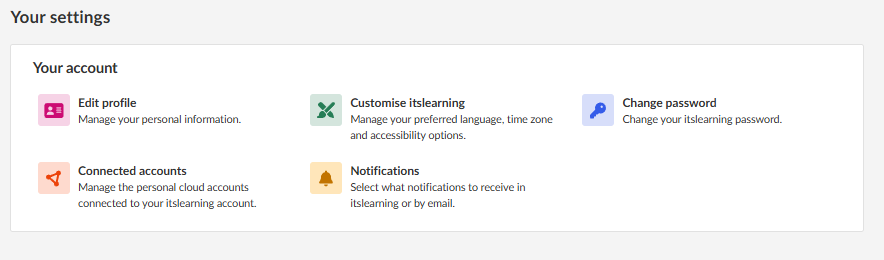
The Your settings page opens, displaying the Your account section with the available settings.
2 Your Account
The Your account section provides access to the following settings:
2.1 Edit Profile
The Edit profile page allows you to manage your personal information. It contains two tabs: Personal information and Email address.
Personal information tab
On the Personal information tab, you can view and edit the following fields: profile picture, phone, cellular phone, date of birth, address line 1, address line 2, postal address, postal code, and description.
To update your personal information:
- On the Your settings page, click Edit profile.
- Select the Personal information tab (selected by default).
- Edit the fields you wish to update.
- Click Save preferences.
To change or remove your profile picture, use the Change picture or Remove links below your current profile picture.
To see how your profile appears to others, click View profile.

2.2 Customise itslearning
The Customise itslearning page allows you to change your preferred language, regional formats, time zone, and accessibility options.
To access this page:
- On the Your settings page, click Customise itslearning.
Regional and language options
Use the Language dropdown to select your preferred interface language. Use the Formats dropdown to select your language and country to see the correct date and time formats and decimal separators.
Time zone
Select your Region and Nearest city to set your time zone. You can also enable or disable the Use 24-hour time format option.
Accessibility
The Accessibility section provides options to adapt itslearning to your individual needs:
- Use simplified text editor – When enabled, only plain text is available without other formatting options when creating content.
- Use higher contrast – When enabled, buttons, checkboxes, and other elements are made more distinct and easier to identify.
Note: The accessibility features may not work properly on all pages yet, as we are updating all these features. If you use VoiceOver (macOS, iOS), disable the 'Quick Nav' setting when using itslearning, as certain features require arrow key navigation.
Click Save to apply your changes or Cancel to discard them.

2.3 Change Password
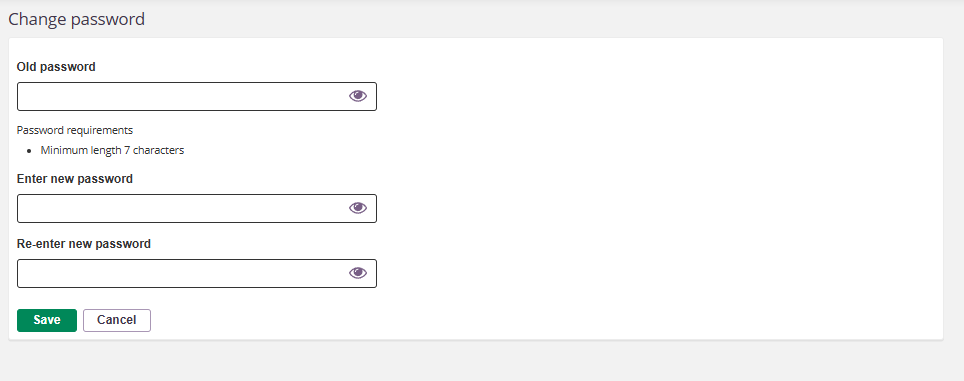
The Change password page allows you to update your itslearning password.
Note: You can only change your password here if the feature is turned on for your site/role and you use the native itslearning login. If your school uses a single sign-on (SSO) solution, contact your school administrator to find out how to change your password, as this depends on the system being used.
To change your password:
- On the Your settings page, click Change password.
- Enter your current password in the Old password field.
- Enter your new password in the Enter new password field.
- Re-enter your new password in the Re-enter new password field.
- Click Save.
Password requirements are set at site level by your system administrator and can differ between roles and districts. You can use the eye icon next to each field to show or hide the password.
2.4 Connected Accounts
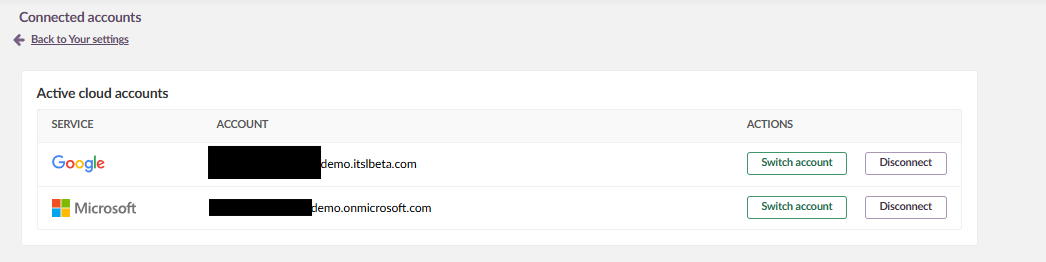
The Connected accounts page allows you to manage personal cloud accounts connected to your itslearning account. This includes services such as Google and Microsoft.
The page displays a table of active cloud accounts with the service name, account details, and available actions.
For each connected account, you can:
- Click Switch account to connect a different account for that service.
- Click Disconnect to remove the connection between your cloud account and itslearning.
2.5 Notifications
The Notifications setting allows you to select what notifications to receive in itslearning or by email.
To access this page:
- On the Your settings page, click Notifications.
For detailed information about configuring your notification preferences, see the dedicated article: Notification Preferences.
More Help Resources
Have more questions? Please start with asking your school administrator.
Product Release notes
Stay updated with itslearning latest releases: https://itslearning.com/product-updates
Service Status
Check the current status of itslearning services: https://status.itslearning.com/
Ideas Portal
Share your ideas and help shape the future of itslearning: https://ideas.itslearning.com/
Roadmap
Check out our roadmap: https://itslearning.com/global/roadmap/