Parent Dashboard - Managing the Dashboard (Sysadmin)
TABLE OF CONTENTS
- Introduction
- Enabling the parent portal
- Accessing parent dashboard settings
- Manage Parent Features overview
- Configuring content blocks
- Dashboard access permissions
- Parent account provisioning
- Parent messaging
Introduction
The Parent Dashboard gives parents a consolidated view of their child's activity in itslearning. System administrators configure which content blocks are displayed and can customise the dashboard layout at site or school level.
Enabling the parent portal
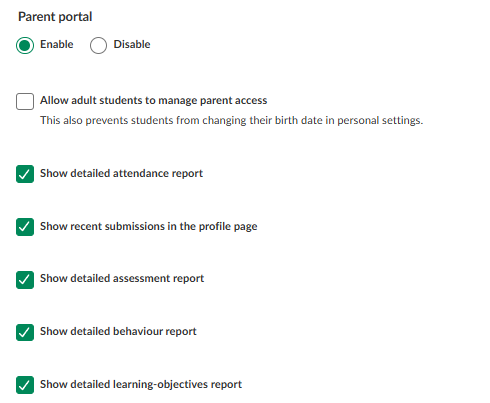
Admin setting: Administration > Edit Global Settings > Features and Security
The parent portal must be enabled at the platform level before the dashboard can be configured. This setting also controls which areas of itslearning display detailed information to parents.
Accessing parent dashboard settings
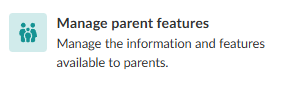
To access parent dashboard settings, click Admin in the personal menu, then click Manage Parent features.
This tile becomes visible once the parent portal has been enabled in Global Settings.
If you manage multiple organisations, select the relevant school from the list.
Manage Parent Features overview
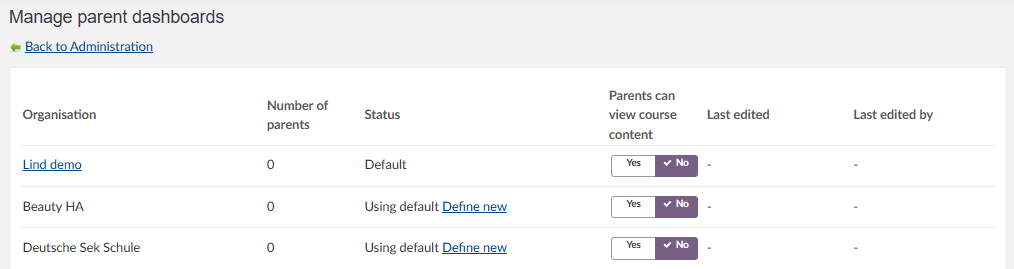
Clicking the Manage Parent Dashboard tile opens the Manage Parent Features page. This page lists all organisations with their current dashboard configuration status.
| Column | Description |
|---|---|
| Organisation | The name of the school or organisation. |
| Number of Parents | The number of parent accounts provisioned for that organisation. |
| Status | Indicates whether the organisation is using the default dashboard layout or has a custom configuration. Shows Default or Using default / Define new. |
| Parents can view course content | Yes: Parents can open and view resources in Plans. No: Parents can see that a resource exists in a Plan, but cannot open or view its content. |
| Last Edited | The date, time, and name of the administrator who last modified the settings. |
| Settings | Click Manage settings to open the dashboard configuration for that organisation. |
Configuring content blocks
To open this setting, click the blue linked organisation name:
Note: The blue link into the organisational parent dashboard is only active for organisations that have parent accounts.
The parent dashboard is made up of content blocks that display aggregated information from itslearning. Blocks can be enabled, disabled, added, and rearranged. The dashboard layout can be configured separately for each school.
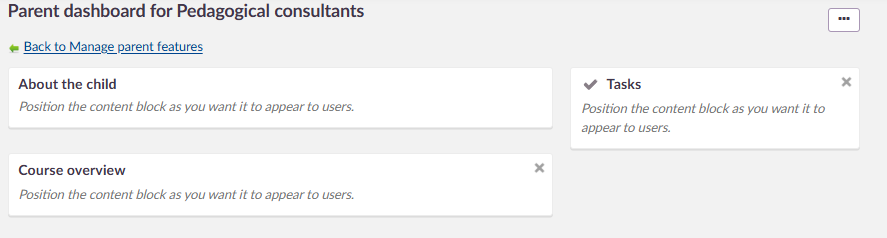
Note: Aggregated content blocks only display data for features that are actively used in the platform. If the calendar is not in use, for example, calendar events will not appear in the parent dashboard.
The following shows an example of the resulting parent dashboard as seen by parents:
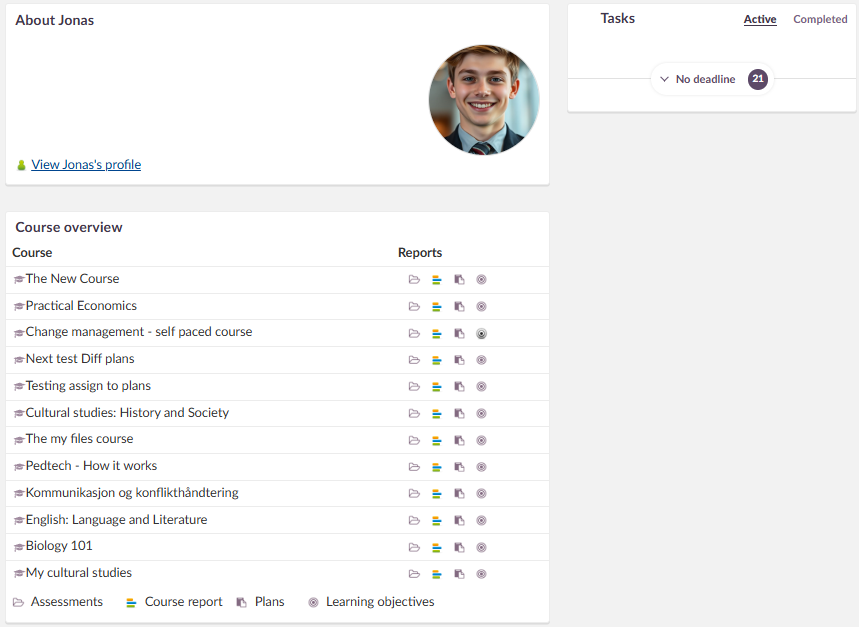
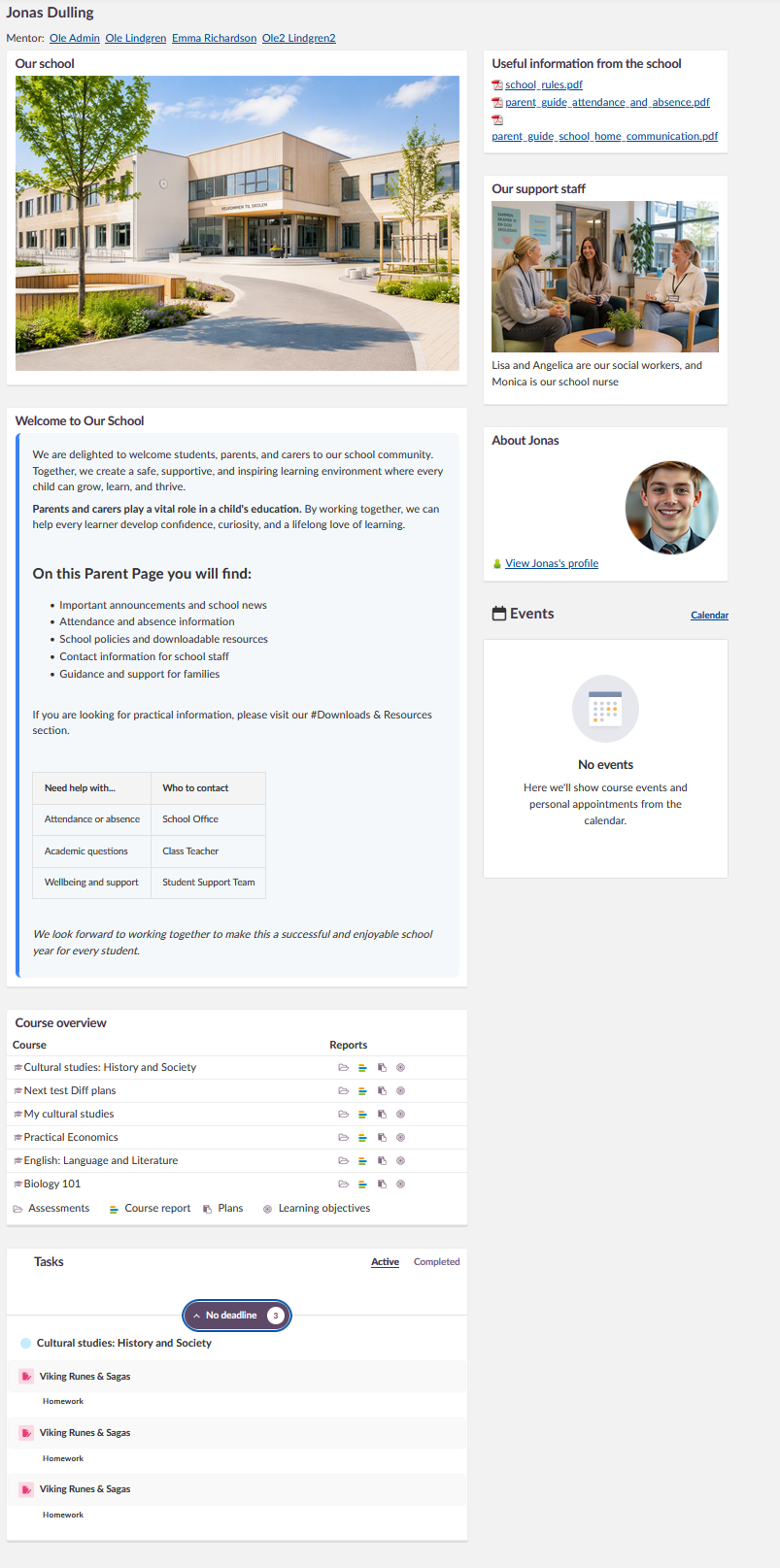
The following image shows an example of a parent dashboard for a primary school with more of the options selected:
Adding blocks
To add new content blocks, click the ellipsis (...) in the upper right-hand corner of the dashboard view.
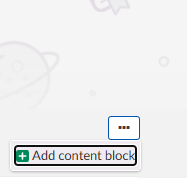
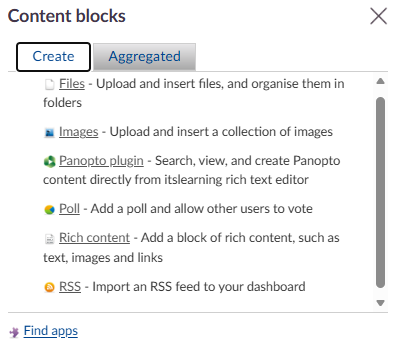
This opens a panel with two tabs for selecting the type of block to add:
▶ Create tab
▶ Aggregate tab
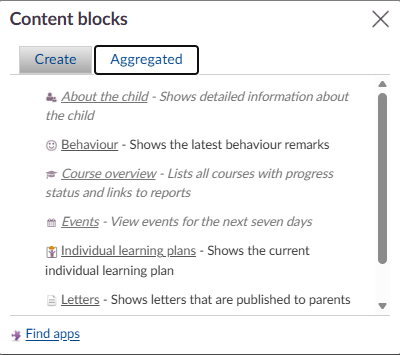
Note: Blocks on the Aggregate tab display data drawn from the platform. They only show content for features that are actively used in itslearning.
Note: External applications can also be added as blocks, depending on which integrations are configured for your platform.
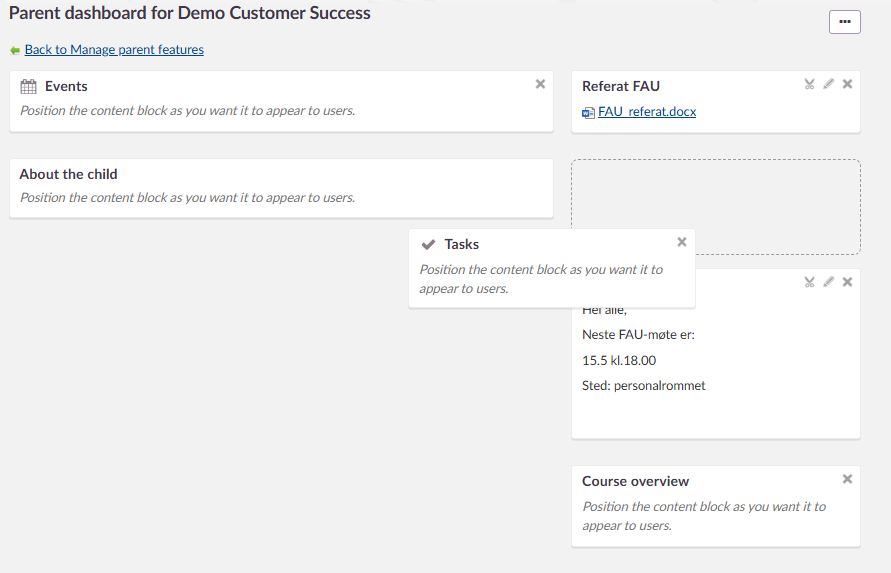
Rearranging blocks
To change the position of a content block, click and hold the block title, then drag it to the desired position.
Dashboard access permissions
System administrators can control which users have permission to edit or manage the Parent Dashboard. This is configured through the profiles section.
Parent account provisioning
Parent accounts must be provisioned before parents can access the dashboard. There are two methods for importing parent data into itslearning:
- CSV import: Upload a list of parent accounts as a CSV file.
- User provisioning via school portal or IDAM: Accounts are created and maintained automatically through a connected school portal or identity management system.
In both cases, each parent account is linked to the corresponding student account using the child ID.
Parent messaging
Whether a parent can send messages, and to whom, is controlled by the Allow new conversations with settings on the parent profile (Administration > User and access rights management > Profiles). This is separate from the dashboard configuration described above.
Note: The Parent app does not include a messaging feature. Parents can only send and receive messages through the web-based Parent Portal.
The following behaviour has been confirmed:
- The student profile settings have no effect on the parent profile. Messaging permissions for parents are configured independently.
- Parents have no address book of contacts. To message someone, the parent must already know their name. If the child has one or more mentors assigned, these are listed at the top of the messaging page.
- If Allow new conversations with: Staff is enabled at school level, a parent can message any member of staff at the school. It is not possible to restrict this to only the staff who teach the parent's child.
- Parents can message their own child if this is enabled in the profile.
- Parents cannot message other parents directly through the Allow new conversations with setting.
- If a parent account has no child linked to it, the parent can still log in and use messaging. They can message staff at the school, but cannot find or message a child, since no child is linked to the account.
Important: If Initiate communication to members of own courses and projects is enabled and the parent is added as a member of a course or project, this overrides the main Allow new conversations with rules. The parent can then message any member of that course or project, including other parents and students.
More Help Resources
Have more questions? Please start with asking your school administrator.
Product Release notes
Stay updated with itslearning latest releases: https://itslearning.com/product-updates
Service Status
Check the current status of itslearning services: https://status.itslearning.com/
Ideas Portal
Share your ideas and help shape the future of itslearning: https://ideas.itslearning.com/
Roadmap
Check out our roadmap: https://itslearning.com/global/roadmap/