Differentiated Plans - Assigning Plans to Students (Teacher)
TABLE OF CONTENTS
- Introduction
- 1 Overview
- 2 Enabling Differentiated Plans for your course
- 3 How to assign a plan to specific students
- 4 How plans and resources are aligned
- 5 How permissions work for a differentiated plan
- 6 Assigning a plan after students have started working on it
- 7 Assigning a plan and assigning individual elements
- 8 Adding the same element to multiple plans
Introduction
Differentiated Plans let you assign a plan to specific students or groups, so you can tailor learning to different needs rather than giving every student in the course the same plan.
1 Overview
When you assign a plan to selected students, you can adapt teaching methods and instructions to individual differences and make sure all students have access to a meaningful learning experience. Differentiation helps prevent students from being left behind, or from being bored by work that does not challenge them.
Differentiated Plans are available in Subject courses and Self-paced learning courses. The feature is not yet available in class courses.
When Differentiated Plans is turned on for a course, plans and resources become more closely connected. This is explained in section 4.
2 Enabling Differentiated Plans for your course
Prerequisite: Differentiated Plans must be enabled for your itslearning site before you can use it. This setting can be turned on by default for all courses by your sysadmin in Set default course settings. By default, the setting is off.
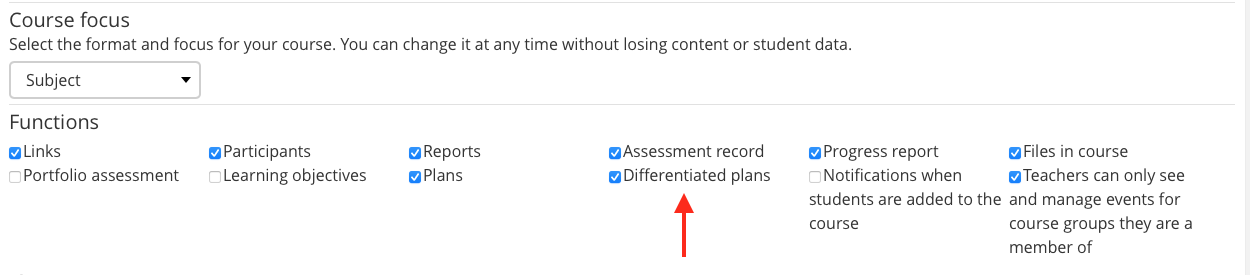
If Differentiated Plans is not enabled by default, you can still turn it on for an individual course:
Course Settings > Course Properties and features > section Functions
3 How to assign a plan to specific students
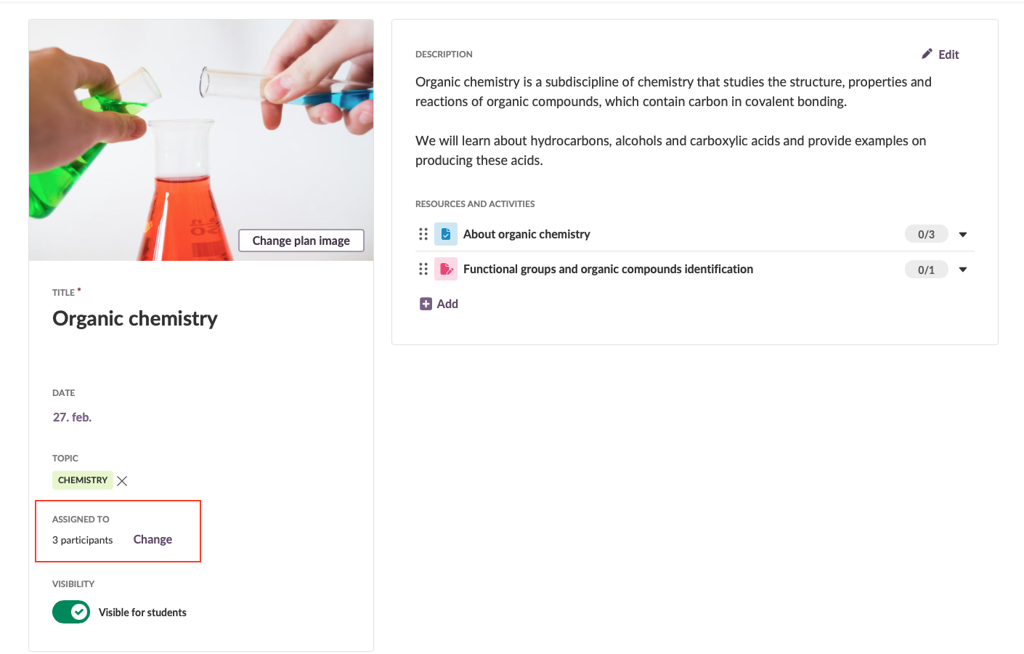
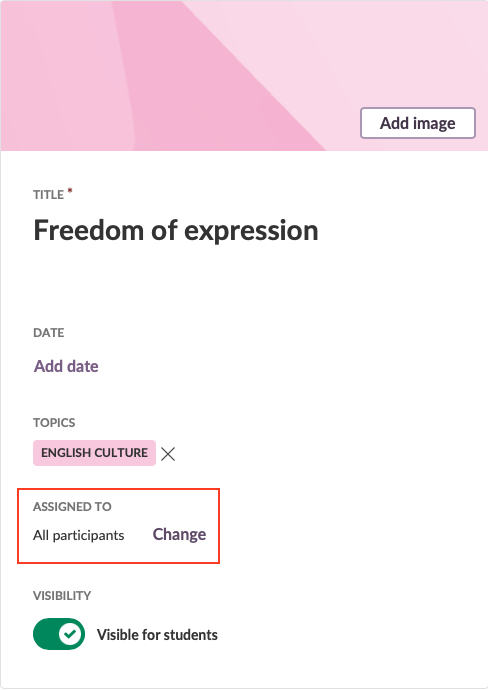
A plan that is assigned to specific students gets its own dedicated plan folder on the Resources page. By default, a plan is assigned to all participants in the course.
- Make sure Differentiated Plans is enabled for your course, as described in section 2.
- Open the single plan page for the plan you want to assign.
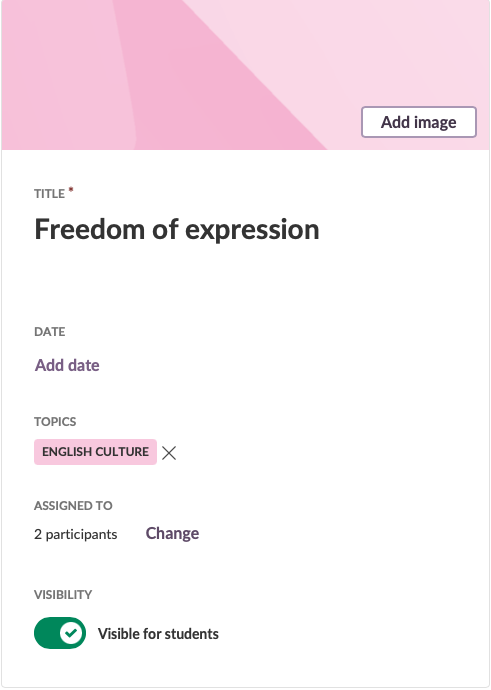
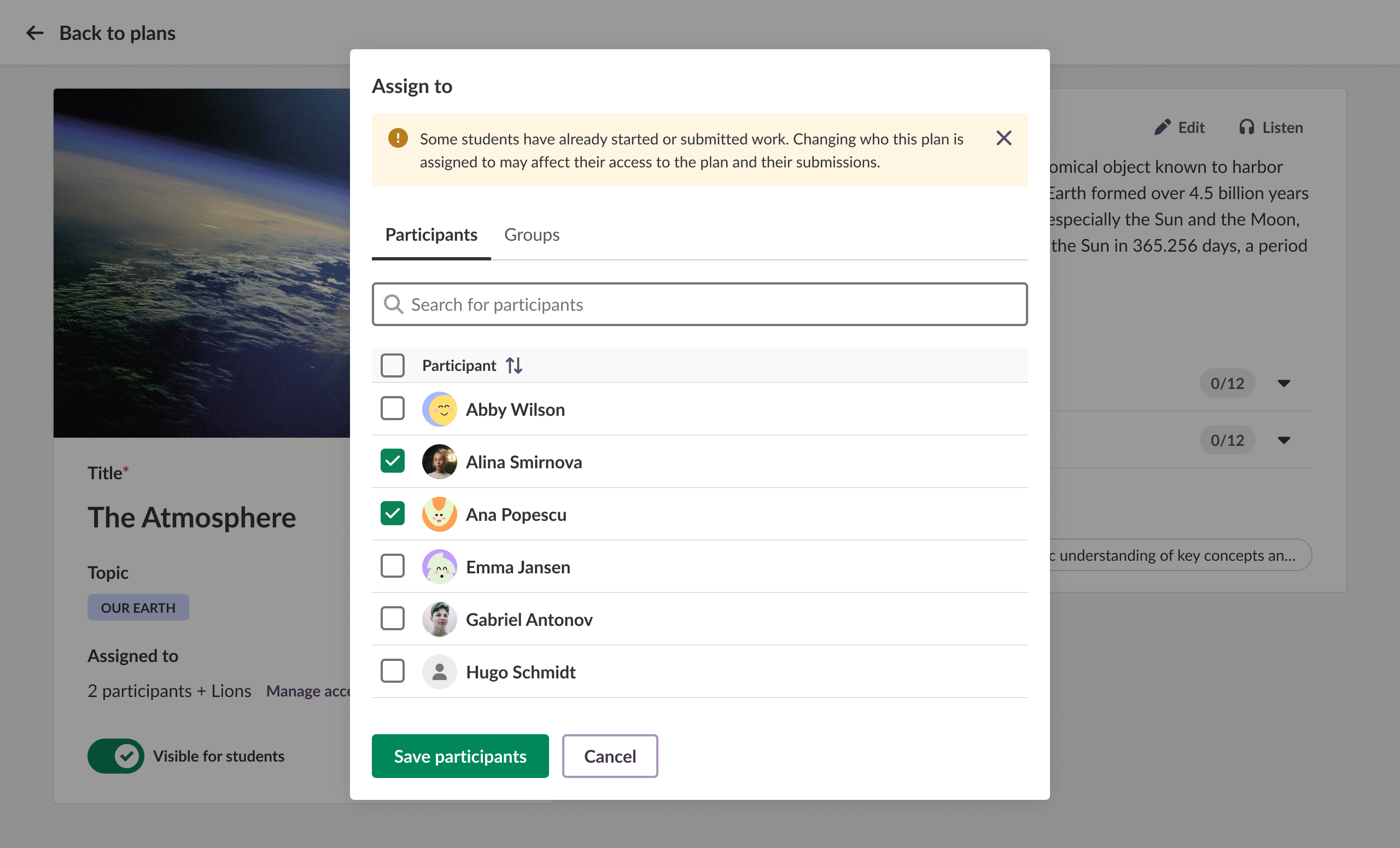
- Find the section for assigning a plan, located on the left, just above the Visibility toggle. Select Change to open the assignment window.
- Select the participants and/or groups you want to assign the plan to.
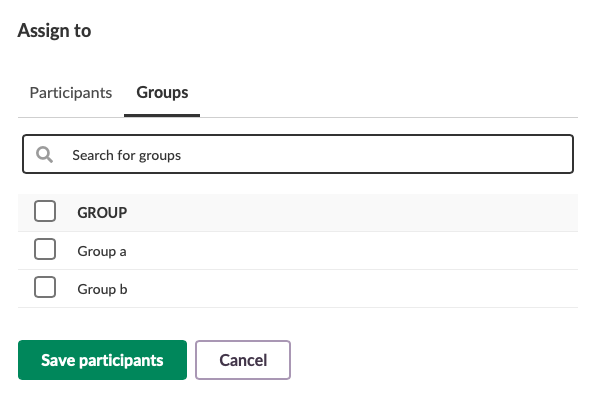
The plan is now assigned to the selected students. Other students in the course cannot see or access this plan. Any elements you add to the plan, such as resources or activities, are only visible to the students the plan is assigned to, both on the Plans page and in Resources.
Note: When a plan is assigned to selected students, other students will not see the plan's elements in their task list, Resources, Last changes on the Course overview, or Recent updates.
When a plan is assigned to selected students, an icon is shown on the course card so teachers can see how many students can access the plan. If the plan is assigned to all students, no icon is shown.
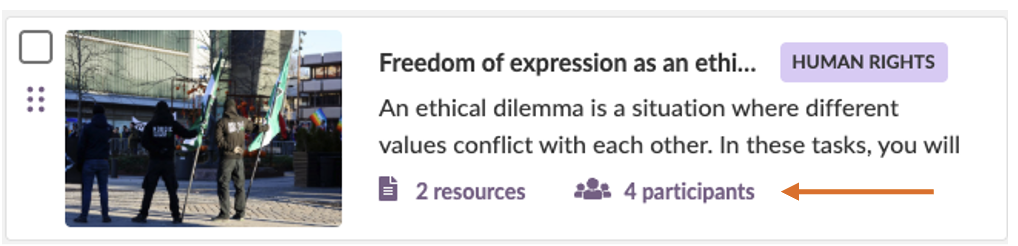
| Before assigning the plan | After assigning the plan to two students |
|---|---|
| The plan and all its elements are available to all the students in the course. | Only the students assigned to the plan can access the plan and its elements. |
4 How plans and resources are aligned
When Differentiated Plans is turned on for a course, plans and resources are more closely connected:
- When you create a new plan, it gets a separate plan folder in Resources. This happens even if you do not assign the plan to specific students.
- Existing plans only get a separate plan folder in Resources if the plan is assigned to specific students.
- If you create a new resource from the single plan page, it is stored in the associated plan folder.
- If you add an element into a plan folder in Resources, the element is automatically added to the plan. The same applies when adding an element through Copy and reorganise content.
- If you add an existing resource to the plan, it is moved into that plan's folder.
- If the same resource is added to a second plan, permissions are applied to the resource itself rather than the folder, so the resource can be shared across multiple plans and users. The resource remains stored in its original folder, from the first plan, so it will not appear in the folder of the second plan, even though it is accessible through the plan interface. This scenario is described further in section 8.
- It is not mandatory to add topics to a plan. You can assign a plan even if you are not using topics.
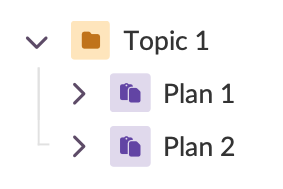
- When using topic folders, the structure in Resources is Topic > Plan.
- If you are not using topics, plan folders are added to the root in Resources.
5 How permissions work for a differentiated plan
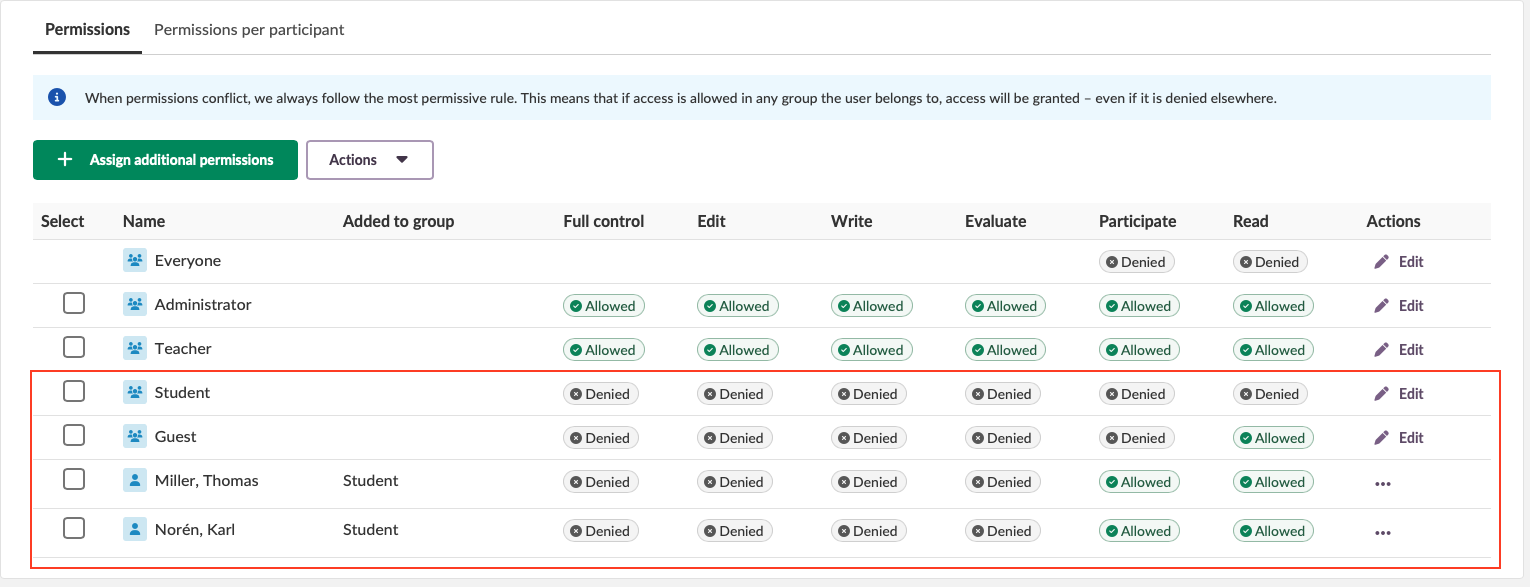
Differentiated Plans are based on itslearning's existing permission system. Each plan that is assigned to specific students needs a separate plan folder in Resources.
For example, if a plan is assigned to two participants, checking the permissions for that plan folder in Resources will show that no one with the Student role has general access. The two assigned students still have permission to participate and read.
6 Assigning a plan after students have started working on it
You can assign a plan to selected students even if some students have already started working on it. If a student has marked a resource as read, or submitted an activity such as an assignment, you can still assign the plan to selected students. When you do this, you will see a message explaining that some students have already started the plan and may lose access.
If a student previously submitted work or completed activities in the plan, and you assign the plan to that student again, the student regains access to the plan and can see the work they submitted earlier.
7 Assigning a plan and assigning individual elements
When you assign a plan and also assign individual elements within that plan, the order in which you do this matters. Assigning the plan sits at a higher level than assigning an individual element, so the plan's assignment can override or change an element's permissions.
7.1 Assigning the plan before adjusting element-level permissions
When you assign a plan to a group of students, you can still use Assign to at the individual element level. For example, if a plan is assigned to three students but you want a specific assignment within that plan to go to only one of those three students, you can adjust the element-level assignment accordingly. If the plan is assigned to three students, the element cannot be assigned to any student outside that group.
7.2 Assigning element-level permissions before assigning the plan
If you add an element that is already assigned to selected students into a plan, and later assign the plan itself to selected students, the plan's assignment overrides the element's original permissions. As a result, the element becomes available to the plan's selected students instead of the students it was originally assigned to.
Important: You will be informed if assigning the plan may change who can access elements already added to the plan.
8 Adding the same element to multiple plans
You can add the same element to multiple plans, even when a plan is assigned to selected students.
When you assign a plan to selected students, the permission is applied to the plan folder. However, if an element from a differentiated plan is added to additional plans, the permission shifts to the element level.
When you add an element to multiple plans, the element is not copied. It stays in the plan folder where it was first added. If you add the same element to another plan, it will not appear in the second plan's folder in Resources, but it will still be visible in the plan interface.
The number of students who can access the element is determined by where the element is stored. If 17 students have access to the element in the first plan, those same 17 students will also have access in any other plan the element is added to.
Note: An element added to multiple plans is not copied. It stays in the folder of the plan it was first added to, and the number of students with access is determined by that plan, not by the plan currently being viewed.
8.1 Example 1: Assignment added to a larger plan first
| Step | Action | Assigned students |
|---|---|---|
| 1 | Assignment Research diary added to plan The Atmosphere (first added here) | All 17 students |
| 2 | Same assignment added to plan Photosynthesis | 5 students |
Important: All 17 students from The Atmosphere retain access to the assignment, even though Photosynthesis is only assigned to 5 students. Access follows the plan the element was first added to.
8.2 Example 2: Assignment added to a smaller plan first
| Step | Action | Assigned students |
|---|---|---|
| 1 | Assignment Research diary added to plan The Atmosphere (first added here) | 5 students |
| 2 | Same assignment added to plan Photosynthesis | All participants |
Important: Only the 5 students from The Atmosphere have access to the assignment, even though Photosynthesis is assigned to all participants. Access follows the plan the element was first added to.
Note: Because access follows the folder where the element was first stored rather than the plan currently being viewed, check which students have access to an element directly, rather than assuming it matches the plan you are looking at.
More Help Resources
Have more questions? Please start with asking your school administrator.
Product Release notes
Stay updated with itslearning latest releases: https://itslearning.com/product-updates
Service Status
Check the current status of itslearning services: https://status.itslearning.com/
Ideas Portal
Share your ideas and help shape the future of itslearning: https://ideas.itslearning.com/
Roadmap
Check out our roadmap: https://itslearning.com/global/roadmap/