Messages - Getting started (Teacher)
TABLE OF CONTENTS
Introduction
This article shows teachers how to send a message to students in itslearning and how to manage conversations.
1 Overview
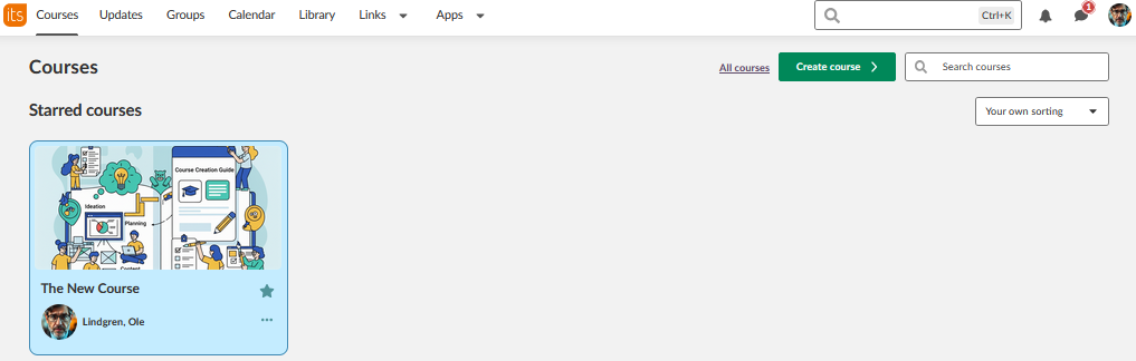
You open Messages with the speech bubble icon in the main menu. You can send a message to individual students, to all participants of a course or to the members of a project.
If you message more than one person, you choose between a group conversation and individual messages.
2 Prerequisites
- Teacher access to at least one course.
- Students who are enrolled in your course. Only enrolled students can receive messages.
- A purpose for your message, for example an assignment reminder or feedback.
3 Step-by-step instructions
3.1 Opening Messages
- Select the speech bubble icon in the main menu, in the upper-right corner of your screen.
- If you have new messages, a badge shows the number of unread messages.
3.2 Starting a new conversation
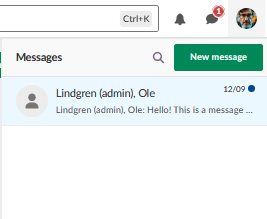
- Select the green New message button.
- The message composer opens.
3.3 Adding recipients
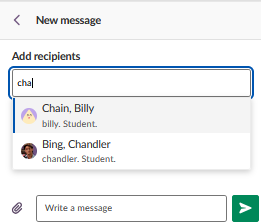
- In the Add recipients field, search for the recipients:
- An individual student, by name.
- A course name, to message all course participants.
- A project name, to message the members of a project.
3.4 Choosing the message type
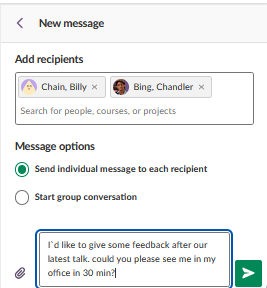
If you message more than one person, select one of the following:
| Option | Behaviour |
|---|---|
| Group conversation | An ongoing discussion where every participant can see all the messages. |
| Individual messages | A separate conversation with each person. |
3.5 Composing your message
- Type your message in the text field.
- To add an attachment, select the paperclip icon. The size limit is 20 MB.
Note: Keep messages clear and professional.
3.6 Sending the message
- Select the green arrow button to send your message.
3.7 Monitoring responses
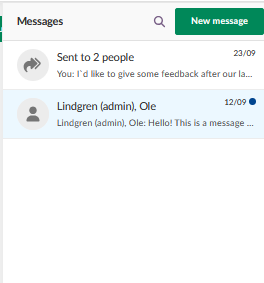
- Return to the messages panel.
- View replies. Conversations update instantly.
- Check the read or unread status.
- Continue the conversation.
3.8 Managing conversations
- Select the settings icon (gear) in a conversation.
- Select one of the following options:
- Search within the conversation.
- Mark the conversation as unread.
- Add or remove participants (group conversations).
- Close or delete the conversation (course conversations).
More Help Resources
Have more questions? Please start with asking your school administrator.
Product Release notes
Stay updated with itslearning latest releases: https://itslearning.com/product-updates
Service Status
Check the current status of itslearning services: https://status.itslearning.com/
Ideas Portal
Share your ideas and help shape the future of itslearning: https://ideas.itslearning.com/
Roadmap
Check out our roadmap: https://itslearning.com/global/roadmap/