Profiles - Course profiles (Administrator)
TABLE OF CONTENTS
- Introduction
- 1 Overview
- 2 Prerequisites
- 3 Getting started
- 4 Step-by-step workflows
- 5 Settings on the Edit course profile page
- 6 Understanding security levels
- 7 Troubleshooting
Introduction
This article explains how to view, edit and add course profiles in itslearning. It describes every setting on the Edit course profile page, in the same order as they appear on the page, so you can follow the article while you work.
Site profiles and project profiles are configured on their own tabs on the Profiles page and are described in separate articles.
1 Overview
Course profiles in itslearning define what users can do within a course. Each participant is assigned a course profile, independent of their site profile. This allows flexibility, for example staff acting as students in one course and as teachers or administrators in another.
Course profiles control:
- Participant and group management
- Course settings and administration
- The assessment record
- Course properties such as title, description and course code
- Behaviour in courses that are synchronised
- Which participants are treated as learners
- The role that is passed to LTI tools
- The default permissions in the root folder of new courses
Course profiles work together with other permission mechanisms in itslearning. A permission that is enabled in a course profile does not necessarily override permissions or restrictions configured elsewhere, for example the permissions stored on a resource in the course.
1.1 How the settings fit together
Settings that look related can serve very different purposes. Use this table to tell them apart.
| Setting | What it does |
|---|---|
| Permissions | Determine what users with the profile can manage or change within the course. |
| Security level | Sets the management hierarchy between course profiles. It does not grant any permission by itself. |
| Include profile in learner reports | Marks the profile as one that receives teaching, so that its participants are treated as learners in reports and other learner views. |
| Course role | Maps the profile to a role that is passed to LTI tools. It does not grant any permission in itslearning. |
| Default profiles | Decide which course profile is assigned in specific situations, for example when you synchronise a course with the hierarchy. |
| Default permissions in root folder | Set the permissions that the root folder gets when a new course is created. |
| Site profile and hierarchy role | Control access outside the course and how users are added when you synchronise with hierarchy. |
2 Prerequisites
Before you configure course profiles, make sure you have:
- A System Administrator or Administrator profile with permission to manage profiles
- Access to the Administration area in itslearning
- An understanding of the course roles in your organisation and what each role needs to be able to do
3 Getting started
3.1 Opening the Profiles page
- Click your profile picture in the upper-right corner and select Admin from the personal menu.
- In the Settings section of the Administration menu, select Profiles.
- Select the Course tab. The profiles overview for course profiles opens.
Admin setting: Admin > Profiles > Course
3.2 Reading the profiles overview
The profiles overview is a read-only summary of all course profiles. You make changes on the Edit course profile page (see section 4.1).
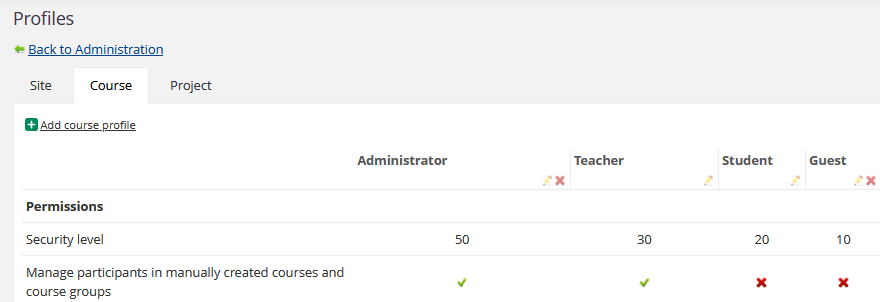
| Element | Description |
|---|---|
| Columns | One column for each course profile on your site. |
| Rows | The settings of a course profile, in the same order and groups as on the Edit course profile page: Permissions, Default profiles and Default permissions in root folder. |
| Green check mark | The setting is enabled for the profile. |
| Red cross | The setting is disabled for the profile. |
| Text or number | Shown instead of a check mark for settings that are not on/off: Security level, Manage participants and groups when course is synchronised, Manage assessment record and Course role. |
| Pencil icon | Under the name of each profile. Opens the Edit course profile page. Some profiles also show a red cross next to the pencil. It deletes the profile. |
| Add course profile | Above the table. Opens the page for creating a new course profile (see section 4.2). |
3.3 Default course profiles
A site has four course profiles from the start: Administrator, Teacher, Student and Guest. You can add more profiles and change the names of the existing ones. The names are set per site and per language in the Title section (see section 5.1), so the names on your site can differ from the ones used in this article.
4 Step-by-step workflows
4.1 Editing a course profile
- Open Admin > Profiles > Course (see section 3.1).
- Find the column of the profile you want to change and click the pencil icon under its name. The Edit course profile page opens.
- Change the title, permissions, default profiles or root folder permissions you need (see section 5).
- Review your changes and click Save. Click Cancel to leave the page without saving.
Note: A yellow notice at the top of the page says that the profile is added to an ongoing job queue and that it may take several minutes before it is added to all courses on the site.
4.2 Adding a course profile
- Open Admin > Profiles > Course.
- Click Add course profile above the table.
- Select a profile to serve as a basis for default values, and click Next. The values of the profile you select are the starting point for the new profile. Select Not defined if you do not want to base the new profile on an existing one. Click Cancel to leave without creating a profile.
- Enter a title for each language you use (see section 5.1).
- Enter a Security level that no other course profile uses (see section 6).
- Select the permissions, default profiles and root folder permissions for the profile (see section 5).
- Click Save.
Note: The Add course profile page shows the same yellow notice as the Edit page. The new profile is added to all courses on the site, and this may take several minutes.
4.3 What happens to existing courses
A change to a course profile does not always apply to existing courses in the same way. What happens depends on the type of setting you change.
| Type of setting | When the change applies |
|---|---|
| Permissions that do not depend on a resource, for example Use trash can | Immediately, for all users with the profile. |
| Standard resource permissions, set with Default permissions in root folder | Only for new courses and new elements. Existing courses and elements keep the permissions that applied when they were created, until someone changes them manually. A change also does not apply to an element where someone has already adjusted the permissions manually. |
For example, if you remove Full control from the default permissions of the Teacher profile, teachers keep Full control in the courses and elements that already exist. The new setting applies to courses and elements created after the change.
Note: A course profile change is therefore not retroactive for resource-based permissions. It is the permission state at the time of creation that persists, not the teacher's current profile.
5 Settings on the Edit course profile page
The Edit course profile page has four sections: Title, Permissions, Default profiles and Default permissions in root folder. The tables below show a recommended configuration for each setting. Recommendations are not requirements; adapt them to your organisation.
5.1 Title
The Title section has one field for each language that itslearning supports. Each language has its own name for the profile, and users see the profile with the name in the language they use in itslearning. For example, the Student profile can be shown as Student in English and Elev in Bokmål.
5.2 Security level
The Security level (0 - 100) field sets the management hierarchy between course profiles. Each profile needs its own value. Higher values can manage lower values. The security level does not grant any permission by itself. See section 6 for the details.
5.3 Participants and groups
| Setting | Description | Recommended for |
|---|---|---|
| Manage participants in manually created courses and course groups | Allows adding, editing and removing participants and organisation groups in manually created courses. Also controls the management of course groups. The security level of the participants also limits who the user can manage (see section 6). | Administrator and Teacher |
| Manage participants and groups when course is synchronised | Controls participant and group management in courses that are created or populated through an integration. Select one of the levels:
| Administrator: Synchronised and manually added participants and groups. All other profiles: Not allowed. |
| Import group structures when adding organisation groups to courses | Allows adding organisation groups that contain subgroups, for example year groups, and importing their group structure into the course. With this setting on, an entire school can also be added as a group. | Administrator. Teachers can be given this setting when they need it. |
| Manage terms when course is synchronised | Controls whether users with this profile can add, edit and delete terms in a course that was added through synchronisation (import). In manually created courses, terms can always be managed. | Administrator |
Note: If you use the course catalogue, the teacher profile must be allowed to manage participants and groups when the course is synchronised. Otherwise teachers do not get the Applicants tab on the Participants page.
5.4 Course administration
| Setting | Description | Recommended for |
|---|---|---|
| Use trash can | Gives access to the trash can in the course, for restoring or permanently deleting items such as plans and elements. | Administrator and Teacher |
| Manage events in course calendar | Allows adding, editing and deleting events in the course calendar. | Administrator and Teacher |
| Manage general administration permissions (for example, announcements, course settings and access to reports). | Gives access to general course administration functions, including announcements, course settings and reports. This is not a master permission for everything in the course. Users with this setting can see the reports, but they cannot evaluate, for example, an assignment unless they also have at least Manage assessments under Manage assessment record. Other areas have their own settings too: the course functions are controlled by Manage course functions and the course properties by the Edit settings in section 5.5. Evaluating in a folder also requires the Evaluate permission on that folder (see section 5.8). | Administrator and Teacher |
| Manage assessment record | Controls what users with this profile can do in the assessment record. Select one of the levels:
| Administrator and Teacher: Manage assessments and configuration. Student: No access. |
| Manage course functions | Allows managing the course-specific functions in the course settings (Functions under Course properties and features). Functions decide which features and menu items are available in a course, for example Plans, Reports and the assessment record. The functions that are available depend on the Course focus of the course (Subject, Class, Self-paced learning or Information hub) and on what is enabled for your site. The setting does not by itself give access to everything a function offers. Other course profile permissions and site settings still apply. | Administrator and Teacher |
5.5 Course properties, deleting and archiving
| Setting | Description | Recommended for |
|---|---|---|
| Edit course title | Allows editing the course title in manually created courses. | Administrator and Teacher |
| Edit course title in synchronised courses | Allows editing the course title in courses created through an integration. | Administrator |
| Edit course description | Allows editing the course description. | Administrator and Teacher |
| Edit course colour | Allows changing the course colour. | Administrator and Teacher |
| Edit friendly name | Allows editing the short descriptive name that makes the course easier to identify. | Administrator |
| Edit class hours | Allows changing the total number of class hours in manually created courses. | Administrator and Teacher |
| Edit class hours in synchronised courses | Allows changing the total number of class hours in synchronised courses. | Administrator |
| Edit course code | Allows editing the course code in manually created courses. | Administrator and Teacher |
| Edit course code in synchronised courses | Allows editing the course code in courses created through an integration. | Administrator |
| Delete course | Allows deleting courses. | Administrator and Teacher |
| Archive course | Allows archiving courses. | Administrator and Teacher |
5.6 Learners, student view and LTI
| Setting | Description | Recommended for |
|---|---|---|
| Include profile in learner reports (progress report, personal report, etc.) | Determines whether participants with this profile are treated as learners. Enable it for the profile of the users who receive the teaching, such as Student, and keep it off for teaching, administrative and other non-learner profiles. Despite the name, the setting is not limited to reports. It is also used in these places:
| Student only |
| Use this profile for student view in courses | Sets the profile that is used for the student view. The setting is separate from Include profile in learner reports: a profile used for the student view is not automatically treated as a learner elsewhere. | Student |
| Course role | Sets the role that is passed to LTI (Learning Tools Interoperability) tools for users with this profile. Select a role from the drop-down list: Member, Learner, Instructor, Content developer, Manager, Mentor, Administrator or Teaching assistant. The roles are LTI roles, not additional itslearning profiles. The external tool can use the role to decide what the user can do. The setting does not change the user's permissions in itslearning. A typical mapping is Administrator to Administrator, Teacher to Instructor, Student to Learner and Guest to Member. |
5.7 Default profiles
These settings decide which course profile is assigned in specific situations. For the hierarchy settings, the hierarchy role of a user is set in the site profile (Use this profile to synchronise with hierarchy role).
| Setting | Description |
|---|---|
| Use this course profile for administrators in hierarchy (when synchronising with hierarchy) | When a course is synchronised with the hierarchy, users with the Administrator role in the hierarchy automatically get this course profile. |
| Use this course profile for teachers in hierarchy (when synchronising with hierarchy) | When a course is synchronised with the hierarchy, users with the Teacher role in the hierarchy automatically get this course profile. |
| Use this course profile for learners in hierarchy (when synchronising with hierarchy) | When a course is synchronised with the hierarchy, users with the Student role in the hierarchy automatically get this course profile. |
| Use this course profile for guests in hierarchy (when synchronising with hierarchy) | When a course is synchronised with the hierarchy, users with the Guest role in the hierarchy automatically get this course profile. |
| Use this profile for default membership | The profile that is used as the default when a user is added to a course, for example in Course > Participants > Add participant, if no other profile is specified. The Student profile by default. |
| Use this profile for users creating a course | The profile that is assigned automatically to a user who creates a course. The Teacher profile by default. |
Note: Only one course profile can be synchronised with each hierarchy role. To change the mapping, enable the setting on a different course profile. The same applies to Use this profile for default membership: the setting is greyed out on the profile that has it now, and you change it by enabling it on a different course profile.
5.8 Default permissions in root folder
These settings are the permissions that the root folder of a course gets when the course is created. The permissions cascade to the elements inside the folder. They define what a user can do with the content and structure of the course. Changing them does not change existing courses (see section 4.3).
| Permission | Description |
|---|---|
| Full control | Complete authority over the folder, including managing permissions and all actions on the content. |
| Edit | Allows changing the properties and structure of the folder. |
| Write | Allows adding elements, copying items and reordering content. |
| Evaluate | Gives evaluate permissions for the elements in the folder, for example access to submissions and evaluations in Assignments and Tests. The folder itself does not use this permission. Elements inherit it. A user who does not have Evaluate on a folder cannot evaluate assignments in that folder. |
| Participate | Allows interacting with content, for example submitting assignments and joining discussions. The folder itself does not use this permission. Elements inherit it. |
| Read | View-only access to the content of the folder. |
The default settings for the four standard profiles are:
| Permission | Administrator | Teacher | Student | Guest |
|---|---|---|---|---|
| Full control | ✓ | ✓ | ✗ | ✗ |
| Edit | ✓ | ✓ | ✗ | ✗ |
| Write | ✓ | ✓ | ✗ | ✗ |
| Evaluate | ✓ | ✓ | ✗ | ✗ |
| Participate | ✓ | ✓ | ✓ | ✗ |
| Read | ✓ | ✓ | ✓ | ✓ |
Note:
- Folder permissions do not override course-level settings. They only apply to the folder and its subfolders.
- The defaults are applied when a new course is created. They can be customised later in the course.
- If a folder is deleted, all the elements inside it are affected.
6 Understanding security levels
Security levels define the hierarchy of control between course profiles. They are numbers from 0 to 100, and a higher number gives the profile more control over lower ones.
Common values:
| Profile | Security level |
|---|---|
| Administrator | 50 |
| Teacher | 30 |
| Student | 20 |
| Guest | 10 |
For a custom profile, choose a value between the existing levels. For example, 28 for a Teaching assistant profile that should rank just below Teacher.
Key principles:
- Higher security levels can manage lower levels. An Administrator (50) can manage a Teacher (30), but a Teacher cannot manage an Administrator.
- Users cannot manage participants who have a higher security level than their own.
- Only profiles with an equal or lower security level are available in View as other profile.
- Each profile must have a unique security level. If two profiles have the same value, you cannot save the changes until the values are unique.
- The security level does not grant permissions by itself. It only defines the hierarchy.
- A higher security level does not override folder permissions. The two work together.
7 Troubleshooting
7.1 Users cannot manage participants
Symptoms: The user sees the participant list but cannot add or remove participants.
Cause: The profile lacks the permission that applies to the course, or the security level of the participant is higher than the security level of the user.
Solution:
- Check whether the course is created manually or through an integration.
- Open the profile matrix and check Manage participants in manually created courses and course groups for manually created courses, or Manage participants and groups when course is synchronised for synchronised courses.
- Compare the security levels of the user's profile and the participant's profile (see section 6).
- If the missing tab is Applicants in the course catalogue, check that the teacher profile is allowed to manage participants and groups when the course is synchronised.
- Enable the setting and click Save.
Prevention: Assign the correct permissions when you set up the profile.
7.2 A profile change does not affect an existing course
Cause: Not all settings apply to existing courses. Default permissions in root folder only apply to new courses and new elements, and permissions that someone changed manually on an element stay as they are (see section 4.3).
Solution: Change the permissions manually on the course or element that should be updated.
7.3 A user can open an administration area but not perform an action
Cause: Several permissions work together. Manage general administration permissions opens the general administration areas and the reports, but it does not include managing the assessment record, changing course functions or evaluating assignments.
Solution: Check the specific setting for the action: Manage assessment record (at least Manage assessments to evaluate), Manage course functions, the Edit settings for course properties, and the Evaluate permission on the folder that contains the assignment.
7.4 Course functions differ between courses
Cause: The functions that are available in a course depend on the course focus and on what is enabled for your site.
Solution: Check the Course focus of the course. The articles about Subject, Class, Self-paced learning and Information hub courses list the functions for each focus.
7.5 A profile cannot be saved
Cause: Another course profile has the same security level.
Solution: Enter a security level that no other course profile uses (see section 6) and click Save.
More Help Resources
Have more questions? Please start with asking your school administrator.
Product Release notes
Stay updated with itslearning latest releases: https://itslearning.com/product-updates
Service Status
Check the current status of itslearning services: https://status.itslearning.com/
Ideas Portal
Share your ideas and help shape the future of itslearning: https://ideas.itslearning.com/
Roadmap
Check out our roadmap: https://itslearning.com/global/roadmap/