AI Toolkit - Differentiate learning for your students (Teacher)
TABLE OF CONTENTS
- Introduction
- 1 Why use differentiation?
- 2 Create different versions of an assignment
- 3 Review the generated versions
- 4 Choose which versions to create
- 5 Configure and assign each version
- 6 Before you share
Introduction
Students do not always need the same level of support or challenge. Differentiation in the AI Assignment tool can help you create different versions of the same assignment from one starting point.
When Differentiation is enabled, AI generates three versions of the assignment: Basic, Standard and Advanced. You review the versions, choose which ones you want to keep, and then configure and assign each version separately.
Prerequisite: Differentiation is currently available as a Beta feature in the AI Assignment tool. The AI Toolkit must be activated for your organisation before you can use it.
1 Why use differentiation?
Differentiation can help you start from the same topic or learning objective while providing different levels of support and challenge.
The three generated versions vary in areas such as language, complexity, scope and expected output:
- Basic provides a more accessible version of the assignment.
- Standard provides a balanced version of the assignment.
- Advanced provides a more challenging version of the assignment.
Remember: The three versions are starting points. You decide which versions are useful and can edit each assignment before assigning it to students.
Tip: Consider how you name the assignments. The generated versions are labelled Basic, Standard and Advanced to help you distinguish between them. Before assigning them to students, consider replacing these labels with neutral or meaningful titles that fit your class and the activity.
2 Create different versions of an assignment
Open the AI Assignment tool from Resources or from Resources and Activities in a plan.
- Check the AI Settings.
- Enter a prompt describing the assignment you want to create.
- Select relevant learning objectives.
- Select Differentiation (Beta).
- Optionally select Append rubric assessment at the end.
- Optionally add supporting resources.
- Select Generate.
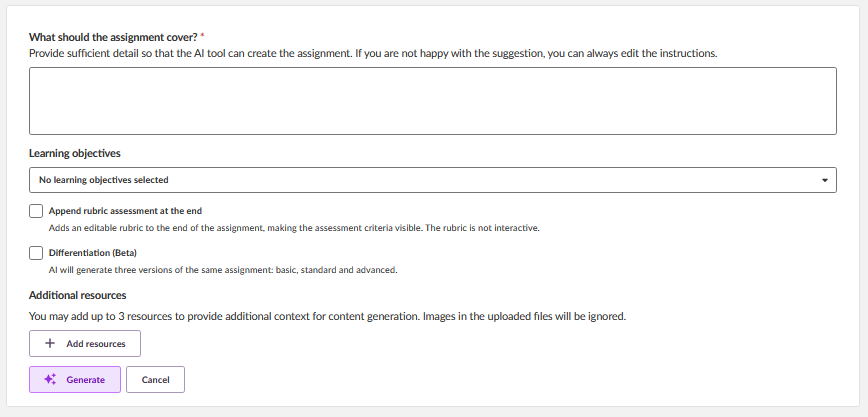
Enable Differentiation when creating an assignment to generate Basic, Standard and Advanced versions.
You can give the AI more context by selecting learning objectives and adding material that the assignment should build on.
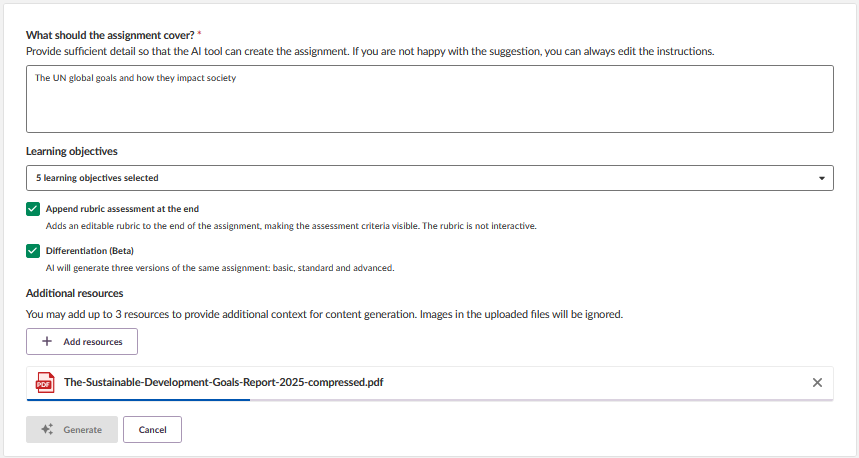
Learning objectives and additional resources can provide more context for the generated assignments.
Example prompt: Create an assignment on percentages in everyday life. Make the basic version concrete with a shopping example, the standard version a set of mixed problems, and the advanced version an open task where the students compare two phone subscriptions and argue which is better value.
Tip: Your prompt does not have to describe every detail of the three levels. Start with the learning task you want students to complete and review how AI has differentiated the result. You can refine the versions before creating the assignments.
3 Review the generated versions
AI generates three versions of the assignment side by side: Basic, Standard and Advanced.
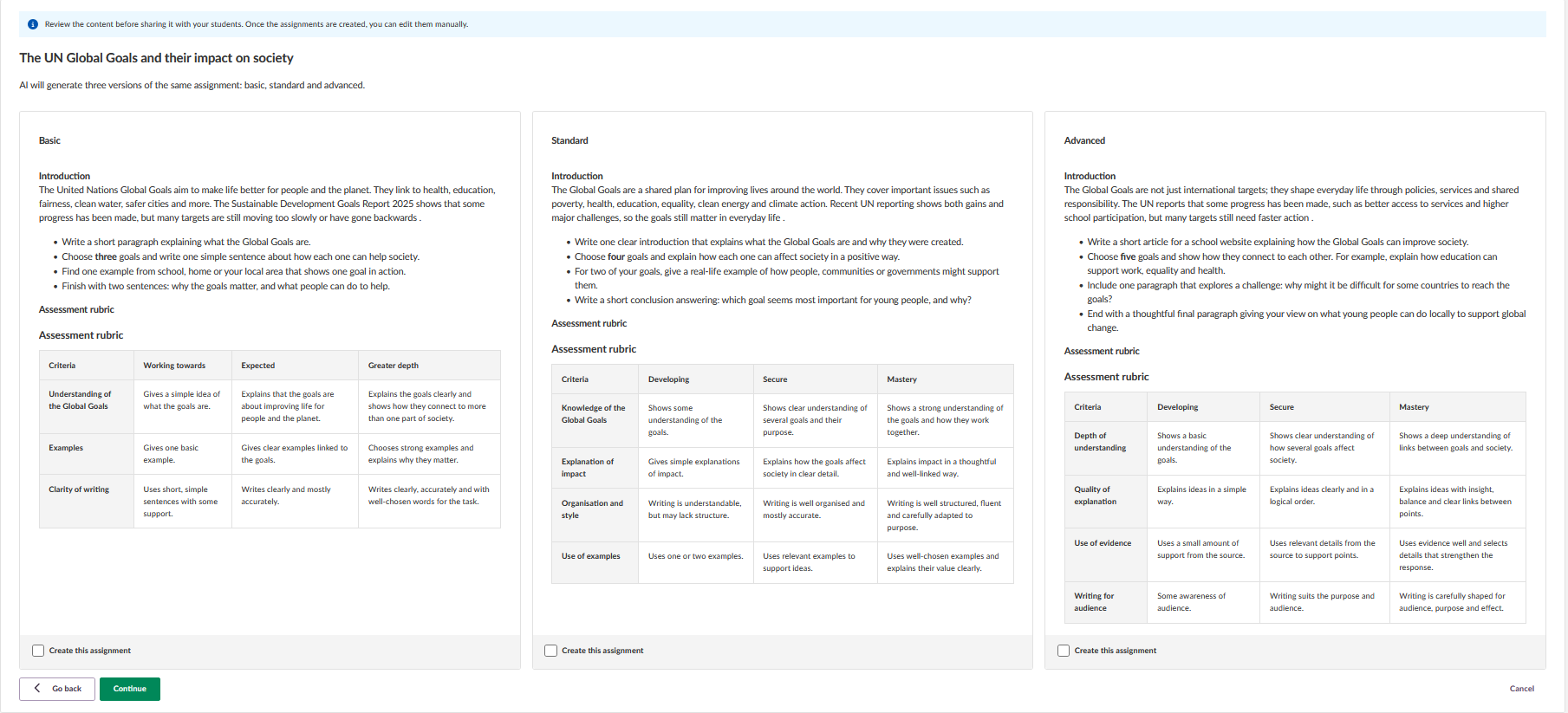
Compare the Basic, Standard and Advanced versions before deciding which assignments to create.
Read each version and consider whether the differences make sense for your students. Check:
- the complexity of the language;
- the amount of guidance and support;
- the complexity of the student task;
- what students are expected to produce;
- whether the assignment still addresses the intended learning objectives.
Important: Basic, Standard and Advanced are generated suggestions. They do not determine which version is appropriate for an individual student. Review the content and use your professional judgement before assigning any version.
4 Choose which versions to create
You do not have to create all three versions.
At the bottom of each generated version, select Create this assignment for the versions you want to keep. When you have made your selections, select Continue.
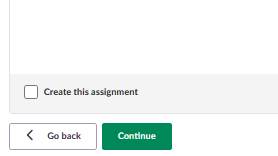
Select only the versions you want to create.
5 Configure and assign each version
Each version you selected now opens in the standard itslearning Assignment tool, one at a time.
If you selected all three versions, the title shows your progress as you work through them, for example New assignment (1 of 3), New assignment (2 of 3) and New assignment (3 of 3).
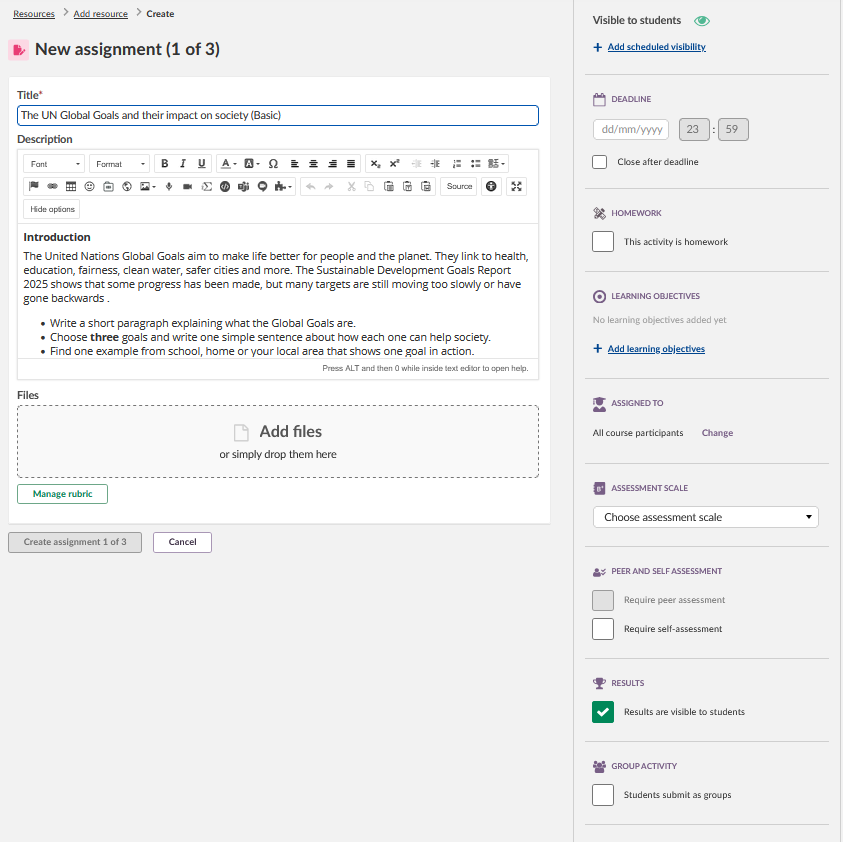
Review and configure each selected version in the standard Assignment tool.
For each assignment, you can:
- edit the title and generated content;
- set the deadline;
- check the learning objectives;
- choose who the assignment is assigned to;
- configure assessment and other assignment settings.
Create the first assignment to continue to the next selected version.
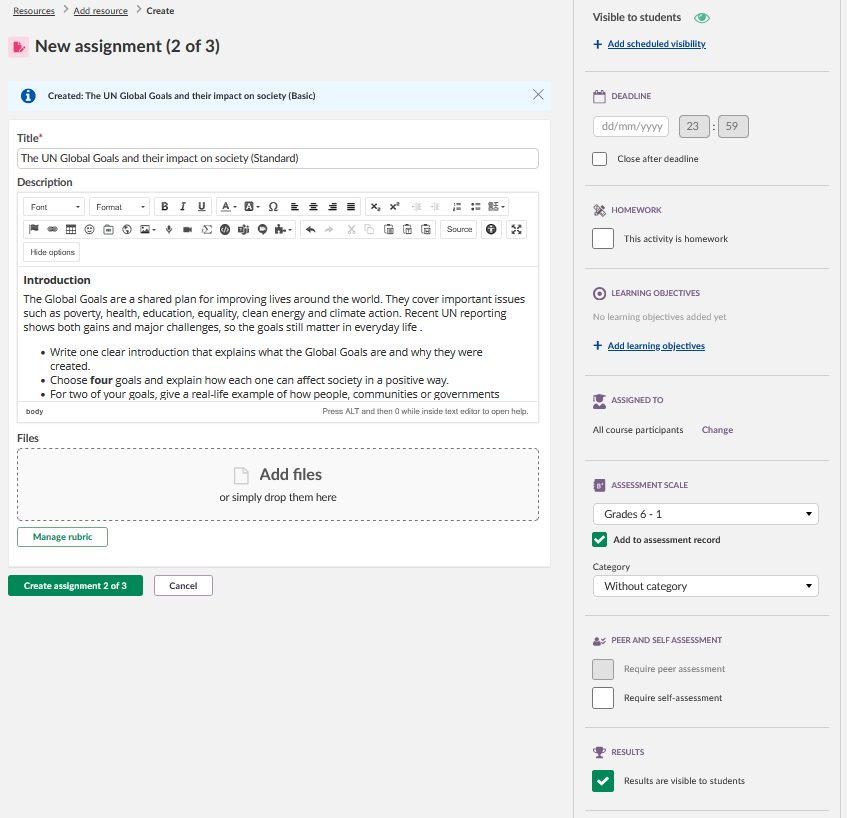
After creating one version, continue with the next selected assignment.
When you have finished, the selected versions are created as separate assignments in the plan or resource folder.
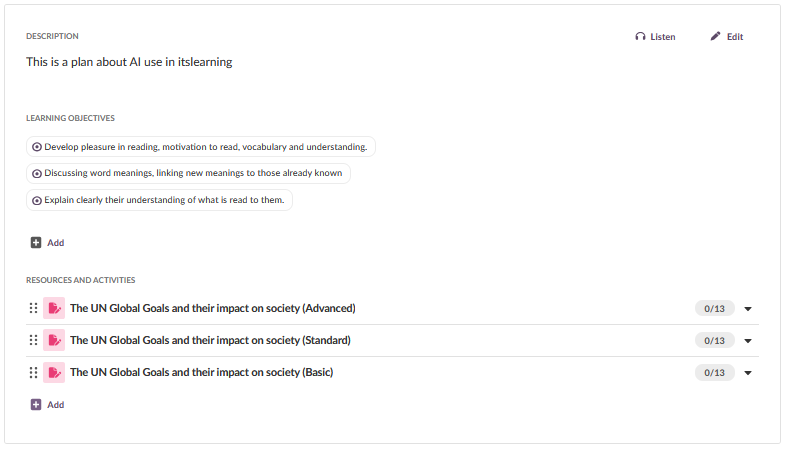
Each selected version is created as a separate assignment.
Important: The versions are independent assignments. Check the Assigned to setting for each assignment to make sure the appropriate students receive the intended version.
6 Before you share
Differentiation can give you a useful starting point, but the generated levels should always be reviewed before students use them.
Before assigning the versions, check that:
- each version addresses the same intended learning objective;
- the differences between the versions are meaningful;
- the language and instructions are clear;
- the level of support or challenge is appropriate;
- facts, examples, suggested answers and rubrics are accurate;
- each assignment is assigned to the intended participants.
Want better results? See AI Toolkit – Prompt suggestions (Teacher) for prompt examples, including examples for Differentiation.
Want to create other types of teaching and learning content? See AI Toolkit – Create teaching and learning content (Teacher).
Need more background? See AI Toolkit – Overview and getting started (Teacher).
More Help Resources
Have more questions? Please start with asking your school administrator.
Product Release notes
Stay updated with itslearning latest releases: https://itslearning.com/product-updates
Service Status
Check the current status of itslearning services: https://status.itslearning.com/
Ideas Portal
Share your ideas and help shape the future of itslearning: https://ideas.itslearning.com/
Roadmap
Check out our roadmap: https://itslearning.com/global/roadmap/