-
-
- Users and access rights - Reference (Sysadmin)
- Supervisor (Mentor and Headteacher) Roles – Configuration (Sysadmin)
- Workflow
- Hierarchy – Reference (Sysadmin)
- Hierarchy - Roles and Permissions (Sysadmin)
- User Management – Importing Users by CSV (Sysadmin)
- Profile Pictures and Avatars - System Administrator Guide
-
- Setting up the course catalogue (admin)
- Individual Learning Plans – Template Configuration (Sysadmin)
- Courses - Administration - Reference (Sysadmin)
- Projects – Administration (Sysadmin)
- Bookins mangement - Room and Resources - Administrator Guide
- Terms - Manually Managing Terms (Sysadmin)
- Settings for Learning Objective Reports - System Administrator
- Learning Objectives Repository - Sysadmin
- Learning Objective Repository – Importing via XLSX (Sysadmin)
- Trash Can – Overview (Sysadmin)
- Cross site templates - sysadmin
- Attendance system
- Calendar – Managing External Calendars for Organisations (Sysadmin)
-
- Automated integration with a Student Information System
- LTI Integrations
- Single Sign-On - Updating SAML IdP Metadata and Certificates (Sysadmin)
- SIS Integration – IMS Enterprise Import Status Emails (Sysadmin)
- Test Mode Browser (Overview)
- Test Mode Browser – Installing the itslearning LockDown Browser Extension for Chromebooks (Sysadmin)
- Microsoft Cloud Services – Connecting Microsoft 365 to itslearning (Sysadmin)
- MS Team Integration - setup
- Outlook integration - Paid add-on
- Connecting your G Suite domain to itslearning
- Swedish integration- Skola24 – Calendar Integration for Swedish Customers (Sysadmin)
- German integration- Univention UCS@school – Provisioning API (Sysadmin)
- German integration- Univention UCS@school - ID Broker Connector (Sysadmin)
- Univention UCS@school – Itswizard) Connector (Sysadmin)
- Dutch integration: Timetable integration -
- Dutch integrations - Timetable Integration Notification – Assigning Appointments
-
-
- Main menu - Overview (Teacher)
- Login - Getting started
- Navigation - Getting started (Teacher)
- Personal settings - Getting started
- Courses - Getting started (Teacher)
- Plans - Getting started (Teacher)
- Resources and activities - Getting started (Teacher)
- Resources and activities - Overview (Teacher)
- Assignments - Getting started (Teacher)
- Calendar - Getting started (Teacher)
- Messages - Getting started (Teacher)
- Keyboard shortcuts - Overview
- Tests - Getting started (Teacher)
-
- Notification Preferences – Overview (Teacher, Admin)
- Profile Pictures and Avatars – Overview (All users)
- Personal Settings – Overview (All users)
- Product Updates – Release Note Sharing (All users)
- Supervisor Roles – Mentors and Headteachers (Teacher)
- Font Selection – Overview (All users)
- Rich Text Editor – Reference (All users)
- Search – Overview (All users)
-
- Course Focus - Choosing the Right Course Type (Teacher)
- Class Course – Reference (Teacher)
- Self-Paced Courses – Complete Guide
- Information hub course – Overview
- Subject Course settings - Reference (Teacher)
- Course Participants Page (Teacher)
- Course Templates – Reference (Teacher)
- Using the course catalogue (Teacher)
- The permission system - Admin and teacher guide
- Learning Objectives – Reference (Teacher)
- Courses – Student View (Teacher)
- Courses – Archiving (Teacher)
- Course Card Images
- Image selector - Teacher guide
- Course Templates – Cross-Site Templates (Teacher)
- Teacher - Course Import Guide
- Teacher - Course export guide
-
- Resources – Overview (Teacher)
- Resource Page – Reference (Teacher)
- Immersive Reader – Overview (All users)
- Test – Updating from Test 2.0 to Test 3.0 (Teacher)
- Files – Overview (Teacher, Student)
- Files – Saving Course Materials (All users)
- Library – Reference (Teacher)
- Brand Icons – Reference (All users)
- H5P – Upload and Play Content (Teacher)
-
- AI Toolkit – Overview and Getting Started (Teacher)
- AI Toolkit – Prompt Suggestions (Teacher)
- Assignment – Reference (Teacher)
- Tasks – Overview (Teacher)
- Discussions – Reference (Teacher)
- Registrations – Reference (Teacher)
- Learning Paths – Reference (Teacher)
- Tests – Reference (Teacher)
- Survey Tool – Reference (Teacher)
- Page – Create and Manage Content (Teacher)
- Assignment – Combined Assignment and Task Tool (Teacher)
- Assignment – Custom Labels (Teacher)
- SCORM – Importing and Using Content (Teacher)
-
- Reports - Overview (Teacher)
- Assignment Report - Overview (Teacher)
- Progress Report – Reference (Teacher)
- Learning Objectives Alignment Report - Overview (Teacher)
- Learning Objectives Progress Report - Overview (Teacher)
- Attendance – Overview (Teacher)
- 360° Reports – Overview (Teacher)
- 360° Reports – Activity Report (Teacher)
- 360° Reports – Progress Report (Teacher)
- 360° Reports – Grades Report (Teacher)
- 360° Reports – Resources Summary (Teacher)
- 360° Reports – Notifications and Weekly Updates (Teacher)
- Assessment Record / Gradebook - Reference (Teacher)
- ePortfolio – Overview (Teacher)
- ePortfolio – Managing Your Portfolio (Teacher)
-
- LTI tool – adding external tools to a course (2026)
- H5P integration – Creating a Learning Activity in a Plan (Teacher)
- Microsoft Office templates in the Assignment tool
- Google templates in the Assignment tool
- Using MS Teams in itslearning and Fronter 19
- Using Google Meet in itslearning and Fronter 19
- Equation editor - iMathEQ
- Accessibility Checker (Plugin)
- MS Teams Integration
-
-
-
LTI Integrations
itslearning partners with companies that share our commitment to improve education through technology. The main mechanism for this is the international LTI specification which allows for seamless connection of web-based applications and content hosted in other platforms.
TABLE OF CONTENTS
- Learning Tools Interoperability (LTI)
- How to find apps available
- What if my favourite app is not yet supported?
- Where to find more information?
Learning Tools Interoperability (LTI)
LTI is short for Learning Tools Interoperability and allows for seamless connection of web-based applications and content hosted in other platforms. As an itslearning user, you can use LTI integration to connect apps that support LTI. While itslearning may not supply the apps, it facilitates their use in the platform.
itslearning supports LTI versions 1.0, 1.1 and 1.3. However since versions 1.0 and 1.1 are deprecated by 1EdTech since June 2022, any new tool integrations will use version 1.3.
You can see the list of itslearning's certifications in the 1Edtech TrustEd Apps Directory.
How to find apps available
To find the apps available for you to enable, as a system administrator, go to Administration and Manage Apps.
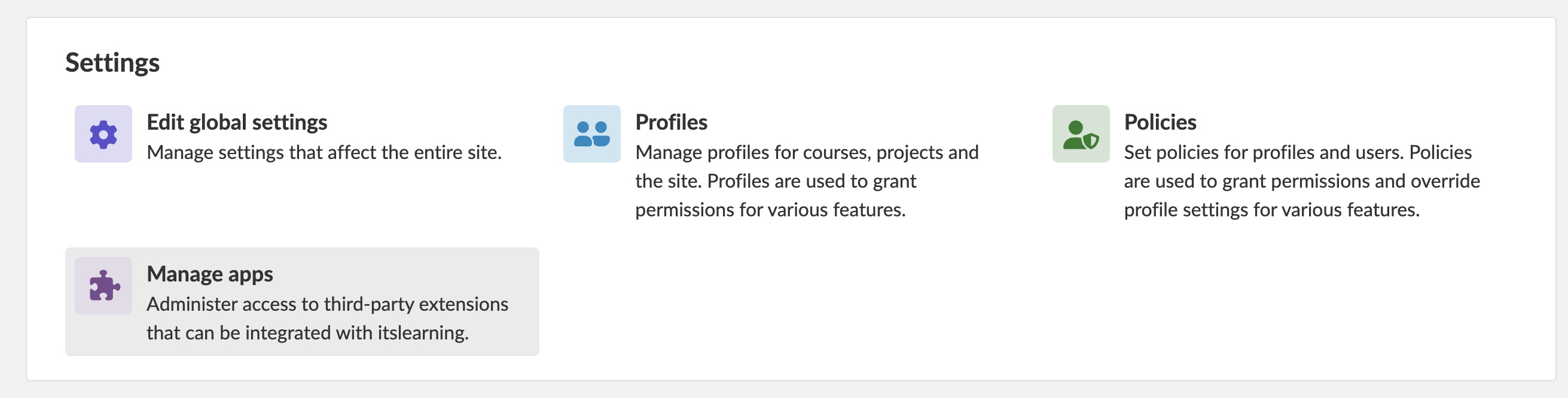
There are three types of apps in itslearning: Modules, Apps and Plugins (read more about the types here). Most of the new tools are available as Apps.
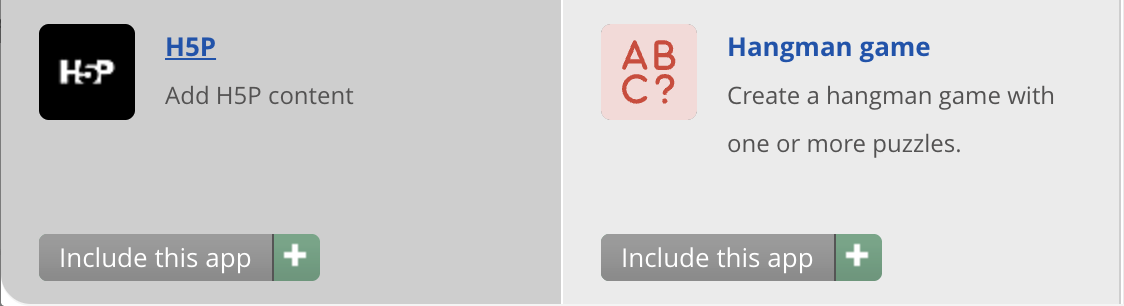
To see the tool specific set up instructions, go to e.g. Add app, browse the app library, and click on the title of the app.
What if my favourite app is not yet supported?
Are you using a tool not visible in our app library? Please reach out to your itslearning contact.
Where to find more information?
The itslearning developer portal contains all the information you or your app vendor may need on how to get started.