ePortfolio – Overview (Teacher)
TABLE OF CONTENTS
- Introduction
- 1 Overview
- 2 Prerequisites
- 3 Enabling portfolio assessment in a course
- 4 The Portfolios
- 5 The personal ePortfolio
- 6 Frequently asked questions
Introduction
Portfolio assessment in itslearning allows students to collect and present coursework within a course. When a teacher enables this feature, two portfolios are created automatically for each enrolled student: a working portfolio and an assessment portfolio. Teachers access and assess these portfolios from the Reports tab in the course.
All users in itslearning can also have access to a personal ePortfolio, which is independent of any course and can be used for academic courses, professional development, or personal interests.
1 Overview
When portfolio assessment is enabled in a course, two portfolios are created automatically for each enrolled student:
| Portfolio | Purpose |
|---|---|
| Working portfolio | Contains all work the student has completed within the course. Students can transfer items from the working portfolio to the assessment portfolio. Teachers can also add files to a student's working portfolio directly. |
| Assessment portfolio | A curated selection of student work demonstrating competency and growth. Students build this by transferring items from the working portfolio or by adding content directly. Teachers can assess this portfolio. |
Both portfolios are linked to the student's personal ePortfolio and remain accessible after the course has been completed.
Note: The way portfolios are built, customised, and shared is the same for both portfolio types. The main differences are that assessment portfolios can be assessed by the teacher, and that teachers can override access permissions on assessment portfolios.
2 Prerequisites
Prerequisite: The ePortfolio feature must be enabled site-wide by a system administrator before portfolio assessment is available in courses.
Prerequisite: Portfolio Assessment must be enabled in the course settings by the teacher. Once enabled, working and assessment portfolios are created automatically for all enrolled students.
3 Enabling portfolio assessment in a course
- Open the course and click the Reports tab.
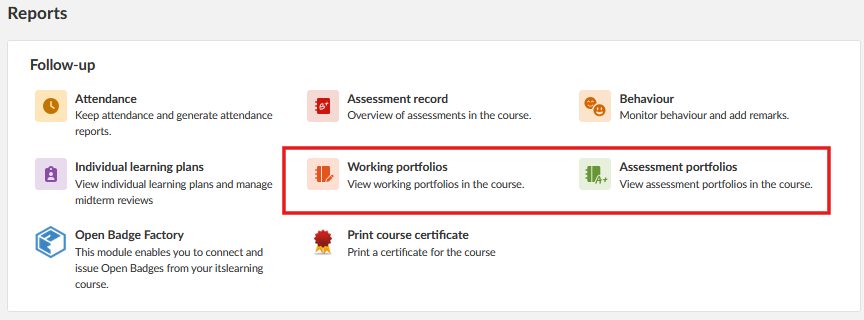
- If Working Portfolio is not listed under the Reports tab, click More in the course menu.
- Select Course Properties and Features.
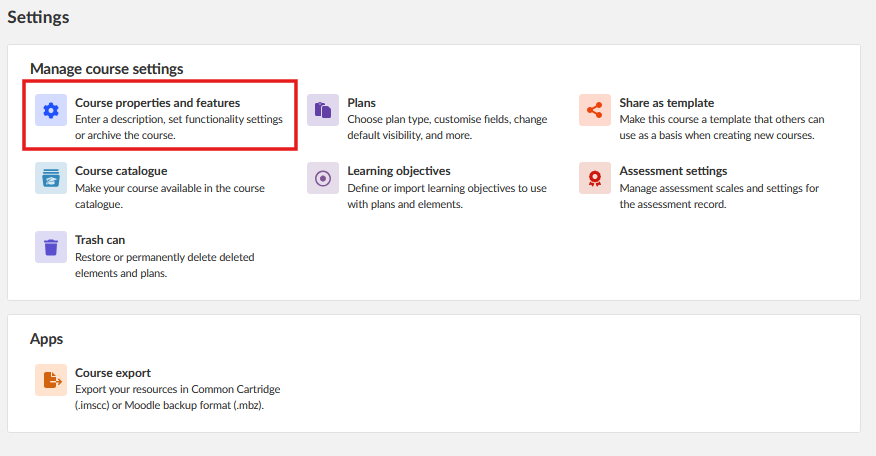
- Scroll down and enable Portfolio Assessment.
Note: If Portfolio Assessment is not available in the course settings, contact your system administrator to have it enabled at the site level.
Working and assessment portfolios are created automatically for all enrolled students once the setting is saved.
4 The Portfolios
Teachers access student portfolios from the Reports tab in the course. Both the working portfolio and the assessment portfolio are listed there.

4.1 Working portfolio
The working portfolio contains all the work a student has completed within the course. From the working portfolio view, teachers can see the list of enrolled students and their submitted work. Teachers can add files to a student's working portfolio directly if necessary.
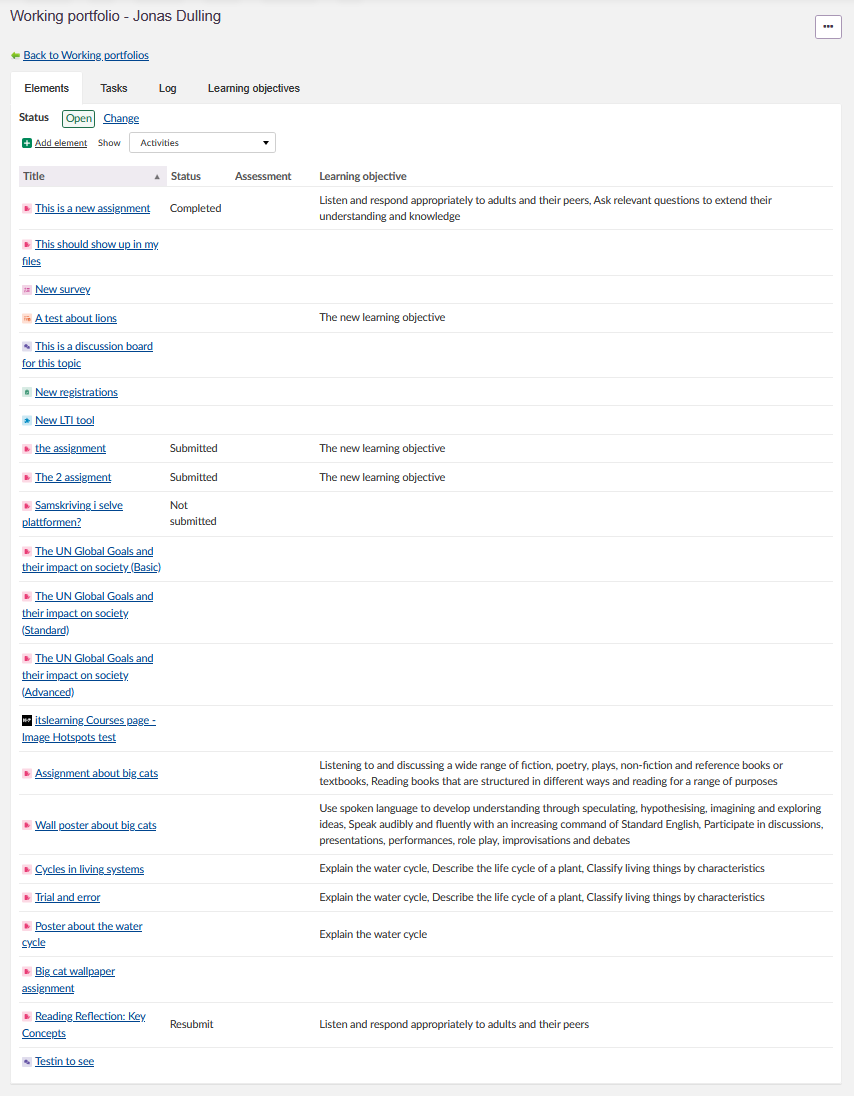
Note: Students access the working portfolio from the course menu. Students can transfer items from the working portfolio to their assessment portfolio, and can also add items to the assessment portfolio that were not part of course assignments.
4.2 Assessment portfolio
The assessment portfolio contains work the student has selected to present, demonstrating competency and growth. Students organise this portfolio by creating categories and adding pages.
As a teacher, you can:
- View the student's assessment portfolio.
- Assess the portfolio.
- Override access permissions for the assessment portfolio.
- Restrict access so that only students and teachers in the course can view the portfolio.
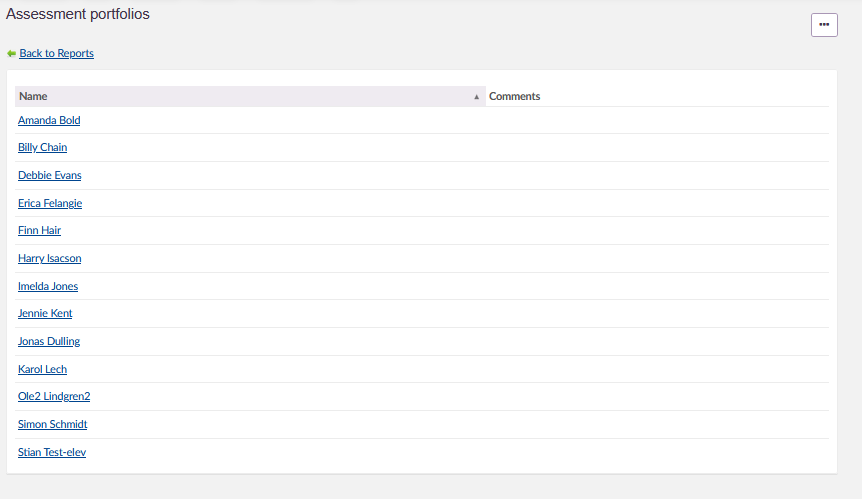
The assessment portfolio is linked to the student's personal ePortfolio and remains intact after the course has been completed.
5 The personal ePortfolio
All users in itslearning can have access to a personal ePortfolio, independent of any course. Portfolios can be created for academic courses, professional development, or personal interests. The ePortfolio start page displays all portfolios as cards.
5.1 Accessing your ePortfolio
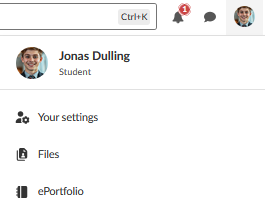
To open your ePortfolio, click your name in the upper right-hand corner of the platform and select ePortfolio from the personal menu.
The ePortfolio start page shows all your portfolios as cards. The About me section is on the left-hand side of the page. Global Settings is available in the top right of the start page.
5.2 Profile and global settings
To set up your profile, open your ePortfolio and click to edit your profile. You can add a profile picture and an email address. The About me section is where you introduce yourself and describe the purpose of your ePortfolio.
In Global Settings (top right of the ePortfolio start page), you can:
- Choose whether to display your blog.
- Control who has access to your ePortfolio.
- Password-protect your ePortfolio to limit access.
- View available disc space.
5.3 Creating a portfolio
You can create as many portfolios as you like. Each portfolio can contain multiple pages, which can be organised into categories displayed as folders.
To create a new portfolio:
- Click the Add new portfolio (+) card on the ePortfolio start page.
- Enter a title for the portfolio.
- Select a banner from the available options.
- Set access permissions and, if required, enable password protection.
- Click Save.
Once a portfolio has been created, you can add categories and pages.
To add categories:
- Open the portfolio.
- Add a category with a name, a short name, and an optional description.
- Save the category. It appears as a folder in the portfolio.
To add pages:
- Click Add page.
- Select which category to save the page in. If no category is selected, the page is saved outside the category folders.
The portfolio layout displays all pages you have added, organised within their category folders.
5.4 Blog
If the blog feature has been enabled by the system administrator, a blog is displayed as part of the ePortfolio.
Blog features include:
- Creating, editing, and publishing blog posts.
- Viewing and managing comments. Comments can be disabled on individual posts or across the entire ePortfolio.
- The blog start page displays the 10 most recent posts.
- Posts are grouped by month in the navigation menu.
- Draft posts are visible to the author in the navigation menu but are not shown to visitors.
- Subscribing to entries via RSS, depending on user settings.
Note: New comments appear as a badge on the blog card on the ePortfolio start page and are highlighted in the comment section of the relevant blog post. Email notifications for new comments are enabled by default. To change this setting, go to Your settings > Alerts.
To share a blog post or the entire blog, click the Share blog button to generate a shareable link.
5.5 Sharing and exporting
You can share or export a portfolio in two ways:
- Share via link: Share your entire portfolio from your ePortfolio profile, or share an individual portfolio using the Share portfolio tab under the banner.
- Export as zip file: Download the entire portfolio as a zip file for offline use or archiving.
Note: Blog posts are not included when a portfolio is exported as a zip file.
6 Frequently asked questions
6.1 Can I lock a portfolio to prevent further changes?
No. It is not possible to lock a portfolio against further changes.
6.2 Can I add external links to a portfolio?
No. The external links list has been discontinued and is no longer available in the ePortfolio. itslearning apps and modules are also no longer accessible within the ePortfolio.
6.3 Can visitors leave anonymous comments?
No. All comments are attributed to the commenter. Anonymous commenting is not supported, to ensure security and data privacy and to prevent spam.
6.4 How do I check available disc space?
Click Global Settings on your ePortfolio start page to view available disc space.
More Help Resources
Have more questions? Please start with asking your school administrator.
Product Release notes
Stay updated with itslearning latest releases: https://itslearning.com/product-updates
Service Status
Check the current status of itslearning services: https://status.itslearning.com/
Ideas Portal
Share your ideas and help shape the future of itslearning: https://ideas.itslearning.com/
Roadmap
Check out our roadmap: https://itslearning.com/global/roadmap/