Learning Objectives Alignment Report - Overview (Teacher)
TABLE OF CONTENTS
Introduction
The Learning Objective Alignment Report shows all learning objectives in a course and whether each objective has been linked to a resource or plan. Use this report to track coverage of learning objectives across the school year.
1 Overview
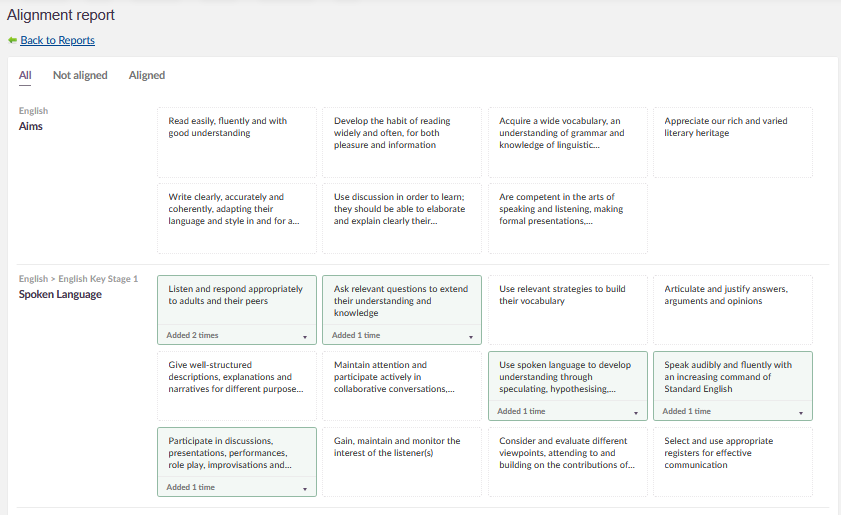
The report is organised by subject and curriculum strand. Each learning objective appears as a card showing whether it has been linked to course content, and how many times it has been linked.
2 Accessing the report
- Open your course.
- Select Reports in the course navigation bar.
- Under Detailed reports, select Learning objective alignment report.
3 Reading the report
Learning objectives are displayed as cards, grouped by subject and curriculum strand. The hierarchy is shown as a label above each group, for example English > English Key Stage 1.
3.1 Objective status
Each card indicates whether the objective has been linked to resources or plans in the course:
| Appearance | Meaning |
|---|---|
| Card with coloured border and Added X time(s) | Aligned — the objective has been linked to one or more resources or plans |
| Plain card with no count | Not aligned — the objective has not been linked to any resources or plans |
3.2 Filtering by alignment status
Three tabs at the top of the report filter the view:
| Tab | Shows |
|---|---|
| All | All learning objectives in the course, regardless of alignment status |
| Not aligned | Only objectives not yet linked to any resources or plans |
| Aligned | Only objectives linked to at least one resource or plan |
4 Viewing linked resources
To see which resources or plans an objective has been linked to:
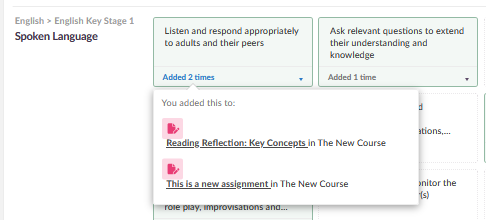
- In the report, click on an aligned objective card (any card showing Added X time(s)).
- A dropdown appears below the card listing the resources and plans the objective has been added to. Each entry shows the resource name and the course it belongs to.
- Click a link to open that resource or plan directly.
More Help Resources
Have more questions? Please start with asking your school administrator.
Product Release notes
Stay updated with itslearning latest releases: https://itslearning.com/product-updates
Service Status
Check the current status of itslearning services: https://status.itslearning.com/
Ideas Portal
Share your ideas and help shape the future of itslearning: https://ideas.itslearning.com/
Roadmap
Check out our roadmap: https://itslearning.com/global/roadmap/